You tried AI in your design workflow.
It generated a beautiful screen in 30 seconds.
Then you opened the file… and your design system was gone.
Hardcoded hex values. Broken auto-layout. Invented components. Deprecated APIs. What looked like velocity was actually technical debt wearing makeup.
If you're a senior designer, UX lead, or technical founder, you're not asking “Can AI design a landing page?”
You're asking: How do I use AI without destroying five years of system architecture?
This is not about prompt hacks. This is about governance, metadata, and constraint engineering.
Let’s fix it properly.
The Root Cause of AI UI Inconsistency in Enterprise Products
AI doesn’t break your design system by accident.
It breaks it because it doesn’t understand it.
Why Generative Models Ignore Your Semantic Design Tokens
AI models don’t “respect” your system. They statistically predict what a UI should look like.
So instead of:
- color-brand-primary
- spacing-layout-medium
- button-primary-background-default
You get:
- #FF5733
- 14px
- Random spacing like 13px and 27px
The model sees pixels. Your system runs on meaning.
If your tokens are not machine-readable (JSON/YAML aligned with DTCG standards), the AI defaults to visual mimicry.
No metadata = no compliance.
The Danger of Component Hallucination at Scale
Hallucinated components are not cute bugs.
They are deployment blockers.
AI will:
- Invent token names that don’t exist
- Reference deprecated React APIs
- Inject unsupported SVG libraries
- Rewrite entire navigation structures for a logo swap
And leadership thinks you're shipping 10x faster.
In reality, you’re stuck in the 80% velocity illusion — where the last 20% takes longer than building it manually.
If you're curious how this illusion plays out across multi-screen workflows, read our breakdown of Flow Mode vs traditional wireframing in our related UXMagic analysis.
Preparing Your Design System Architecture for AI Integration
Before you introduce AI, you need to audit aggressively.
AI amplifies system flaws. It doesn’t fix them.
Step 1: Conduct a Ruthless System Audit
Remove:
- Detached components
- Legacy hardcoded hex values
- Random overrides
- Unlinked primitives
If your Figma file is messy, AI will multiply the mess.
Step 2: Implement a Strict Three-Tier Token Hierarchy
Your token structure must be hierarchical and machine-readable:
Primitive Tokens
- #0052CC
- 16px
- Roboto
Semantic Tokens
- color-brand-primary
- spacing-layout-medium
- font-family-body
Component Tokens
- button-primary-background-default
- card-border-radius-large
If you’re not structuring tokens like this, you’re not AI-ready.
For a technical guide on structuring JSON design tokens properly, see our deep dive on DTCG-aligned token architecture.
Step 3: Inject Deep Component Metadata
AI does not intuit context.
You must explicitly define it: { "semantic_role": "warning", "avoid_when": "primary_navigation", "pairing_rules": "requires_confirmation_modal" }
If you don’t teach the AI constraints, it invents them.
Workflows That Constrain AI and Protect Figma Auto-Layout
The biggest myth in AI design: “Just prompt better.”
Wrong.
You need structured constraint workflows.
Implementing the guidelines.md Protocol
Instead of flooding the AI with scattered documentation:
Create one highly optimized guidelines.md file.
Top-load it with:
- Non-negotiable architecture rules
- Token hierarchy definitions
- Deprecated APIs
- Component usage constraints
AI attention is limited. Put critical rules at the top.
Sectional Editing vs Full-Page Regeneration Risks
Never prompt: “Generate an entire dashboard.”
That guarantees hallucination.
Instead:
- Generate component-by-component
- Isolate editing to specific zones
- Force JSON configuration edits instead of raw React rewrites
This is how you prevent catastrophic structural mutation.
If you're exploring granular editing workflows, our breakdown of sectional editing in system-first AI tools goes deeper into safe regeneration strategies.
Validating AI Outputs in the CI/CD Engineering Pipeline
Treat AI output as hostile code.
Every time.
- Real-Time AI Linting
Use in-tool linters to:
- Flag raw hex usage
- Detect spacing inconsistencies
- Remap to semantic tokens
Manual auditing is not scalable.
- Auto-Layout Restructuring
AI tools default to absolute positioning.
You must:
- Group properly
- Apply native Auto-Layout
- Enforce flex behaviors (hug, fill, fixed)
If you skip this, mobile collapses.
- Visual Regression Testing in CI/CD
Connect:
- Figma
- GitHub/GitLab
- Jira/Linear
Run automated visual regression testing using tools like Applitools or Percy to detect subtle spacing drifts and token mutations.
We cover the full DevOps integration workflow in our guide to visual regression testing for AI-generated UI.
If you’re not doing this, you’re shipping invisible inconsistencies.
Why Generic AI UI Generators Fail Senior Design Teams
Let’s be blunt.
Most AI UI generators are optimized for:
- Indie hackers
- MVP builders
- Investor decks
- Disposable experiments
They rely on:
- Fixed themes
- Hardcoded values
- Absolute positioning
- Mobile-only outputs
- Full-page regeneration for small edits
That works if you're cloning landing pages.
It fails if you're maintaining a five-year enterprise platform.
Importing Existing Figma Systems with UXMagic to Enforce Consistency
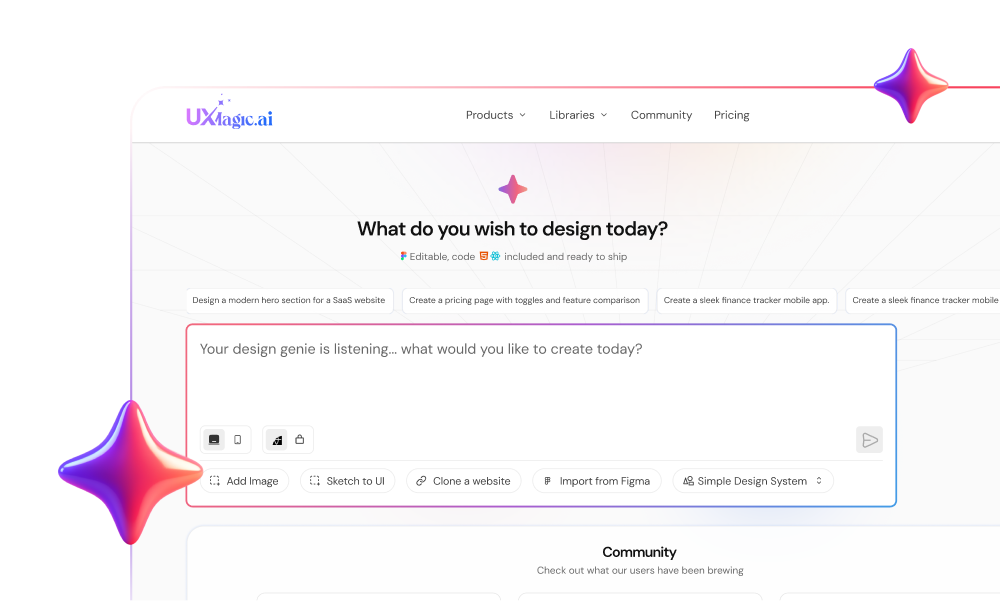
The fundamental difference with UXMagic is simple:
It assumes your design system already exists.
Instead of generating rogue UI:
- You import your Figma components first
- Tokens and variants are locked in
- Flow Mode generates multi-screen journeys consistently
- Native Auto-Layout is enforced at export
- Sectional editing prevents structural collapse
No “rebuild everything from scratch” penalty.
If you want to see how the Figma import workflow works step-by-step, explore the UXMagic component import feature page.
This is system-first AI — not vibe-based generation.
Quick Reality Check
If AI “works perfectly” inside your workflow right now…
You probably don’t have a real design system.
AI doesn’t replace architecture. It exposes it.
AI will not protect your system.
You have to design the constraints that protect it.
The teams that win won’t be the best prompt engineers.
They’ll be the best system architects.
Use AI Without Breaking Your Design System
If you want AI speed without sacrificing token integrity, Auto-Layout structure, or design-to-code alignment, try UXMagic with your existing Figma system imported first.