HTML to DesignReal Layers, No Plugin
See How AI ConvertsHTML to Design Instantly
Trusted by Designers and Developers
Faster than manual design
Responsive by default
One paste,no setup
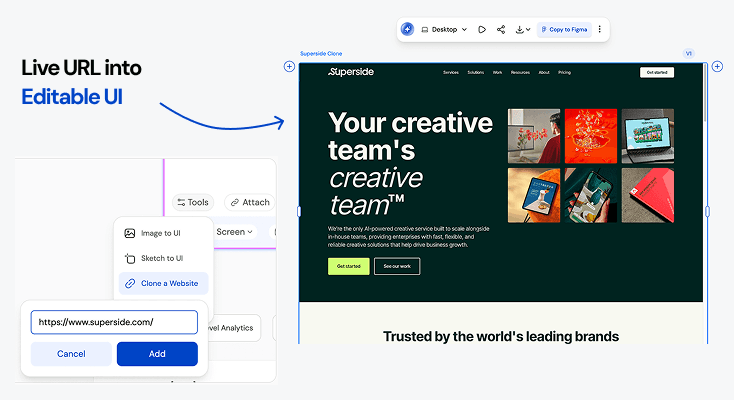
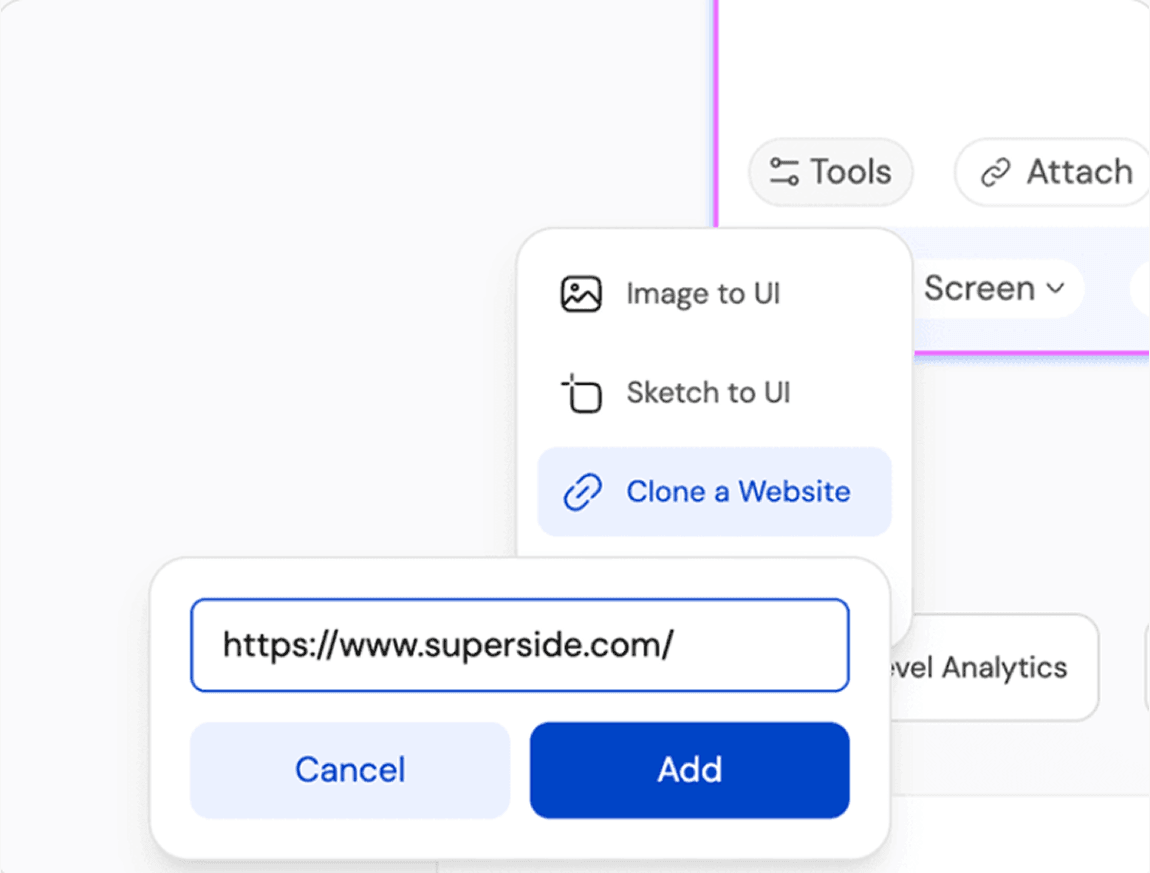
Most html to design workflows start with installing a browser extension or Figma plugin first. UXMagic skips that step entirely - paste a URL directly and get back a structured, editable html to design conversion in seconds, no chrome extension or plugin install required.
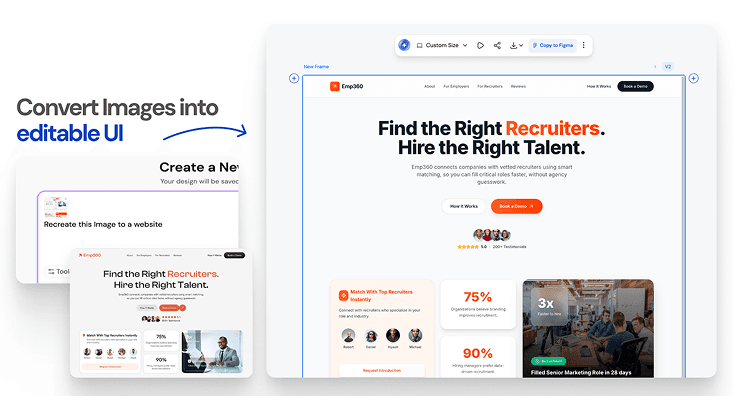
No URL?Upload a screenshot
No live URL? Upload a screenshot, PDF, or reference image instead. UXMagic analyzes the visual layout and generates the same structured, editable design output - preserving your original interface hierarchy without needing a chrome extension to capture it first.
From html to design,straight into Figma or code
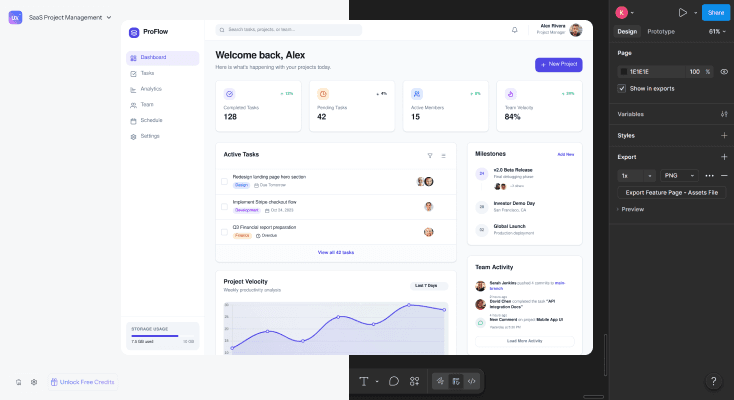
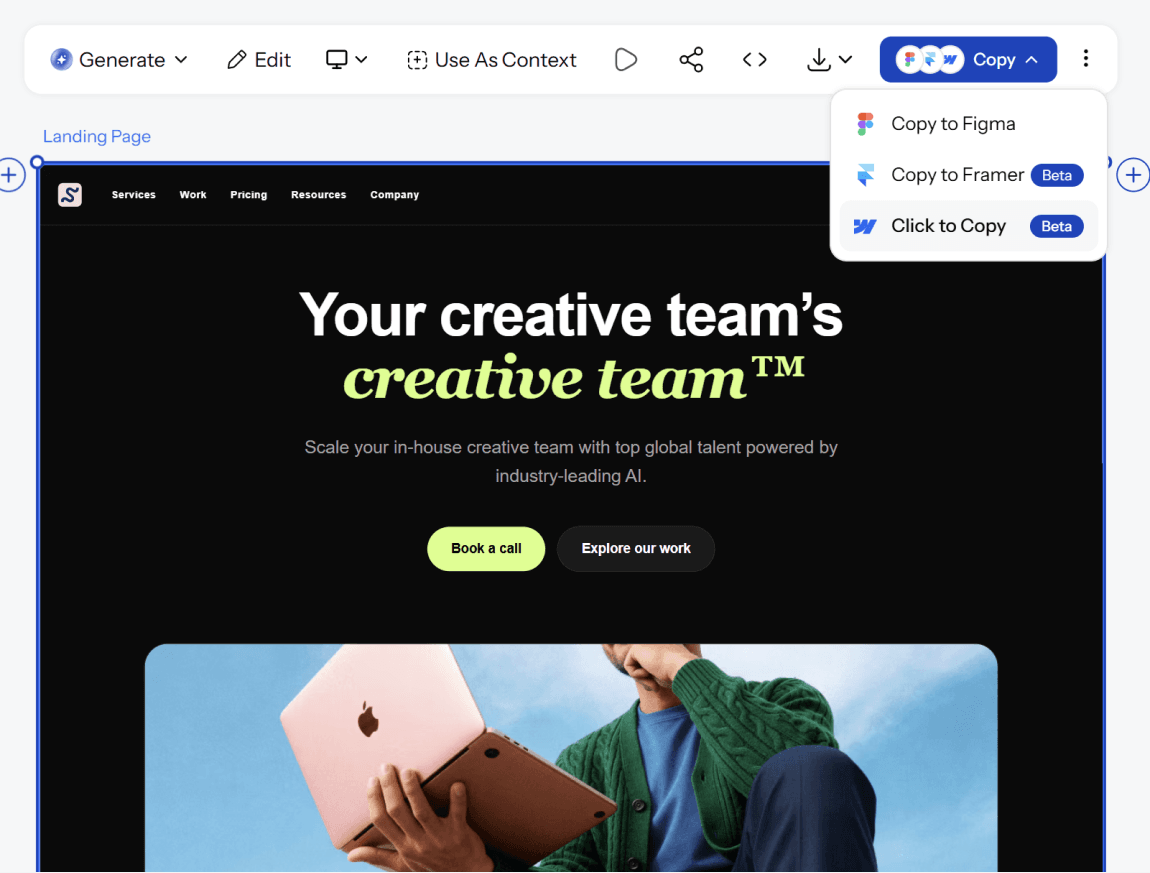
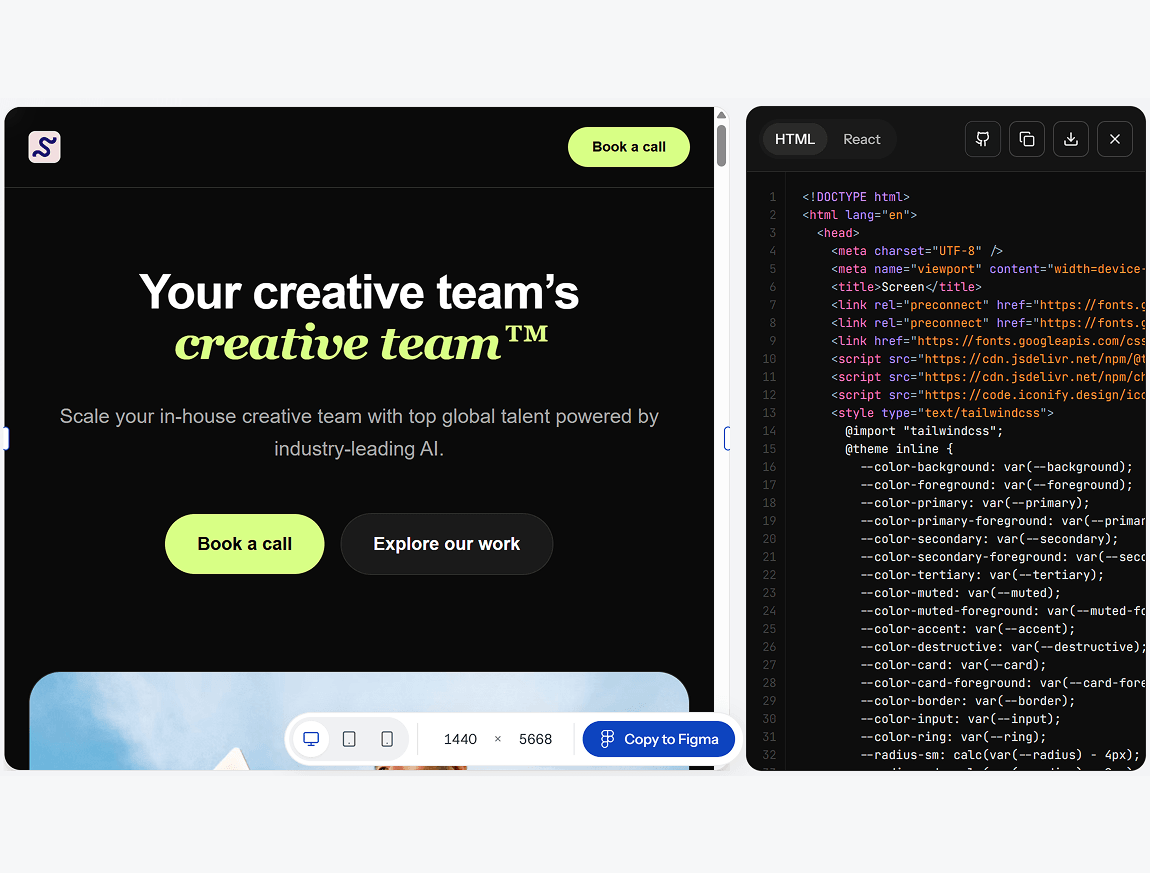
Send your converted design directly to Figma for team collaboration, or export clean, production-ready code for developer handoff. Every layer stays organized and editable either way - the same output whether you started from a URL, a screenshot, or raw HTML.
Auto Layout fromthe first conversion
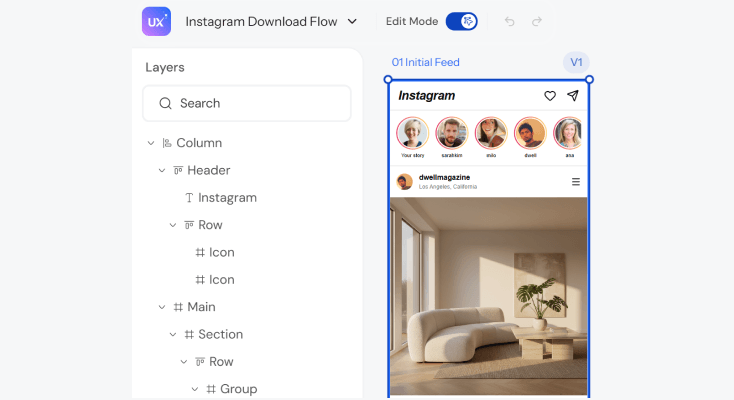
Every html to design figma conversion comes back structured - named frames, real components, working constraints. Resize, restyle, and rearrange sections the way you would in a file a designer built by hand.
What you walk away with
Structure that holds up, not a static picture
Every conversion comes back as named, working Auto Layout frames - components you can actually resize, restyle, and rearrange, not an image you're stuck looking at.
No plugin or extension required
Paste a URL directly into UXMagic - there's no browser extension to install or Figma plugin to configure before you can start converting.
Figma layers and production-ready code, from one conversion
Export into Figma for team review and refinement, or download clean code your engineering team can actually build from both from the same html to design conversion.
UXMagic vs Figma vs UXPilot vs html.to.design vs Anima vs Locofy
A lot of tools call themselves an html to design converter. Here's what separates them when you look at what teams actually need:
| Fitur | Figma (native AI) | UXPilot | html.to.design | Anima | Locofy | UXMagic |
|---|---|---|---|---|---|---|
| Paste a URL directly (no plugin/extension) | ||||||
| Real Auto Layout output (not div soup) | ||||||
| Upload screenshots/HTML as reference | ||||||
| Brand style extraction (colors, type, spacing) | ||||||
| Export to production-ready code | ||||||
| Multi-page, connected conversion |
punya pertanyaan?kami punya jawabannya.
An html to design converter takes an existing website's code or live URL and reconstructs it as an editable design file - real layers, real Auto Layout, real components instead of a flat screenshot. UXMagic does this by reading the page's actual structure, not just its appearance.
No. html.to.design is a browser extension you install to manually capture a page inside Figma. UXMagic works differently - paste a URL directly into UXMagic, no plugin or extension install required, and get back structured, Auto Layout-native design layers plus optional code export.
Yes. Paste any publicly accessible URL into UXMagic's Clone a URL feature, and it captures the page's layout, structure, and styling as an editable Figma-ready design in seconds.
A screenshot is a flat image with no underlying structure - you can't edit individual elements, resize sections, or update text. UXMagic's html to design conversion produces real, sep
No. Unlike html.to.design's chrome extension workflow, UXMagic works entirely from a pasted URL or uploaded screenshot - no browser extension, no plugin installation, no separate capture step.
Any publicly accessible webpage - landing pages, SaaS dashboards, e-commerce sites, marketing pages, and multi-page flows. UXMagic also accepts screenshots and reference images if a page isn't publicly accessible.
No. UXMagic is built so founders, marketers, and product teams without design experience can convert a site into an editable design as easily as a trained designer.
Yes. UXMagic has a free tier that lets you convert and edit designs without a credit card. Paid plans unlock additional generations and export options.
dibuat oleh orang sungguhan.diremix tanpa henti.
Jadilah yang pertama memublikasikan sesuatu di sini