Why Designers Use Claude
claude is great at thinking.uxmagic is built for designing.

Claude excels at understanding complex requirements, brainstorming ideas, and generating structured responses. By connecting Claude with UXMagic, those conversations become editable interfaces instead of static text. Whether you're designing a landing page, dashboard, mobile app, or complete design system, Claude sends design instructions directly to UXMagic where they're transformed into responsive, production-ready UI.
Who is it for
- Product Designers
- UI/UX Designers
- Design Engineers
- Product Teams
- Developers building user interfaces
- AI-first teams creating digital products
Why Connect Claude with UXMagic
go from ai conversations toeditable designs in minutes.
Using Claude together with UXMagic removes repetitive design work and shortens the path from idea to interface.
- Generate complete UI screens from natural language prompts.
- Build responsive layouts instead of static mockups.
- Update existing designs through conversation.
- Create reusable design systems faster.
- Export designs to Figma or production-ready code.
- Iterate on concepts without starting over.
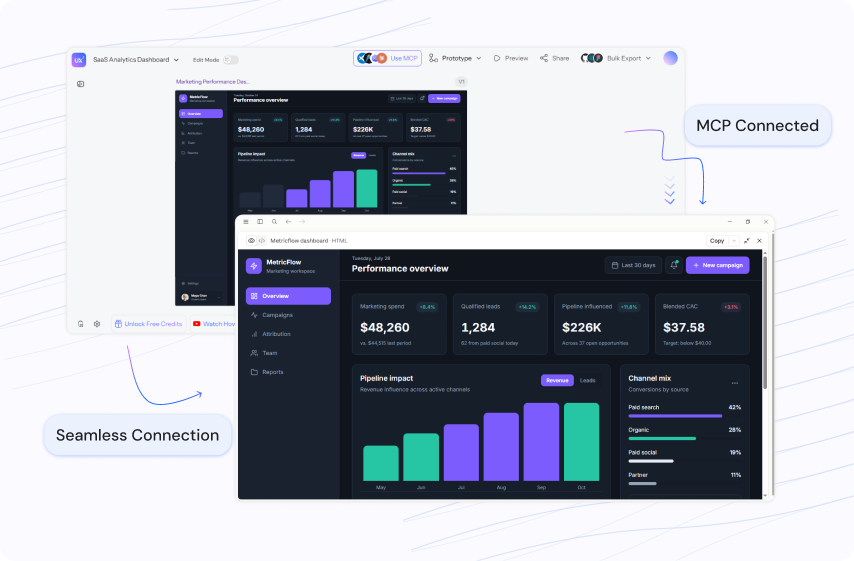
Easy integration
connect claude to uxmagicin just a few steps.
- 1
Generate Credentials
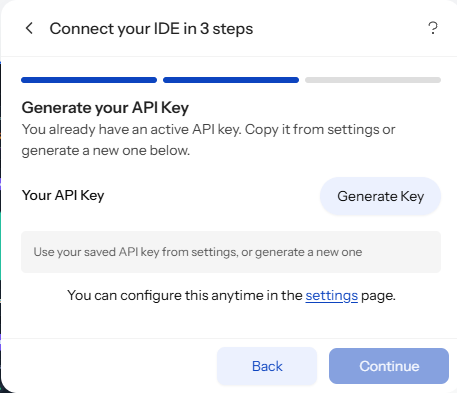
Generate a secure API key and MCP configuration from UXMagic with one click. Your credentials remain private and securely authenticate Claude, giving it access to your UXMagic workspace and design context.
- 2
Configure Claude
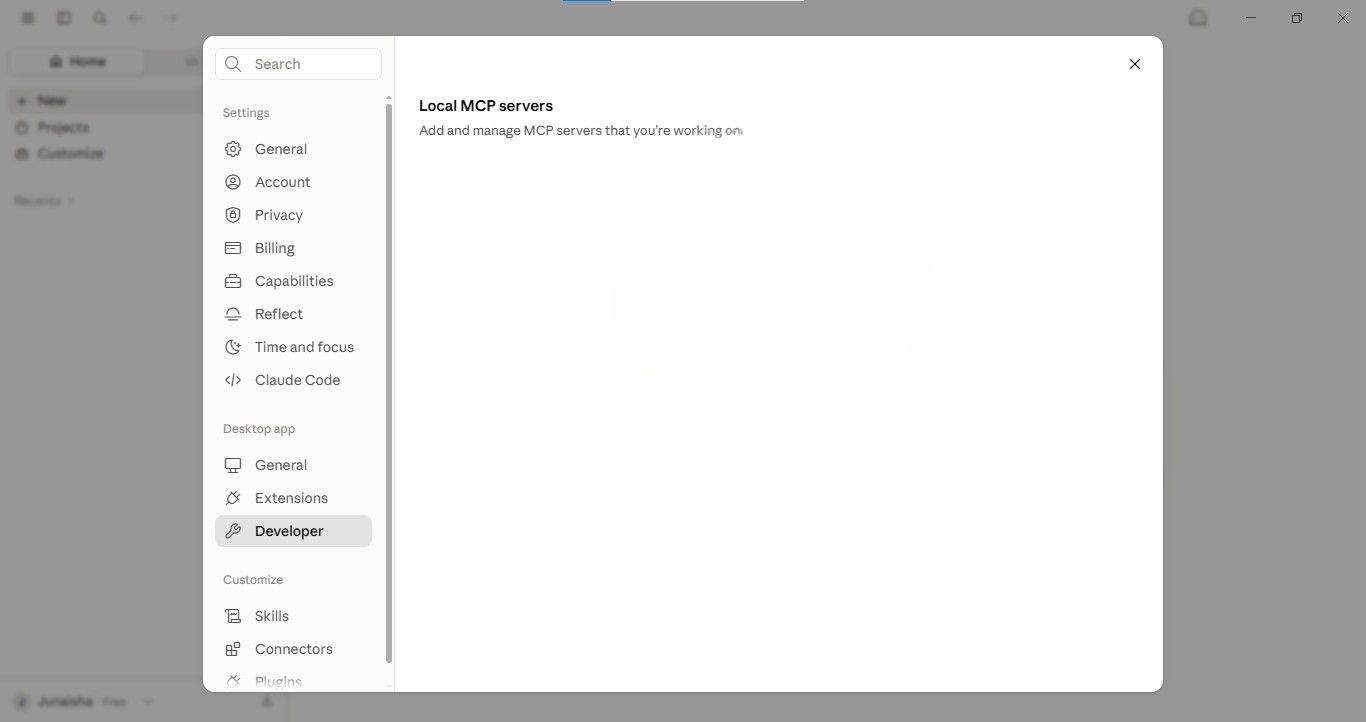
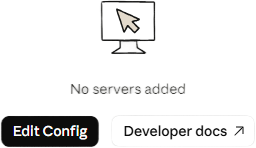
Open Claude → Settings → Developer and select Edit Config (claude_desktop_config.json). Paste the UXMagic MCP configuration into the file.
- 3
Authenticate & Verify Connection
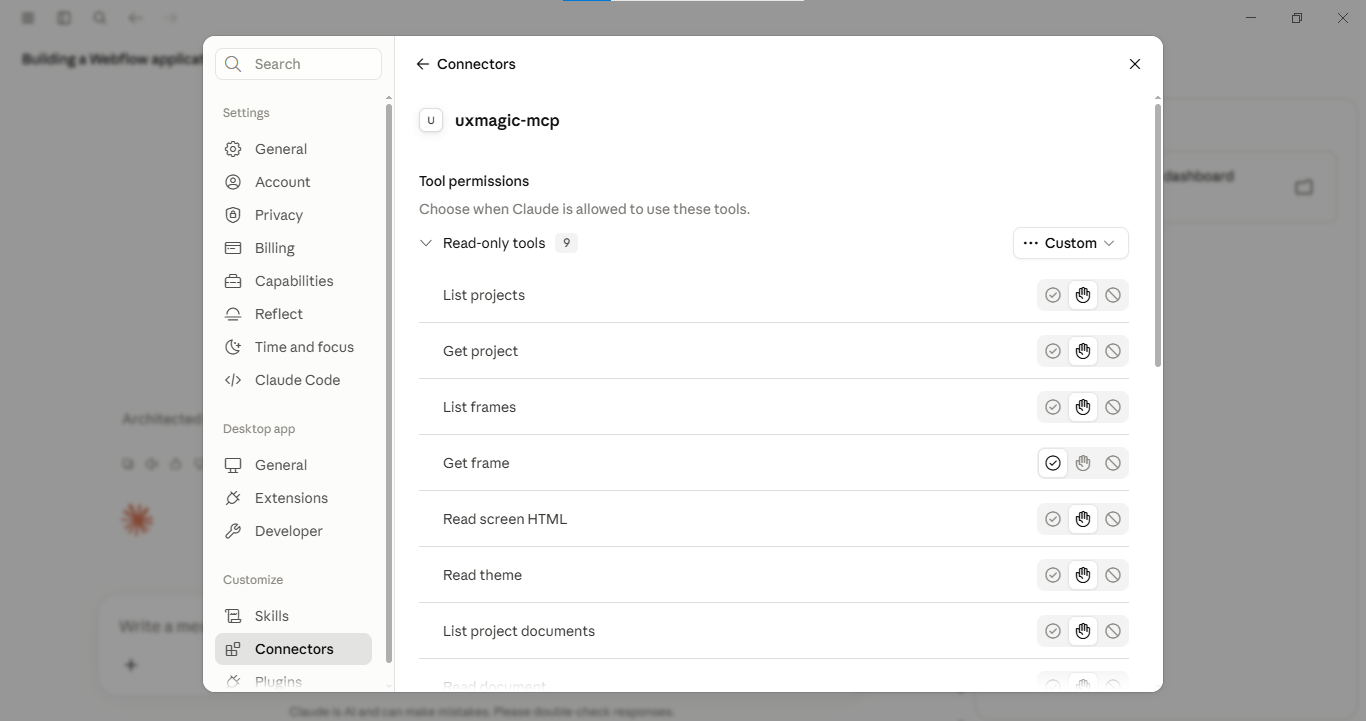
Save your configuration and authenticate using your UXMagic API key. Grant the required permissions if prompted. Once Claude detects the uxmagic-mcp server, the connection is verified and ready to use.
- 4
Start Designing
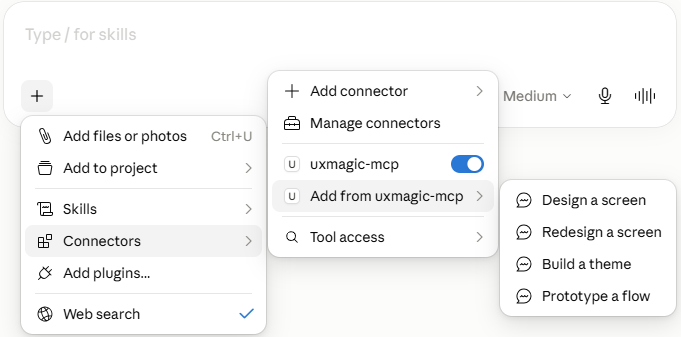
 OR
ORStart with a prompt in Claude or use one from UXMagic. Refine your ideas through conversation while UXMagic generates fully editable, production-ready interfaces.
Popular Workflows
build complete productexperiences directly from claude.
01design a landing page from a prompt

Turn a simple product idea into a polished, responsive landing page.
- Describe your product in Claude.
- Claude sends design request to UXMagic via MCP.
- UXMagic generates editable layouts and components.
- Refine the design with follow-up prompts.
- Export to Figma or production-ready code.
Outcome: A complete landing page generated in minutes, ready to customize and ship.
02iterate the landing page
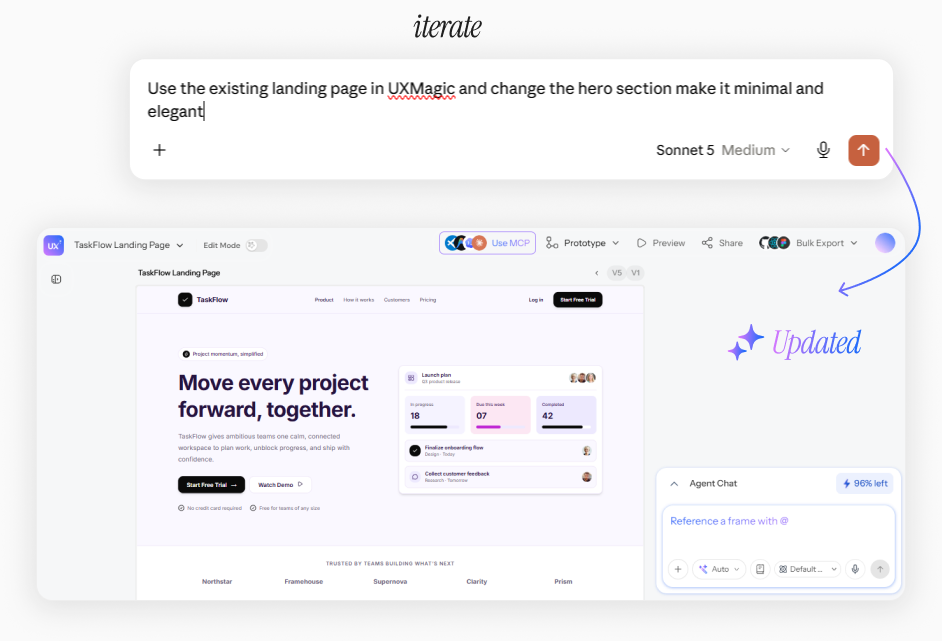
Refine an existing landing page through natural language instead of redesigning it from scratch.
- Open an existing landing page in UXMagic.
- Describe the changes you want in Claude.
- Claude sends the update request to UXMagic via MCP.
- UXMagic updates the existing layouts while keeping them fully editable.
- Continue refining through follow-up prompts or export the updated design.
Outcome: An existing landing page evolves in minutes through conversation, with every update remaining fully editable and production-ready.
03improve copy & content
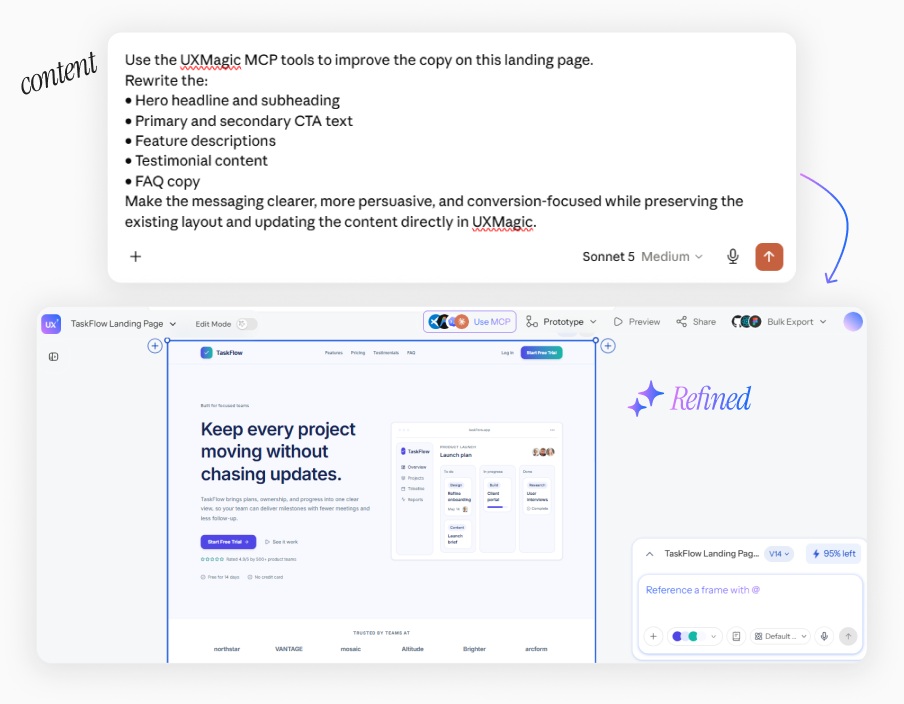
Enhance your interface with clearer messaging, stronger CTAs, and more persuasive content.
- Ask Claude to review the existing content.
- Claude rewrites headlines, copy, and CTAs based on your goals.
- UXMagic updates the content while preserving the existing layout.
- Continue refining the messaging through follow-up prompts.
Outcome: Clearer, more engaging content that improves the user experience while keeping your design fully editable.
04improve ux with ai suggestions
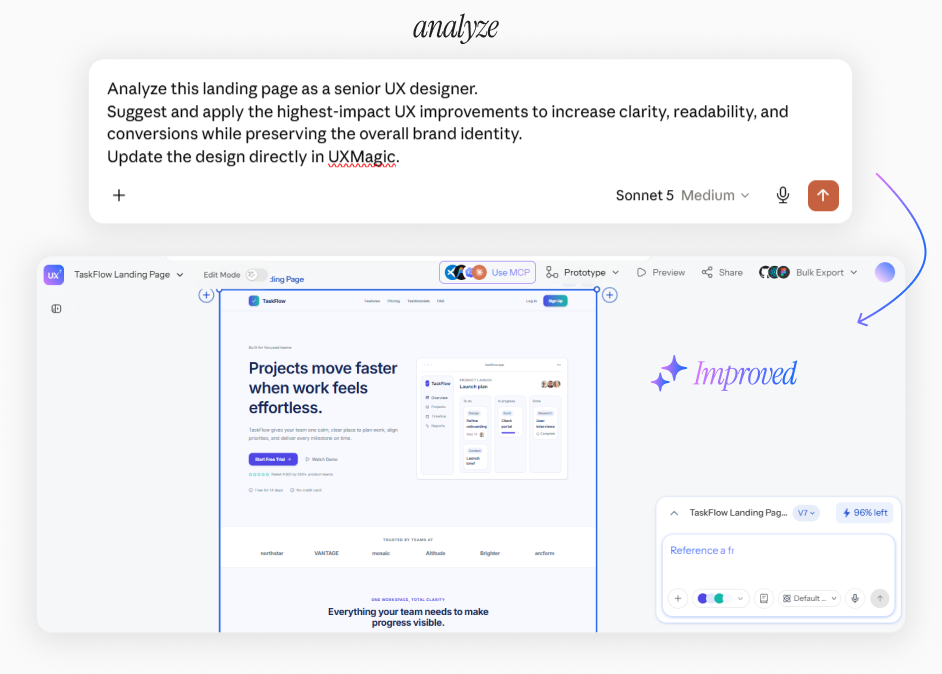
Analyze existing interfaces and improve usability through natural language.
- Open an existing UXMagic project.
- Ask Claude to review the design for usability, accessibility, or visual hierarchy.
- Claude suggests improvements based on UX best practices.
- UXMagic applies the requested updates while keeping layouts editable.
- Continue refining until you're satisfied.
Outcome: Improve existing interfaces faster with AI-assisted UX recommendations and editable design updates.
claude integrationexplained.
Open Claude → Settings → Developer and select Edit Config (claude_desktop_config.json). Paste the UXMagic MCP configuration into the file, or add the UXMagic Remote MCP server if you're using Claude's Custom Connector.
No. Once connected, you can design using natural language prompts.
Yes. Claude can create new designs or update existing projects through MCP.
Yes, as long as the version supports MCP integrations.
Yes. Projects remain fully editable and can be exported to Figma or supported code formats.
The integration is available for UXMagic users. Feature availability depends on your UXMagic plan.