Design Faster withFigma AI - UXMagic
Use Agent Mode in UXMagicto get designs faster and better
Trusted by Designers and Developers
Faster than manual design
Responsive by default
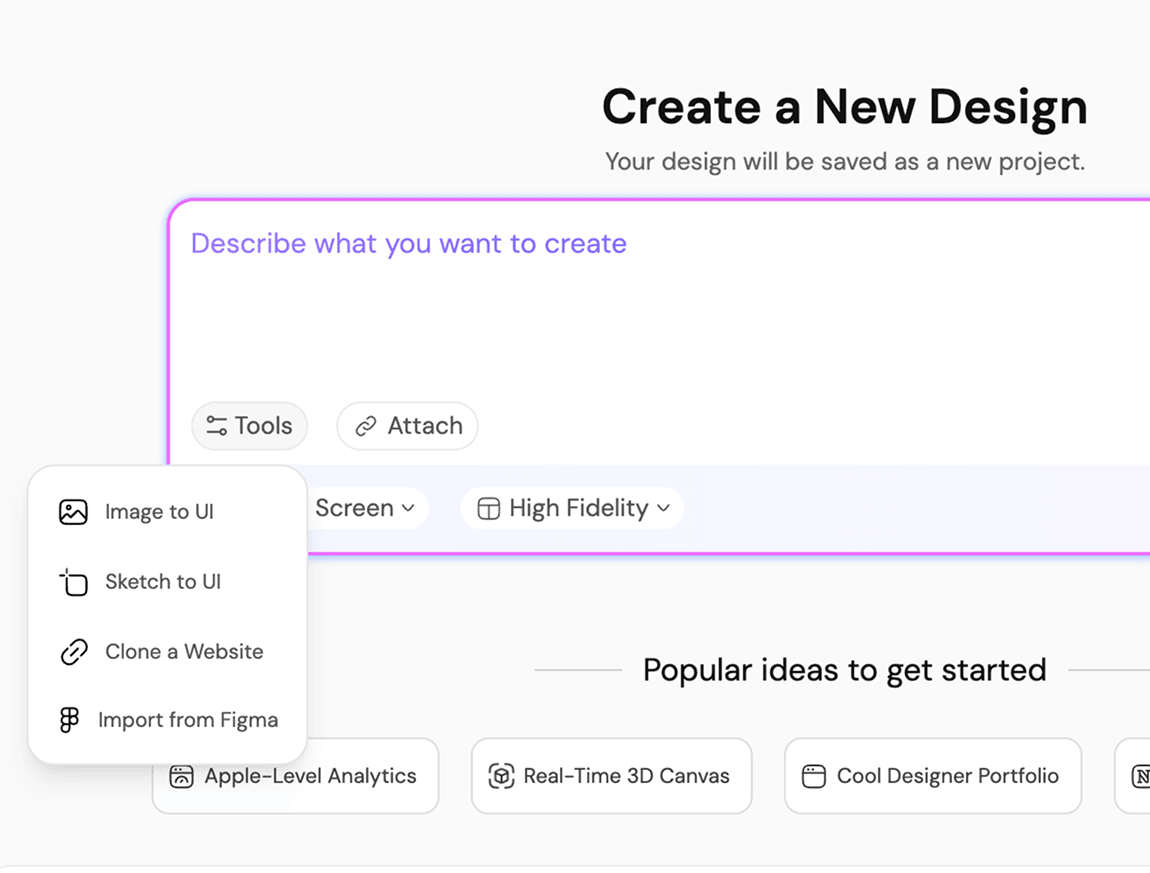
Generate Figma Designs From a Single Prompt
Open UXMagic. Type what you need. Get a Figma-ready screen. That is the entire process. No blank canvas, no dragging components into position, no spending forty minutes on a frame that gets redesigned in the next standup anyway. The AI design generator handles structure, hierarchy, and layout so the first thing you bring into Figma is already worth looking at. Designers use it to move faster. PMs use it to stop waiting on designers. Founders use it to build the thing instead of describing the thing.
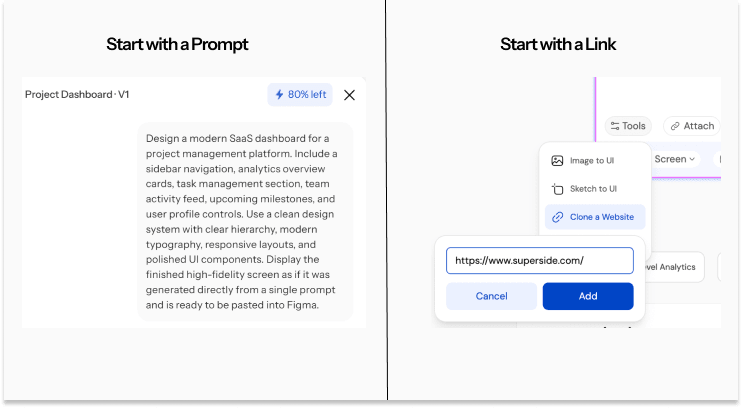
AI That Generates Real UI,Not Just Pretty Pictures
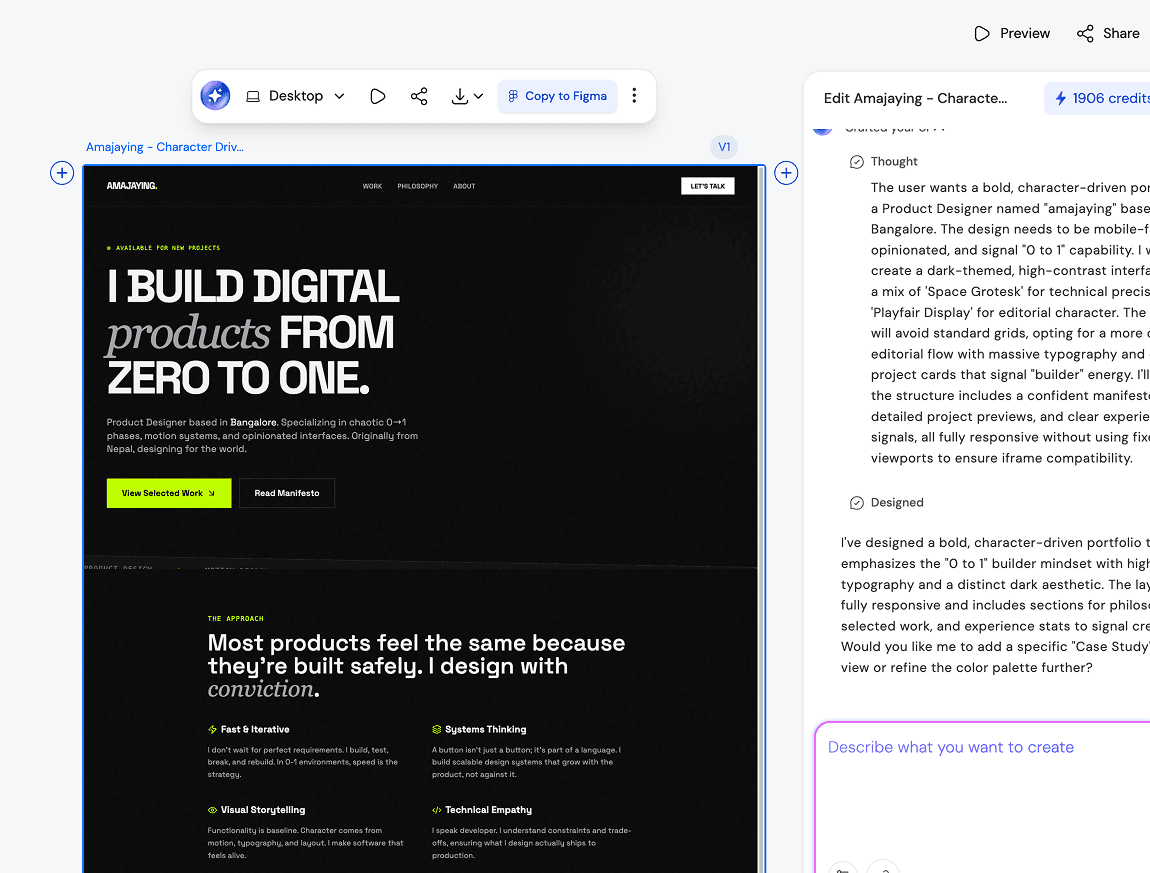
There is a version of AI powered design tools that gives you a pretty picture and calls it a design. UXMagic is not that. Every screen it generates is built on real component logic, the kind that survives a design review and a developer handoff. Spacing is intentional. Hierarchy is readable. The AI designer understands that a SaaS dashboard and a mobile onboarding flow are structurally different and builds them accordingly. What you get when you design with AI on UXMagic is work that holds up, not work that looks like it might.
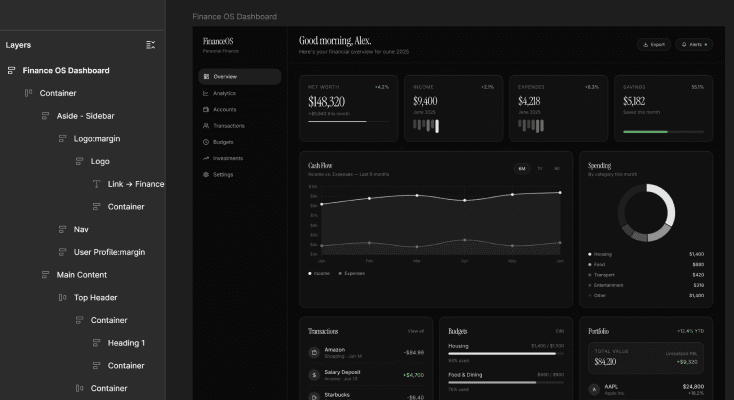
Move Seamlessly BetweenFigma and UXMagic
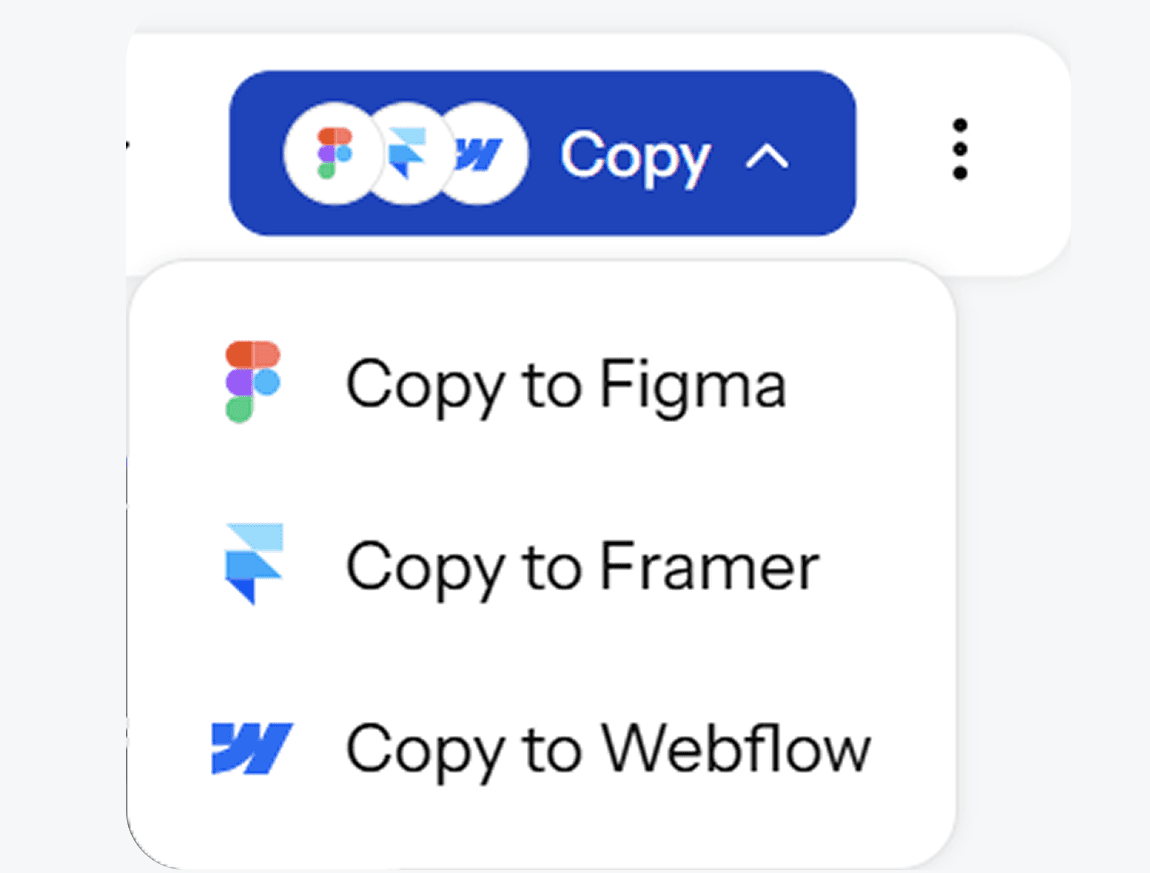
Here is what makes UXMagic different from every other AI for Figma on the market. The design happens entirely outside of Figma. No plugin to install, no Figma account needed to start, no Pro subscription required at any point in the workflow. You generate, you edit, you finalise. Then one Cmd+V drops your complete design into Figma as editable layers. If you want code instead of a Figma file, clean HTML and CSS exports in one click. The AI to Figma pipeline has never been this direct.
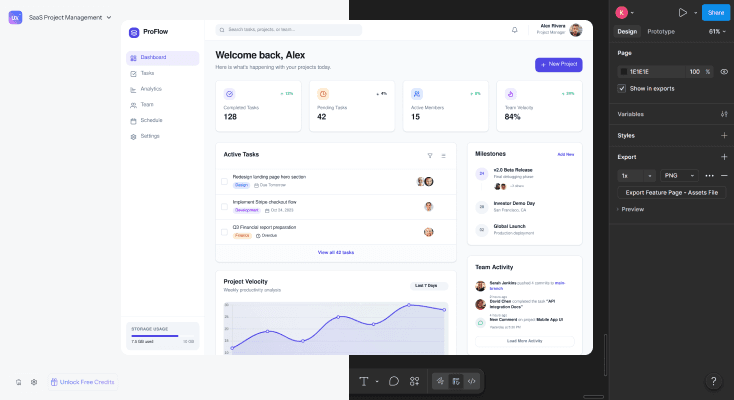
Design for anyscreen, style, or product
Kick off with a wireframe when you are still figuring out structure. Switch to hi-fi the moment you are ready to present or hand off. Resize from mobile to desktop in one click without touching a single layer. This is what a free AI design generator looks like when it is built around how design teams actually work, not how someone imagined they work. Whether you are running a sprint or shipping solo, the workflow adapts to you.
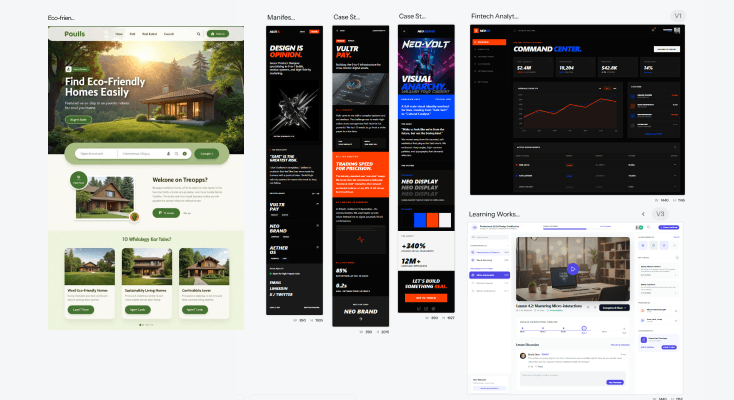
What you walk away with
A Figma-ready design that is actually editable
Layers you can click into. Components you can swap out. Structure a developer can read without asking you to explain it. What UXMagic exports into Figma is not a visual approximation of a design. It is the design.
Designs that work on every screen
Mobile and desktop are not two separate projects in UXMagic. Generate one, convert to the other, keep the logic intact. Every output is built for multi-screen products, not just the single artboard that gets shared in the kickoff deck.
Code and design both export-ready
Take the Figma file into Dev Mode for handoff. Or skip Figma entirely and export clean HTML and CSS straight from UXMagic. The distance between design and code is shorter here than anywhere else in the AI design tool landscape.
UXMagic vs Figma AI vs UXPilot vs Banani vs Uizard FEATURE COMPARISON
UXMagic gives you the full workflow: prompt to design, edit with AI, export to Figma, and ship as code. Here is how that compares to every other Figma AI design tool on the market:
| 功能 | Figma AI | UXPilot | Banani | Uizard | UXMagic |
|---|---|---|---|---|---|
| AI prompt to hi-fi design | |||||
| Works without a Figma account | |||||
| Export design to Figma | |||||
| Multiple variants per prompt | |||||
| Lo-fi to hi-fi switching | |||||
| Generate multiple screens in one flow | |||||
| Upload and edit existing Figma file with AI | |||||
| Production-ready code export | |||||
| AI chat for design edits |
有疑问?我们来解答。
It is a tool that takes a text prompt or image and turns it into an editable UI screen you can move directly into Figma. The difference between a real Figma AI generator and a generic image tool is what comes out. UXMagic produces structured, layer-based designs with real component logic, not flat visuals dressed up as mockups. You get something you can actually use, paste into Figma with one click, and hand it off to a developer the same day.
No on both counts. UXMagic is an AI for Figma that runs completely independently of Figma's own platform. You generate and edit your entire design in UXMagic first. When it is ready, Cmd+V pastes it into Figma as editable layers. Figma Pro and Dev Mode are only relevant if you want to use Figma's native developer handoff features after the design lands there.
Write a prompt describing your screen. Something like "mobile sign-up flow for a fintech app" or "desktop analytics dashboard with left sidebar." UXMagic returns up to five hi-fi variants. Pick one, edit it through AI chat or manually, then copy it into Figma or export as HTML and CSS. The whole thing takes under two minutes from prompt to paste.
Any screen type you would build in a real product. Mobile apps, desktop dashboards, landing pages, onboarding flows, settings screens, data tables, e-commerce layouts. UXMagic also converts between screen sizes on demand, so it works as a practical AI design tool whether you are building for one platform or several.
Everything is editable before it leaves UXMagic. Use the AI chat to give instructions in plain language. Adjust components, colors, and typography manually. Switch between lo-fi and hi-fi. Apply your brand style. The design stays inside UXMagic until you are happy with it, then it goes to Figma or to code already finished.
There is a free tier with no credit card required. It covers the core AI design generator, Figma export, and HTML and CSS code export. Paid plans add more generations, more variants per prompt, and deeper brand style controls for teams that need higher volume or more customisation.
Figma's native AI, including First Draft and the Figma Make agent, operates inside Figma's editor and works best for designers already deep in the Figma ecosystem. UXMagic is for the step before that. Multiple variants, lo-fi to hi-fi switching, and clean HTML and CSS export are not part of Figma's native AI workflow. The design arrives in Figma already done rather than being built there from scratch.
UXMagic. Most AI tools that connect to Figma require a plugin installation, a paid Figma seat, or both before anything useful happens. UXMagic generates and edits your design independently, then delivers it into Figma through a straightforward copy-paste. Nothing to install at any point.
Describe your screen in plain language and UXMagic builds it. When you are done editing, it copies straight into your Figma file as a fully structured design. You can also bring in an existing screenshot or Figma file and ask the AI to rework specific sections, generate new variants based on it, or extend the design into additional screens.
Figma AI, which covers Figma's generative AI features and the Figma Make agent for prompt-to-code, assists you while you work inside Figma. UXMagic is a standalone AI design generator you use before Figma opens. With Figma artificial intelligence you still do most of the design work inside Figma. With UXMagic your design is complete before Figma is involved. You are not assisted through the process. You arrive at the end of it.
由真实用户创作。无限次再创作。
成为第一个在这里发布内容的人