Figma to Code in Minutes with AI-Powered Design Iteration
Your Figma designsshouldn’t stop at frames
UXMagic vs UXPilot vs Uizard vs BananiFEATURE COMPARISON
| 功能 | UXPilot | Uizard | Banani | UXMagic |
|---|---|---|---|---|
| Import from Figma | ||||
| AI Iteration with Brand Styles | ||||
| Export Back to Figma | ||||
| Code Generation | ||||
| Responsive AutoLayout |
有疑问?我们来解答。
Yes. UXMagic respects your brand guidelines, typography, and color tokens. When you use AI to ideate or generate new screens, your original Figma styles remain intact.
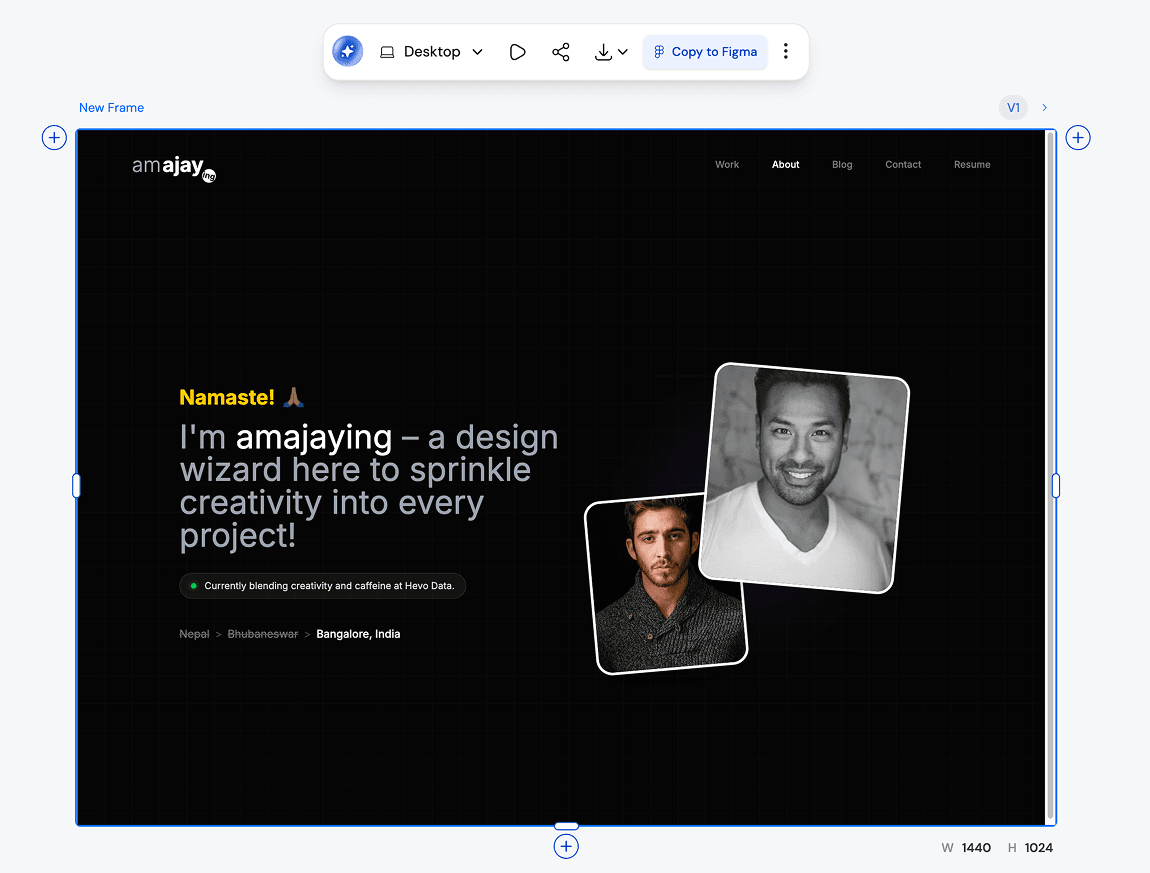
Absolutely. Once you’re done iterating in UXMagic, you can export back to Figma. Your designs come with Auto Layout, style consistency, and responsiveness already applied.
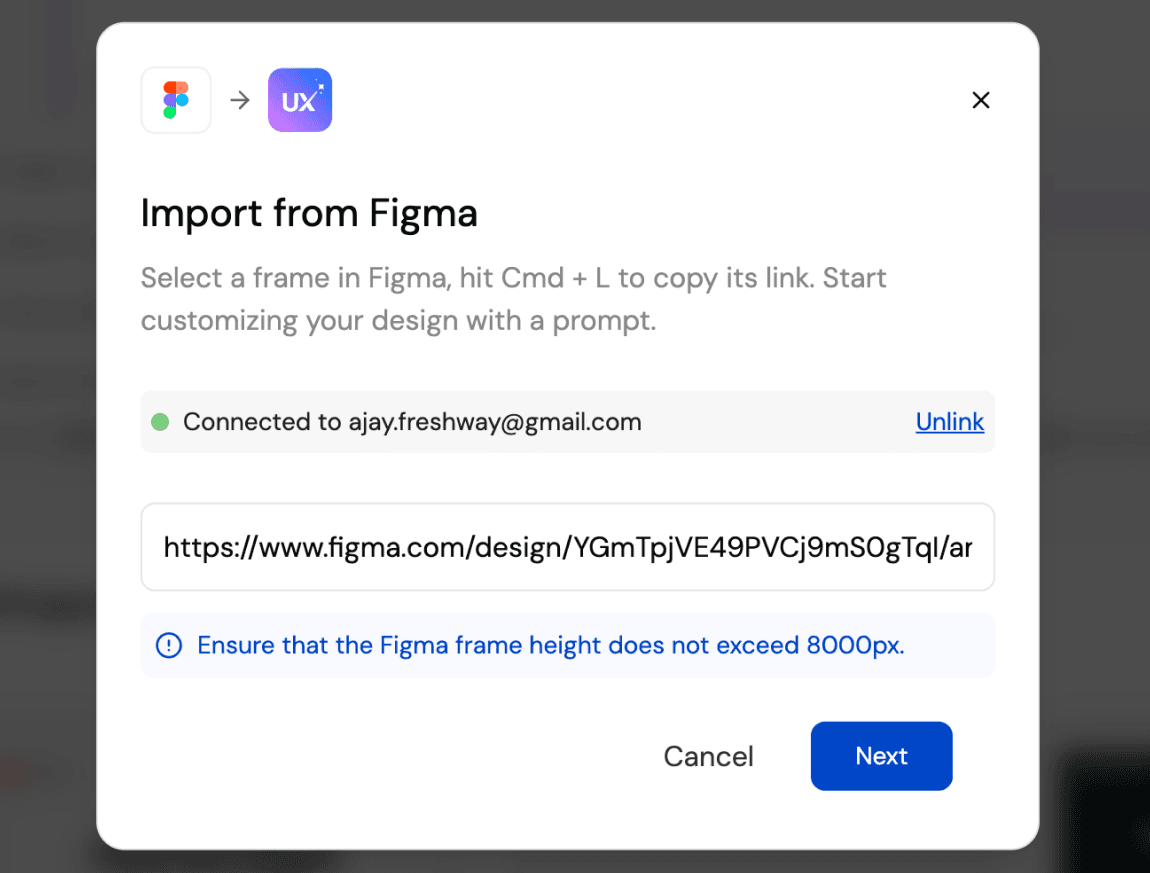
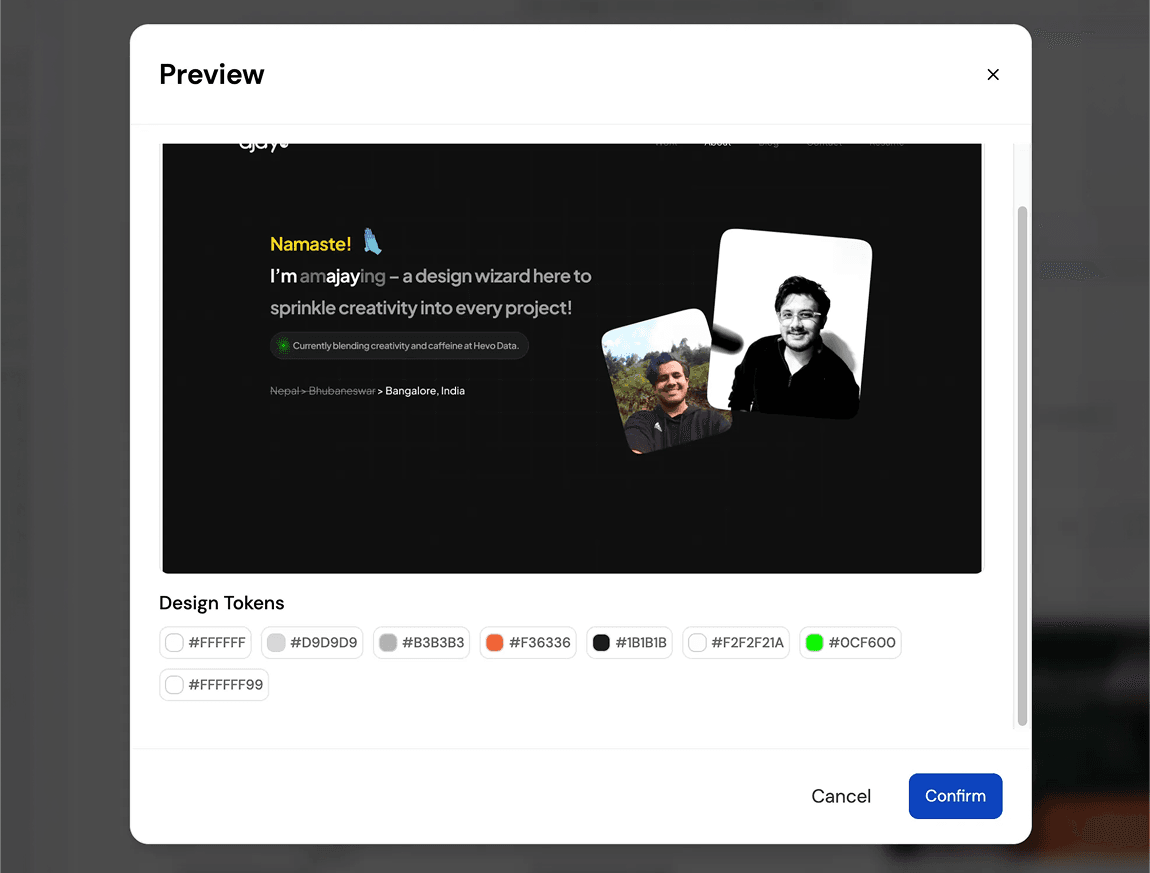
You can import your Figma design files directly into UXMagic with one click. UXMagic automatically brings in your frames, layers, and style guide so you can start iterating with AI immediately—without changing anything inside your Figma workspace.
Yes. UXMagic lets you view and copy production-ready code for your imported Figma designs. It supports HTML, CSS, and responsive layout so developers can move faster.
Unlike Uizard, UXPilot, or Banani, UXMagic allows you to work directly with your existing Figma files and brand styles, not just generate new mockups. With UXMagic, you can import from Figma, iterate using AI, export back with Auto Layout intact, and even generate developer-friendly code—all in one workflow.
由真实用户创作。无限次再创作。
成为第一个在这里发布内容的人