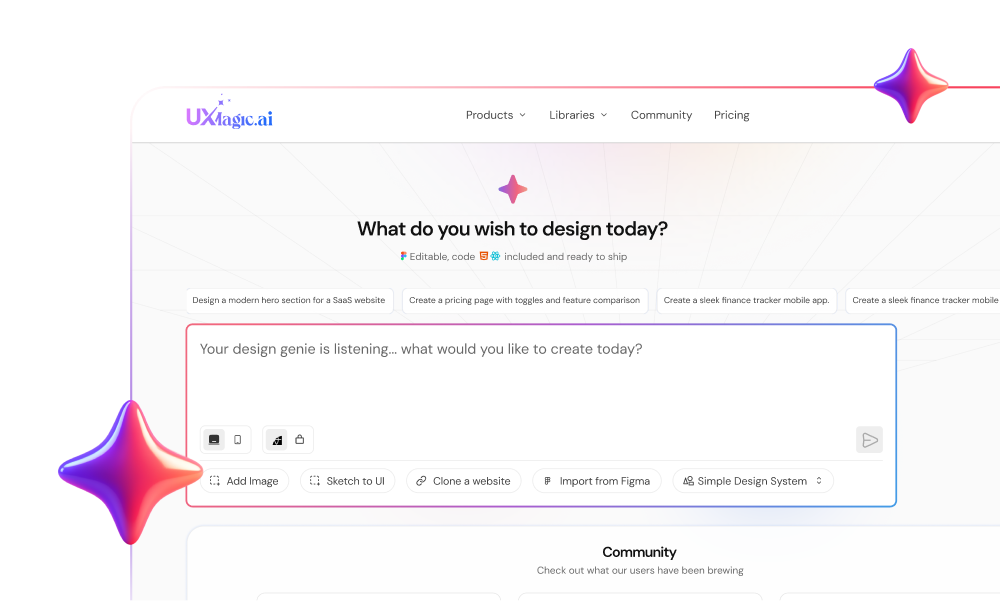
TL;DR: Absolute-positioned output is worthless - if it's not a real flexbox or Auto Layout, it's a picture, not a file. Watch for the SVG export trap, since importing SVGs into Figma strips all responsive logic on arrival, and checks enterprise security before adopting anything, because one popular tool on this list has a documented data-leak problem. UXMagic, Figr, and image.to.design produce genuinely usable Auto Layout, while Uizard's does not, and only UXMagic and Banani export directly to clean code without a separate tool in the chain.
Rebuilding an interface pixel-by-pixel from a reference JPEG isn't design - it's data entry. If your team is still manually tracing screenshots to rebuild a legacy interface or benchmark a competitor, that's not a tooling gap, it's a broken workflow. An image to Figma converter exists to fix exactly that, but most of the tools claiming to do it just relocate the labor instead of eliminating it.
You already know what Auto Layout is and why absolute positioning is a problem. This isn't a primer on Figma basics. It's an honest teardown of nine tools actually doing this conversion in 2026 - including one with a documented security problem most reviews conveniently skip - plus the exact pipeline that separates a real time-saver from a new form of cleanup work.
Most AI UI generators function as stakeholder toys, not production tools. Generating a visually pleasing screenshot is trivial. Engineering a structured, Auto-Layout-ready Figma file that developers will actually accept is the real benchmark, and it's where most of this list falls apart - a distinction covered in more depth in how designers are actually using AI in real projects.
Why Flat Screenshots Are a Developmental Dead End
**Auto Layout is the singular metric of conversion success - not a nice-to-have. **Output made of absolute-positioned frames is worthless in a modern workflow. If the generated UI doesn't use real flexbox behavior, it's functionally a glorified PDF someone can look at but not build with.
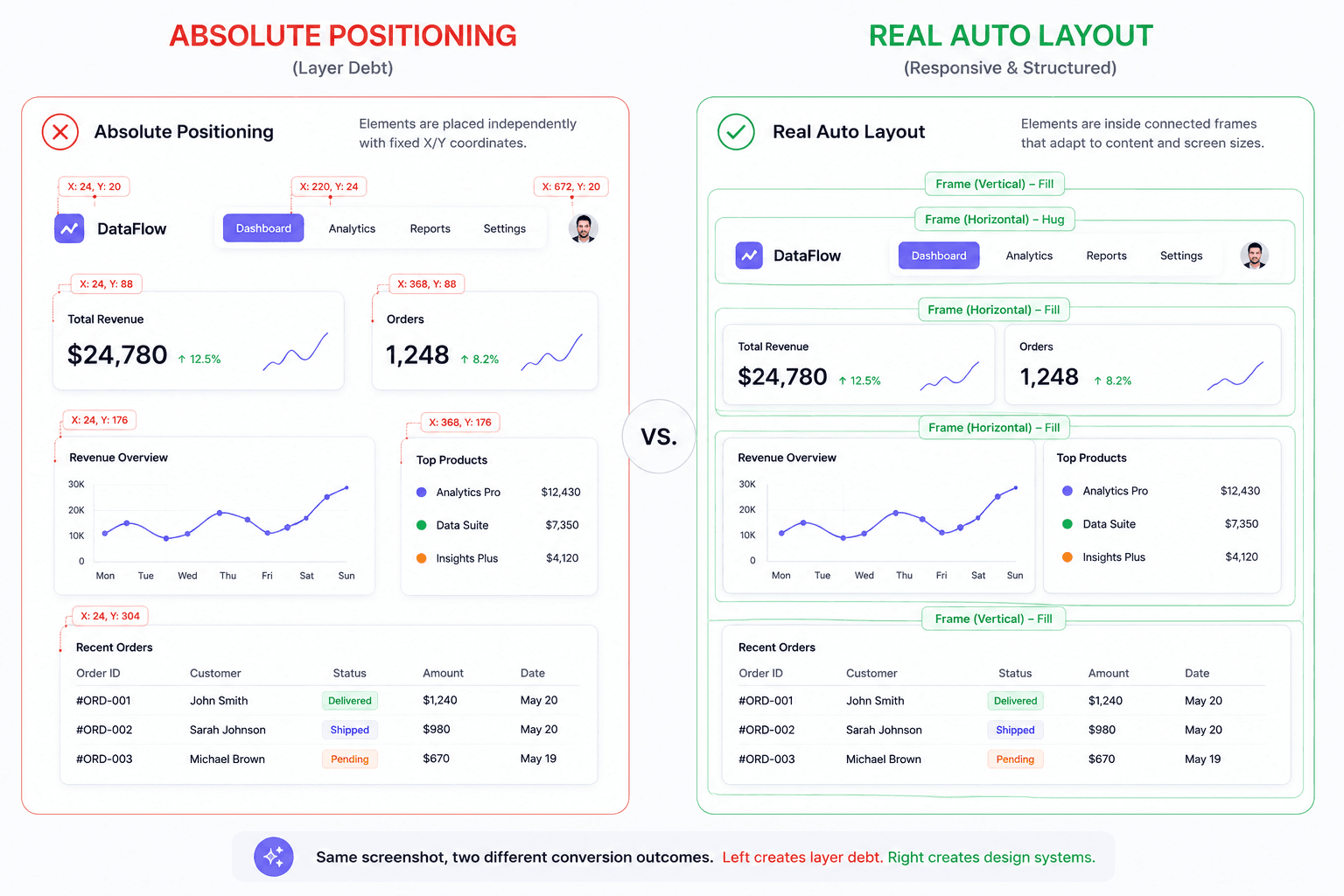
A few specific failure patterns worth knowing before you pick a tool:
- "Div soup." Cheap converters relying on primitive DOM scraping or weak computer vision produce unnamed rectangles, shattered text nodes, and absolute positioning - often demanding more cleanup than building from scratch would have. This is the same category of structural failure covered in best wireframing tools for 2026.
- The SVG export trap. Tools outside Figma's native ecosystem force an SVG export, and importing that SVG strips away all responsive logic and component architecture on arrival - a fragile, static grid that breaks the moment anyone touches it.
- Enterprise data security. This is the pain point most comparison posts skip. 2026 OSINT investigations exposed real flaws in popular plugins, with some transmitting proprietary design data and unencrypted screenshots in plaintext to unverified overseas servers.
- HEIC format failures. macOS silently defaults its screenshot tool to HEIC, and pasting that into Figma or a weaker plugin frequently triggers massive cyan or magenta color blocks that destroy the reference entirely.
How Structural Reconstruction Actually Works
The highest utility of computer vision here is reconstruction, not hallucination. The job is acting as a digital archaeologist - extracting design intent from an existing reference via OCR and layout detection - not inventing a structurally unsound aesthetic concept from scratch.
A capable tool works in three passes:
- Structural region detection - identifying navigation bars, hero sections, bento grids, and modal boundaries.
- OCR extraction - pulling text strings while preserving positional data, font weight, and exact hex values.
- Auto Layout reconstruction - the step where most inferior tools fail. This means calculating real spatial relationships and rebuilding the image as a logical Figma frame tree with actual "Hug Contents" and "Fill Container" constraints, not dropping absolute-positioned layers onto a canvas and calling it done.
Stop tolerating tools that skip step three. Try UXMagic's Image to UI generator and see what real Auto Layout reconstruction actually looks like before you commit to anything else on this list.
9 Image to Figma Tools Compared
| Platform | Auto Layout | Code Export | Security | Best For | Watch Out For |
|---|---|---|---|---|---|
| UXMagic | Perfected constraints | Native React, HTML | Compliant | Production handoff, agencies | Premium tier needed for full workflow |
| Codia AI | Very good | React, Vue (add-on) | Severe risk (OSINT flagged) | Fast single-screen conversion | Data transmitted to unverified overseas servers |
| image.to.design | Excellent | None (needs sister tool) | Standard | Wide format support, clean naming | No native code export at all |
| Banani AI | Good | React, HTML | Standard | Solo devs, MCP integrations | Editor gets clunky on complex layouts |
| Uizard | Poor (SVG failure) | CSS snippets only | Standard | Quick stakeholder pitches | Breaks entirely on carousels, z-index overlays |
| Visily | Good | None directly | Standard | Low-fi wireframes, PM-friendly | Free tier watermarks every export |
| Anima Buddy | Excellent | React, Tailwind | Standard (BYO API key) | Claude Artifact imports | Capped entirely by your own API subscription |
| Figr | Perfected constraints | React, Next.js | Standard | Teams with a mature design system | Nearly useless for blank-slate ideation |
| Crafttor | N/A (asset manager) | None | Standard | Icon/illustration asset management | Not a reconstructor - wrong tool for this job |
- UXMagic: The Production Standard
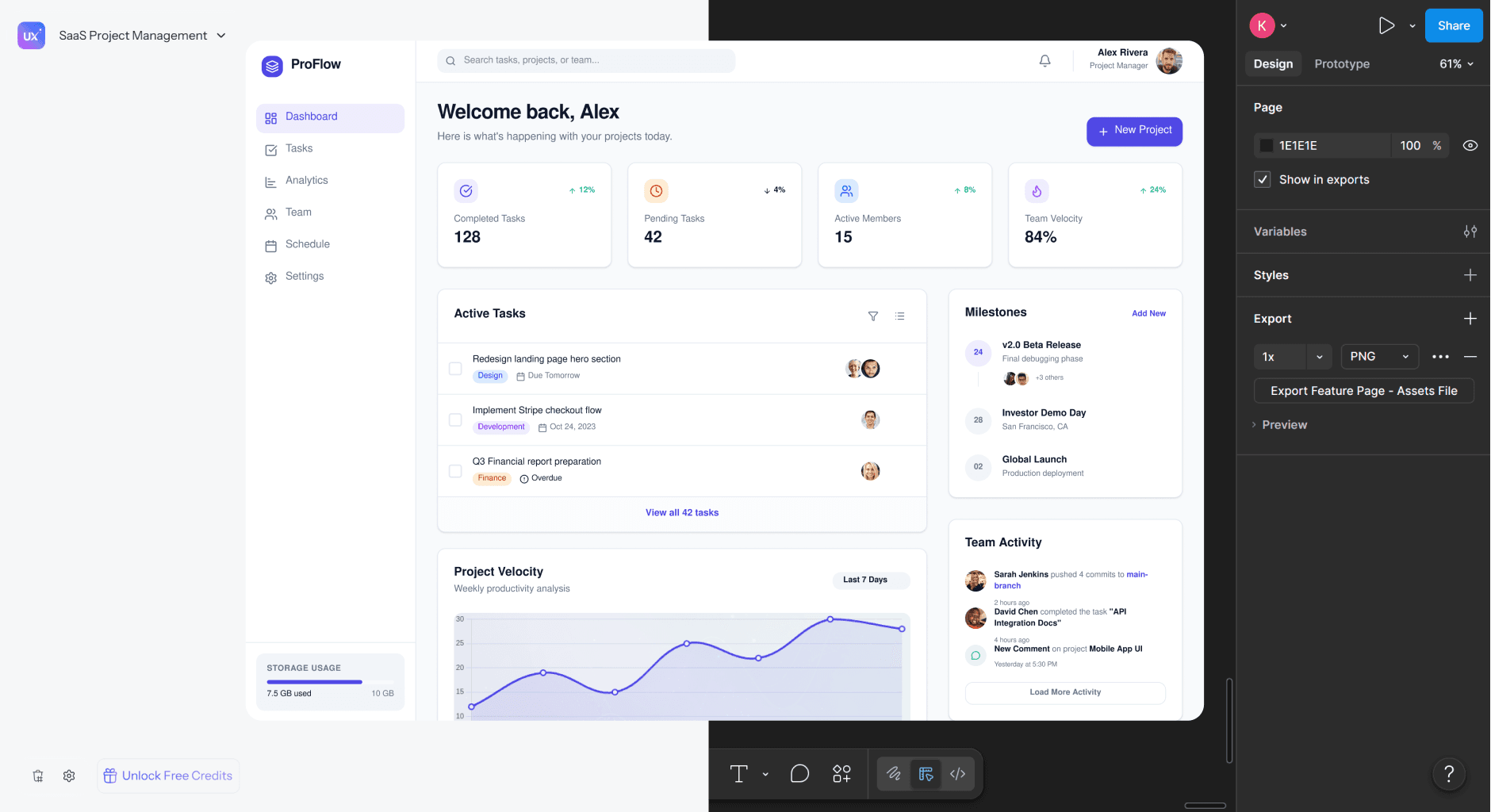
UXMagic's Image to UI feature is built strictly for product workflows, not conceptual ideation. Upload a screenshot, and it reconstructs the interface directly into Figma with genuine Auto Layout constraints, mapping elements to your existing design system tokens rather than inventing new ones. Hand-drawn sketches get the same treatment through Sketch to UI.
The real differentiator is what happens after conversion: the output exports directly into clean React or HTML code, not a disorganized visual approximation someone still has to rebuild. Compare it against alternatives like Banani or UX Pilot directly, or check current pricing for the full tier breakdown.
- Codia AI: Fast, But a Real Security Problem
Codia runs a genuinely sophisticated four-step pipeline - vision analysis, OCR, layout reconstruction, component recognition - and processes full screens in under ten seconds, with a solid Visual Struct API for batch enterprise work.
The catch is serious enough to disqualify it for a lot of teams: 2026 OSINT investigations confirmed the plugin transmits proprietary design data, unencrypted images, and conversation histories in plaintext to unverified servers in China. At $12/month it's cheap, but the data liability makes it unsuitable for anyone handling confidential IP.
- image.to.design: The Canvas Purist's Choice
Built by the team behind html.to.design, this plugin accepts an unusually wide range of formats Figma natively rejects - AVIF, JPEG XL, JPEG 2000, RAW - and produces highly logical, well-organized layer names.
Its limitation is isolation: no native export to React or Vue without chaining through other divRIOTS products, and no deep design-system contextualization. Credit-based pricing, pro tier at $20/seat/month.
- Banani AI: Developer-Centric, Clunky at Scale
Banani, powered by Gemini, collapses screenshot conversion and code export into one environment, exporting clean HTML/CSS or React via MCP integrations with Cursor and Claude Code.
Pricing is generous - a free forever tier plus $12/month annual - but the editor gets clunky on complex, multi-layered interfaces, and fidelity can slip on intricate competitor screenshots. See the full UXMagic vs. Banani comparison for a direct side-by-side.
- Uizard: A Whiteboard, Not a Handoff Tool
Uizard's Screenshot Scanner and Autodesigner 2.0 are built for non-designers who need a fast, clickable prototype to pitch - genuinely useful for that specific job.
But it has the weakest Figma integration on this list: raw SVG exports only, arriving as a chaotic mess with zero Auto Layout, and output that fails outright on complex layouts like horizontal carousels or z-index overlays. The free tier is capped to the outdated Autodesigner 1.5 engine; real utility requires the $39/month business plan.
- Visily: Fine for Wireframes, Not Fidelity
Visily targets non-designer PMs with text-to-design and auto-prototyping, backed by a genuinely useful Chrome extension for capturing web pages across viewports.
It can't produce pixel-perfect, high-fidelity UI, so treat it as low-fidelity conceptualization only. The free plan watermarks every export; the $11/month pro plan scales fast once you're paying per editor.
- Anima Buddy: Vibe Coding, BYO API Key
Anima Buddy imports Claude Artifacts, HTML output, and reference screenshots directly onto the Figma canvas, turning them into editable layers ready for React or Tailwind export.
It solves token anxiety by letting you bring your own ChatGPT or Anthropic API key - but its capability is entirely capped by whatever subscription you're supplying. No API key, no real utility.
- Figr: Rigid, But Eliminates Design Debt
Figr mandates ingesting your existing Figma files, PRDs, and component systems before it generates anything. That's a deliberately slower setup, but it means any converted screenshot perfectly adheres to your established spacing rules and brand guidelines from the first pass.
Genuinely useless for blank-slate ideation, but strong for teams with a mature design system already in place.
- Crafttor: Not Actually a Reconstructor
Worth naming so you don't waste time evaluating it for this use case: Crafttor is a cloud-based digital asset manager, not a generative interface builder. It organizes illustrations and icons for enterprise teams and feeds them into Figma, Sketch, and Illustrator - it doesn't use OCR or layout algorithms to rebuild screenshots at all. Different category entirely.
The Workflow: From Flat Image to Production-Ready Layers
- Capture and crop. Full retina resolution, PNG format. Moiré patterns and compression artifacts from re-encoded JPEGs actively degrade edge detection - skip this step and every downstream step suffers.
- Let extraction run. Vision model and OCR work in parallel - the vision model differentiates navigation bars, hero sections, and grids, while OCR extracts text strings along with positional data, font sizing, and exact hex values.
- Auto Layout reconstruction. This is where inferior tools fail. Instead of absolute-positioning layers arbitrarily, a professional-grade tool calculates real spatial relationships and rebuilds the image as a proper Figma frame tree with flexbox logic applied to every row, grid, and column.
- Componentize, then inject tokens. Symmetrical, repeating elements - a row of pricing cards, say - should get recognized as a pattern and promoted to a Main Component with instances automatically. The generic extracted colors and typography then need mapping onto your actual design tokens and component library, similar to what's covered in the Figma component library reference.
- Verify semantic handoff. Confirm navigation renders as nav and interactive elements as button - not a disorganized string of clickable divs that fails accessibility and SEO both. The React component library is worth a look if you're standardizing this step on the code side.
Real-World Scenarios Where This Actually Matters
Legacy migration with no surviving source files. A junior designer tasked with rebuilding a legacy interface after the original Figma files were lost traditionally spends days manually recreating data tables and eyedropper-extracting hex codes. Capturing high-fidelity PNGs of the live production environment and running them through a structural reconstructor instead produces an Auto-Layout-structured file almost instantly - leaving only typography token updates and design-system alignment before handoff, hours instead of weeks.
Competitive benchmarking that goes beyond a static whiteboard. Instead of pinning uneditable screenshots to Miro with manual annotations, converting competitor screenshots into real Figma layers lets a research team dissect the actual layout grid, inspect exact spacing, and swap in your own typography and copy. Teams doing this at the URL level rather than screenshot-by-screenshot may find Clone Any Website a faster starting point than working from static images at all.
Rescuing AI "vibe design" from being a dead end. Stakeholders increasingly generate conceptual UI imagery with tools like Midjourney or Claude Artifacts - genuinely useful for exploring a direction, genuinely useless for handoff, since engineering will reject a flat, hallucinated JPEG with no layout logic or interactive states. Running that image through a structural reconstructor breaks it into a real component tree with actual margins and flexbox constraints - the same underlying principle covered in real prompts we use to generate production flows and prompt engineering for UX designers.
Stop Paying Cleanup Debt
Stop paying cleanup debt on a conversion tool's mistakes. Try UXMagic free and get an Auto-Layout-structured, token-mapped Figma file that's ready for engineering, not a flat screenshot. Follow the how-to guide library or documentation for exact steps.