
TL;DR
A Lovable to Figma workflow is not the reverse of the documented Figma-to-Lovable integration. Lovable’s material explains how to import a Figma project into Lovable, but it does not establish native reverse export or two-way synchronization. To create a useful Figma file, we recommend reconstructing selected screens as editable layers, then cleaning up auto layout, components, variables, states, and responsive behavior. A screenshot is only a reference.
Lovable to Figma: What works—and what “integration” means
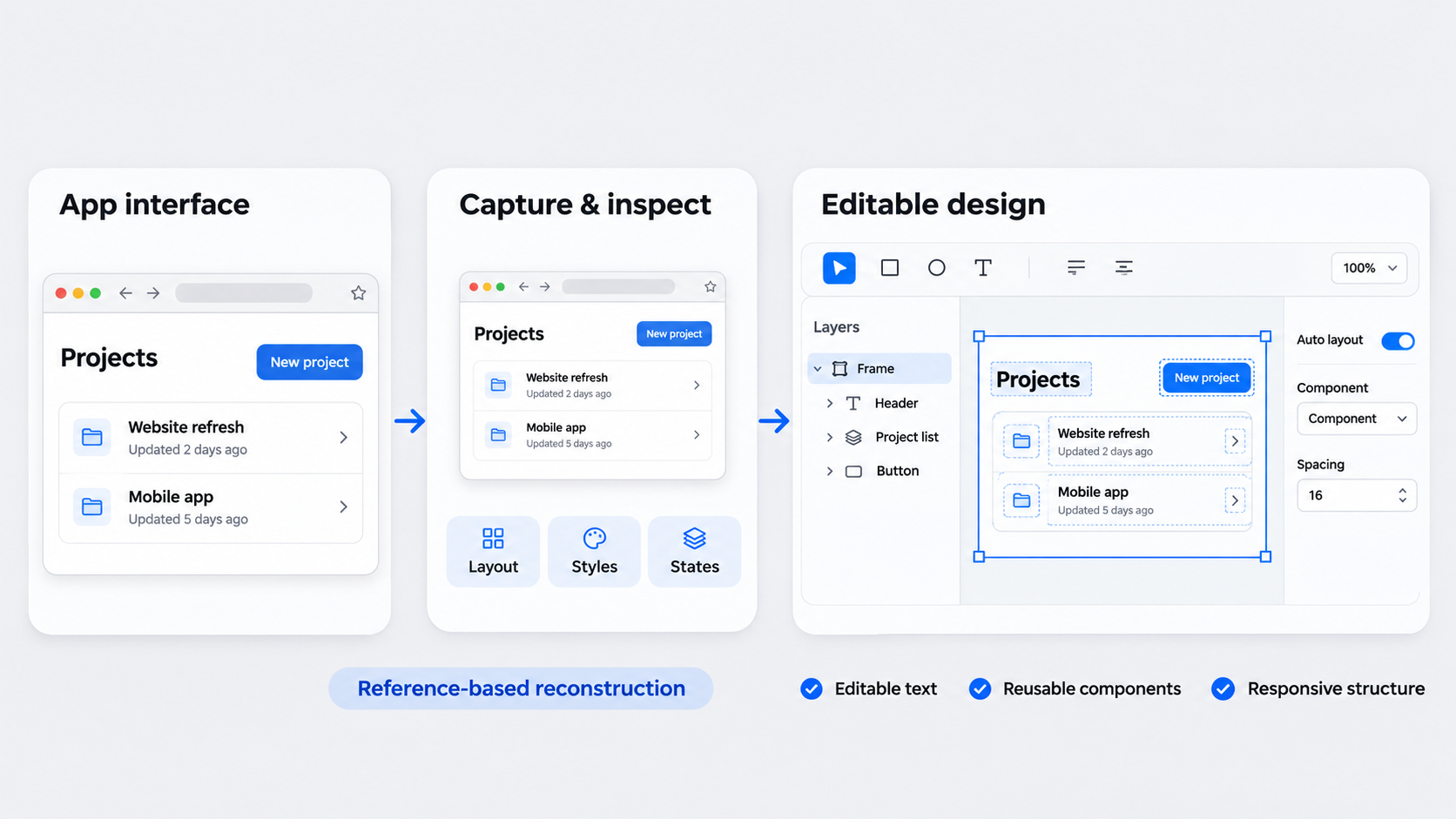 Lovable may have shipped the interface, but design teams still need editable files for critique, reuse, and handoff.
The official Lovable integration page supplied for this article documents importing a Figma project into Lovable. It does not document a native reverse export that converts an existing Lovable app into structured Figma layers.
These concepts are different:
- Figma-to-Lovable import: A Figma design becomes an input for a Lovable project.
- Lovable-to-Figma export: An implemented interface becomes editable Figma layers and styles.
- Bidirectional synchronization: Changes move reliably in both directions.
- Reference-based reconstruction: Visual or browser evidence guides a new Figma design.
We only consider the result a conversion when its text, controls, containers, and repeated patterns are editable and organized.
Verification note — November 3, 2026: Teams should recheck current product documentation before assuming reverse export, synchronization, or a specific output structure.
Does Lovable export directly to Figma?
Not according to the supplied official material. It documents Figma as an input to Lovable, not an existing Lovable app as an input to Figma.
That integration may help move visual direction into implementation. It does not establish reverse export as native Figma components, variables, variants, or auto layout.
Why Figma-to-Lovable does not imply Lovable-to-Figma
Direction matters:
Documented:
Figma design → Lovable import → implementation

Reconstruction:
Lovable app → capture or inspection → editable Figma recreation

Not established:
Lovable app ↔ automatic two-way Figma synchronization
Before adopting an integration, we recommend confirming its input, output, supported states, layer structure, and update direction.
Choose the right Lovable-to-Figma workflow
The best method depends on the team’s priorities: speed, structural quality, privacy, implementation detail, or maintainability.
| Method | Starting fidelity | Editable structure | Typical limitation |
|---|---|---|---|
| Screenshot-to-design AI | High | Varies | Responsive behavior needs review |
| HTML-to-Figma import | Potentially high | Medium | Can create excessive nesting |
| Browser capture | High at one viewport | Low | Preserves appearance, not logic |
| Manual recreation | Controlled | High | Requires more design time |
We recommend reconstructing screens needed for critique, systemization, or handoff. Low-value runtime states can remain in Lovable unless designers need them.
Screenshot-to-design AI
This approach can quickly rebuild hierarchy and major page regions. Clear spacing, readable type, and visible component boundaries improve the starting point.
Generated output still needs review. Validate copy, constraints, states, repeated elements, and breakpoints through a disciplined AI-to-Figma conversion workflow.
HTML-to-Figma and browser capture
HTML-to-Figma tools may preserve implementation detail, but they can also produce arbitrary frames, duplicated styles, absolute positioning, and deep nesting. Browser capture records one rendered moment rather than the underlying design logic.
HTML, CSS, and Tailwind classes are useful evidence. They do not automatically form a coherent design system.
Manual recreation
Manual work gives us the most control over grids, components, constraints, and variants. It is often the cleanest option for a small number of important screens.
To avoid duplicated effort, establish foundations and repeated components before rebuilding more pages.
Capture the Lovable app before you reconstruct it
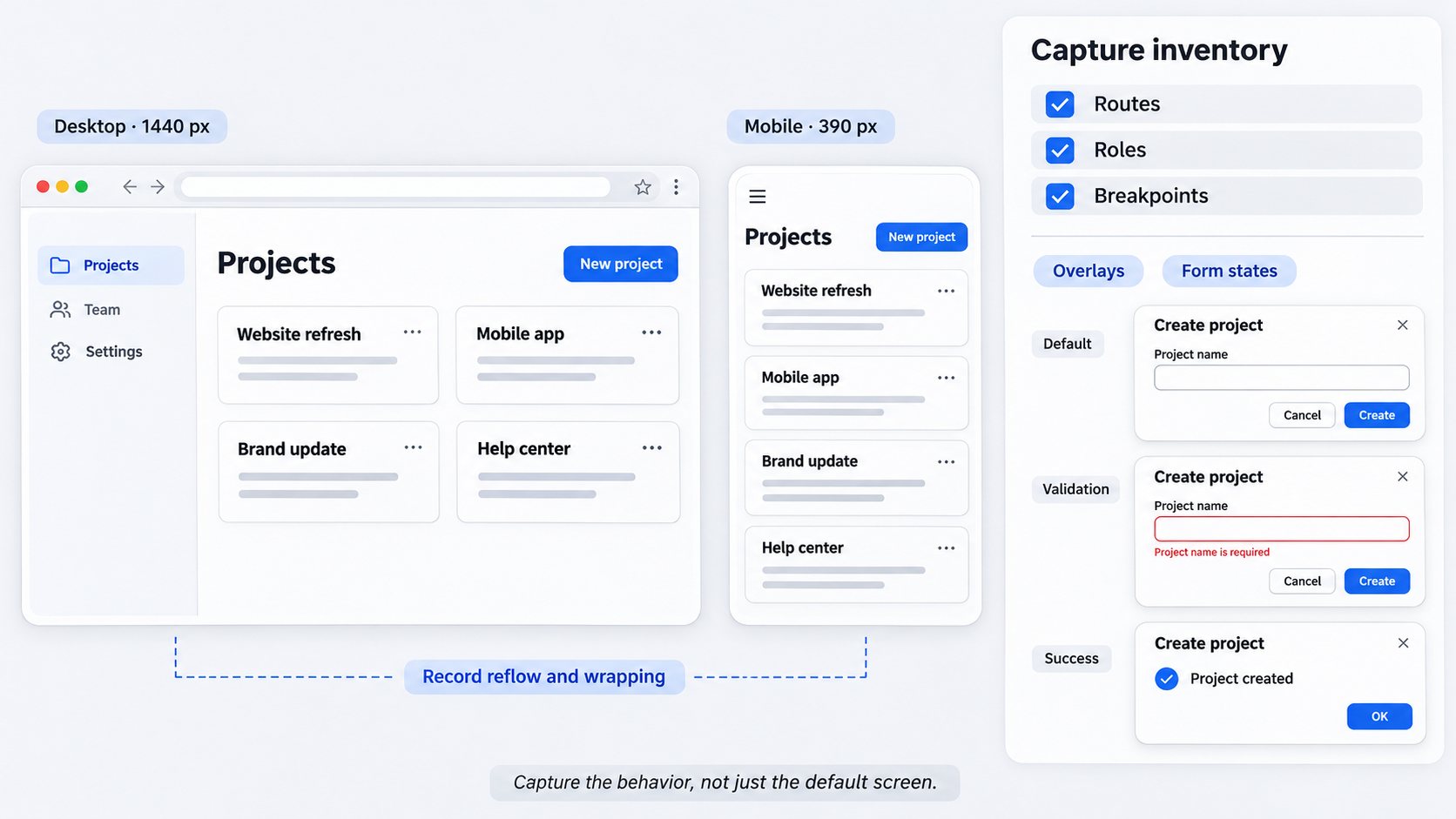 A reliable recreation begins with evidence. Our capture inventory usually includes routes, user roles, themes, breakpoints, overlays, and important interaction states.
Record viewport dimensions and permitted asset sources. Never upload customer data, confidential screens, or proprietary content to an unapproved service.
Build a screen and state inventory
Prioritize core flows and reusable patterns. A form may need default, focused, validation, loading, and success states rather than only its empty view.
Exclude implementation-only states that serve no design or handoff purpose.
Capture responsive evidence
Record where content wraps, reflows, hides, scrolls, or changes alignment. A mobile screenshot alone cannot explain whether a desktop region should collapse, switch components, or become horizontally scrollable.
Recreate editable Lovable screens with UXMagic
Our workflow uses visual evidence to create a structured design concept, followed by deliberate Figma cleanup:
- Choose a representative screen.
- Prepare a sanitized visual reference.
- Describe its hierarchy, patterns, and viewport.
- Generate a foundation with an AI UI generator for Figma-ready interfaces.
- Correct structural regions before decorative details.
- Move the approved design into Figma through the supported output path.
- Validate layers, tokens, components, and constraints.
Verify current inputs, output behavior, pricing, and plan limits before production use. We do not assume direct Lovable import or automatic synchronization unless it is documented and tested.
Describe, generate, and refine
A useful prompt defines the interface:
Create a responsive analytics dashboard with a collapsible sidebar, page header, metric cards, filters, and a data table. Use compact spacing and reusable card, filter, badge, and table-row patterns.
Refine meaningful sections rather than chasing minor visual offsets.
Move from visual similarity to usable structure
Text, containers, controls, and repeated items should remain editable. Resizing a card or changing a label should not break nearby content.
If generated structure is weak, rebuild that section with native Figma frames and auto layout.
Translate Lovable Tailwind styles into Figma tokens
Inventory recurring colors, spacing, typography, radii, borders, shadows, and opacity values. Then consolidate near-duplicates into intentional semantic tokens.
| Implementation value | Semantic role | Figma variable |
|---|---|---|
| Page background | Base surface | surface/default |
| Muted text | Secondary content | text/secondary |
| Primary accent | Main action | action/primary |
| Control radius | Control shape | radius/control |
| Overlay shadow | Floating surface | effect/overlay |
Mature libraries avoid preserving accidental variation. These Figma design system examples illustrate useful system patterns.
Create a token translation table
For each recurring value, record its implementation source, semantic role, Figma variable, and approved use. Responsive utilities or calculated CSS values may need to become documented component behavior rather than standalone variables.
Preserve typography and iconography
Verify font family, weights, line height, letter spacing, and fallbacks. Even a similar substitute can change wrapping and component height.
Use approved icon sources where licensing permits. Tracing icons from screenshots creates inconsistency.
Clean the Figma file: Auto layout, names, components, and variants
Remove empty frames, unnecessary wrappers, generated IDs, and duplicated styles. Apply auto layout according to content behavior, not browser coordinates.
Fix imported layer structure
Flatten needless nesting while preserving meaningful groups. Replace absolute positioning with horizontal, vertical, wrapped, or overlaid layouts where appropriate.
Use constraints to express responsive intent instead of building a separate component for every viewport.
Componentize repeated patterns
Start with buttons, fields, cards, navigation items, table rows, filters, alerts, and empty states. Components should include realistic content and relevant states. Our guide to generating AI UI that is actually shippable covers this standard.
Apply semantic naming
Name layers by role: Action/Primary, Navigation/Item, or Metric/Value. These labels are more durable than visual names such as Blue Button.
Validate the Figma reconstruction against Lovable
Compare matching content at matching viewport dimensions. Review hierarchy, wrapping, spacing, typography, color, borders, effects, and responsive changes.
Use a practical fidelity checklist
Check the global frame first, followed by major regions, repeated components, typography, interaction states, and resizing behavior. This keeps structural problems from being hidden beneath decorative polish.
Define “done” beyond pixel matching
A finished reconstruction needs coherent tokens, reliable auto layout, semantic layers, reusable components, and documented responsive behavior. It should also survive long, short, empty, and localized content.
Prevent drift between Lovable and Figma
Choose a source of truth and record the build URL, capture date, viewport dimensions, owners, and reconstruction status inside Figma.
Pick a source-of-truth model
If Lovable remains primary, Figma can document selected flows and proposed changes. If Figma becomes primary, approved designs should follow a defined path back into Lovable.
Document the change loop
Assign owners for tokens, components, and screens. Avoid unreviewed parallel edits, which quickly produce incompatible versions.
Free methods, MCP, GitHub, and security questions
Free captures, inspection tools, plugins, and source code can provide evidence. They do not guarantee organized Figma layers or components.
Can I convert Lovable to Figma for free?
Manual reconstruction can be done with screenshots, browser inspection, permitted assets, and available Figma tools. The main cost is time, including cleanup of nesting, names, layouts, and tokens.
Does GitHub or MCP create a Figma file?
Not by itself. GitHub can expose code and assets, while MCP can connect compatible tools. A usable Figma file still requires a tested conversion or reconstruction process.
What should enterprise teams verify?
Review access controls, data retention, model-training policies, regional processing, contractual terms, and subprocessors. Our enterprise AI UI governance checklist provides a broader framework.
Recreate your Lovable UI as an editable design
Start with one high-value screen and build a maintainable design foundation. Describe, design & ship with UXMagic’s AI UI design generator.