
TL;DR
In the UXPin vs Figma comparison, Figma is a strong choice for visual exploration and collaborative interface design. UXPin is worth evaluating when a team needs realistic interactions or wants to prototype with production React components through UXPin Merge. For earlier exploration, UXMagic can generate editable, multi-screen directions before detailed design begins.
UXPin vs Figma: the short answer
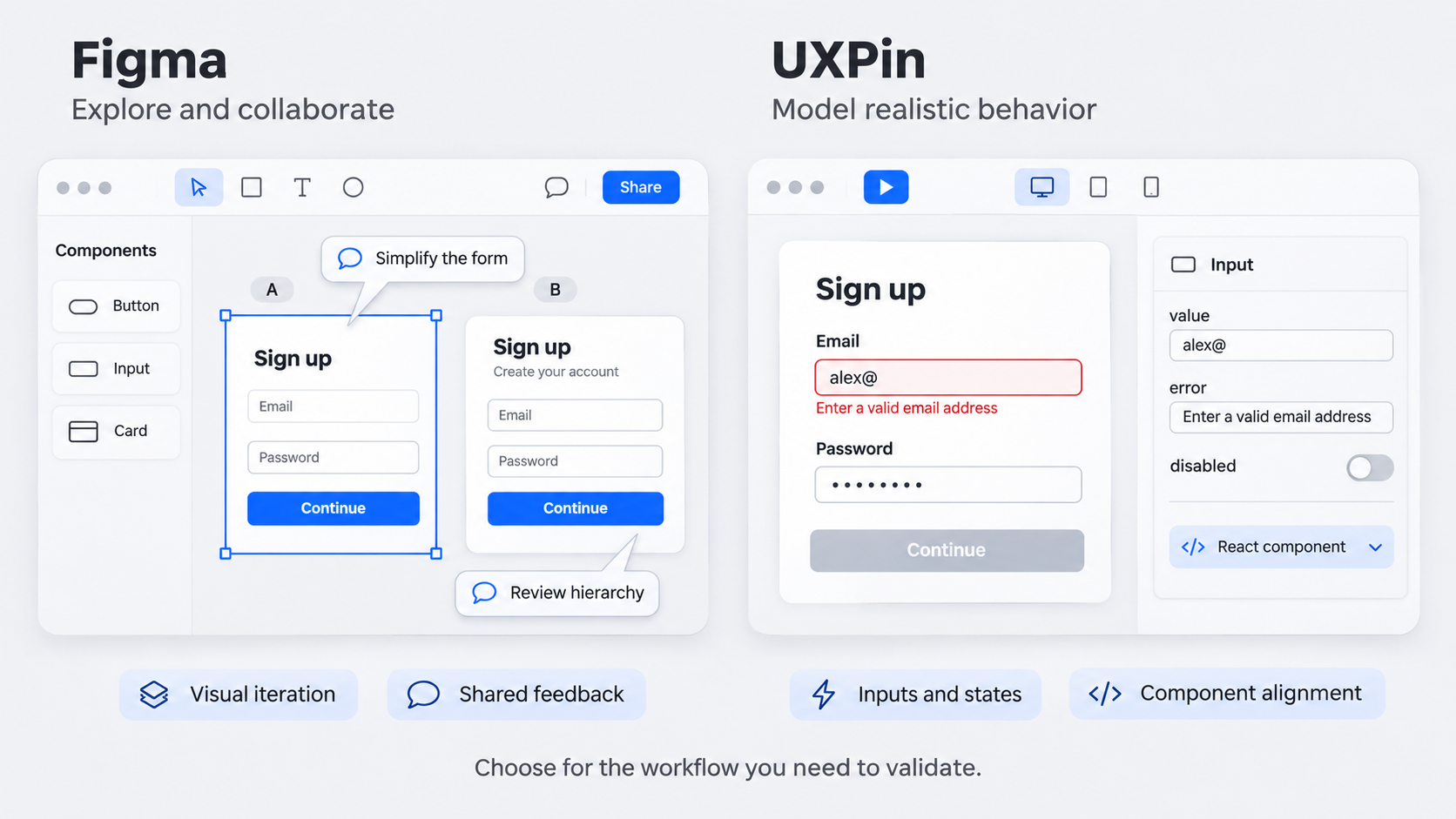 UXPin vs Figma is less about feature counts and more about workflow. Figma emphasizes flexible visual design and collaboration. UXPin focuses on interactive prototypes and component-driven workflows that can connect design and development.
We recommend Figma when fast exploration, familiarity, and broad participation matter most. UXPin deserves a closer look when teams repeatedly encounter unrealistic prototypes, component mismatches, or uncertainty during handoff.
UXMagic provides another starting point. Its AI UI generator creates Figma-ready designs from a brief, helping our users move past the blank canvas before choosing a prototyping or delivery environment.
Which tool is better for which workflow?
Figma suits ideation, workshops, interface design, visual iteration, and teams already invested in its files and libraries.
UXPin suits behavior-rich forms, conditional workflows, interactive components, and design systems connected to React components. A specialized prototype, however, rarely justifies moving an entire design organization.
UXPin vs Figma comparison table
| Decision area | Figma | UXPin | Practical verdict |
|---|---|---|---|
| Interface design | Flexible visual creation | Component- and behavior-oriented | Figma for open exploration |
| Prototype fidelity | Click-through flows and interactive experiences | Realistic states and interactions | UXPin for behavioral testing |
| Collaboration | Built around shared design work | Supports collaborative product design | Test with actual stakeholders |
| Design systems | Shared design libraries | Code-backed workflows through Merge | UXPin can help code-connected teams |
| AI | Evolving AI-assisted features | AI within its connected product workflow | Compare editable results |
| Developer handoff | Designs and specifications inform implementation | Approved React components can reduce translation | Neither replaces engineering |
| Ecosystem | Established design community | More specialized workflow | Consider existing dependencies |
| Learning curve | Familiar to many design teams | Advanced behavior may require more setup | Pilot before switching |
| Pricing | Varies by plan and access | Varies by plan and implementation | Check official pricing |
| Migration risk | Lower for established Figma teams | Workflows may need rebuilding | Start with one representative flow |
The fundamental difference: vectors versus code-backed components
Figma provides a visual canvas suited to quick experimentation. Designers can rearrange concepts without first defining production behavior.
UXPin supports interactive components and, through Merge, can synchronize React component libraries into the design workflow. Designers can then work with components tied more closely to their production counterparts.
That does not turn a prototype into a finished application. Data integration, accessibility, testing, application logic, and deployment still require engineering work.
Where familiarity helps—and where it hides costs
Figma familiarity can reduce training and switching effort. Existing files, libraries, plugins, and team habits may make it the most efficient operational choice.
Those advantages can also obscure repeated handoff work. A polished prototype may still leave developers asking about validation, responsive behavior, or component states. Our collection of Figma design system examples shows why governance matters alongside the library itself.
Prototyping realism: interactions, logic, inputs, and validation
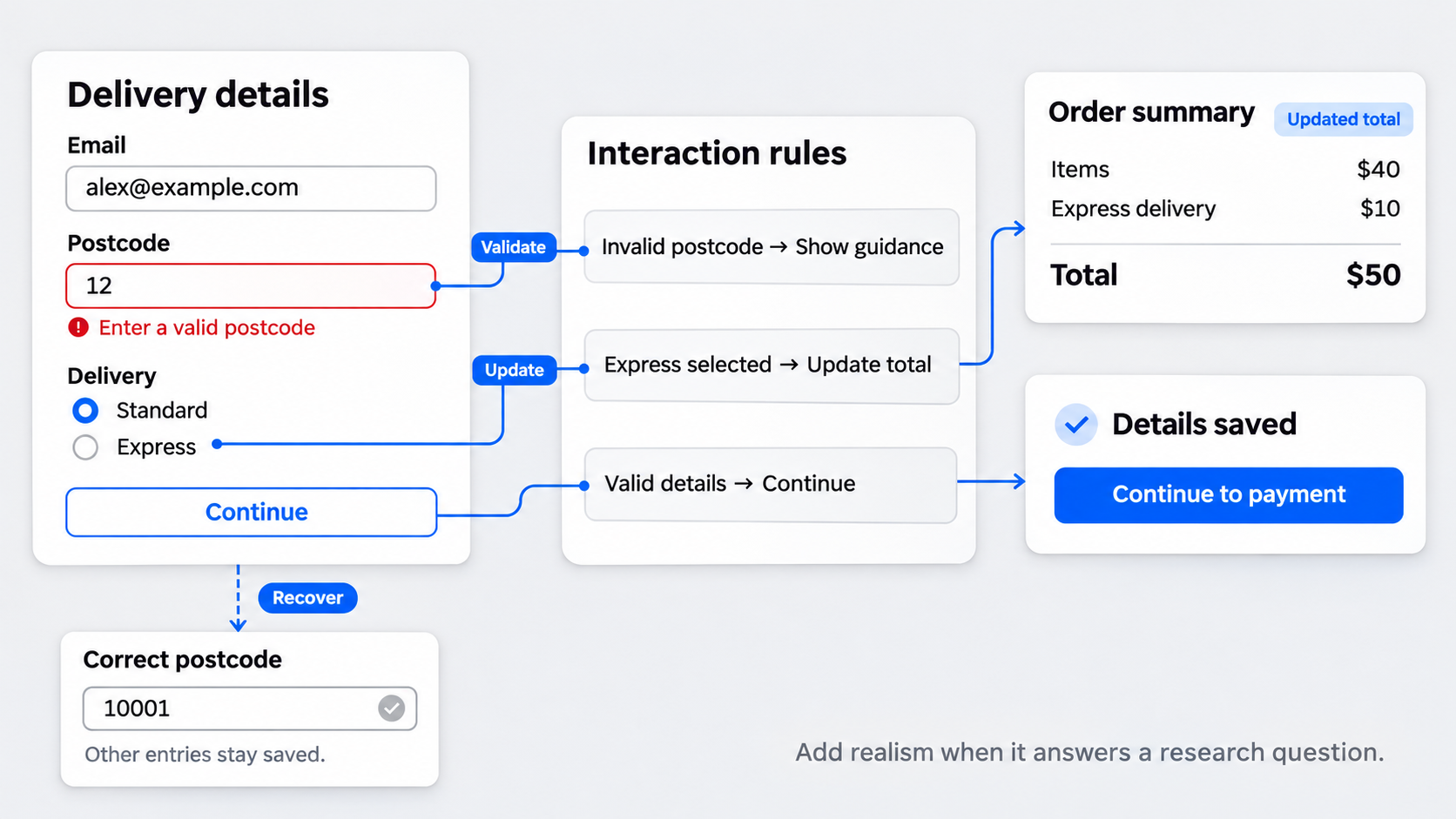 Figma is effective for demonstrating navigation and screen-level flows. UXPin becomes relevant when research participants need to manipulate controls, enter information, encounter errors, or see components change state.
Consider a checkout. A click-through prototype can communicate the main path. A more behavior-rich prototype can test how people respond when an input is invalid or an option changes the next step.
Our guide to interactive prototypes and product testing explains how interactions should support a research question rather than exist only for presentation.
When UXPin's fidelity can reduce rework
Realistic interactions may reveal unclear validation, missing states, or broken conditional paths before implementation. That can reduce ambiguity between design and engineering.
The outcome depends on the quality of the component library, engineering participation, and whether the prototype tests meaningful product risks. Fidelity alone does not guarantee faster delivery.
When high fidelity slows the wrong work
Production-like behavior takes time and can encourage teams to polish an unproven idea. We recommend increasing fidelity in stages:
- Generated concept
- Clickable flow
- Behavior-rich prototype
- Implemented product
Move forward only when additional realism helps answer the next decision.
Design systems and developer handoff: what actually reaches production?
Both tools support reusable design components. UXPin adds the option to prototype with React components synchronized through Merge.
In that workflow, engineering can retain ownership of the implementation while designers use approved components and exposed properties. This may reduce translation when the underlying library is maintained and documented.
Neither tool completes data connections, accessibility checks, integration testing, or deployment.
The source-of-truth problem
A design-only component can drift from production code. Connecting a component library may reduce that risk, but tools cannot establish ownership by themselves.
Teams still need maintainers, naming conventions, release practices, documentation, and rules for handling changes.
Does UXPin eliminate handoff?
No. UXPin can narrow the gap between a prototype and a React component library, but engineers remain responsible for implementation and technical quality.
During a pilot, we recommend tracking clarification questions, component mismatches, specification effort, rework, and maintenance. Inspectable code or design specifications should not be confused with a deployable application.
AI comparison: UXPin AI, Figma AI, Figma Make, and UXMagic
AI labels do not reveal whether a tool assists with small design tasks, generates screens, or creates functional experiences. Product capabilities and availability also change, so teams should confirm current details in each vendor’s documentation.
We recommend evaluating AI output by multi-screen consistency, editability, component control, interaction depth, and rebuilding time.
Where UXMagic fits: describe, design & ship
We position UXMagic at the blank-canvas stage. Teams can describe a product, generate interface directions, refine a flow, and continue in their preferred design or validation environment.
Our AI-to-Figma workflow focuses on editable output rather than static inspiration. The useful measure is how quickly a team reaches a workable concept.
How to assess AI output honestly
Do not judge only by screenshots. Review:
- Consistency between screens
- Editability
- Component reuse
- Responsive behavior
- Content quality
- Empty, error, and loading states
- Export and continuation options
Include cleanup and reconstruction in the assessment. Attractive output provides little value if it must be rebuilt before review.
UXPin reviews: recurring praise, complaints, and caveats
UXPin reviews need context. A reviewer’s use case, product version, plan, team structure, and component maturity can change the experience substantially.
The most useful accounts explain whether the team built ordinary screens, advanced interactions, or a Merge-based design-system workflow.
What users tend to value
When reviewing positive feedback, look for evidence about realistic interactions, reusable components, stakeholder testing, and design-system alignment. These benefits matter most when a team repeatedly tests complex behavior and has engineering support.
The key question is not whether UXPin offers advanced features. It is whether those features solve a recurring problem.
Where teams report friction
Assess setup effort, training, collaboration expectations, file complexity, and component maintenance during a pilot. Merge-based workflows also depend on engineering ownership, documentation, and versioning.
Recent, workflow-specific reviews are more useful than broad praise or criticism without dates and context.
Figma-to-UXPin workflow: practical bridge or two-tool tax?
A bridge workflow can preserve visual exploration in Figma while moving selected designs into UXPin for deeper prototyping. UXPin documents a Figma plugin intended to bring Figma designs into UXPin.
Teams should still inspect imported fonts, layouts, components, interactions, and generated content. If both files remain active, each update can create synchronization work.
What to test before migrating
Import a representative product flow rather than a simple presentation screen. Record cleanup, remapped components, rebuilt interactions, and access problems.
Check current plugin capabilities immediately before the pilot because supported workflows can change.
How to avoid two sources of truth
Assign ownership clearly:
- Figma owns visual exploration
- One tool owns approved specifications
- UXPin owns selected behavior-rich prototypes
- The codebase owns production components
Define update and archival rules. End the two-tool workflow if synchronization costs outweigh its testing or handoff benefits.
Which tool fits your team—and should you switch?
Choose according to workflow maturity and recurring problems, not company size alone. We recommend testing one representative project before considering broader adoption.
Best fit by team type
- Solo designers: Figma may suit familiar design and presentation workflows.
- Startups: Favor exploration speed unless behavioral testing is a regular bottleneck.
- Design-system teams: Evaluate UXPin Merge when React component alignment matters.
- Enterprises: Include governance, security, procurement, support, and training.
Pricing and total cost: verify before publishing
Check official pricing pages before purchasing. Plan structures, access rules, and AI allowances can change.
Total cost also includes migration, training, library rebuilding, plugin replacement, component maintenance, and administration across multiple tools.
A pilot scorecard
Test a flow involving realistic inputs, conditional behavior, and relevant components. Measure build effort, research findings, developer questions, implementation rework, participant friction, and synchronization overhead.
Adopt UXPin more broadly only if the pilot demonstrates recurring value.
Turn your brief into editable UI
Use UXMagic to move from a product brief to editable interface directions, then take the strongest flow into the design or prototyping environment that fits your team. Start with an AI-generated UI direction.