
Share a project
Invite specific people, or share a link that lets anyone who opens it join.
Last updated
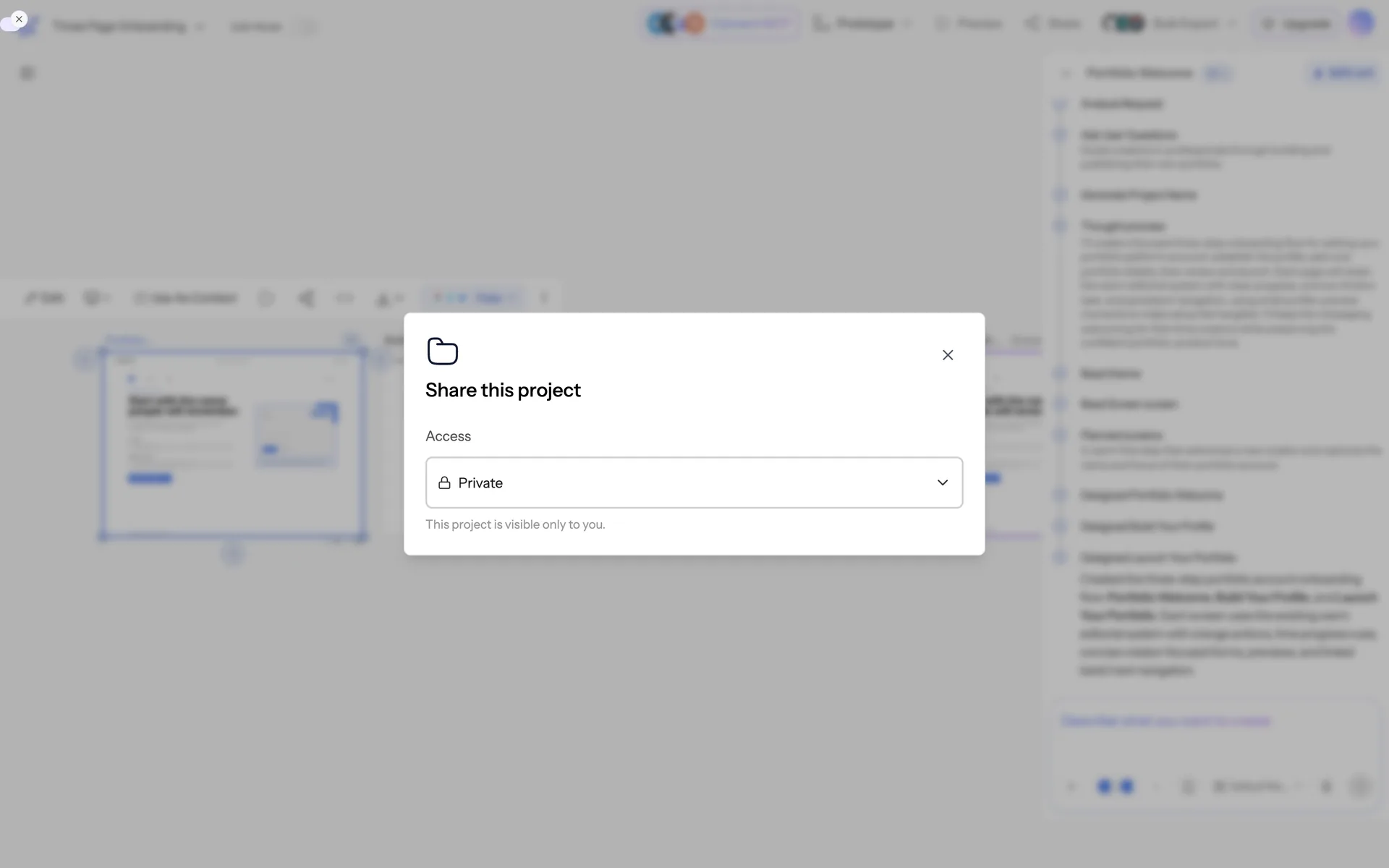
Two ways to share
Invite by email. Add specific people to a specific project. They get an email, and the project appears in their dashboard when they accept. Use this for people who will actually work on the design.
Anyone-with-link. Generate a link that adds whoever opens it to the project. Use it for a team channel or a client thread where chasing individual email addresses isn't worth it — but be aware that anyone who gets forwarded the link gets access too.
Steps
- Open the project.
- Click Share.
- Either enter email addresses, or turn on link sharing and copy the link.
What collaborators can do
Collaborators work in the project like you do: chat with the AI, edit screens, export. Whose credits get spent depends on how the project is shared — see below.
Whose credits get spent
This is the part that surprises people. When a project is shared with a team, AI work in that project is charged to the team's pool or to the acting member's allocation from it — not to their personal balance. On a project shared person-to-person outside a team, each person's own balance pays for the work they trigger.
See Teams and seats.
Sharing for review only
If you want feedback rather than collaborators, share a preview instead — it shows the design without giving people the ability to edit it. See Share a preview for review.
Removing access
Remove someone from the project's share settings, or turn link sharing off. Turning off the link doesn't remove people who already joined through it — remove them individually.
Was this article helpful?
Related articles
Teams, seats and shared credits
Create a team, invite members, assign roles, and allocate credits from a shared pool.
Comments and feedback
Leave comments on a design and resolve them as you work through them.
Share a preview for review
Send a read-only link so stakeholders can see the design without editing it.