
UXMagic MCP server
Connect Claude, Cursor, VS Code, Windsurf, Codex or Antigravity to your UXMagic projects.
Last updated
The Model Context Protocol (MCP) is an open standard that lets AI assistants talk directly to external tools. The UXMagic MCP server connects your AI coding assistant to your actual UXMagic projects — so instead of copying screenshots into a chat, your assistant reads the real design.
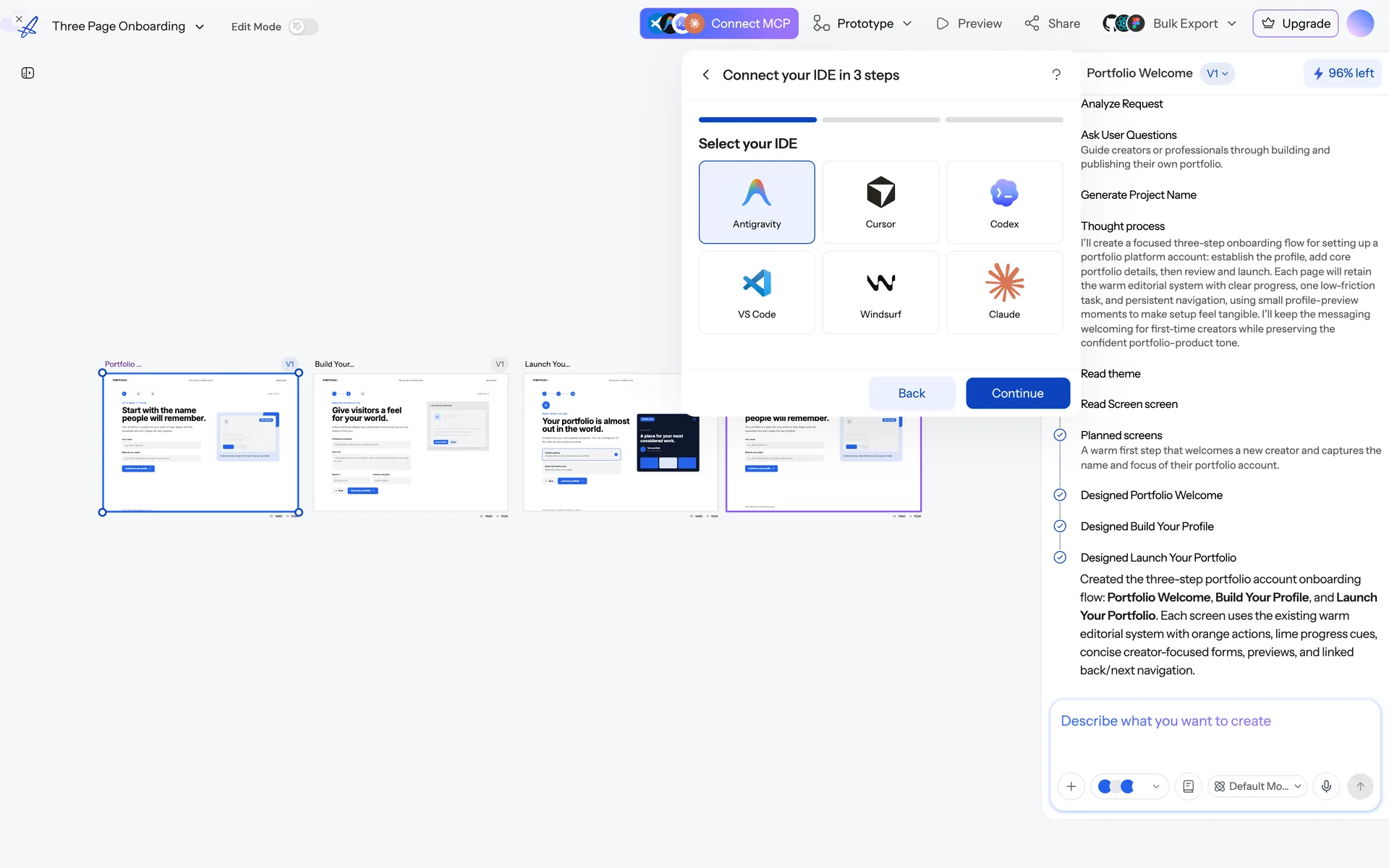
There are two ways to connect, and which one you want depends on the client:
- Claude (claude.ai, desktop, mobile) connects to the hosted server directly and signs you in — no key to copy, nothing to install. See Connect UX Magic to Claude.
- IDEs (Cursor, VS Code, Windsurf, Codex, Antigravity) use an API key in a config file, below.
Setup for an IDE
- Go to the MCP page and choose your IDE.
- Generate an API key — see API keys.
- Copy the generated configuration and paste it into your IDE's MCP settings.
- Restart the IDE if it doesn't pick up the new server immediately.
Any MCP-compatible client works with the same configuration.
What your assistant can do once connected
Read your work
- List your projects, and get a project's details.
- List the screens in a project, and get a screen's details.
- Read a screen's HTML, and read the project's theme.
- List and read the project's documents (PRDs, briefs).
Change your work
- Create a project, create a screen, duplicate a screen.
- Make a targeted find/replace edit to a screen, or replace a screen's whole body.
- Replace an image.
- Export a screen to Figma.
Generate
- Kick off a design generation, check its status, then confirm or cancel it.
Publish
- Put a project online at a public URL, check the build, list published sites, take one down.
Generation is deliberately a three-step handshake rather than one call: your assistant starts it, watches it, and you decide whether to keep the result — so an agent loop can't quietly burn your credits.
A typical workflow
"Read the Pricing screen from my Ledgerly project and implement it as a React component using our design tokens."
Your assistant pulls the real markup and theme, then writes code against them. No screenshots, no drift, no re-describing the design.
Credits
Read operations and publishing are free. Generation through MCP costs the same credits as generation in the app — it's the same engine. On the free plan the allowance is per day and refreshes at 00:00 UTC; when it runs out, the MCP server says so and reports when it returns, so your assistant can tell you rather than guessing.
Security
An API key authenticates the connection to your account. Keep it out of committed files, and rotate or revoke it any time from your account settings. A connection made through Claude's sign-in flow uses no key at all — revoke it from Connected apps in your account settings.
Frequently asked
- Which IDEs are supported?
- Claude, Cursor, VS Code, Windsurf, Codex and Antigravity — and any other MCP-compatible client.
- Do I need to install anything?
- No. UXMagic generates the configuration for your IDE; you paste it into the IDE’s MCP settings.
Was this article helpful?
Related articles
Connect UX Magic to Claude
Add UX Magic as a connector in Claude so it can read, edit and generate your designs — no API key to copy.
API keys
Create, rotate and revoke keys for the MCP server and API access.
Export code (HTML, React, Tailwind)
Export a single screen or a whole project as production-ready front-end code.
GitHub sync
Push exported code straight into a repository, and deploy with GitHub Pages.