
The canvas, projects and screens
How projects, screens, versions and the infinite canvas fit together.
Last updated
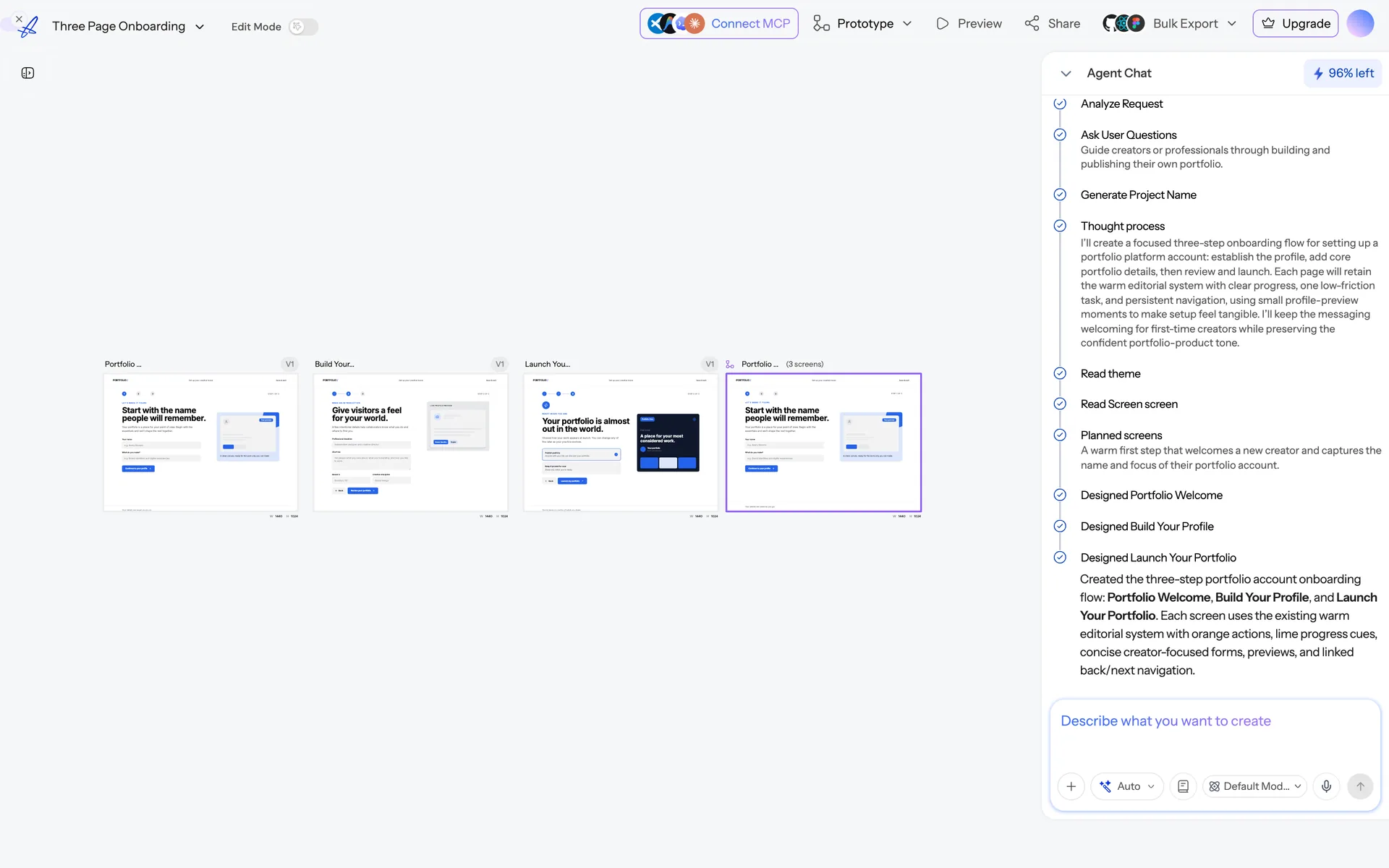
Projects
A project holds screens, a theme, uploaded assets and documents, its chat history, and its collaborators. Everything in a project shares one design system, which is what keeps twenty screens looking like one product.
Rule of thumb: one project per product or site. If you are designing two unrelated things, use two projects — otherwise a theme change intended for one will move the other.
Screens
A screen (sometimes called a frame) is one artboard on the canvas. Each screen has a name, a device size, HTML content, and a version history.
Screens can be:
- generated by the AI from your prompt,
- added empty and filled in later,
- duplicated from an existing screen,
- created as a responsive variant of another screen.
The canvas
The canvas is infinite and zoomable.
- Pan — space + drag, or two-finger scroll.
- Zoom — ⌘/Ctrl + scroll, or the zoom control.
- Fit to screen — zooms out to show every screen in the project.
- Focus mode — opens a single screen full-width for close work.
Screens are positioned from their centre point, so newly generated screens are laid out in a row beside the existing ones rather than stacking on top of them.
Versions
Every AI change to a screen creates a new version rather than overwriting the old one. You can step back through versions and restore any of them. See Versions and history.
Assets and documents
Each project has an asset library for images you upload or the AI generates, and a document area where you can attach a PRD, brief or spec that the AI will read before designing. See Design from a PRD or brief.
Trash
Deleted projects go to Trash and can be restored from the dashboard.
Was this article helpful?
Related articles
Create your first project
Go from signup to a designed, editable screen in about five minutes.
Versions and history
Every AI change makes a new version. How to compare, restore and keep variants.
Editing a screen
The three ways to change a design — chat, edit mode and theming — and when each is the right tool.