
Create your first project
Go from signup to a designed, editable screen in about five minutes.
Last updated
This walks you from a fresh account to a screen you can edit and export.
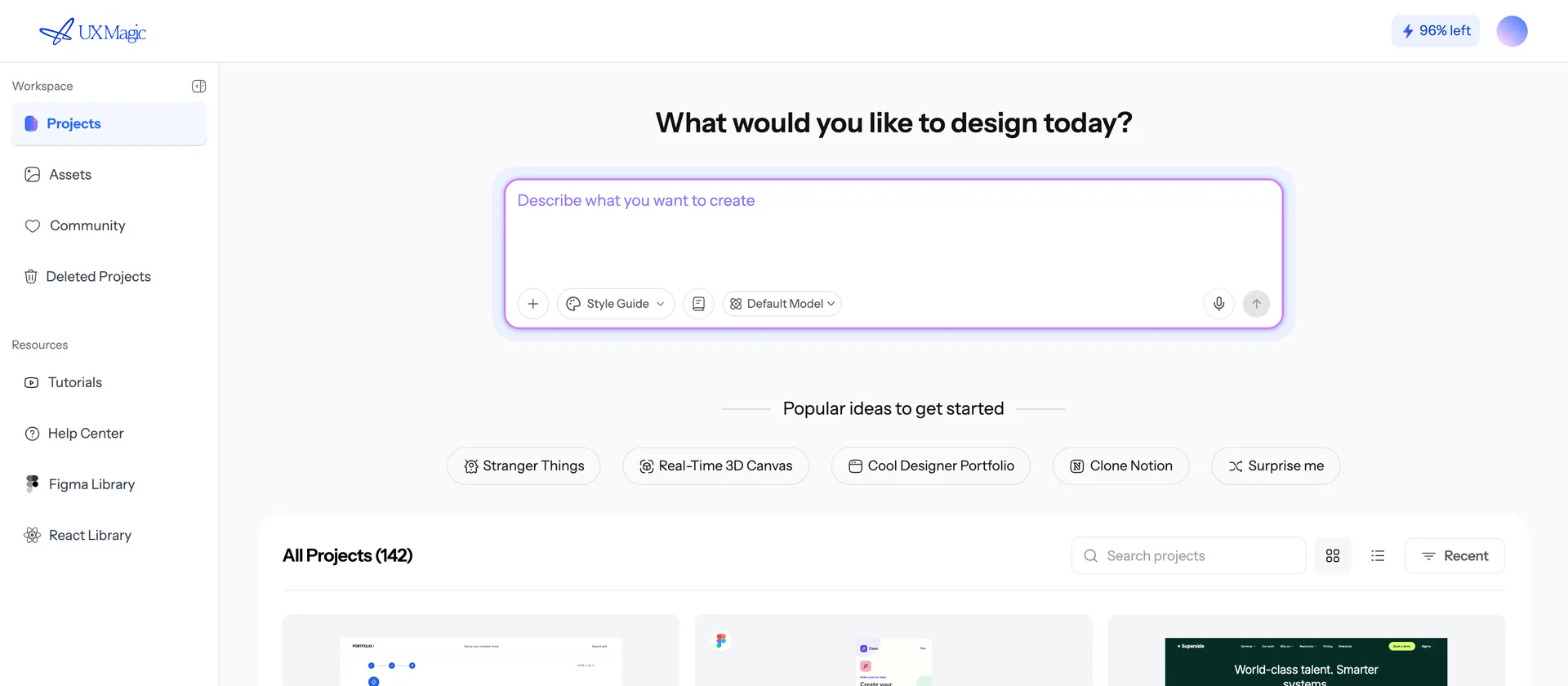
1. Sign in
Go to uxmagic.ai and sign up with Google or email. No credit card is required — the Free plan gives you 20 credits every day, enough for about 3 screens a day, across 5 projects.
2. Start a project
From the dashboard, click New project. A project is a container for a set of screens that share a theme — one product, one site, one flow. Keep unrelated work in separate projects so their design systems don't collide.
3. Describe what you want
Type your request into the prompt box. Be specific about the product, the screens and the audience:
A project management SaaS for small agencies. I need a marketing landing page, a pricing page, and a dashboard showing active projects. Clean and modern, deep blue and white, friendly but professional.
If you have a brand, a reference site, or a PRD, attach it now — see Ways to generate a screen.
4. Approve the plan
For a new project the AI usually proposes a screen list before designing anything. You can add screens, rename them, remove ones you don't need, then approve. This step is cheap on purpose — it is far better to fix the plan than to redesign five finished screens.
5. Watch it design
Screens are designed one at a time and appear on the canvas as they finish. You can keep working while this runs.
6. Iterate
Two ways to change things:
- Chat — for anything structural or thematic: "add testimonials under the hero", "make the whole thing dark", "swap the CTA copy".
- Edit mode — click into a screen to change text and swap images directly, without spending a generation.
See Editing a screen.
7. Get it out
When you're happy: export to Figma, export code, or publish it as a live site.
Common first-session mistakes
- Prompting one screen at a time when you want a flow. Ask for the whole flow up front so the screens share a theme and a navigation structure.
- Fixing the theme screen by screen. Change the theme once and it applies project-wide. See Themes and style guides.
- Regenerating for a typo. Use edit mode. Regeneration costs credits; editing text does not.
Frequently asked
- Do I need a credit card to start?
- No. The Free plan gives you 20 credits every day — enough for about 3 screens a day — with no card on file.
- How long does the first screen take?
- A single screen usually finishes in under a minute. A full multi-screen plan takes proportionally longer because screens are designed one at a time.
Was this article helpful?
Related articles
The canvas, projects and screens
How projects, screens, versions and the infinite canvas fit together.
Writing a prompt that gets what you want
The five things to include in a prompt, and the phrasings that reliably go wrong.
Every way to generate a screen
Prompt, screenshot, sketch, website URL, Figma import, or a PRD — and which one to reach for.