• Libraries
  • Community
  • Pricing
  • Affiliate
  • Resources

Libraries

Community
Pricing
Affiliate

Resources

Follow us on:
Help center
  • 🚀Get started
    • What is UXMagic?
    • Create your first project
    • The canvas, projects and screens
    • Writing a prompt that gets what you want
    • Keyboard shortcuts
    • Your account and profile
  • ✨Generate designs
  • 🎨Design & edit
  • 📦Export & handoff
  • 🌐Publish a live site
  • 🤝Share & collaborate
  • 🔌Integrations & developers
  • 💳Plans, credits & billing
  • 🛠Troubleshooting

Still stuck?

Our team answers from inside the product.

Contact support →
  1. Help center/
  2. Export & handoff/
  3. Export to Figma

Export to Figma

Send screens to Figma as editable, auto-layout, dev-ready frames.

Last updated 27 August 2026

On this page

  • Steps
  • What you get
  • Export allowance
  • Getting the cleanest result
  • Round-tripping
  • If export fails

Figma export produces real, editable Figma frames — auto-layout structure, live text layers, real fills and effects — not a flattened screenshot.
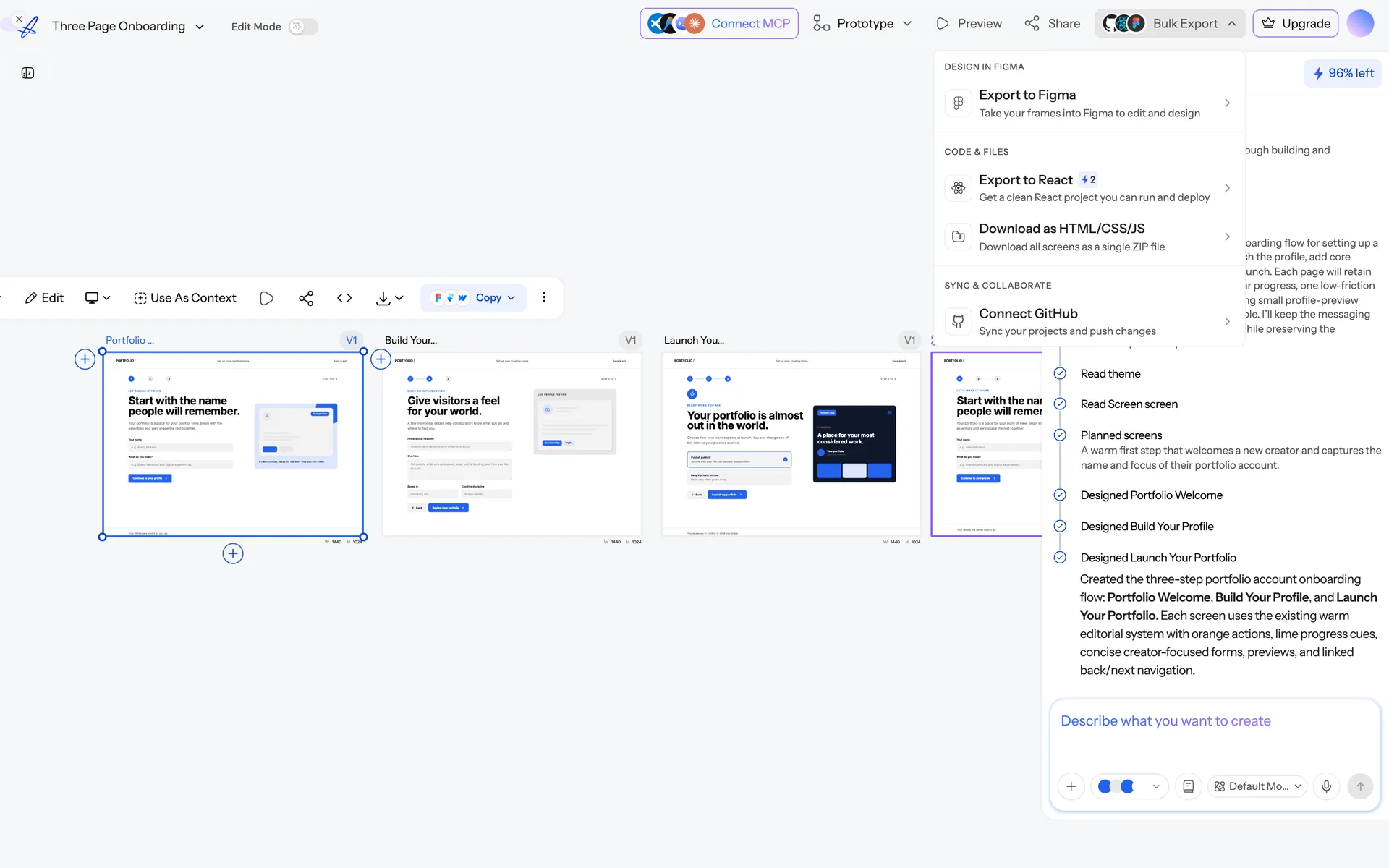
uxmagic.ai/dashboard/project
The Bulk Export menu open over a UXMagic project, offering export of the selected screens.
Bulk Export sends every selected screen out in one pass.

Steps#

  1. Select the screen (or screens) you want to export.
  2. Choose Export → Figma.
  3. Follow the handoff into Figma: either through the connected Figma account, or via the UXMagic Figma plugin.

What you get#

  • Auto-layout frames that respond correctly when resized.
  • Editable text layers with their type styles.
  • Real fills, gradients and shadows.
  • Images brought across as fills.
  • Named layers grouped by section, so the file is navigable rather than a soup of rectangles.

Export allowance#

Figma exports are metered. The Free plan includes a small fixed number; paid plans include a large monthly allowance. You can see what's left in your account. See Plans and limits.

Getting the cleanest result#

  • Finish the theme first. Exporting, restyling in Figma, then re-exporting means doing the Figma work twice.
  • Export the flow together rather than screen by screen, so the frames land side by side in one file.
  • Name your screens before exporting — names carry through and unnamed frames are miserable to work with later.

Round-tripping#

You can also go the other way and bring Figma frames back in — see Import from Figma. A common workflow is: generate in UXMagic → export to Figma → a designer refines → import back to keep iterating with AI.

If export fails#

See My Figma export failed.

Frequently asked

Is the exported Figma file editable?
Yes. You get real Figma layers with auto-layout, editable text and real fills — not a flattened image.
How many Figma exports do I get?
The Free plan includes a small fixed number; paid plans include a much larger monthly allowance. Your remaining exports are shown in your account.

Was this article helpful?

Related articles

The UXMagic Figma plugin

Generate UI and bring websites and screenshots into Figma without leaving Figma.

Import from Figma

Bring an existing Figma frame into UXMagic and keep editing it with AI.

Export code (HTML, React, Tailwind)

Export a single screen or a whole project as production-ready front-end code.

My Figma export failed

Export errors, empty Figma files and exports that use up an allowance.

← PreviousComponent libraries and design systemsNext →Export code (HTML, React, Tailwind)

On this page

  • Steps
  • What you get
  • Export allowance
  • Getting the cleanest result
  • Round-tripping
  • If export fails

your next idea
deserves to exist

stop thinking about it. just type it out. Badly, half- formed, whatever. We'll turn it into something real.

Product

  • Community
  • Pricing Plans
  • Affiliate Program
  • UXMagic MCP
  • Claude MCP
  • AI info

Resources

  • Help Center
  • Figma Library
  • React Library
  • Mobile App Templates
  • Documentation
  • Tutorials

Features

  • Prompt to UI
  • Image to UI
  • Sketch to UI
  • Clone website
  • Import from Figma
  • All Features

Compare

  • vs UX Pilot
  • vs Relume
  • vs MagicPath
  • vs Magic Patterns
  • vs Banani
  • vs Galileo AI
  • All Competitors

Blogs

  • AI in UX Design Workflow: What Actually Works
  • Prompt Templates for SaaS Dashboards
  • Real Prompts We Use to Generate Product Flows
  • Prompt Engineering for UX Designers
  • Best Wireframing Tools in 2026: 10 Free & Pro Options Compared
  • All Blogs

Company & Support

  • Careers
  • Contact Us
  • Privacy Policy
  • Terms of Use
  • Cookie Settings

© 2026 UXMagic AI Technologies Inc.