A designer can generate a dashboard inside Figma AI in seconds. Without tokens and components already set up, that speed often creates more cleanup later arbitrary pixel values, detached colors, layouts that don't hold together once a second screen needs to match the first. That gap between generation speed and generation quality is the actual story of Figma AI in 2026, not the feature list itself.
You already understand Auto Layout mechanics, design token structures, component variants, and responsive grids. This isn't a feature list recap. It's what Figma Agent, Figma Make, and Figma Weave actually do, where the credit caps bite, and exactly where prompt-to-UI output stops being usable without real cleanup.
The short version: figma ai works well as a bounded assembly tool inside a disciplined file. It works less reliably as a shortcut around having a design system in the first place.
Quick Comparison
| Feature | Figma AI | UXMagic |
|---|---|---|
| Screen generation | Strong | Strong |
| Multi-screen flows | Limited | Strong |
| Design system consistency | Depends on setup | Built-in |
| Best use | Existing Figma workflows | Product flow generation |
What Is Figma AI?
Figma AI is the umbrella term for the artificial intelligence tools built directly into Figma not one single feature, but a suite spread across separate surfaces. It covers text-to-UI generation, prompt-to-app prototyping, layer renaming, copy editing, background removal, and semantic design linting, accessed through four distinct tools: Figma Agent, Figma Make, Figma Weave, and Dev Mode.
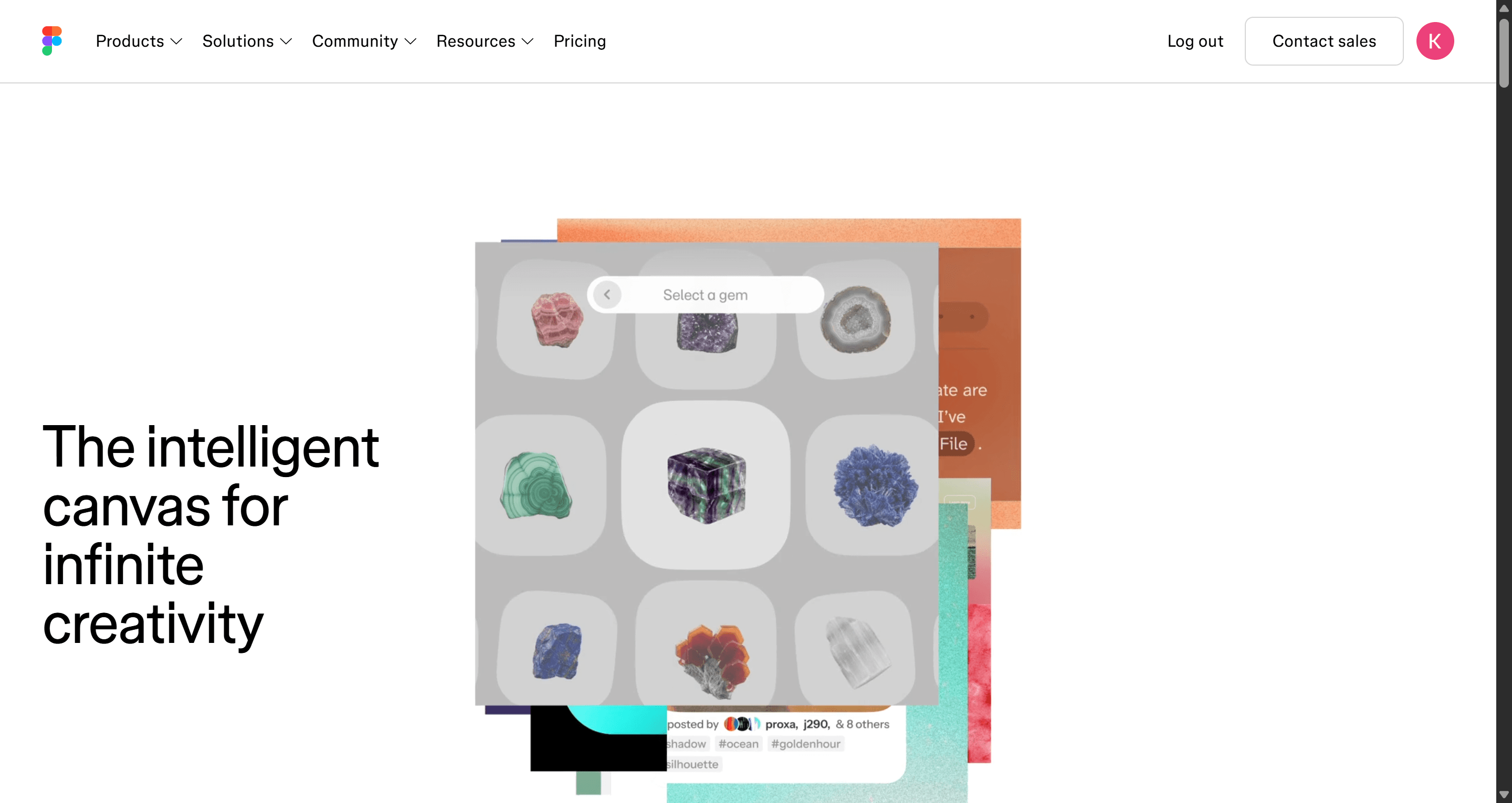
That's the part most explainers skip: "Figma AI" isn't a single button you press. It's a fragmented set of capabilities, each with its own interface, credit consumption rate, and mental model which is exactly why understanding what each piece actually does matters more than treating it as one unified feature.
Who Should Use Figma AI?
Designers with an existing design system. If your file already has clean variable collections, published component libraries, and defined typography tokens, Figma AI's generation tools have something real to bind to; this is where it performs best.
Product teams exploring early concepts. Fast, rough visual exploration before a direction is locked is a genuinely strong use case, especially when the output doesn't need to survive contact with engineering yet.
Teams already working inside Figma daily. The zero-context-switching advantage is real for anyone whose whole workflow already lives, their bulk layer renaming and on-canvas edits save real time without needing a new tool.
Where it's a weaker fit: teams without an established design system yet, or anyone needing a connected multi-screen flow rather than a single strong screen both covered in more detail below.
Understanding the 2026 Figma AI Ecosystem: Agent, Make, and Weave
| Tool | Purpose |
|---|---|
| Figma Agent | Editing and automation - layer renaming, bulk text edits, background removal |
| Figma Make | Prompt-to-app generation - natural language to editable Auto Layout frames |
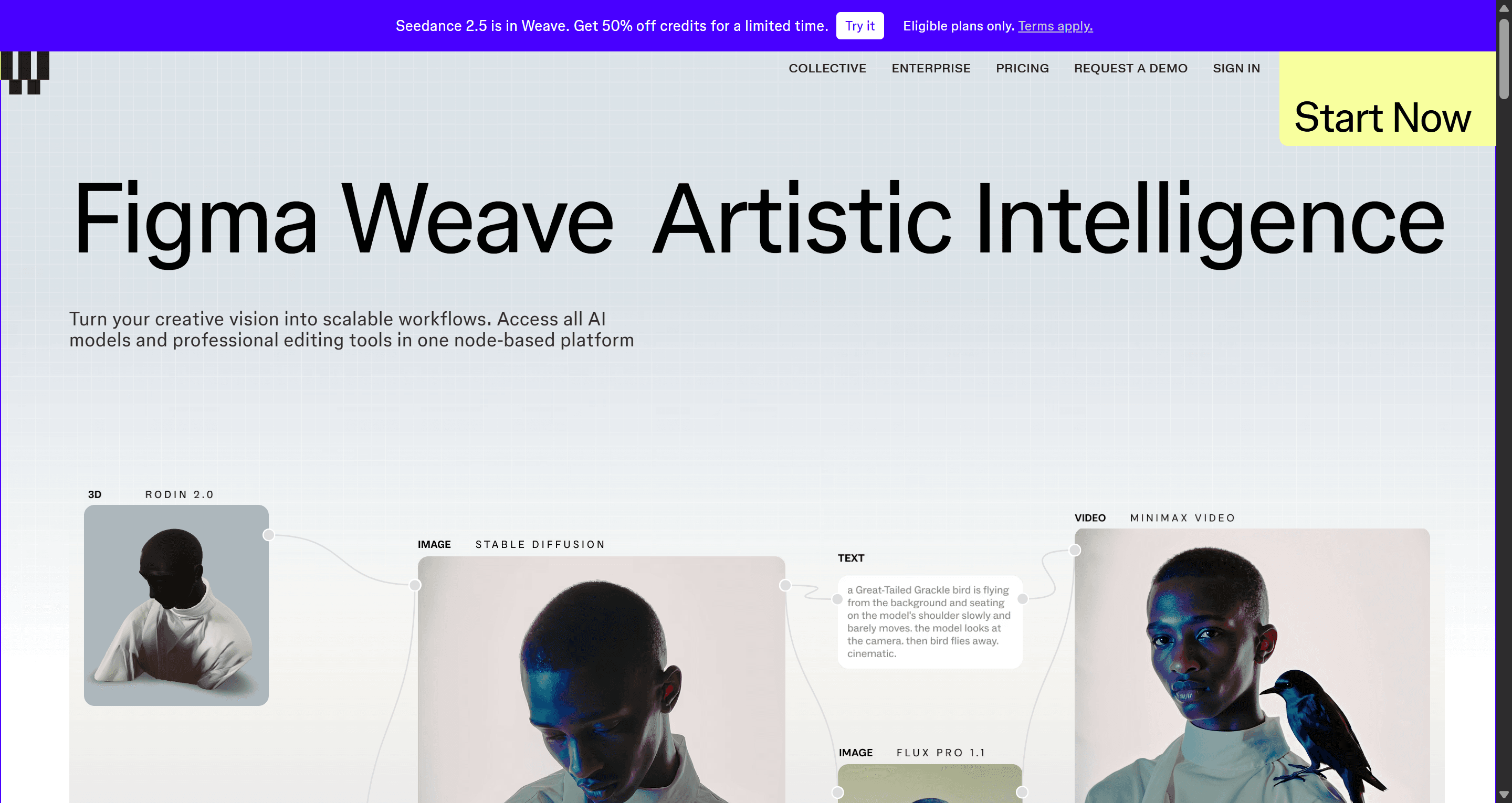
| Figma Weave | Generative asset creation - a node-graph canvas for media assets |
Figma Agent: On-Canvas Automation and Bulk Editing
Figma Agent handles on-canvas automation - layer renaming, bulk text edits, background removal, and asset discovery directly inside an existing file.
Figma Make: Prompt-to-App Prototyping and Code Export
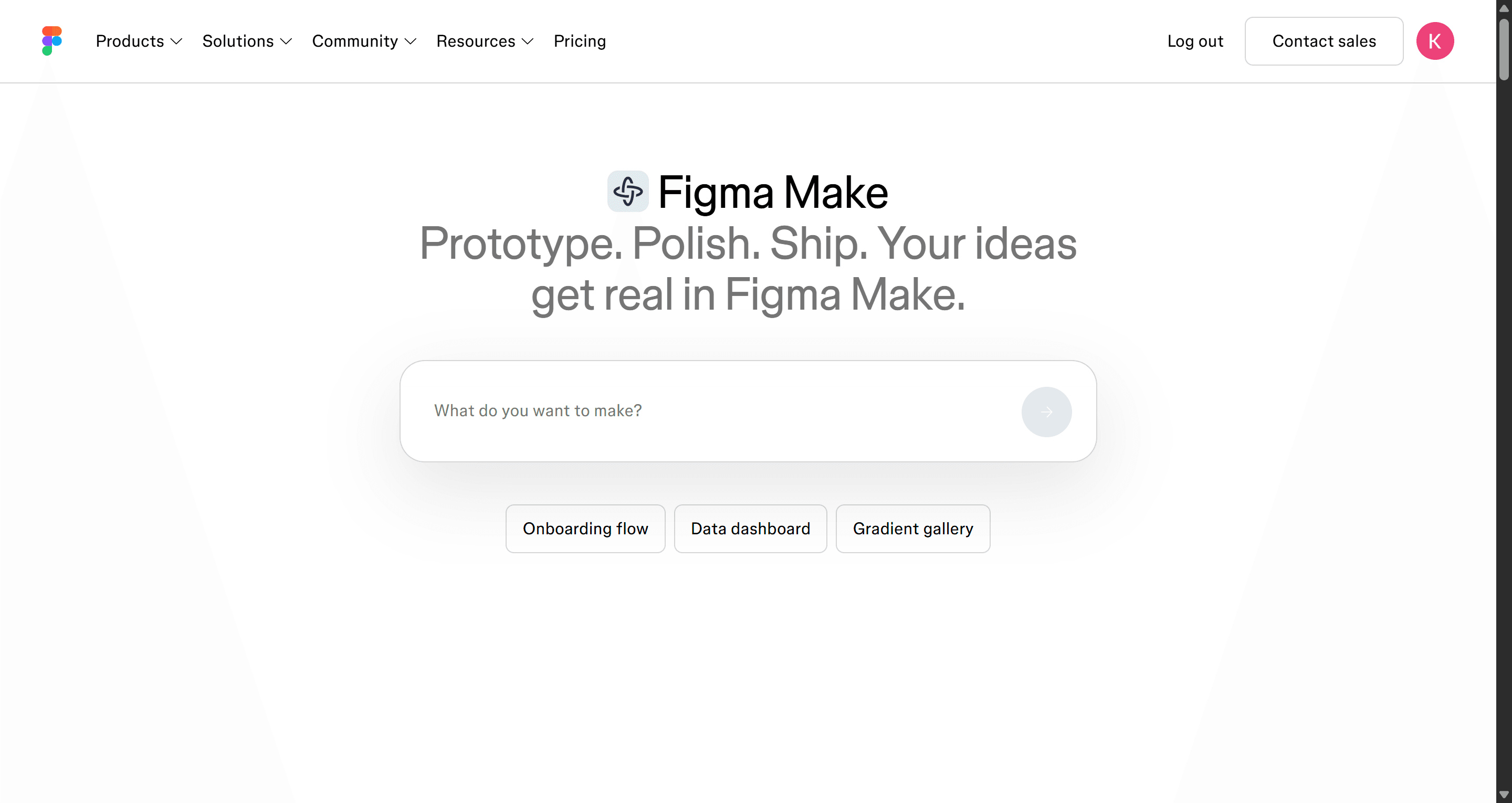
Figma Make analyzes active local styles, variables, and linked component libraries within your file. Describe a component or screen in natural language, and it generates editable Auto Layout frames on the canvas not flattened static images with a path to code export via Dev Mode.
Figma Weave: Generative Node Canvas for Media Assets
Figma Weave is a generative node-graph canvas built specifically for media assets, separate from the UI-generation tools above.
Tool suite fragmentation is worth factoring into any workflow decision. Distributing AI capabilities across Agent, Make, Weave, and Dev Mode each with different credit consumption rates and mental models introduces real cognitive friction. Instead of one unified spatial environment, designers jump between disparate interfaces mid-task. Specialist tools built around end-to-end screen flow generation in a single workspace can offer higher operational speed for that specific job, even where each individual Figma AI tool performs well on its own.
Core Capabilities: From Prompt-to-UI to Design System Auditing
Automated Layer Renaming, Text Rewriting, and Asset Discovery
The bulk-editing layer is genuinely useful for exactly what it sounds like: renaming dozens of layers consistently, rewriting placeholder text across a file, or surfacing assets buried in a large project.
Design Lint AI and Semantic Consistency Checking
Design linting checks a file for consistency issues but linting is a detection tool, not a prevention one. It catches problems after they exist in the file, which matters for the token-debt discussion below.
Native canvas AI copywriting is best reserved for a specific job, not final messaging. Using the built-in AI text generator to write final microcopy tends to produce fairly generic interface text. Generative models often default to standard SaaS phrasing "Seamless Integration," "Unlock Your Potential" that lacks brand voice or emotional resonance. Canvas AI copy tools are more reliably useful for stress-testing data character limits and edge-case string lengths than for writing final product messaging.
AI Credit Allocation and Tiered Pricing Breakdown
Figma AI provides limited daily credits on free Starter plans, capped at 500 per month. Paid Professional, Organization, and Enterprise plans receive monthly allocations ranging from 3,000 to 4,250 credits per seat. Credit caps apply across canvas generation, image manipulation, and code export tools alike.
Credit rationing is worth planning around, not just noting. Running out of a team's monthly credit allocation mid-sprint because exploring three layout variants burned through the limit is a real, recurring scenario, not a hypothetical edge case. Monitoring consumption across paid tiers matters as much as evaluating the feature set itself.
Practical Limits: Where Figma AI Acceleration Stops
Auto Layout Debt and Un-Tokenized Output Risks
Generative UI prompts can create layout debt unless bounded by token rules. Common advice encourages designers to generate complete, high-fidelity screens directly from broad text prompts. That approach carries real risk: AI models tend to prioritize visual plausibility over structural integrity, producing arbitrary pixel measurements, detached components, and hardcoded hex values instead of your actual design tokens. Restricting generation to low-fidelity structural exploration, or enforcing strict token-matching constraints before running a canvas prompt, meaningfully reduces this risk.
Here's what that looks like on a real project. A product manager needs a multi-tenant analytics dashboard with real-time server metrics, data filtering, and exported reporting tables. Prompting Figma Make produces a visually appealing top-level frame but the chart components use static vector shapes, data tables lack auto-layout pagination, and dark mode variables fail to map correctly to background surfaces. The designer has to manually rebuild the tables with proper component variants, apply auto-layout for variable screen widths, and construct the missing error states by hand.
The Single-Screen Bottleneck in Complex User Journeys
Single-screen prompting can create gaps in complex user journeys. A product isn't a collection of isolated hero frames, it's an interconnected sequence of state changes, micro-interactions, and edge cases. Prompting screen by screen can produce disjointed navigation and inconsistent interaction patterns, since nothing is inherently holding the sequence together as a system.
A startup founder prototyping a four-step onboarding sequence - profile creation, workspace setup, team invitations, billing can run into this directly. Generating each screen individually risks visual drift: button padding varying between screens, form field styles shifting from outlined to filled, mobile frames dropping key input elements. The team may end up manually harmonizing typography tokens across all four frames and wiring conditional prototype paths by hand the exact cleanup a flow-first approach to multi-screen journey mapping is built to reduce.
This can compound at the handoff stage too. Dev Mode is designed to export clean code, but engineering sometimes finds the React output includes unmaintainable wrapper divs and inline styling un-tokenized visual debt from generation showing up again, just in code form instead of layers.
Step-by-Step Guide: Integrating AI into Your UI/UX Design Workflow
Phase 1: Structuring Tokens and File Architecture
Before running a single generative prompt, the file needs real structure. Confirm explicit variable collections for color modes, spacing scale, and typography tokens. Define the user role, screen viewport, platform constraints, and required data states before prompt execution and confirm active component libraries are published and linked, so the model has something real to reference instead of guessing.
Phase 2: Generating First-Draft Screen Sequences
Use low-fidelity prompting to establish spatial hierarchy before committing to visual styling. Prompt full interaction sequences input screen, validation state, success confirmation rather than standalone frames, and apply variable-aware generation to map output directly to your local brand rules rather than generic defaults.
Phase 3: Refining Edge States and Preparing Developer Handoff
Validate that generated frames use real responsive resizing (Fill Container vs. Hug Contents) instead of fixed dimensions. Manually inject extreme content lengths, empty states, and localized text strings to stress-test layout resilience. Clean layer hierarchies, standardize component naming, and use Model Context Protocol bridges to stream design context into development environments before handoff.
Streamlining Multi-Screen Flows with Dedicated AI Flow Engines
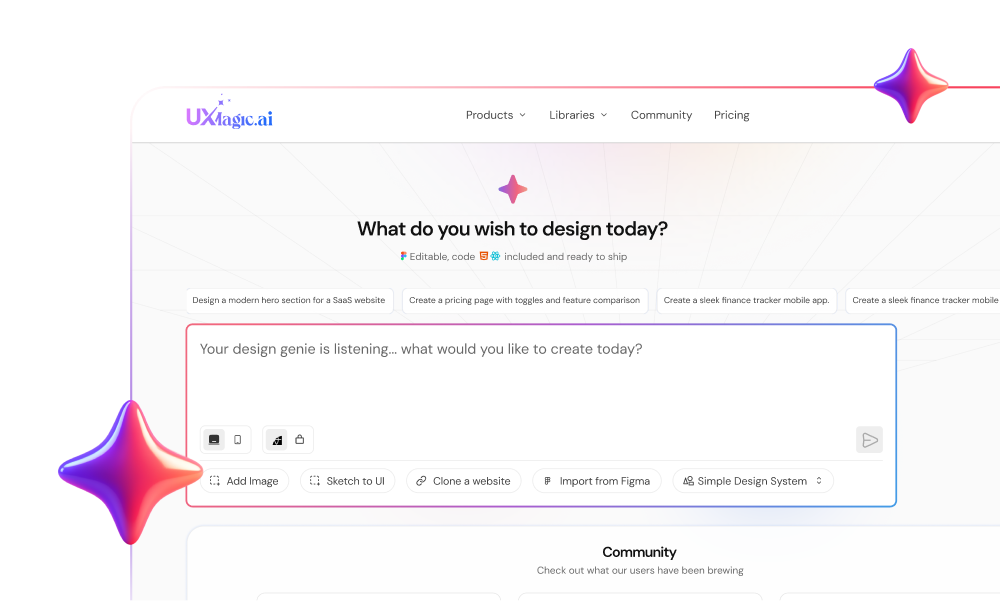
Figma AI accelerates work inside a design system you've already built. UXMagic helps a team create that product flow in the first place, before individual screens are worth refining at all the two solve genuinely different stages of the same problem.
Where Figma AI requires designers to generate individual screens and manually stitch them together with prototype connections, UXMagic's Flow Mode transforms a product requirements brief directly into a fully articulated, multi-screen user flow reducing the manual overhead of prompting isolated frames and re-aligning styles across sequence steps afterward.
The cold-start problem gets addressed the same way. Figma AI performs best with pre-configured local variables and a clean design system already in place; without that setup, output tends toward hardcoded visual attributes. UXMagic aims for visual and structural consistency across generated flows by default uniform spacing grids, typographic hierarchy, and visual patterns across every screen, reducing the hours otherwise spent fixing detached styles afterward.
For teams managing Figma AI's credit caps during a sprint, shifting initial flow exploration and draft generation to UXMagic's Prompt to UI preserves Figma credit allocation for final-stage file polishing and developer handoff instead of spending it on early exploration.
Every UXMagic Feature That Works With Figma
UXMagic isn't a separate destination from Figma; it's built to move in and out of it at multiple points, not just at final export. Here's every point of integration currently on the platform:
- One-click Figma export - every UXMagic-generated screen exports directly into fully editable Figma layers, not a flattened image.
- A dedicated Figma plugin - install it from the Figma Community to generate screens, flows, and full design systems directly inside your existing Figma files, without leaving the canvas.
- Import from Figma - bring in your existing Figma design system (components, styles, color tokens, brand assets), and every new AI-generated screen follows your exact typography, colors, and components instead of a generic default.
- Figma Component Library - a dedicated resource library of pre-built, Figma-ready components available directly on the platform.
- Copy to Figma, in-canvas - generated designs can be copied straight to Figma from UXMagic's own interface as part of the normal generation flow, not a separate export step.
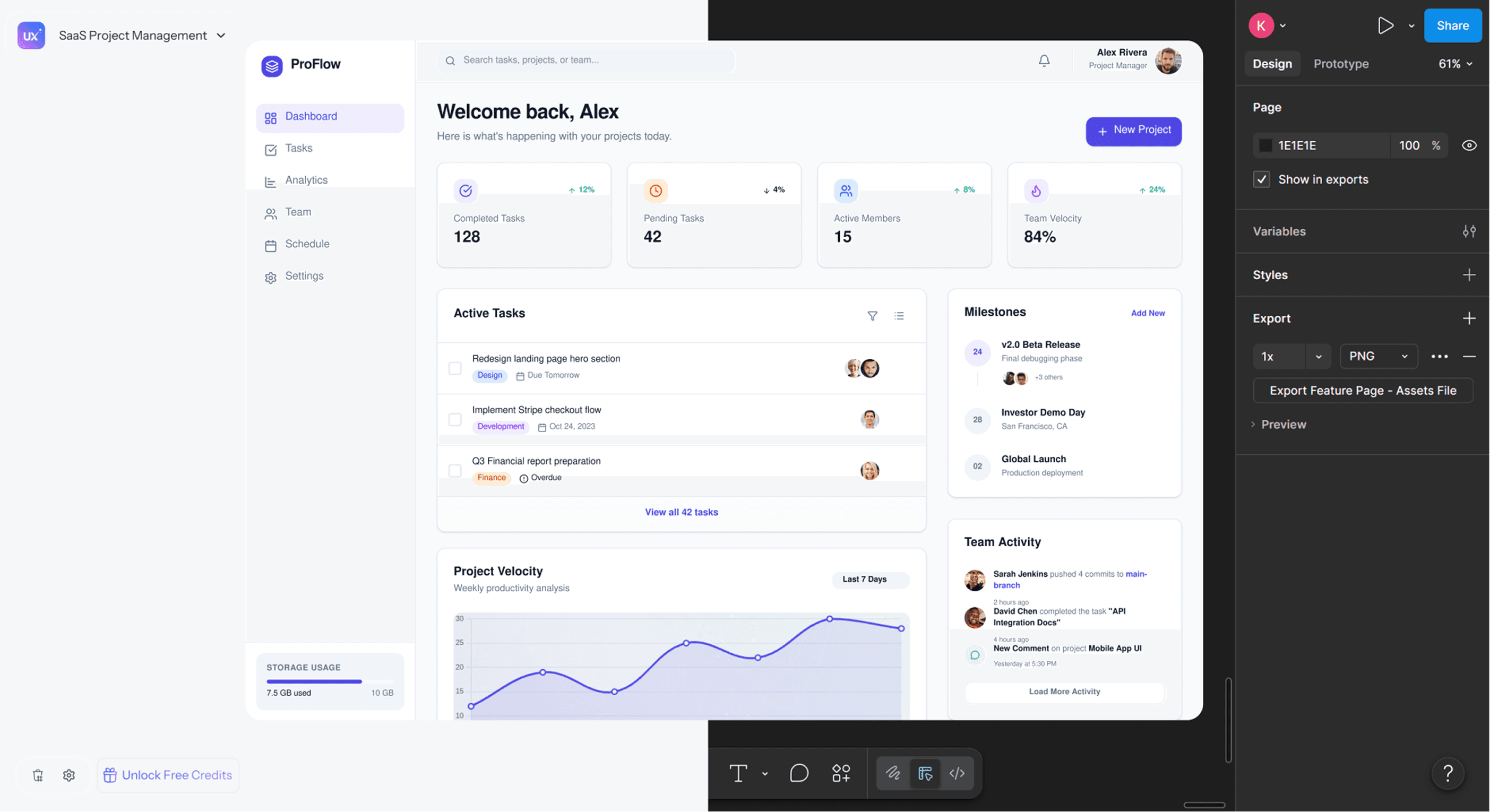
This is a direct structural answer to the fragmentation issue covered earlier: instead of jumping between Figma Agent for edits, Figma Make for prototyping, and Dev Mode for code inspection, the Figma relationship stays consistent across every stage - generate outside Figma or inside it via the plugin, import your existing system either way, and the output round-trips cleanly regardless of which direction you're moving.
Related guides
- Figma Weave Review: Node-Based AI for UI Assets, Not UI Layouts
- Best Figma AI Plugins in 2026: 12 Picks for UI, Assets and Code
- Figma Agent Review 2026: What the Beta Does, Costs and Misses
- Best Design Handoff Tools for Engineering Teams in 2026
- The Most Innovative AI Wireframe Platforms in 2026: A Technical Comparison
- Visily AI Review 2026: Is It Worth It for Non-Designers?
- Emergent AI Review 2026: Is Full-Stack Vibe Coding Production-Ready?
- State of AI in UI/UX Design 2026: What Actually Works in Production
- Sketch to Prototype: The AI Workflow From Napkin Drawing to Interactive UI
- Magic Patterns Review 2026: Is This AI React UI Generator Worth It?
Build Connected UI Flows
Stop stitching isolated screens together. Try UXMagic free and generate connected, multi-screen product flows before spending Figma AI credits on exploration.