

TL;DR: The best Figma AI plugins in 2026 are the ones that each do one job well: UXMagic and UX Pilot for prompt-to-UI, Codia and html.to.design for screenshot or website import, Icons8 Background Remover for images, FigGPT for copy, DESIGN.md Generator for design-system context, and Anima, Locofy or Builder.io for code. Figma's own AI (the Figma Agent, Make and Weave tools) now covers a lot of ground too, but it runs on seat credits. If you need whole connected flows rather than single frames, generate them in the UXMagic flow mode and bring them into Figma.
Figma's plugin directory is where most designers first meet AI. Before Figma shipped much AI of its own, plugins were how you got a prompt box on the canvas, a background remover or a code export. That has changed. Figma now has an agent, a prompt-to-app tool and a media canvas, so the question is no longer "which plugin adds AI?" but "which jobs still need a plugin, and which one does that job best?"
This guide answers that. We have grouped the plugins by the job you hire them for, said what each one is good and bad at, and pointed out where Figma's native AI already does the same thing. It replaces our earlier version of this article, which focused only on UI generators; this edition covers the full working toolkit.
A note on sources: we build UXMagic, which has its own Figma plugin, so we are not neutral. Plugin descriptions and prices come from each vendor's own site or Community listing as of September 2026. We describe what the tools do; we don't publish test scores we can't show you. For the wider landscape, see our best AI design tools of 2026.
Quick picks: the best Figma AI plugin for each job
| Job | Plugin | Price model |
|---|---|---|
| Prompt to editable UI | UXMagic | Free plan (20 credits/day), Pro subscription |
| Prompt to UI and design review | UX Pilot | Free tier, credit-based paid plans |
| Screenshot to Figma layers | Codia | Free tier, usage-based paid plans |
| Website URL to Figma | html.to.design | Freemium |
| Background removal | Icons8 Background Remover | Free |
| Design system context for AI coding | DESIGN.md Generator | Free |
| UX copy and translation | FigGPT | Freemium (or own API key) |
| Figma to React, Vue, HTML | Anima | Free (5 code generations), paid plans |
| Figma to many frameworks | Locofy Lightning | Free tier, LDM token plans |
| Figma to code mapped to your components | Builder.io Visual Copilot | Free (60 agent credits/month), Pro $24/user |
| Marketing-site wireframes | Relume | Paid plans, Figma copy-paste |
| Images, edits, vectorize (native) | Figma AI and Weave tools | Figma AI credits |
Tables on this blog don't carry links, so each tool's review and comparison links sit in its section below. If you're still choosing between Figma and other editors, start with our Figma alternatives guide.
Prompt to UI: generate editable screens on the canvas
This is the category most people mean by "Figma AI plugin": type what you want and get real frames, not a flat picture. The quality test is simple. Do the frames use auto layout, sensible layer names and your styles, or do you spend the afternoon rebuilding them? We cover that failure mode in can AI follow design tokens?.
- UXMagic: AI UI Generator, Website to Figma and Screenshot to UI
The UXMagic Figma plugin brings the UXMagic generator into the Figma editor. It does three things: generates UI from a prompt straight onto the canvas, converts a website URL into editable layers, and turns a screenshot into proper frames with auto layout. Output lands as ordinary Figma frames, not flattened images, so you can restyle it with your own components straight away.
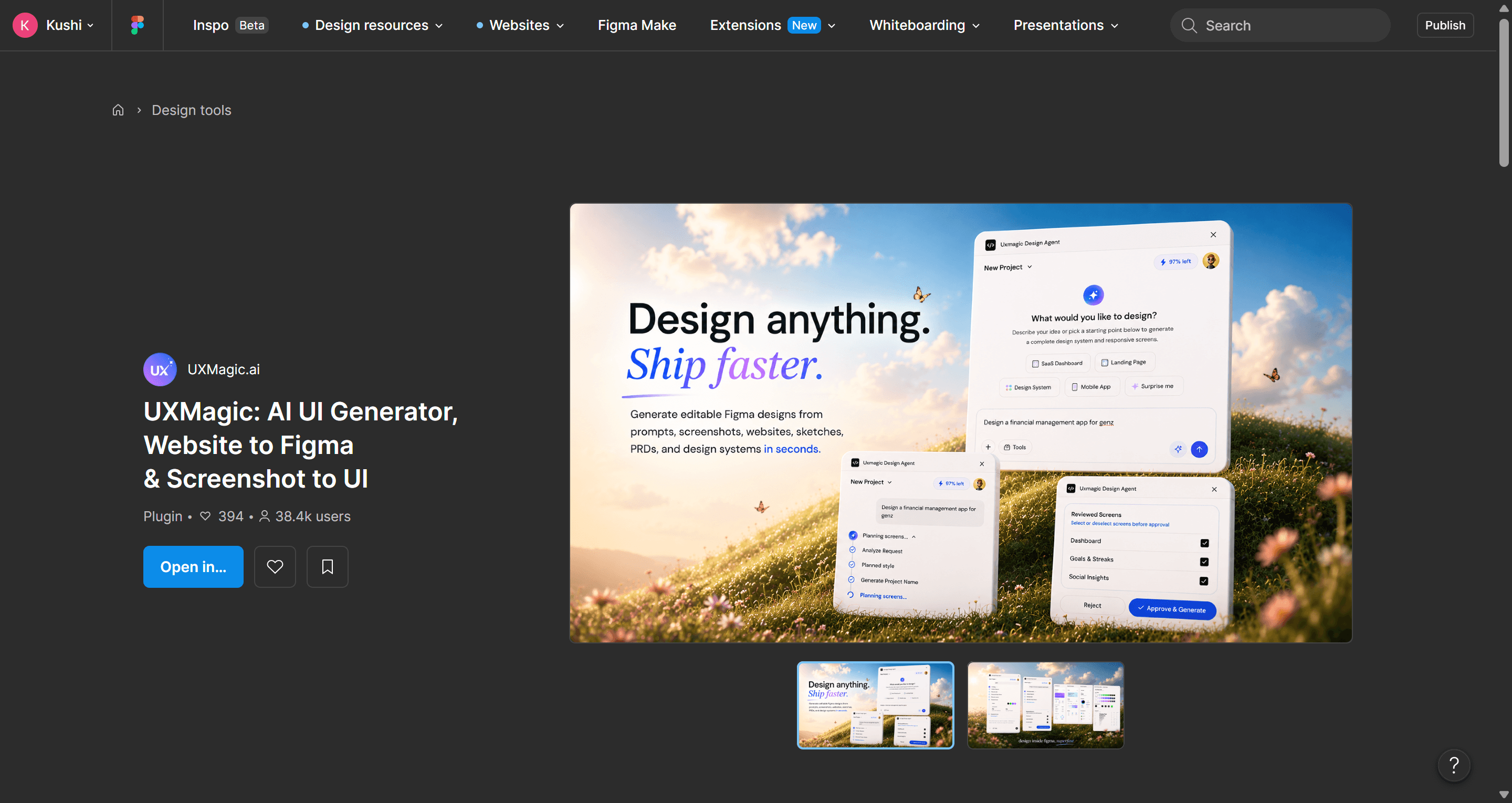
Best for: designers who live in Figma and want a starting point on the canvas, whether from a prompt, a website to clone or a screenshot to convert.
Where it falls short: the plugin is the quick, in-Figma path. Multi-screen projects with a shared theme, version history, publishing and collaboration live in the UXMagic web app. The good news is that both share one account and one credit balance, so you can plan a flow in the app and finish it in Figma.
Pricing: free to install; generations draw on your UXMagic credits (Free: 20 a day; Pro: 2,400 a month). See how credits work.
- UX Pilot
UX Pilot generates wireframes and high-fidelity screens from prompts, both in its web app and in a Figma plugin, and adds predictive heatmaps and an automated design review next to generation. It is a genuinely useful plugin for quick single screens and for sanity-checking a layout before a review.

Best for: in-Figma wireframes, hi-fi single screens and design feedback. Where it falls short: reviewers report style drift across longer flows, so screen five may not match screen one. Pricing: a free tier and credit-based paid plans, per UX Pilot's plans page.
Read our UX Pilot review, our UX Pilot alternatives roundup, or the UXMagic vs UX Pilot comparison.
- Relume (for marketing sites)
Relume is not a canvas generator in the same sense. It builds a sitemap and wireframes for a marketing website from a prompt in its own web app, then lets you copy the result into Figma or Webflow using its component library. If your job is a ten-page company site rather than an app, it is a strong fit.
Best for: agencies and marketers planning website structure. Where it falls short: it is built for marketing pages, not product UI with states and data. Read our Relume review or UXMagic vs Relume.
If you'd rather wireframe first and add fidelity later, our best wireframing tools guide and the UXMagic AI wireframe generator cover that path, and low vs high fidelity explains when each is worth it.
Generate UI inside Figma
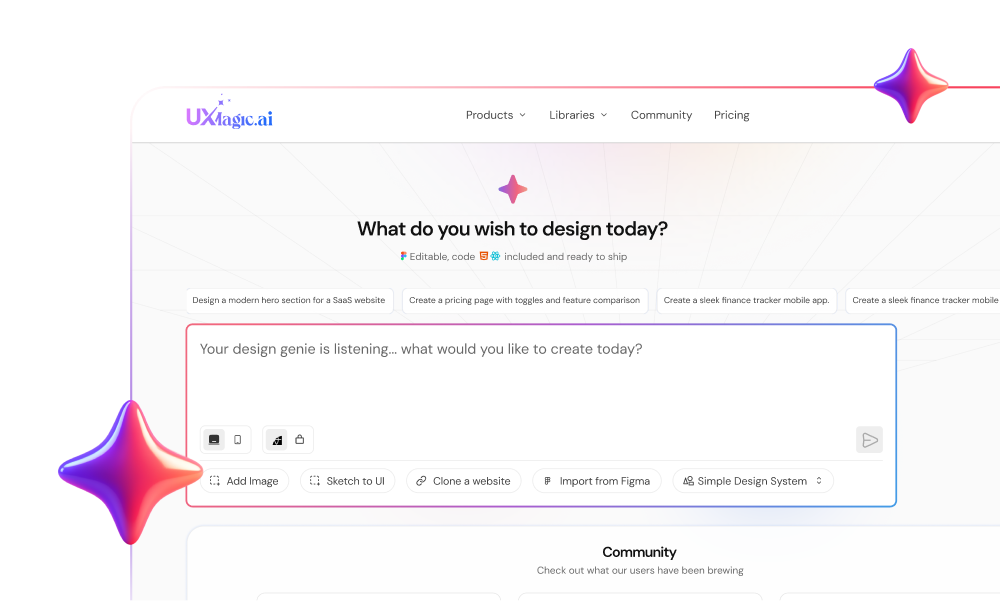
Install the UXMagic plugin and turn a prompt, screenshot or URL into auto-layout Figma frames. Free plan, no card.
Screenshot and website to Figma
The second-biggest job for AI plugins is getting an existing design into Figma as editable layers: a competitor's page you want to study, a legacy product with no source file, or a sketch from a whiteboard. Our image to Figma converter comparison goes deeper on this category.
- Codia
Codia converts screenshots into editable Figma designs, rebuilding text, shapes and layout hierarchy rather than pasting an image. Its site says more than 300,000 designers use it, and it offers a free tier with usage-based paid plans. Codia also sells a design-to-code product and a developer API.
Best for: turning app screenshots and UI references into layers you can remix. Where it falls short: like every screenshot converter, it reconstructs what it sees; it cannot know your component names or tokens, so expect to swap in your own library afterwards.
- html.to.design
html.to.design imports a live URL into Figma as editable layers, with a Chrome extension for pages behind a login. It is the long-standing go-to for pulling a real website into a file for an audit or redesign.
Best for: website audits, redesigns and competitive teardowns. Where it falls short: it copies a page as it is; it doesn't restructure it into clean auto layout or generate anything new.
UXMagic covers both jobs without a plugin as well: HTML to design and the website cloner turn a URL into an editable design, and screenshot to UI does the same for images, with the result exportable to Figma. Our guide to cloning a website with AI explains how to do it without inheriting someone else's design system, and sketch to UI handles hand-drawn wireframes.
Images, icons and visual assets
Placeholder grey boxes make stakeholders squint. These plugins fill mockups with real-looking visuals.
- Icons8 Background Remover
A free plugin from Icons8 that removes backgrounds from one image or a batch without leaving Figma. It is unglamorous and one of the most installed AI plugins for a reason: product shots and avatars need clean cut-outs constantly.
Best for: product photos, avatars and hero images. Where it falls short: it only removes backgrounds. Note that Figma now has a native remove-background action too, which costs 1 to 5 Figma AI credits per use, so the plugin mainly saves credits.
- Figma's native image tools and Weave
For generating images rather than editing them, Figma now has its own options: image editing actions (remove background, vectorize, boost resolution) on the canvas and Weave tools, a set of packaged image tasks from Figma Weave. Weave itself is a separate node-based media canvas, billed at weave.figma.com, that chains image and video models into repeatable pipelines.
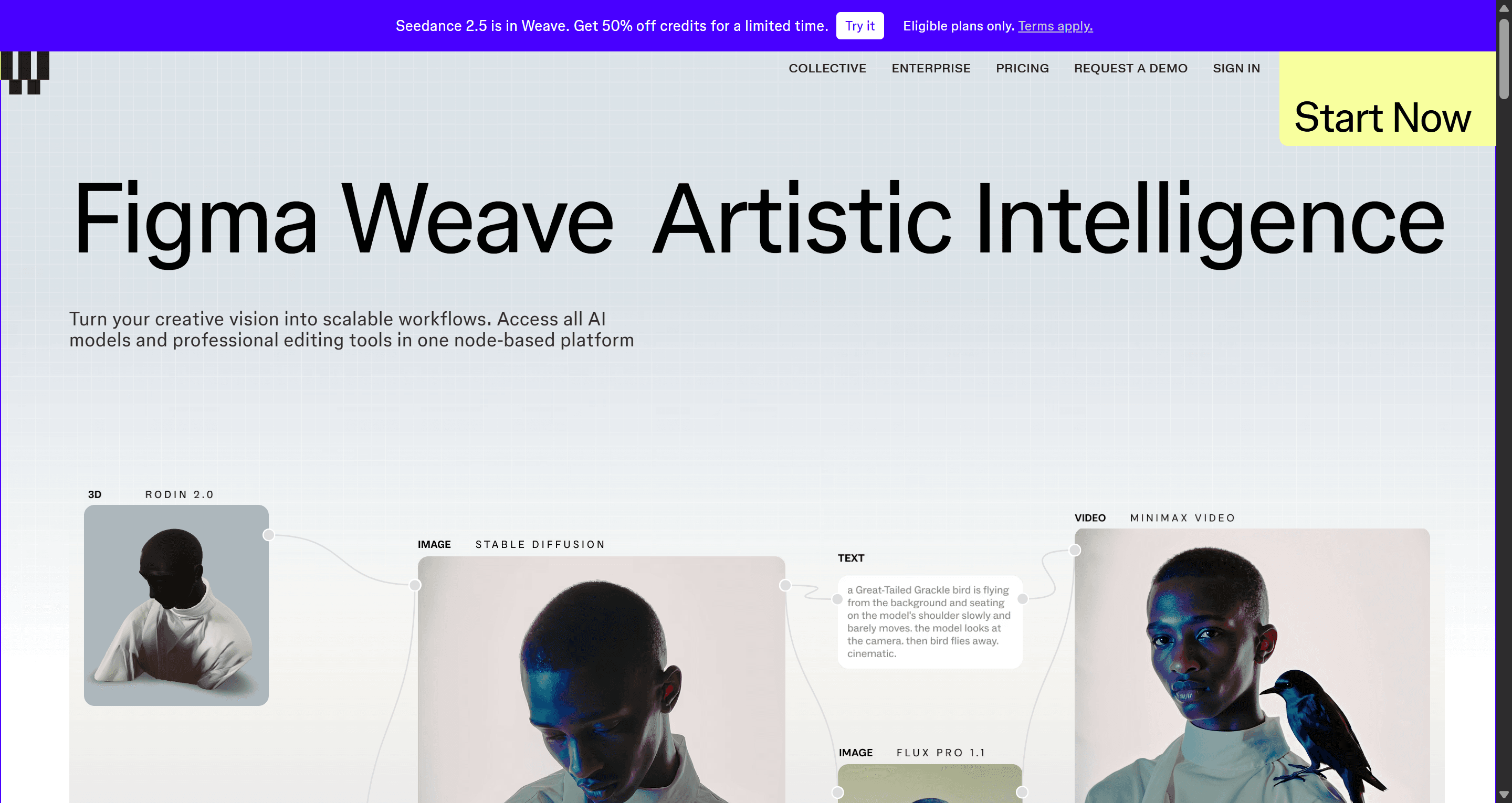
Read our Figma Weave review for its pricing and models. If you only need a few hero images, a standalone generator is simpler; compare the options in best AI image generators, GPT Image 2 review and Nano Banana Pro vs Nano Banana 2. Inside UXMagic, you can generate or replace images in your designs by chat, so screens arrive with contextual imagery already placed.
Design systems and AI handoff
A growing job for plugins is packaging a design system so AI tools can read it. If your coding agent guesses at colours and spacing, the output drifts from the file.
- DESIGN.md Generator
Point it at the file you have open and it writes your visual rules (colour tokens, type scale, spacing steps, shadows and the main component groups) out as a DESIGN.md. That file becomes context for Claude Code, Cursor, Codex or an app builder, so the agent follows your system instead of inventing one. It is free and single-purpose.
Best for: teams using AI coding tools who want generated code to respect the design system. Where it falls short: it documents what is in the file; if your styles are inconsistent, the DESIGN.md will be too. Our DESIGN.md guide explains the format and how to write a good one.
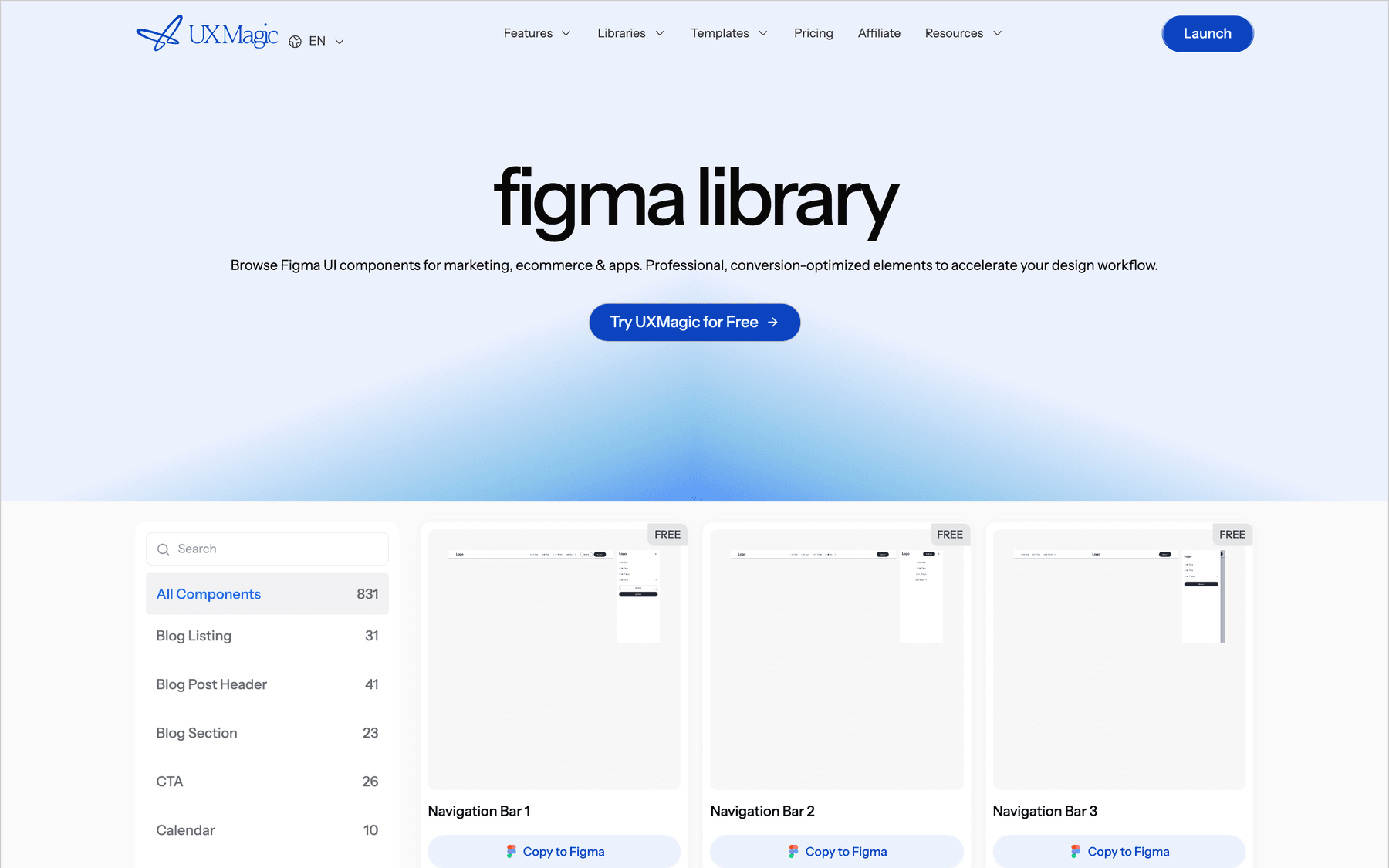
If you are building the system itself, start with how to build a design system from scratch and the AI style guide generator. In UXMagic, themes and style guides apply one set of tokens to every screen in a project, and the Figma component library gives you ready-made blocks you can copy straight into a file.
UX copy and content
- FigGPT
FigGPT puts a ChatGPT-style assistant on your text layers in Figma and FigJam. Select text and improve, shorten, lengthen or translate it, or write a custom prompt and apply it to many layers at once. It is freemium: bring your own OpenAI API key or pay for a subscription.
Best for: replacing lorem ipsum with believable copy, and localisation checks. Where it falls short: it is only as good as your brief; generic prompts give generic microcopy. Our guide to UX microcopy that converts has the frameworks worth prompting with, and prompting for UI that ships covers prompt structure.
Figma's native text tools (rewrite, translate) and free AI layer renaming cover some of the same ground if your seat has credits. UXMagic writes contextual copy into generated screens by default, and you can change any line by chat or by editing the screen.
Design to code
Code plugins take finished Figma frames and turn them into front-end code. All three below share one rule: clean auto-layout frames in, usable code out. Absolute positioning and unnamed groups produce brittle code whichever plugin you use. Our AI design-to-code tools guide compares the category in depth, and Figma Dev Mode alternatives covers the handoff side.
- Anima
Anima is the most widely used design-to-code plugin. It exports React, HTML, Vue and Tailwind code from Figma and has an AI Playground where you refine the result with prompts, clone websites or generate from a prompt. Per Anima's pricing page, the free plan includes 5 code generations in the Figma plugin, 5 daily chat messages and 5 imports or clones in the Playground; Enterprise starts at $500 a month billed annually.
Best for: designers who want a working front end from a Figma file quickly. Where it falls short: the free allowance is small, and generated class names and structure often need a developer pass.
- Locofy Lightning
Locofy converts Figma (and Penpot) designs into framework code through its Locofy Lightning plugin, targeting React, Next.js, HTML/CSS, Vue, Angular, Flutter and more. Pricing is based on LDM tokens (Locofy's Large Design Model), with a free tier to start.
Best for: teams that need a specific framework or mobile output. Where it falls short: results depend heavily on how the file is structured, and token usage grows with page complexity.
- Builder.io Visual Copilot
Visual Copilot is Builder.io's Figma plugin. It converts designs into code and can map Figma components to the components that already exist in your codebase, which is its main advantage for teams with a real design system. Builder.io's free plan includes 60 agent credits a month and Figma plugin access; Pro is $24 per user per month with 500 credits.
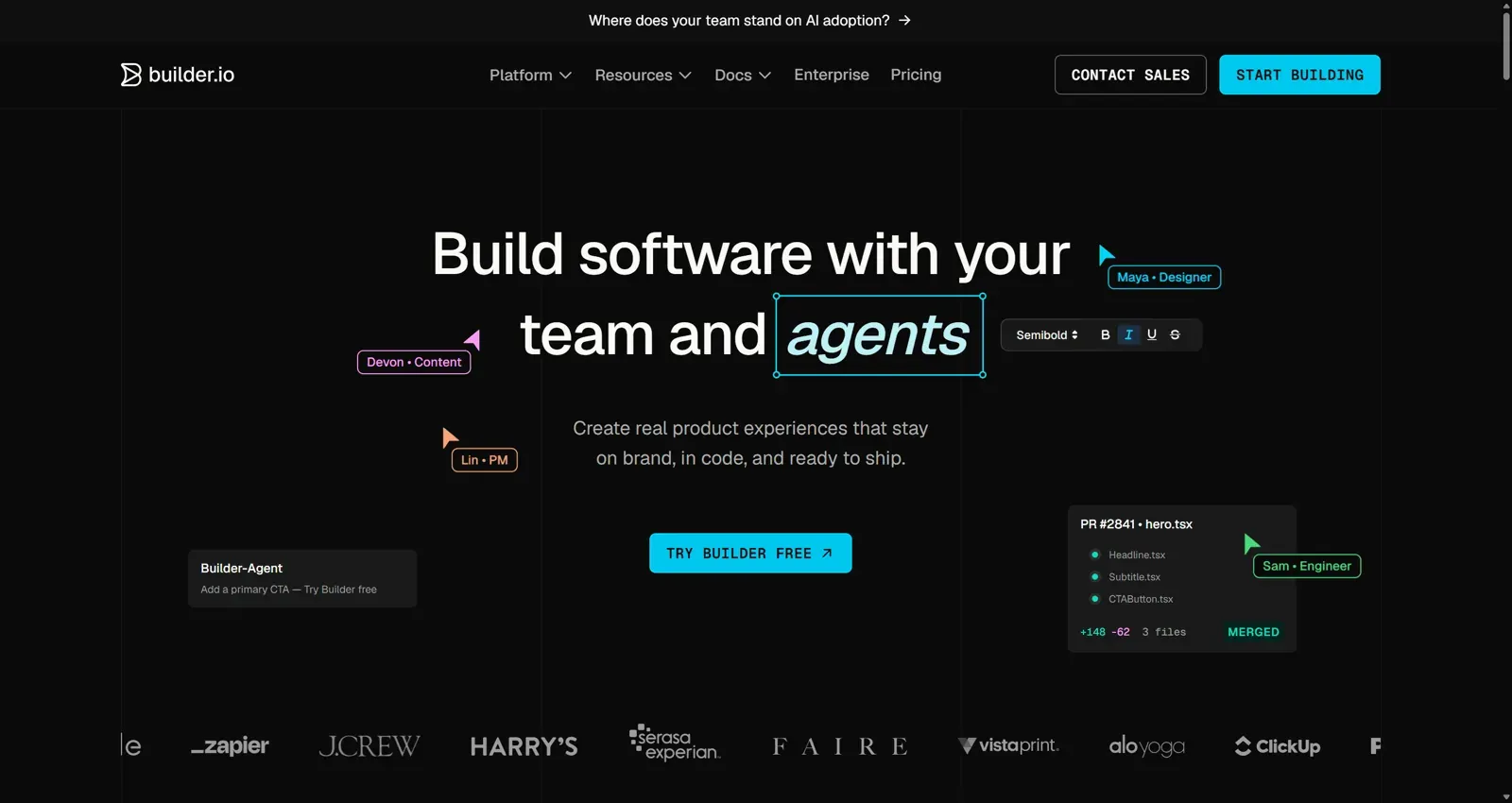
Best for: engineering teams with an existing component library. Where it falls short: it is a platform, not just a plugin, so it makes most sense if you adopt Builder.io more broadly. Read our Builder.io review.
If you'd rather skip the plugin step, UXMagic exports every screen as HTML or React with Tailwind theme tokens (see export code and the design to code generator), or you can export a Figma design to HTML without plugins.
Figma's native AI: when you don't need a plugin
Figma's built-in AI has grown fast, and for some jobs it is now the better choice. Our Figma AI explainer is the full tour; here is what matters when choosing plugins.
- Figma Agent (beta). An AI collaborator in Figma Design that generates and edits screens using your components, variables and styles, and handles bulk edits. It is free of AI credits during the beta and rolling out in waves. Read our Figma Agent review.
- Figma Make. Prompt-to-app: turns a prompt or frame into a working, code-backed prototype. It is the heaviest credit user, at roughly 30 to 100+ credits per request. See our Figma Make tutorial and Figma Make alternatives.
- Weave tools. Packaged image tasks inside Figma Design from Figma Weave, covered in the Weave section above.
- Canvas utilities. AI search and layer renaming (free of credits), remove background, vectorize, boost resolution and add interactions (charged per use).
The trade-off is cost and access. Since March 2026 Figma enforces monthly AI credit limits per seat: 3,000 on a Professional Full seat, 500 on Starter and other seats. A plugin that bills through its own account doesn't touch those credits. Our Figma pricing breakdown has the full numbers, and Penpot vs Figma covers the open-source route if Figma's pricing is the problem.
How to choose the right Figma AI plugin
Pick by job, then check three things before installing:
- Does the output use auto layout and real layers? If a generator hands you absolute-positioned groups, the time you saved goes into cleanup. This is the core argument in why single-screen AI design is a dead end.
- Can it use your styles? A plugin that ignores your tokens creates re-skinning work on every screen. Compare how tools handle this in our AI tools for design consistency roundup.
- Whose credits does it spend? Plugins with their own accounts avoid Figma AI credits; native tools spend them.
Then think about scope. A plugin works one frame at a time inside one file. If your real job is a five-screen onboarding flow or a whole MVP, generating it frame by frame means you are the one keeping screen five consistent with screen one. Flow-based design solves that at generation time: plan the screens, share one theme, generate them together, then export.
Where UXMagic fits: plugin plus a flow-first web app
We built UXMagic for the part plugins struggle with: connected, multi-screen work that still ends up in Figma.
- In Figma: the plugin generates screens from prompts, URLs or screenshots as auto-layout frames.
- In the web app: describe the product and flow mode proposes a screen plan you approve before anything is generated, then designs every screen on one shared theme. Wireframe mode does the same in greyscale.
- Back to Figma: export to Figma delivers auto-layout frames with editable text, real fills and named layers, and you can import from Figma to bring an existing frame in and iterate on it with chat.
- Beyond Figma: export HTML or React, connect coding agents through the UXMagic MCP server, or publish a site.
Honest scope: UXMagic is not a background remover, a copy plugin or a Figma replacement, and the Figma Agent is the better tool for editing inside a mature file you already own. Use UXMagic when you need to get from a brief to a set of consistent screens quickly. The Free plan gives 20 credits a day; see pricing for Pro, or browse templates for a head start.
Related reading
- Best AI prototyping tools in 2026
- Claude Design alternatives for UI work
- Figma Weave review for UI assets
- Vibe designing: how AI changes the design process
- Image to Figma converter tools compared
- Best design handoff tools for engineering teams
- How to design UI with AI, step by step
- Best UX/UI design tools for 2026
Design the whole flow, then finish it in Figma
Generate connected, on-theme screens in UXMagic and export them to Figma as auto-layout frames, or work straight from the Figma plugin.