
TL;DR: Figma Weave is a node-based canvas for generating and editing images and video across many AI models. It is strong at producing and refining visual assets, clear about credit costs, and billed separately from Figma. It does not design screens, so pair it with a UI tool like the UXMagic AI UI generator for layouts. For the rest of Figma's AI line-up, start with what is Figma AI and our Figma Agent review.
Product teams rarely need "an AI image". They need a hero for the landing page, a set of feature illustrations that look like siblings, product shots that match the brand colours, and a way to redo all of it next quarter without starting from zero. Figma Weave is Figma's bet on that job: instead of a prompt box, it gives you a graph of connected steps that you can rerun, tweak and share.
This review covers what Weave is, how its node canvas works, what it costs, how it now connects to Figma Design, and where it stops being useful for product and UI work. We write as the UXMagic team from Figma's own documentation, pricing page and announcements. We have not run a benchmark here, and we will not quote scores or timings we did not measure.
Figma Weave at a glance
| Figma Weave | |
|---|---|
| What it is | Node-based AI canvas for images, video and media editing |
| Origin | Weavy (Tel Aviv, founded 2024), acquired by Figma October 2025 |
| Where it runs | weave.figma.com, plus Weave tools inside Figma Design (beta) |
| Models | Google, OpenAI, Runway, Luma, ByteDance, Black Forest Labs, Kling and more |
| Pricing | Free (150 credits/mo); Starter $19, Professional $36, Team $48/user (annual) |
| Best for | Repeatable asset pipelines: hero images, product shots, relighting, video |
| Not for | Editable UI screens, flows, components or code |
If you only remember one thing: Weave makes the pictures that go inside a design. It does not make the design. That split shapes everything below.
What is Figma Weave?
Figma Weave is an AI-native creative platform where every step of a media workflow is a node: a text prompt, a reference image, a model call, a crop, a mask, an upscale. You wire nodes together, run the graph, and keep the graph so the same process can be repeated with new inputs. Weave describes itself as a way to "turn your creative vision into scalable workflows", with access to many models and professional editing tools in one node-based platform.
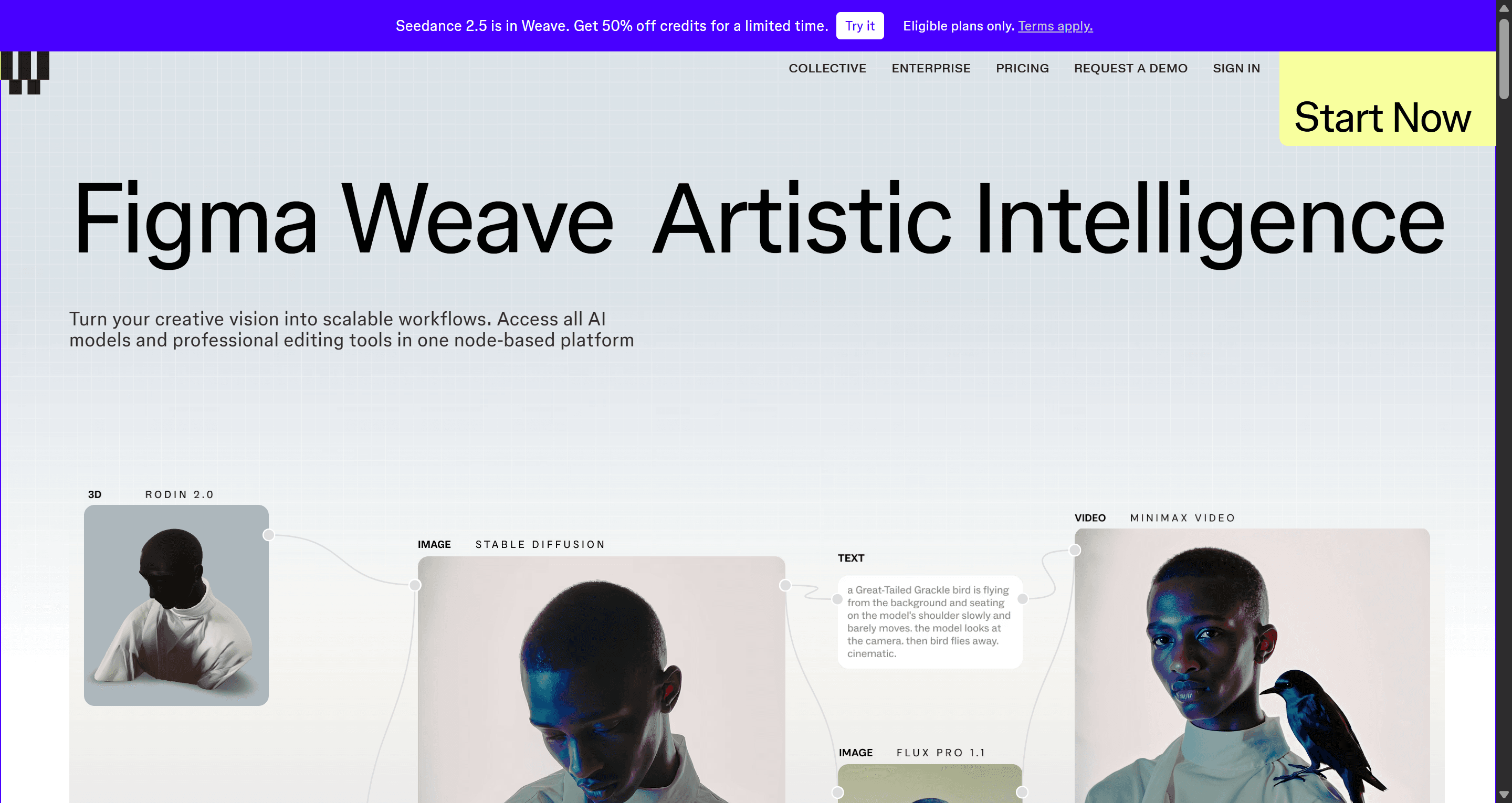
The product began as Weavy. TechCrunch reported on October 30, 2025 that Figma had acquired the Tel Aviv startup, founded in 2024, with its 20-person team, and that it would run as a standalone product under the Figma Weave name. That is still how it works: Weave lives at its own address with its own pricing, while Figma adds bridges into Figma Design.
Weave is one of four AI surfaces Figma now sells, alongside the agent in Figma Design, Figma Make and the AI in Dev Mode. Our Figma AI explainer maps how they fit together, and our Figma Agent review covers the tool that edits actual frames. This post stays on Weave.
How the node canvas works
Weave opens on an infinite canvas, not a chat. You add nodes, connect their outputs to other nodes' inputs, and run them. A few ideas make it click.
Nodes are steps, wires are data
A prompt node feeds text into a model node. An image node can feed a reference into the same model. The model's output can go into an editing node (crop, mask, relight, upscale) and from there into another model, for example an image-to-video model. Because each step is visible, you can see exactly why an output looks the way it does and change one step without redoing the rest.
Many models, side by side
Weave's site lists models from Google, OpenAI, Runway, Luma, ByteDance, Black Forest Labs, Kling, LTX, Wan, Grok, Recraft and Bria, covering images, video and 3D. You can send one prompt to several model nodes at once and compare outputs on the canvas. That is useful because image models genuinely differ in text rendering, photorealism and style control; our comparisons of Nano Banana Pro vs Nano Banana 2 and the GPT Image 2 review go into those differences. The flip side is choice overload: picking the right model for a job is a skill in itself, and a wrong pick costs credits.
Editing tools, not just generation
This is where Weave differs from a plain generator. Its editing set includes crop, mask, inpaint, outpaint, painter, relight, upscale, blur, invert, channel and z-depth extraction, layers, type and blend modes, plus ControlNet-style structure references. For product teams that means you can generate a shot and then fix it in the same graph: extend the background to fit a wide header, relight a product to match the page, or cut out a subject for a feature card.
Workflows you can hand to others
A finished graph can be turned into a simplified interface so teammates run it without touching the nodes, and Weave ships a library of pre-built workflows for common tasks such as camera angle changes, relighting and rotation. In June 2026 Figma also let designers publish Weave workflows to Figma Community. For a design team, the value is consistency: one person builds "product shot on brand background, 16:9 and 1:1", everyone else reuses it.
Credits shown before you run
Each run shows its credit cost before it starts, and the cost depends on the model and output. That is a real advantage over tools that only reveal usage afterwards, and it makes Weave easier to budget than token-metered tools like the ones in our Bolt.new pricing and Lovable pricing breakdowns.
Using Figma Weave for UI assets
Weave is at its best on the image side of a product launch. Here is how we would use it, and where each job hands off to a UI tool.
Landing page heroes. Run one prompt through two or three image models in parallel, pick a direction, then relight, outpaint or upscale it to the exact frame your hero needs. Leave clean space for the headline. What the hero has to achieve beyond looking good is covered in our guide to SaaS landing page design.
Feature illustrations as a set. Build a workflow with a fixed style reference and a fixed style prompt, then swap only the subject node. That is the most reliable way to get six illustrations that look like they belong together, a problem every image model has.
Product and room shots. Multi-image edit models let you place an object into a scene, change lighting or rotate the camera. For e-commerce and interior apps, this is Weave's strongest party trick.
Brand marks. Possible, but not Weave's sweet spot. Logos need vector output, exact letterforms and many rounds of human judgement. Treat any generated logo as a sketch and finish it in a vector tool.
Short video loops. Because image nodes can feed video models, Weave suits hero loops and product teasers. For longer demos, our list of AI video tools for SaaS product demos is a better starting point.
What Weave does not do is the layout around those assets. A picture of an app screen generated by an image model has no live text, no components, no spacing system and nothing a developer can use. We explain why in why single-screen AI design is a dead end, and the same gap shows up when teams try ChatGPT for UI/UX design end to end.
From Weave assets to real screens
The workflow that holds up is a split: Weave (or any image model) for pixels, a UI tool for screens. Here is how that looks with UXMagic, based on our help docs.
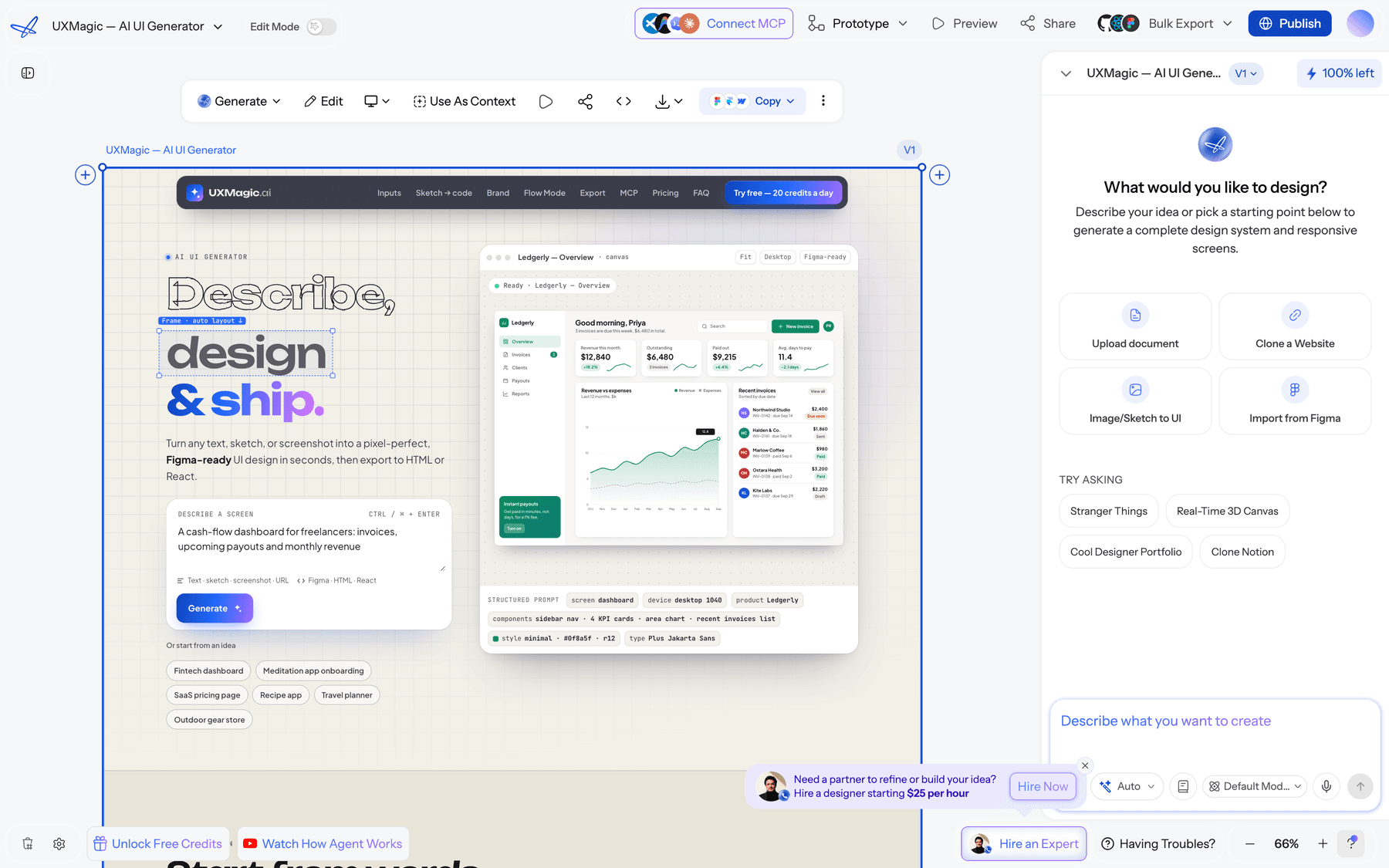
- Describe the product, not the pixels. Start in the AI UI generator or, for a multi-screen journey, flow mode, which plans the screens before it designs them. The flow mode and screen plans article explains the approval step.
- Bring your Weave images in. Upload them in the prompt box or asset library and reference them in your request, as described in images in your designs. If you only need a quick image, UXMagic can also generate or edit one in place for 0.5 credits, per how credits work.
- Lock the look with a theme. Themes and style guides keep colours and type consistent across screens, so the palette you used in Weave carries into the UI. The AI style guide generator builds one from a brief.
- Hand off. Export to Figma to keep working next to your Weave assets, export code as HTML or React, or publish the page directly.
Already have a Figma file? Import from Figma brings frames in to extend or restyle, and the UXMagic Figma plugin works from the other direction. If your starting point is a screenshot or a sketch, image to UI rebuilds it as editable design. The long version of this process is in how to design UI with AI.
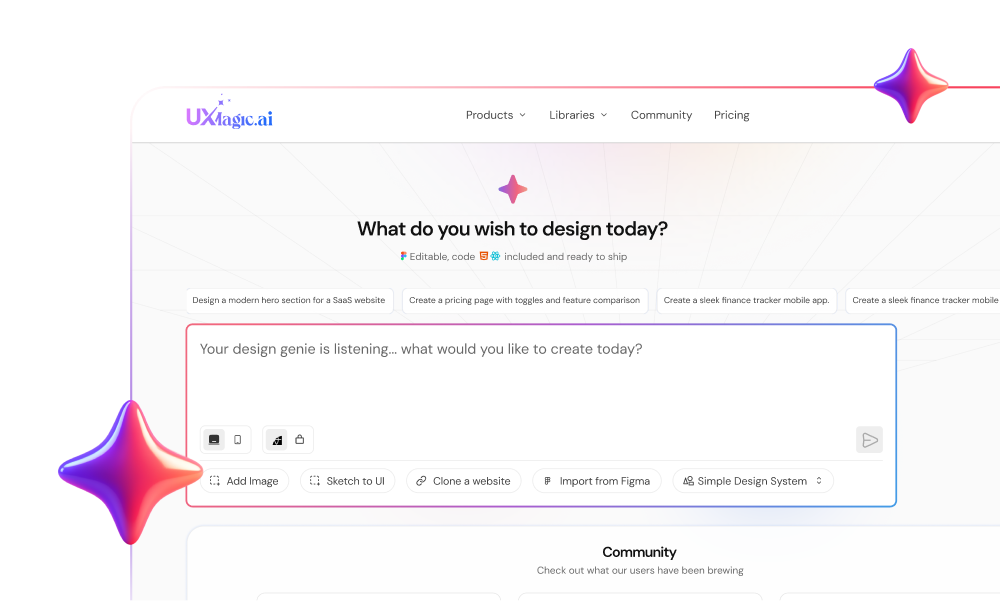
Put your Weave assets into real screens
Upload your hero shots and illustrations, describe the product, and UXMagic designs editable, themed screens around them.
Can you use Weave inside Figma?
Partly. On June 24, 2026 Figma announced in Connecting Figma and Weave that more than 20 pre-built Weave tasks, such as style transfer, product shoots and material extraction, are available as Weave tools in Figma Design's left panel. They package a Weave workflow behind a simple interface, so you do not wire nodes or pick models. Figma says they are free during the open beta and will draw on Figma AI credits once generally available; our Figma pricing breakdown explains how those credits are allocated per seat.
What is not there yet is building your own graph inside Figma. Figma also said a Figma node, letting you pull live Figma frames into a Weave workflow and keep them in sync, was expected in summer 2026. Check its status before you plan around it. Until then, Weave and Figma Design are two apps linked by packaged tools and file exports.
If Figma's AI features are the reason you are evaluating Weave, it is worth comparing the wider options too: our Figma alternatives roundup, Penpot vs Figma, and the list of best Figma AI plugins cover the rest of the field.
Figma Weave pricing
Weave has its own plans, separate from a Figma subscription. These figures come from Weave's pricing page as of September 2026; the image and video estimates are Weave's own.
| Plan | Annual billing | Monthly billing | Credits per month | Key extras |
|---|---|---|---|---|
| Free | $0 | $0 | 150 (about 375 images) | All models, editing tools, commercial license, 5 workflows |
| Starter | $19/mo ($228/yr) | $24/mo | 1,500 (about 3,750 images) | Unlimited workflows, top-ups at $10 per 1,000 credits |
| Professional | $36/mo ($432/yr) | $45/mo | 4,000 (about 10,000 images) | Rollover up to 3x monthly credits, top-ups at $10 per 1,200 |
| Team | $48/user/mo ($576/yr) | $60/user/mo | 4,500 per user | Shared credit pool, unified billing, team management |
| Enterprise | Custom | Custom | Custom | Training, premium support, API keys and API workflows |
Three things to know before you pick a plan:
- The image estimate is an average. Credit cost varies widely by model, so a team that mostly uses premium image or video models will get far fewer outputs than the headline number.
- Free has no top-ups and no rollover. Starter adds top-ups; Professional and Team add rollover and top-up credits that last 12 months.
- It stacks on Figma. A designer on a Figma Professional seat still pays for Weave separately. If you are comparing total AI spend, add both, and look at Midjourney pricing and Canva alternatives for UI design for cheaper single-purpose options.
For comparison, UXMagic's Free plan refreshes 20 credits a day and the Pro plan starts at $17.50 a month billed annually; details are on the UXMagic pricing page and in plans and limits.
Pros and cons
| What works | What could be better |
|---|---|
| Visible, repeatable workflows instead of one-off prompts | Node canvas has a real learning curve |
| Wide model choice across image, video and 3D | Too many models to choose from for beginners |
| Credit cost shown before every run | Premium models drain credits quickly |
| Strong editing: relight, inpaint, outpaint, upscale | Logos and brand marks are not a strength |
| Workflows can be packaged for teammates | Separate subscription from Figma |
| Weave tools in Figma Design, free in beta | No custom graphs inside Figma yet |
| Commercial license on every plan | Produces images, not editable UI |
In plain terms: Weave rewards teams that make the same kind of asset over and over and are willing to invest an afternoon building a good workflow. It frustrates people who want one quick image, and it is the wrong tool for anyone who needs a screen.
Figma Weave alternatives
Node-based creative canvases
Flora is the closest match: an infinite node canvas that chains image, video and audio models, and an assistant that helps you build and steer workflows. Choose it if you want deeper video and audio work and have no reason to stay inside Figma's ecosystem.
Krea mixes real-time generation, many models, upscaling and video in one app, with a lighter learning curve than a full node graph. It suits designers who iterate visually and fast.
Freepik Spaces puts generative models next to a large stock library, which helps marketing and content teams that want images without building pipelines.
Single-model image tools
If you do not need a pipeline, a single generator is simpler and often cheaper. Midjourney is still the benchmark for stylised imagery; our Midjourney pricing post breaks down its plans. OpenAI's model is covered in our GPT Image 2 review, and Google's in Nano Banana Pro vs Nano Banana 2. The full field is in our best AI image generators guide, and best mockup tools covers device and scene mockups.
Tools that turn assets into UI
This is the job Weave does not do.
UXMagic designs editable, multi-screen products from a prompt, a document, a screenshot or a Figma import, keeps them in one theme, and exports to Figma, React or a published site. It is our product; the honest scope is at the end of this post.
Figma Make turns prompts and frames into interactive prototypes inside Figma's world. Read our Figma Make alternatives or the head-to-head on UXMagic vs Figma Make.
Claude Design is Anthropic's AI design tool; see Claude Design alternatives. For newer canvas tools, our sibling Paper design review covers Paper and its MCP. Banani, another AI UI tool, is compared on UXMagic vs Banani.
The wider ranking is in best AI design tools in 2026.
Who should use Figma Weave
Good fit:
- Brand, marketing and content teams producing lots of on-brand imagery and short video.
- E-commerce and product teams that relight, re-angle and recompose product shots.
- Design teams already in Figma who want packaged image tasks on the canvas, which is where Weave tools earn their keep.
Poor fit:
- Founders and PMs who need screens, flows or a clickable prototype this week. A UI tool gets you there directly; see AI tools for product managers and the AI mockup generator.
- Solo designers who want one image now. A single-model generator is faster.
- Teams expecting design-system-aware output. Weave knows pixels, not your tokens; our post on whether AI can follow design tokens explains why that matters.
Verdict: is Figma Weave worth it?
For asset production, yes, with caveats. The node graph makes image work repeatable and inspectable, the model range is wide, the editing tools go well beyond generation, and upfront credit costs make spending predictable. The free plan is enough to learn the canvas and decide. The caveats are the learning curve, the cost of premium models, and a second subscription on top of Figma.
For UI design, no, and it does not claim to be. Weave's output is an ingredient. The screens around it need layout, live text, components and a theme, which is a different kind of tool. Our recommendation for product teams is simple: use Weave, or any image model you like, for the pictures, and build the product in a UI tool. UXMagic handles that half: it plans and designs multi-screen flows, keeps them in one theme, generates or edits images in place when you do not need a full pipeline, connects to AI coding tools through the UXMagic MCP server, and exports to Figma or code. What it is not is a node-based media studio; if you need video pipelines or fine photographic control, keep Weave for that.
Related reading
- Image to Figma converter tools compared
- Best design handoff tools
- Figma Make tutorial
- Figma Dev Mode alternatives
- Figma vs Canva for product teams
- Prompting for UI design that actually works
- Vibe designing explained
- Best AI model for UI design
Want a head start? Browse ready-made website templates, grab components from the Figma component library, or read writing a good prompt before your first project.
Assets from Weave, screens from UXMagic
Design multi-screen flows in one theme, drop in your images, and export to Figma or code. Free plan credits refresh daily.