
TL;DR: Figma is a product design tool: components, variables, auto layout, prototyping and developer handoff for interfaces that will be built. Canva is a visual communication tool: templates, brand kits and AI for social posts, decks, documents and simple sites. Pick Figma for app and web UI, Canva for marketing content, and expect most teams to use both. If you want AI to draft the product screens, UXMagic generates whole flows and exports them to Figma or to Canva.
"Should we use Figma or Canva?" usually comes up when a team without a dedicated designer needs to make something visual and has two familiar names in front of it. Both run in the browser, both have huge template libraries, both now have AI that builds things from a prompt, and both can publish a website. On a feature checklist they look closer than ever.
They are still built for different jobs. Figma assumes the thing you are designing will become software, so it gives you structure: reusable components, design tokens, responsive layout rules and a handoff mode for engineers. Canva assumes the thing you are designing will be seen, shared or presented, so it gives you speed: a finished template, your brand kit and a one-click export to Instagram or PDF.
This Figma vs Canva comparison goes through who each tool is for, UI design capability, templates, collaboration, AI features, prototyping, handoff and pricing, then gives a verdict by role. We build UXMagic, an AI design tool that exports to both, so we also say where it fits and where it doesn't. Figma details come from Figma's pricing page and help centre as of September 2026. Canva's site blocks automated fetches, so Canva details come from its help centre and newsroom pages as indexed by search, plus press coverage, and are phrased with that in mind.
Figma vs Canva at a glance
| Figma | Canva | |
|---|---|---|
| Built for | Product designers, design teams, developers | Marketers, founders, educators, anyone without design training |
| Best at | App and web UI, design systems, prototypes, handoff | Social graphics, presentations, documents, simple sites |
| Learning curve | Moderate to steep | Very gentle |
| Components and tokens | Components, variants, variables, auto layout | Brand kits, basic reusable elements |
| Prototyping | Advanced interactions, variables, conditional flows | Page links, presentation mode |
| Developer handoff | Dev Mode, Code Connect, MCP server | None for product UI |
| AI | Figma Make, AI in Design, Weave, Buzz | Canva AI 2.0, Canva Code 2.0, Magic Studio |
| Free plan | Starter, with file and AI limits | Free plan with templates and limited AI |
| Entry paid price | $16 per Full seat a month (annual) | Pro about $18 a month for one person (varies by region) |
Who each tool is built for
Figma: teams designing software
Figma started as a browser-based interface design tool and grew into a suite. A paid Full seat now covers Figma Design, Figma Make, Figma Sites, Dev Mode, Figma Draw, FigJam, Figma Slides and Figma Buzz. The common thread is that Figma is where product teams decide how an interface looks and behaves before engineers build it, and increasingly where they generate first versions with AI. Our explainer on what Figma AI is covers the AI side in detail.
Best for: product designers, UX teams, design system owners, and developers who inspect designs.
Where it falls short: it is slow for a quick social graphic, its template library is community-driven rather than curated for marketing, and non-designers often find the blank canvas intimidating.
Canva: everyone who needs visuals fast
Canva's bet is that most people who need a design are not designers. You pick a template, swap the text and photos, apply your brand kit and export. Over time it has added documents, whiteboards, spreadsheets (Canva Sheets), video editing, websites and, with Canva Code, small interactive apps. It also owns Affinity, relaunched in October 2025 as a free professional desktop app for vector, photo and layout work.
Best for: marketers, social media managers, founders, teachers and small businesses producing a steady stream of branded content.
Where it falls short: anything that must behave like a product. There are no component variants, no responsive layout rules for interfaces and no developer inspect mode. Our guide to Canva alternatives for UI design lists what to use when Canva runs out of road for app screens.
UI and UX design capability
This is where the gap is widest.
Figma gives you the building blocks of product UI. Components and variants mean a button is defined once and every instance updates when it changes. Variables store colours, spacing and type as tokens, with modes for light and dark themes. Auto layout makes frames resize the way CSS flexbox does, so a card grows with its content. Team libraries share all of it across files. If those terms are new, our explainer on design systems vs style guides vs component libraries sorts them out, and our guide to building a design system from scratch shows how the pieces fit together.
Canva gives you a fast layout editor with grids, alignment guides, brand colours and fonts. You can make a screen that looks like an app, and its mobile and desktop mockup templates help. What you cannot easily do is keep twelve screens consistent: change the primary button and you are editing it on every page by hand. That is fine for a pitch-deck screenshot and painful for a product. The distinction between a picture of an interface and a working design is covered in what a mockup is and in our guide to wireframes, mockups and prototypes.
UX work beyond the pixels, such as user flows, information architecture and wireframes, also leans Figma's way, with FigJam for workshops and flows. Canva has whiteboards, but they are built for brainstorming rather than mapping a product. For the difference between the two disciplines, see UI vs UX in 2026.
Verdict: Figma, clearly, for anything that becomes a real interface.
Templates and assets
Canva wins here. Its library runs to well over a million templates, most of them free, covering every social format, presentation, poster, résumé and document type, plus a large stock photo, video, icon and font library. Pro and Business unlock the premium templates and stock. For a marketer, starting from a template that is already well designed beats a blank page every time.
Figma's templates come mainly from the Figma Community: UI kits, wireframe kits, design systems, icon sets and plugins published by designers. They are excellent for product work (a full iOS kit or a dashboard system is a strong starting point) but thin for marketing graphics. Figma Buzz narrows that gap by letting designers publish locked, on-brand templates that marketers fill in, including bulk-generating many variations from a spreadsheet.
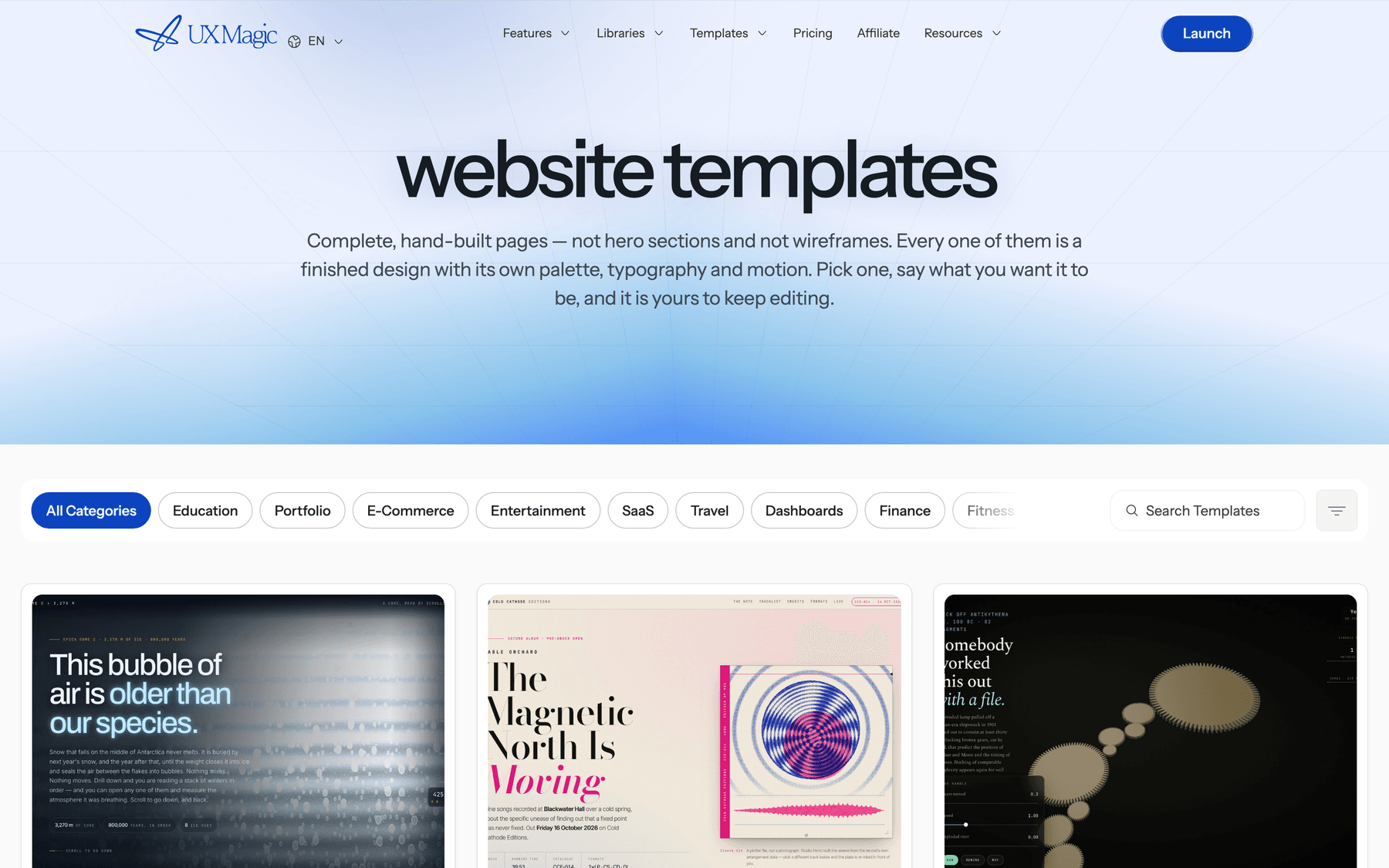
For product screens specifically, a UI-focused template library is more useful than either. The UXMagic templates gallery has full website and app templates you can open and edit with AI, and the Figma component library and React component library offer ready-made sections.
Verdict: Canva for marketing templates and stock; Figma for UI kits and design systems.
Collaboration
Both tools support real-time co-editing, comments and sharing by link, so the difference is who is collaborating.
Figma's collaboration is built around a product team. Designers edit together, developers inspect in Dev Mode, and PMs and stakeholders comment on cheaper Collab seats or free View seats. Version history, branching and merging (on Organization and above) and shared libraries let many designers work on one system without overwriting each other. FigJam adds workshops, retros and flow mapping.
Canva's collaboration is built around content production. Teams share brand kits, lock template elements, route designs through approval workflows on Business plans and schedule posts to social channels from the same place. A marketing lead can hand a template to twenty people and trust the logo and colours will stay put.
In UXMagic, collaboration sits around the generated screens: you can share a project with teammates, share a preview link with stakeholders, and gather comments and feedback on the canvas.
Verdict: a tie that depends on the team. Figma for designers working with engineers; Canva for marketers working with each other.
AI features
Both companies have gone hard on AI in 2026, and in different directions.
Figma AI and Figma Make
Figma's AI works inside the design tools: generating layouts and first drafts, renaming layers, AI search, image editing (remove background, boost resolution, vectorize), and an AI agent in Figma Design that is free during its beta. Figma Make is the headline feature: it turns a prompt or an existing frame into an interactive prototype or small app you can publish, with your team library as style context on paid plans. Every request spends AI credits, and Figma's help centre puts a Make request at roughly 30 to 100 or more credits against a Professional Full seat's 3,000 a month. Our Figma pricing guide explains the credit allowances, and our Figma Make alternatives roundup compares cheaper ways to generate UI.
Canva AI 2.0 and Canva Code
At Canva Create in April 2026, Canva announced Canva AI 2.0, which it describes as a shift from "a design platform with AI tools to an AI platform with design tools". It adds conversational design, agentic editing that works on layered objects, brand intelligence that applies your kit automatically, web research, scheduled background tasks and Sheets AI, and it launched as a research preview. Magic Studio tools such as Magic Write and the AI image generator remain, with monthly usage limits on the free plan.
Canva Code 2.0, rolled out widely in July 2026, builds websites, widgets and small interactive apps from a prompt, lets you edit the result with drag and drop, imports HTML from other AI tools, and publishes to a live link. Press coverage says it is usable on free accounts, with more AI credits on higher plans, and that you can view and copy the generated code. Canva itself positions it for small to medium front-end projects, not complex backends.
How the AI approaches differ
Figma's AI speeds up professional design and gets a prototype running. Canva's AI makes a finished piece of content with less effort. Neither is built to plan a multi-screen product flow and keep every screen on one design system, which is the job AI UI generators are for. Our ranking of the best AI design tools of 2026 and our guide to designing UI with AI cover that category.
Verdict: Figma for AI that feeds product work; Canva for AI that produces content.
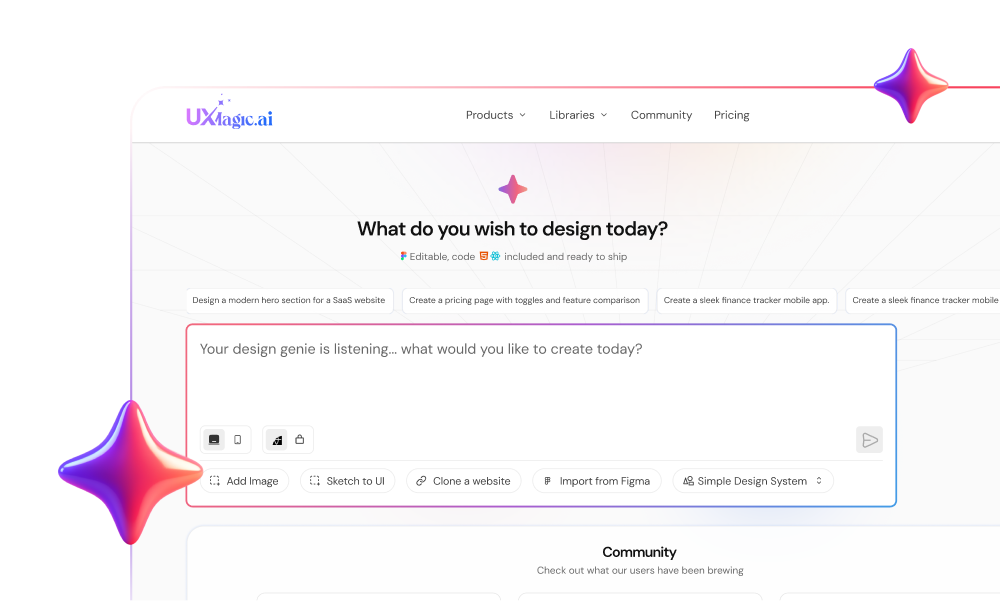
Let AI draft the product screens
Describe your app, approve a screen plan and get a consistent multi-screen flow, then export it to Figma, code or Canva.
Prototyping
Figma's prototyping is a core feature. You link frames with triggers (click, hover, drag, after delay), add smart animate transitions, overlays and scroll behaviour, and on paid plans use variables and conditional logic so a prototype can remember state, for example a cart count. Prototypes can be shared for testing, and Figma Make goes further by producing coded prototypes. Our explainer on what a prototype is in UX design covers what each level of fidelity is good for.
Canva's prototyping is page linking. You add a link from a button to another page and view it in presentation mode, which is enough for a stakeholder walkthrough or a very early concept test. States, overlays and realistic interactions are out of reach, although Canva Code can now build a small interactive page instead.
UXMagic sits between the two for speed: the AI prototype generator links generated screens into a clickable flow, and prototype mode wires up a whole journey on the canvas. For a broader field, see our list of the best prototyping tools.
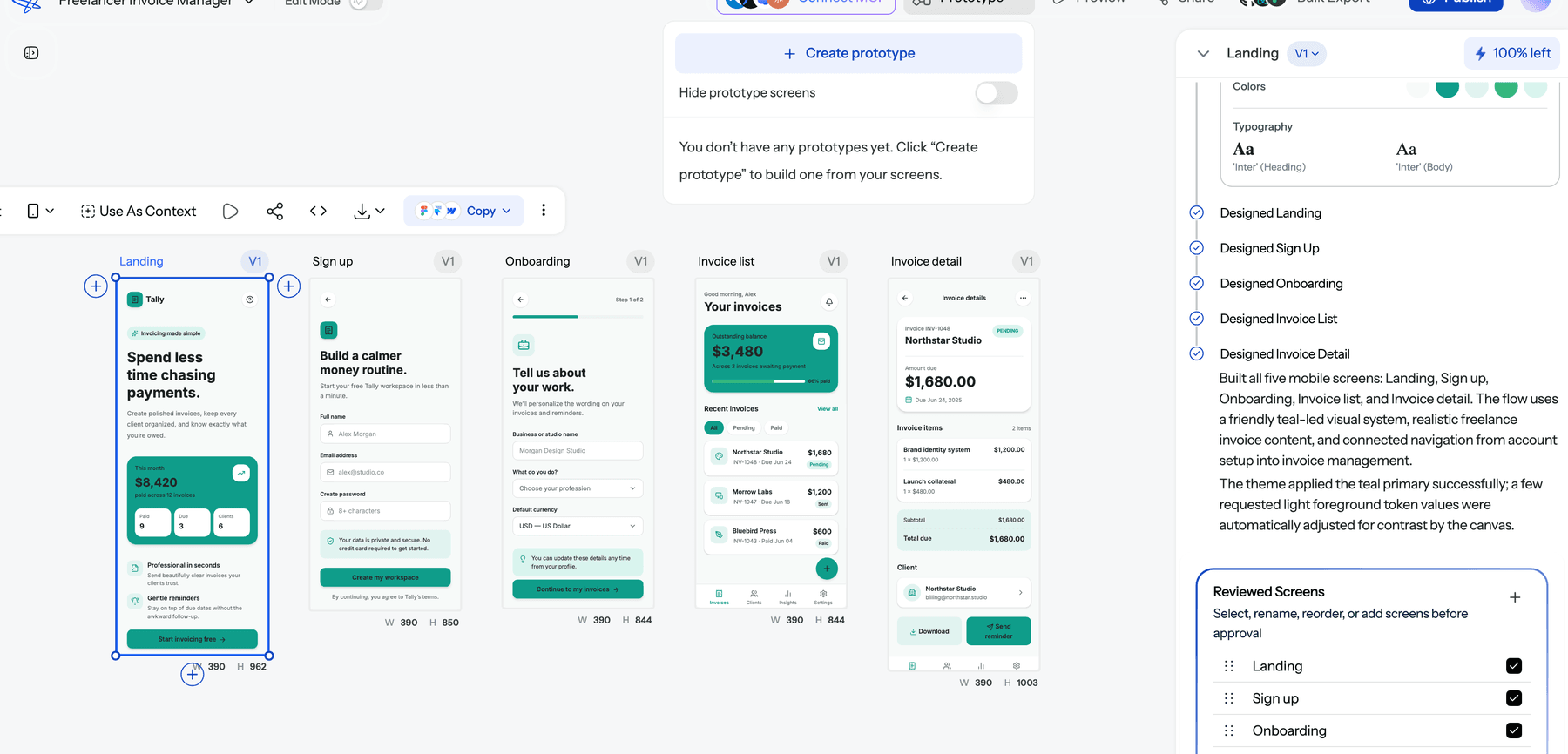
Verdict: Figma.
Developer handoff
Figma has a full handoff layer. Dev Mode shows spacing, sizes, tokens and generated CSS or platform code, lets developers compare versions and export assets, and connects to VS Code. Code Connect maps design components to real code components, and Figma's MCP server lets coding agents read design context. Dev Mode needs a Dev or Full seat on a paid plan. Our explainer on what a design handoff is and our roundup of design handoff tools cover the wider workflow.
Canva has no equivalent for product UI. You can download PNG, PDF or SVG, and copy code from a Canva Code project, but there are no inspectable specs or token exports for screens a developer has to rebuild.
UXMagic hands off as code: each screen exports as HTML or React with Tailwind and your theme tokens, as the code export guide describes, and the design to code generator turns screenshots and Figma designs into code too. The UXMagic MCP server lets Cursor, Claude, VS Code and other agents read screens and theme directly.
Verdict: Figma, with no contest from Canva.
Pricing
| Figma | Canva | |
|---|---|---|
| Free | Starter: 3 shared design files, 150 AI credits a day up to 500 a month | Free: templates, 5GB storage, limited AI uses |
| Individual | Professional Full seat, $16/mo billed annually | Pro, about $18/mo or $144/yr (one person) |
| Team | Professional: Dev $12, Collab $3, View free | Business, about $25 per person/mo |
| Larger orgs | Organization $55, Enterprise $90 per Full seat (annual) | Enterprise, custom pricing |
| AI metering | Monthly AI credits per seat, enforced | Monthly AI usage limits by plan |
Figma prices are from Figma's pricing page as listed in September 2026. Canva prices are from third-party 2026 breakdowns because Canva's pricing page could not be fetched directly, and Canva prices differ by country, so check Canva's pricing page for your region before you budget.
Two things shape the real bill. Figma charges by seat type, so the cost depends on how many people edit versus inspect or comment; a startup with two designers, three engineers and three PMs pays about $77 a month on Professional. Canva Pro is a one-person licence, and Business is priced per person, so a large marketing team adds up quickly. Figma's AI credits are enforced per seat, and heavy Make users will need add-ons, so budget for them if Make becomes your main way of producing screens.
Verdict: roughly level for one person. Figma is cheaper for mixed teams where most people only view or comment.
Figma vs Canva: who should pick which
- Product designers and UX teams: Figma. Nothing in Canva replaces components, variables, prototyping and Dev Mode.
- Developers: Figma (Dev Mode) for specs, or skip specs entirely and take code from a design-to-code tool.
- Marketers and social media managers: Canva, or Figma Buzz if your designers already run the brand system in Figma.
- Founders without a designer: Canva for the deck and launch posts. For the product screens, start with an AI generator; our guide to shipping UI without a design team covers the approach.
- Small businesses that need a website: Canva Websites or Canva Code for a simple page. For a proper site, see our Framer vs Webflow comparison and our roundup of Squarespace alternatives.
- Teams considering open source: our Penpot vs Figma comparison covers the self-hostable option, and our Figma alternatives guide lists the other editors.
- Students and educators: both have free education programmes; Canva is easier for class projects, Figma is the one to learn for a UI/UX career. Our list of the best UX/UI design tools shows what else is worth knowing.
Where UXMagic fits
UXMagic is not a Figma replacement for pixel-level editing or a Canva replacement for social content. It is the AI design step before either one.
You describe the product, and Flow Mode proposes a screen plan for the whole journey, which you approve or edit, then designs every screen on one canvas with a shared theme. You can start from a rough structure with the AI wireframe generator, rebuild a screenshot as an editable screen with image to UI, or bring in existing work with import from Figma. Colours, type and spacing live in one theme, explained in themes and style guides, so a brand change updates every screen together, which is exactly what Canva makes hard.
Then the same screens go wherever the work continues:
- To Figma for detailed design. The export to Figma guide explains how screens arrive as auto-layout frames with editable text and named layers, and the UXMagic Figma plugin generates UI without leaving Figma.
- To developers as HTML or React with Tailwind, or pushed to a repository with GitHub sync.
- To Canva for marketing. Connect Canva from Integrations, select the design and choose Export, then Canva. The export keeps how the design looks, which suits launch posts, ads and deck slides built from the real product rather than a placeholder.
The free plan gives 20 credits a day, enough for up to 3 screens a day, with 1 Figma export. Pro is $35 a month, or $17.50 a month billed annually, with 2,400 credits and 250 Figma exports a month. The plans and limits page has the details and the pricing page the current prices.
Where it falls short: UXMagic does not make social graphics, video or presentations, and it does not replace Figma's plugin ecosystem or a mature team library. It is the fastest way to a consistent first version of a product's screens, not the place every design lives forever.
Our verdict
Figma vs Canva is not really a contest, because they answer different questions. If the question is "what should this product look like and how should it work," use Figma. If it is "what should we post, present or print this week," use Canva. The overlap, Figma Buzz on one side and Canva Code on the other, is growing, but neither has moved far into the other's core job.
The practical setup for most product teams is both, with AI doing the first draft: generate the flow in UXMagic, refine it in Figma, ship it as code, and send the finished screens to Canva when marketing needs them.
Related guides
- Figma Weave Review: Node-Based AI for UI Assets, Not UI Layouts
- Figma Agent Review 2026: What the Beta Does, Costs and Misses
- Top 7 AI Tools for Design Consistency in 2026 (UI, UX, and Design Systems)
- Best Figma AI Plugins in 2026: 12 Picks for UI, Assets and Code
- 9 Best Uizard Alternatives in 2026, Grouped by Use Case
- 10 Best Magic Patterns Alternatives in 2026, Grouped by Workflow
- 8 Claude Design Alternatives in 2026, Free and Open Source Included
- GPT Image 2 Review: Features, Pricing and Prompts for UI Assets
- 9 Best UX Pilot Alternatives in 2026, Grouped by Use Case
- Best Wireframing Tools in 2026: 10 AI, Free and Classic Picks
Design once, finish in Figma or Canva
Generate a full multi-screen flow on one theme, then export it to Figma, React or Canva. Free plan, no credit card.