
TL;DR: Pick Penpot if you need open source, self-hosting or a free plan for a team of up to 8, and like a layout model that maps straight to CSS. Pick Figma if you need the deepest plugin ecosystem, richer prototyping and built-in AI, and can pay per seat (see our Figma pricing guide). Both now expose design files to AI agents through MCP. If what you really need is screens drafted fast, UXMagic generates them with AI and exports to Figma.
Penpot and Figma look alike the moment you open them. Both run in the browser, both put layers on the left and properties on the right, and both let a whole team edit one file at the same time. A designer who knows one can find their way around the other within an hour.
The differences sit underneath. Figma is a closed, venture-backed product with a huge ecosystem, a seat-based price list and AI built into almost every surface. Penpot is open source, can run on your own servers, and was designed from the start around web standards: its layouts are CSS Flexbox and CSS Grid, and its design tokens are native. That split shapes every section below.
This Penpot vs Figma comparison covers self-hosting, design features, prototyping, developer handoff, AI and MCP, plugins, collaboration, pricing and migration. Facts come from each company's own pricing pages and help centres, checked in September 2026. We build UXMagic, an AI design tool that exports to Figma, so we also say where it fits and where it doesn't. We describe how each tool works; we did not run a benchmark.
If you are weighing more than two tools, our wider Figma alternatives guide and our list of the best UX and UI design tools set the scene.
Penpot vs Figma at a glance
| Dimension | Penpot | Figma |
|---|---|---|
| Licence | Open source | Proprietary |
| Hosting | Penpot cloud or self-hosted | Figma cloud only |
| Layout model | CSS Flexbox and CSS Grid | Auto layout (plus grid) |
| Design tokens | Native tokens, W3C format | Variables and styles |
| Prototyping | Interactions, flows, overlays | Advanced prototyping, variables, Smart Animate |
| Dev handoff | Inspect tab, CSS/HTML/SVG, free | Dev Mode, paid Dev or Full seat |
| Built-in AI | None; open MCP server | Figma Make, AI agent, AI credits |
| MCP server | Free and open, hosted or local | Figma MCP server, rate-limited by plan |
| Plugins | Growing, small catalogue | Very large Community catalogue |
| Free plan | Up to 8 members, 10GB | Starter, 3 shared design files |
| Paid from | $7/editor/mo, capped at $175/mo | $16/Full seat/mo billed annually |
What is Penpot?
Penpot is an open-source design and prototyping platform built by Kaleidos. It runs in the browser, supports real-time multiplayer editing, and stores designs in open formats: shapes are SVG, layouts are CSS, and tokens follow the W3C Design Tokens format. You can use Penpot's hosted cloud or install it on your own infrastructure.
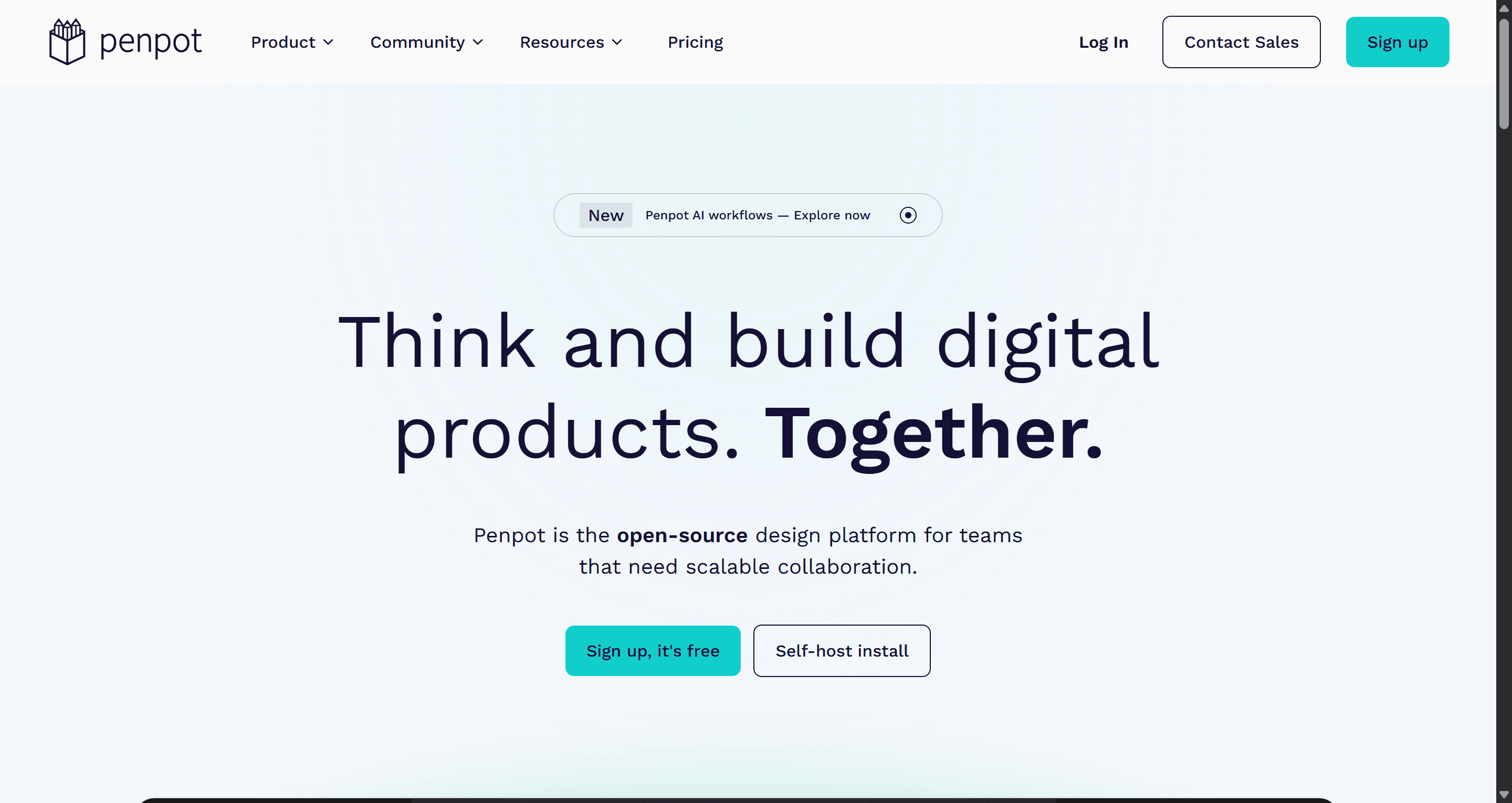
The product has moved quickly through its 2.x releases. The latest, 2.18 (September 2026), adds a paid Enterprise tier with an admin panel and identity provider choice, stroke-to-path for users on the new WebGL renderer, and new drawing tool flyouts. Earlier 2.x releases added CSS Grid layout, native design tokens, component variants and a plugin API.
Best for: teams that must control where design data lives, open-source and public-sector projects, and developers who want design layouts that translate directly into CSS.
Where it falls short: smaller plugin catalogue and community file library, fewer advanced prototyping options, and no built-in AI generation.
What is Figma?
Figma is the default UI design tool for most product teams. One account covers Figma Design, FigJam, Dev Mode, Figma Make, Slides, Sites and Draw, and access to each depends on your seat type. Its strengths are polish, speed on large files, a mature component and variables system, and an ecosystem of plugins, community files and tutorials that no other design tool matches.
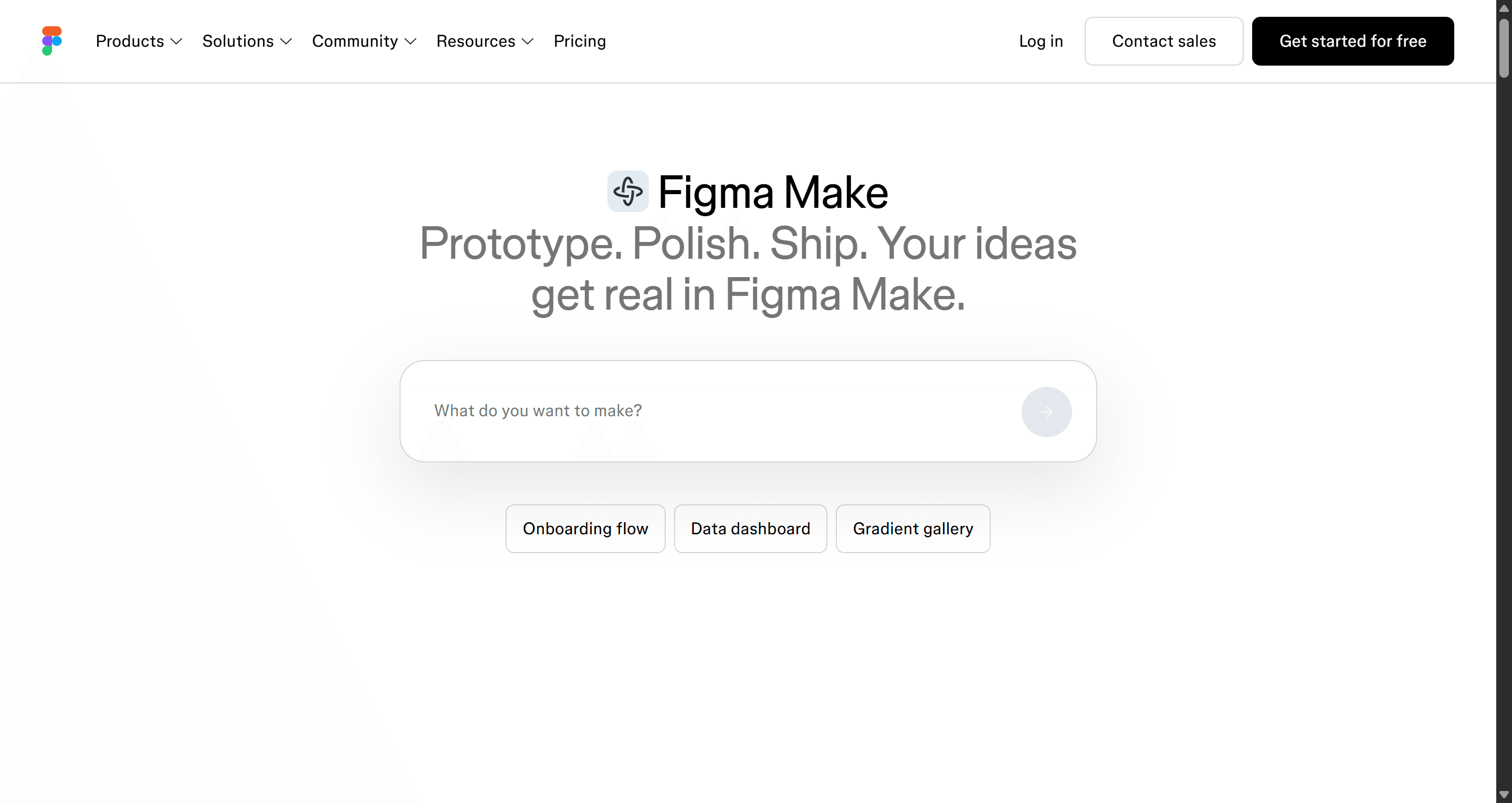
Over the last two years Figma has pushed hard into AI. Our explainer on what Figma AI is walks through every feature, from Make to AI image editing.
Best for: product teams of any size that want the industry standard, advanced prototyping and the widest hiring pool.
Where it falls short: cloud only, no self-hosting, and costs that climb with every Full seat and every AI credit top-up.
Open source and self-hosting
This is the clearest dividing line. Penpot's code is public, and its self-host page documents installs with Docker, Kubernetes via a Helm chart, OpenShift, Rancher, TrueNAS and the Elestio managed service. Once it runs on your servers, design files never leave your network. That matters for government, healthcare, finance and defence teams whose policies rule out third-party cloud storage, and for companies that simply don't want a critical tool to depend on one vendor's roadmap and pricing decisions.
Penpot also sells a Private Server option for organisations that want Penpot to run dedicated infrastructure for them, listed at $50k a year.
Figma has no self-hosted edition. Enterprise customers get controls such as SSO, SCIM and localised file hosting, but the files still live in Figma's cloud. If self-hosting is a hard requirement, the comparison ends here: Penpot is the only mature UI design tool that offers it.
Design features: layouts, components and tokens
Layouts
Figma's auto layout is mature and widely understood, and it now includes a grid option. Penpot takes a different route: its Flex layout and Grid layout are modelled directly on CSS Flexbox and CSS Grid, using the same concepts and names. For designers the difference is small once you learn the terms. For developers it is significant, because a Penpot layout describes how the CSS will actually be written.
Components and variants
Both tools support reusable components, shared libraries and variants. Figma's component system is more mature: component properties, nested instances and years of community kits built on them. Penpot's component system was rebuilt for 2.0 and now includes variants with typed properties, which closes most of the everyday gap, though large design systems with deep nesting still behave more predictably in Figma.
Design tokens
Penpot was early to native design tokens and uses the W3C Design Tokens format, so tokens can move between Penpot and code without a plugin. Figma handles the same job with variables and styles, which are powerful and support modes for themes, but exporting them as standard tokens usually needs a plugin or the REST API.
If your team is building a system from zero, our guide to building a design system from scratch and our explainer on the difference between a design system, style guide and component library apply to either tool.
Prototyping
Figma is ahead here. Its prototyping supports Smart Animate, interactive components, variables and conditional logic on paid plans, and prototypes can be shared with permissions. That makes it possible to build high-fidelity prototypes that behave close to a real app for usability testing.
Penpot covers the core: interactions between boards, flows with start points, overlays, and transition animations, all viewable and shareable from View mode. For clickable walkthroughs, stakeholder reviews and basic user tests that is enough. For stateful prototypes with logic, it isn't.
If prototyping is your main job, our roundup of the best prototyping tools and our primer on what a prototype is in UX design go further.
Developer handoff and inspect
This is where Penpot's pricing advantage is sharpest. Penpot's Inspect tab gives anyone with access to the file a view-only mode showing measurements, styles and properties, plus a Code tab with CSS, HTML and SVG for the selected object. It costs nothing extra, and because the layouts are already CSS, the generated styles are close to what a developer would write.
Figma splits handoff by seat. Free View and Collab seats get basic inspection. Full Dev Mode, with annotations, Ready for dev status, compare changes, Code Connect and the VS Code extension, needs a Dev seat ($12 a month on Professional) or a Full seat.
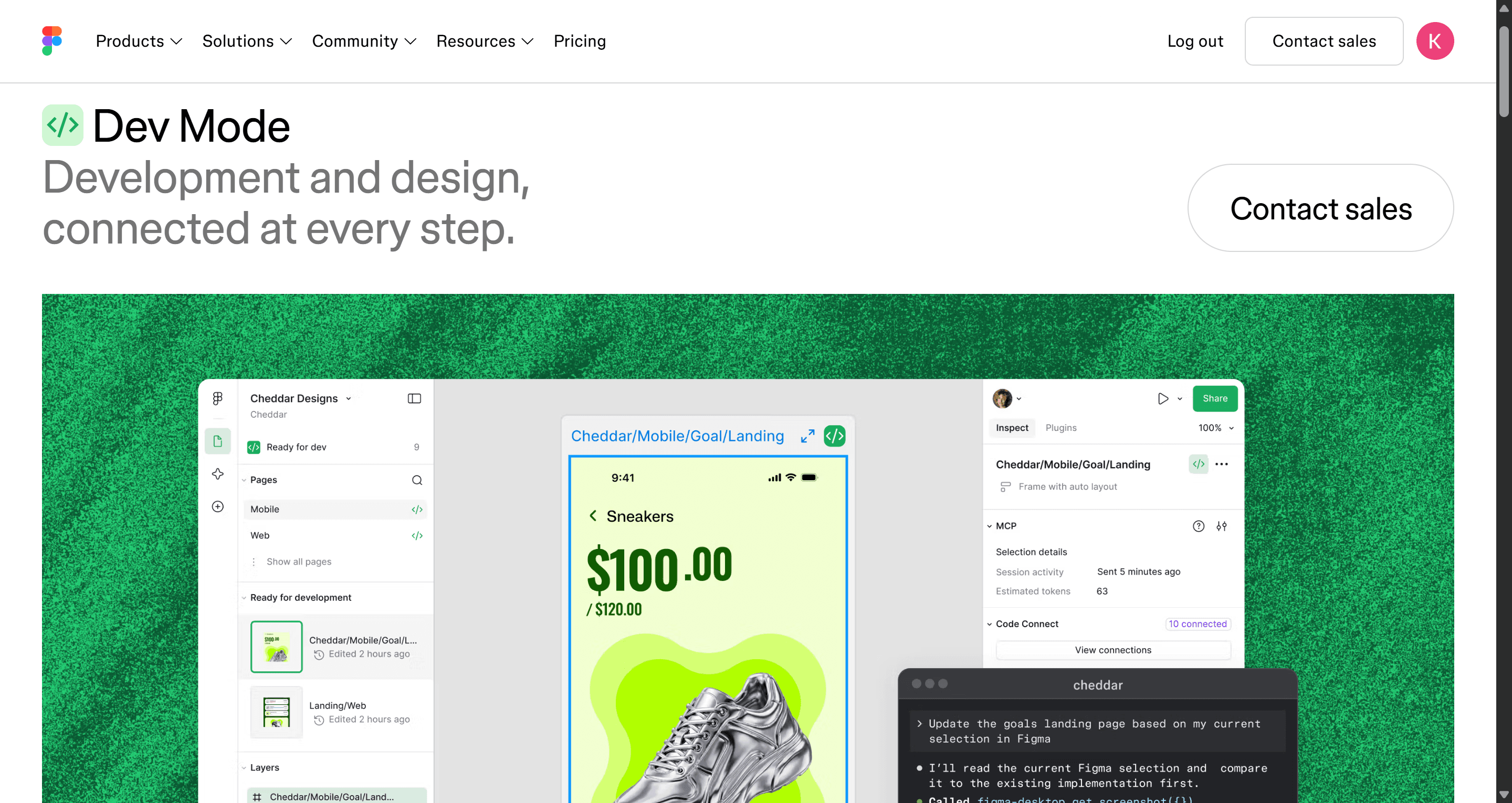
Our guides to Figma Dev Mode alternatives and the best design handoff tools compare other routes, and what a design handoff is explains what developers actually need from either tool.
AI features and MCP
The two companies have taken opposite approaches to AI.
Figma builds AI into the product. Figma Make turns a prompt or a frame into an interactive app, the AI agent in Figma Design is free while in beta, and paid seats get AI image editing, visual search and Weave tools. All of it is metered in AI credits: 3,000 a month on a Professional Full seat, 500 on other seats and on Starter, with limits enforced since March 2026. A single Make request costs roughly 30 to 100 or more credits. Our Figma Make alternatives guide covers tools with cheaper generation, and our list of Figma AI plugins covers add-ons.
Penpot has no built-in generator. Instead it ships an MCP server. Per Penpot's MCP documentation, it connects an MCP-compatible client such as Claude Code, Cursor, Codex or VS Code to your files, and the agent can read and modify components, styles, tokens, pages and layers. You can use the version Penpot hosts or run it locally, and Penpot says the server is free and open, with no paywall and no model lock-in. You bring your own model and pay your own AI bill. One practical note from the docs: the Penpot tab must stay open and focused during a session.
Figma also has an MCP server, which lets coding agents read design context from Figma files. It is rate-limited by plan: 20 tool calls a month on Starter, 200 a day on Professional and Organization, and 600 a day on Enterprise.
The short version: Figma gives you a managed AI experience you pay for in seats and credits. Penpot gives you an open door for whichever agent you already use. Neither will draft a complete multi-screen product from a brief on its own, which is the gap AI-first tools such as UXMagic's AI UI design generator fill.
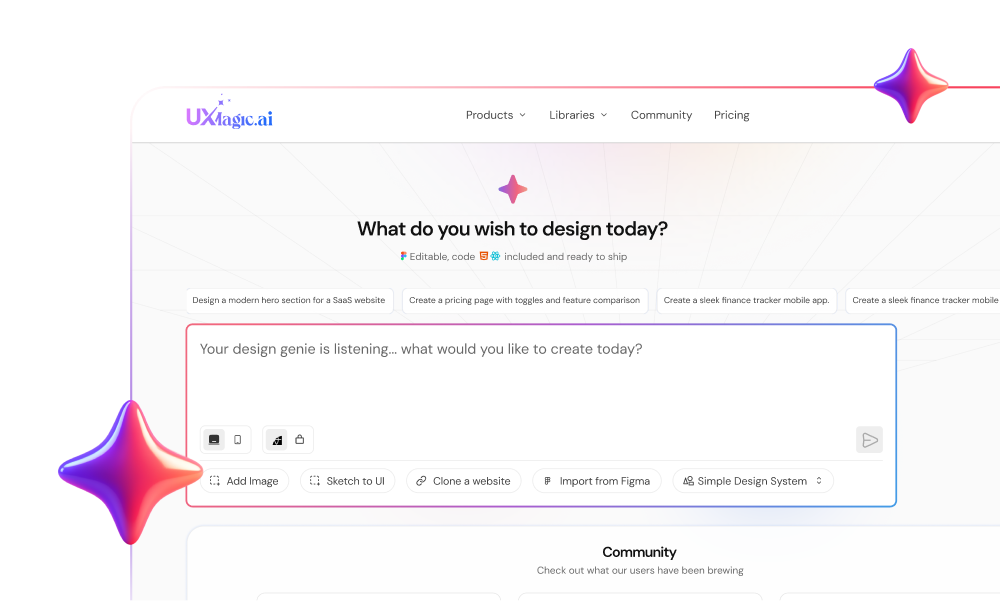
Draft the screens with AI, finish them in Figma
Describe your product and UXMagic plans and designs every screen on one theme, then exports editable auto-layout frames to Figma.
Plugins and integrations
Figma Community has thousands of plugins and widgets covering icons, content, accessibility checks, localisation, token export and AI generation, plus integrations with Jira, Slack, Microsoft Teams and most developer tools. For many teams this ecosystem is the real lock-in.
Penpot added a plugin system with a public API and runs a plugin directory on its site. The catalogue is growing and covers common needs such as icons, tables and token import, but it is a fraction of Figma's size. Before switching, list the five plugins your team uses weekly and check each has a Penpot equivalent. Penpot also exposes a REST API and webhooks, and because it is open source, teams with engineers can build what they need.
Collaboration
Both tools support real-time multiplayer editing, comments and shared libraries, and both let you share view-only links with people who don't design.
Differences show up at the edges. Figma adds FigJam for whiteboarding, Slides, branching and merging (on Organization and above), and a seat model that separates editors from developers and commenters. Penpot keeps things simpler: viewers are unlimited on every plan, and version history grows with the plan, from 7 days of autosaved versions on the free plan to 30 on Unlimited and 90 on Enterprise. Figma's free Starter plan keeps 30 days of version history.
If you use a separate whiteboard, our Miro pricing guide is a useful reference, since FigJam is Figma's answer to it.
Pricing: Penpot vs Figma
Penpot pricing
Per Penpot's pricing page, as listed in September 2026:
- Professional: free. Up to 8 team members, unlimited viewers, 10GB of storage, 7 days of autosaved versions.
- Unlimited: $7 per editor a month, capped at $175 a month whatever the team size, 25GB of storage, 30 days of versions and early feature access. 14-day free trial.
- Enterprise: $25 per member a month. SSO, choice of hosting region, IP allow-listing, centralised admin and 90 days of versions.
- Private Server: $50k a year for dedicated, custom-hosted infrastructure.
Penpot also offers discounts for non-profits, education and open-source organisations, and self-hosting on your own infrastructure is a separate route.
Figma pricing
Per Figma's pricing page, Starter is free with 3 shared Figma Design files and 500 AI credits a month. Professional is $16 per Full seat, $12 per Dev seat and $3 per Collab seat a month billed annually. Organization is $55, $25 and $5, and Enterprise is $90, $35 and $5, both billed annually only. View seats are free. Our Figma pricing guide works through team scenarios and AI credit add-ons.
| Team | Penpot (cloud) | Figma Professional |
|---|---|---|
| 1 designer | $0 | $0 (Starter) or $16/mo |
| 3 designers, 3 devs | $0 | $48 + $36 = $84/mo |
| 8 designers | $0 | $128/mo |
| 30 designers | $175/mo (Unlimited cap) | $480/mo |
Figma figures use annual Full and Dev seat prices; Penpot figures assume the free plan fits the team (up to 8 members) and the Unlimited cap above that. Penpot costs stay flat as you grow, and developers never need a paid seat to inspect.
Migrating between Penpot and Figma
Figma to Penpot. Penpot maintains the Penpot Exporter plugin for Figma, which converts a Figma file into a .penpot file you import from the Penpot dashboard. It handles frames, shapes, text, images and basic components well. Expect manual work on deeply nested auto layout, complex variants, and anything a plugin generated. Figma variables can be moved into Penpot tokens with a community plugin, or exported as W3C tokens and imported. Plan a pilot on one real file before committing a whole design system.
Penpot to Figma. There is no official one-click route. Penpot files export as SVG, PNG, JPG and PDF, and SVG pastes into Figma as editable vectors, but components, tokens and layout rules have to be rebuilt.
Going to either from code or screenshots. If your source of truth is a live site or a set of screenshots, UXMagic can rebuild it as an editable design: HTML to design turns a URL or HTML into screens, and you can then send the result to Figma with the Figma AI workflow. UXMagic can also import from Figma when you want to extend an existing file with AI.
Who should pick which
Choose Penpot if
- You need to self-host, or policy rules out design files in a third-party cloud.
- You want open source and no vendor lock-in on pricing or AI.
- Your team is 8 people or fewer and budget matters, or you are larger and want a cost cap.
- Developers inspect often and you don't want to pay for their seats.
- You think in CSS and want layouts and tokens that map to code.
Choose Figma if
- You rely on specific plugins, community kits or integrations.
- You build complex prototypes with logic and variables for user testing.
- You want AI built into the design tool and are willing to pay in credits.
- You hire designers often; nearly all of them already know Figma.
- You run a large, multi-team design system and need branching and library analytics.
Still unsure?
Run both on the same small project for a week. Penpot's free plan and Figma Starter cost nothing. Watch where people get stuck: missing plugins and prototype limits point to Figma; seat costs and data policy point to Penpot. Adjacent head-to-heads in this series, Figma vs Canva and Framer vs Webflow, follow the same format, and our Canva alternatives for UI design guide covers lighter tools.
Where UXMagic fits
Penpot and Figma are editors. You still draw every screen, or in Figma's case, spend credits asking Make for one prototype at a time. UXMagic starts a step earlier: you describe the product and it plans and designs the screens for you.
- Plan the flow. In flow mode, UXMagic proposes a screen plan (onboarding, dashboard, settings and so on) that you approve before it generates anything. The flow mode help article shows how.
- Generate on one theme. Every screen shares one style guide, and theme changes cost no credits. See themes and style guides or start from the AI style guide generator.
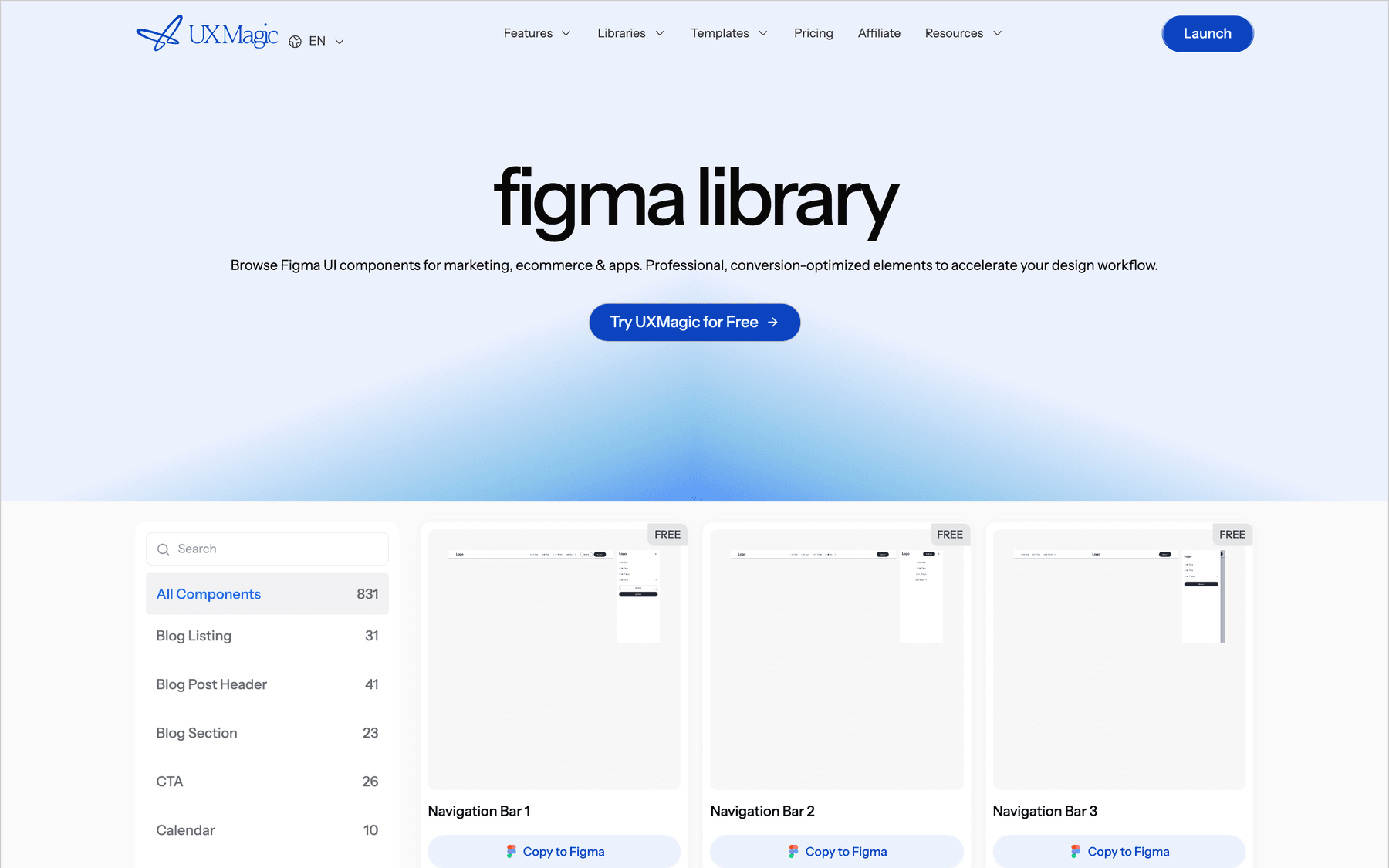
- Export to Figma. Screens go to Figma as editable auto-layout frames, via bulk export or the UXMagic Figma plugin. The Figma component library gives you ready-made pieces to copy in.
- Or go straight to code. Export HTML or React with Tailwind and theme tokens, or use the design to code generator.
- Connect your agent. Like Penpot and Figma, UXMagic has an MCP server so Claude, Cursor or Codex can read real screens and the theme.
To be honest about scope: UXMagic has no direct Penpot export. Penpot teams can still use it to draft screens and take the HTML or React output, but the smooth editable handoff today is to Figma. UXMagic is also not a replacement for a full vector editor or a design-system management tool. It is the fastest way to get from a brief to a complete set of screens, which you then refine in the editor you picked above. Our guide to designing UI with AI shows the whole workflow.
On cost, UXMagic's free plan gives 20 credits a day and one Figma export, and a new screen costs 3 credits. Pro is $17.50 a month billed annually, with 2,400 credits and 250 Figma exports a month; details are in plans and limits and on the pricing page.
Final verdict
Penpot vs Figma is less about features than about priorities. Penpot has caught up on the everyday work of UI design: layouts, components, variants, tokens, inspect and multiplayer editing, with open source, self-hosting and a price that stays flat as you grow. Figma still leads on ecosystem, prototyping depth, polish on huge files and built-in AI, and it charges per seat and per credit for it.
Choose Penpot when control and cost matter most. Choose Figma when ecosystem and prototyping matter most. And whichever you use, let AI draft the first version of the screens so your editor time goes on the decisions that need a designer.
Related guides
- 8 Claude Design Alternatives in 2026, Free and Open Source Included
- Wireframe Tool Cost-Benefit Breakdown (2026): What's Actually Worth Paying For
- Best Wireframing Tools in 2026: 10 AI, Free and Classic Picks
- Figma Agent Review 2026: What the Beta Does, Costs and Misses
- AI Design to Code Tools: The Complete 2026 Guide by Input Type
- Paper.design Review 2026: HTML Canvas, MCP, Pricing and Limits
- Pencil.dev Review 2026: Now pen.dev, Features, Pricing, Alternatives
- How to Export a Figma Design to Clean HTML (No Plugins Needed)
- 11 Best v0 Alternatives in 2026, Grouped by the Job You Need Done
- 9 Best UX Pilot Alternatives in 2026, Grouped by Use Case
From brief to Figma-ready screens in minutes
Generate a full multi-screen flow in UXMagic, then export editable frames to Figma or clean React code. Free plan, no card needed.