
TL;DR: AI design to code tools fall into four groups, and the right one depends on what you start from. From a prompt, screenshot or URL, UXMagic designs the screens and exports HTML or React with Tailwind. From a Figma file, Anima, Locofy, Builder.io Visual Copilot and TeleportHQ convert frames into code. For an existing codebase, the Figma MCP server or the UXMagic MCP server gives your coding agent real design context. Whatever you pick, review the output against the checklist below before it ships.
The gap between a finished design and a working front end has always been where time disappears. A designer hands over a Figma file, an engineer rebuilds it by eye, and three rounds of "the padding is off" later, the result is close enough. We wrote about why this breaks in what is a design handoff, and the short version is that the design and the code describe the same thing in two languages nobody keeps in sync.
AI design to code tools promise to remove the translation step. Some of them do it well. Many produce code that looks right in a screenshot and breaks the first time someone resizes the window. This guide sorts the tools by the input they take, explains where each one earns its place, and gives you a checklist for judging the code they produce.
We build UXMagic, an AI design tool that exports code, so we say where it fits and where another tool is the better choice.
What counts as a design to code tool in 2026
"Design to code" used to mean one thing: a Figma plugin that exported HTML. Today it covers four different jobs.
- Generate, then export. You describe a screen, upload a screenshot or paste a URL. The tool designs it and exports code. The design and the code come from the same source, so there is nothing to convert. UXMagic, v0 and Google Stitch work this way.
- Convert a design file. You already have Figma frames. A plugin or web app reads the layers and writes code. Anima, Locofy, Builder.io Visual Copilot and TeleportHQ live here.
- Give a coding agent design context. Instead of converting anything, an MCP server exposes the design to Cursor, Claude Code or VS Code, and the agent writes code inside your repo. The Figma MCP server and the UXMagic MCP server both do this.
- Import into an app builder. Bolt and Lovable accept Figma frames and turn them into a running app with a backend, not just a front end.
Each group fails differently: converters struggle with messy files, generators give you code for a design you did not draw, agents need a clean codebase, and app builders add things you did not ask for. Knowing which failure you can live with is most of the decision.
Quick pick: AI design to code tools compared
| Tool | Input | Output | Best for | Free tier |
|---|---|---|---|---|
| UXMagic | Prompt, screenshot, sketch, URL, Figma import | HTML or React + Tailwind, Figma, GitHub | Designing multi-screen flows, then exporting | 20 credits a day |
| v0 | Prompt, image, Figma (paid) | React, Next.js, shadcn/ui | Next.js developers | $5 monthly credits |
| Subframe | Visual canvas + agent | React + Tailwind in your codebase | Design-engineer teams | 1 project |
| Anima | Figma, website clone, prompt | HTML, React, Vue | Designers exporting from Figma | 5 plugin generations |
| Locofy | Figma, Penpot, URL | React, Next.js, Vue, Angular, HTML, React Native, Flutter | Framework coverage | Check site |
| Builder.io Visual Copilot | Figma | React, Vue, Angular, Svelte, Qwik, HTML, mobile | Mapping to your own components | 60 agent credits/mo |
| TeleportHQ | Figma, visual builder | React, Next.js, Vue, Angular, HTML | Static sites and simple web apps | 7-day trial |
| Figma MCP server | Figma frames | Code written by your agent | Teams with a component library | Limited on Starter |
| Bolt | One Figma frame | Full-stack app | Quick prototypes from a mockup | Yes |
| Lovable | Figma plugin, MCP, .fig | Full-stack app | Non-developers shipping an MVP | Yes |
Prices and limits are as listed on each vendor's site in September 2026.
Group 1: Generate a design, then export code
These tools skip the conversion problem. Because the tool made the design, it already knows the structure, so the export is cleaner than a converted Figma file usually is. The trade-off is that you are steering by prompt rather than drawing.
UXMagic
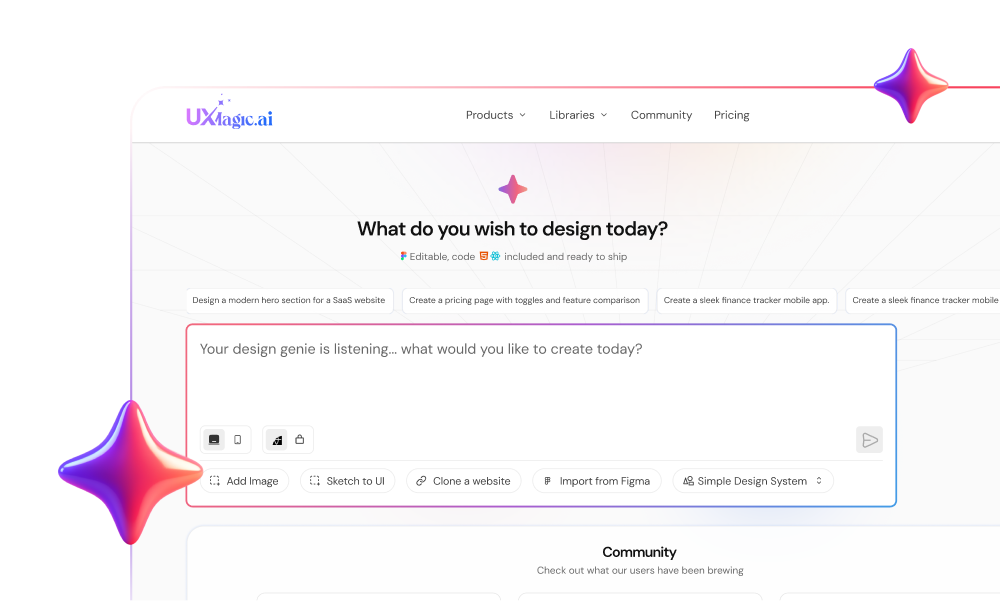
UXMagic designs screens on a canvas from a prompt, a screenshot or image, a sketch, a URL you want to clone, or a file you bring in with import from Figma. It plans the flow first, then designs each screen with one shared theme, so a checkout is five connected screens rather than five unrelated replies.
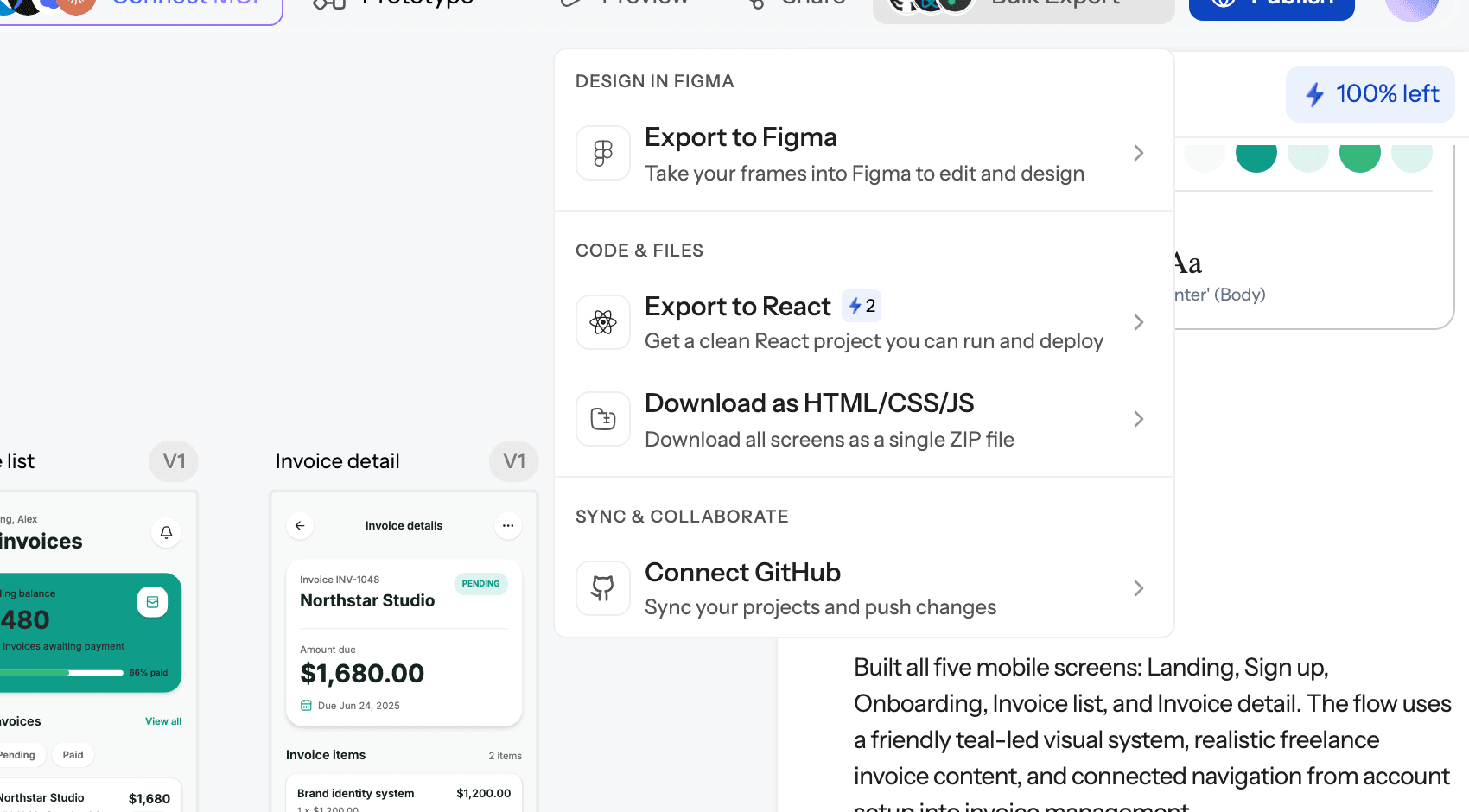
When a design is ready, you can export a single screen as HTML or a React component, or the whole project as a multi-screen React project. Styling is Tailwind, and your project theme comes through as design tokens, so colours and type in the code match the canvas. You can push straight to a repository with GitHub sync or send screens to Figma as auto-layout frames with export to Figma.
- Best for: founders, PMs and designers who need a set of consistent screens and a front end to hand to developers or an AI React generator workflow.
- Where it falls short: it exports a front end only. There is no data layer, routing or state management, images are referenced from UXMagic's asset storage until you download them into your repo, and responsive variants are exported per screen width. It is not a code IDE.
Read how it works in our export code help article.
v0 by Vercel
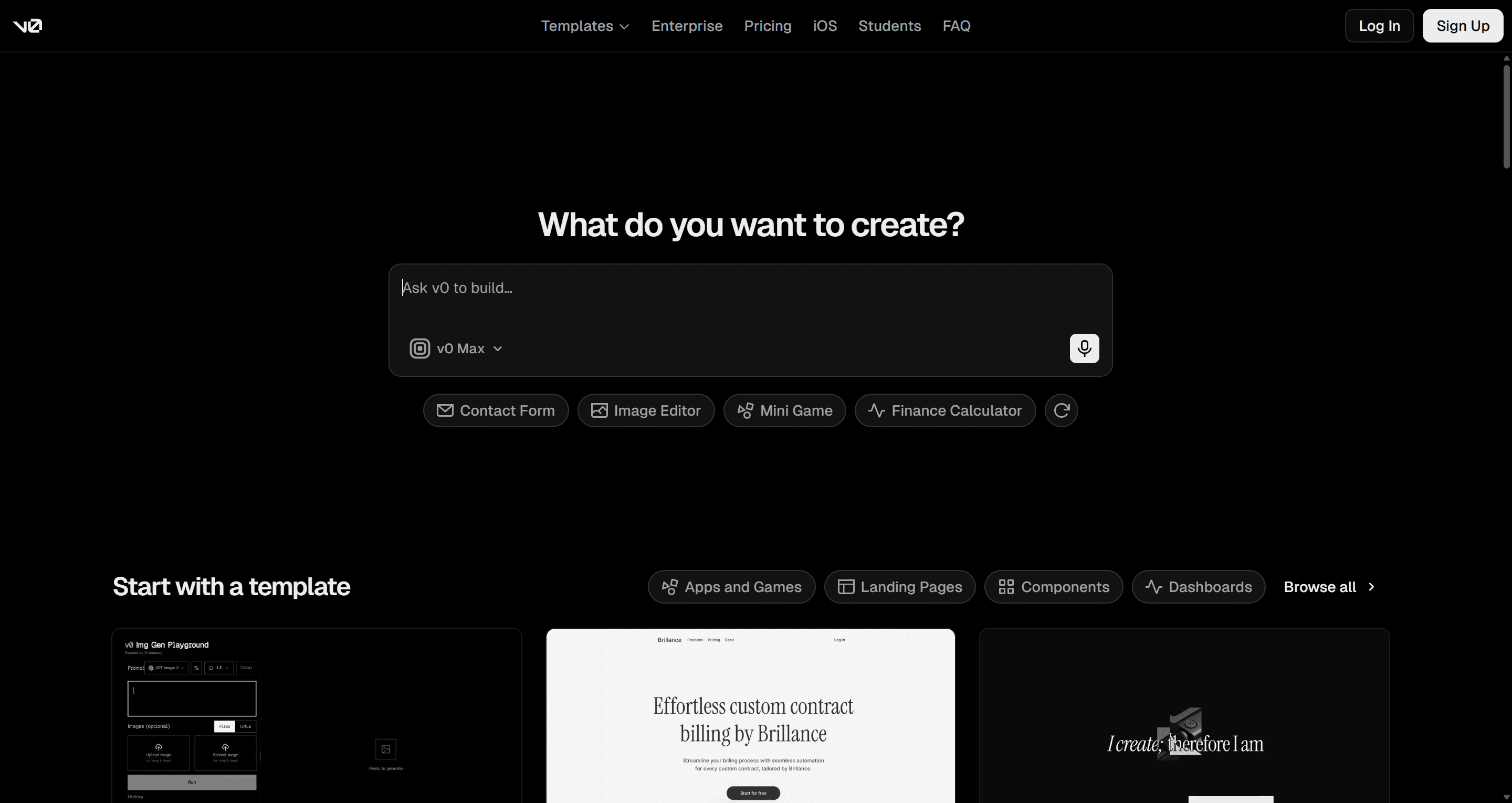
v0 turns a prompt into React, built on Next.js, Tailwind and shadcn/ui, and deploys to Vercel. On paid plans you can also import from Figma: v0 reads the file's variables and styles, auto layout, text, assets and component names. The free plan includes $5 of monthly credits with a 7-message daily limit, Plus is $30 per user a month and Business is $100 per user a month.
- Best for: developers already on Next.js and Vercel who want code first and design second.
- Where it falls short: it generates one thread at a time, so keeping ten screens visually consistent takes discipline, and credit use is hard to predict on long sessions.
Read our full v0 by Vercel review, or compare the best v0 alternatives.
Subframe
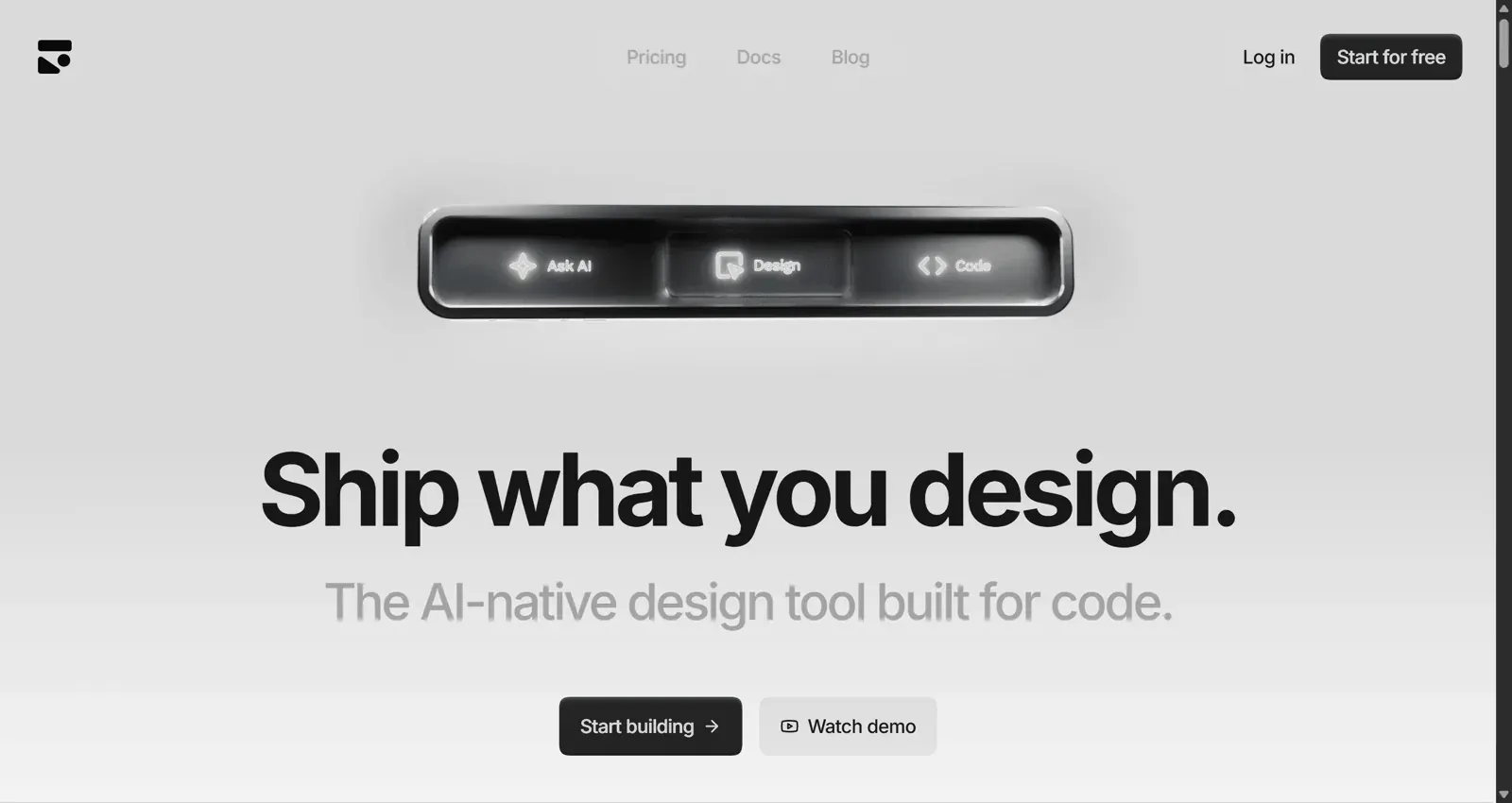
Subframe is a visual design canvas where every layer maps to React and Tailwind code, with a built-in browser and an integrated agent that works with your Claude Code or Codex subscription. Components, variants and tokens sync with your codebase. The free plan covers one project, and Pro is $20 per editor a month.
- Best for: design engineers and small product teams who want the canvas and the codebase to be the same thing.
- Where it falls short: it is optimised for React. Non-React teams and non-technical founders get less from it.
Read our full Subframe review.
Google Stitch also belongs in this group: it generates screens from prompts and exports front-end code. See our Google Stitch alternatives for how it compares.
Group 2: Convert a Figma file into code
If your design already lives in Figma, these tools read the layers and write code. The quality of what comes out depends heavily on the quality of what goes in: auto layout, named layers and real components make every one of them better.
Anima
Anima has been turning Figma into code for years. Its Figma plugin exports responsive HTML (with plain CSS, Tailwind or inline styles) or React, and it supports Vue, shadcn and MUI. The newer web Playground builds apps from prompts, images or cloned websites, and Anima also offers an MCP server and an API; its API powers Bolt's Figma import. The free plan includes 5 code generations in the Figma plugin, 5 Figma imports or website clones and 5 Playground chat messages a day. Enterprise starts at $500 a month billed annually. See Anima's pricing page for current paid tiers.
- Best for: designers who work in Figma and want a quick, faithful HTML or React export of a finished frame.
- Where it falls short: faithful to the frame is not the same as maintainable. Expect absolute-positioned leftovers where the file skipped auto layout, and components that need renaming before developers adopt them.
Locofy
Locofy converts Figma and Penpot designs into front-end code across a wide range of frameworks: React, Next.js, React Native, HTML and CSS, Flutter, Vue and Angular, with UI libraries such as Material UI, Chakra UI, Ant Design and Bootstrap for the React family. Its Lightning flow handles multi-screen conversion, and it offers a design plugin, a CLI, an MCP integration and URL import. Pricing is usage-based and has changed several times, so check Locofy's site before budgeting.
- Best for: teams that need a framework other than React, especially mobile with React Native or Flutter.
- Where it falls short: getting the best output means tagging layers and setting up components in the plugin, which is real setup time for a one-off export.
Builder.io Visual Copilot
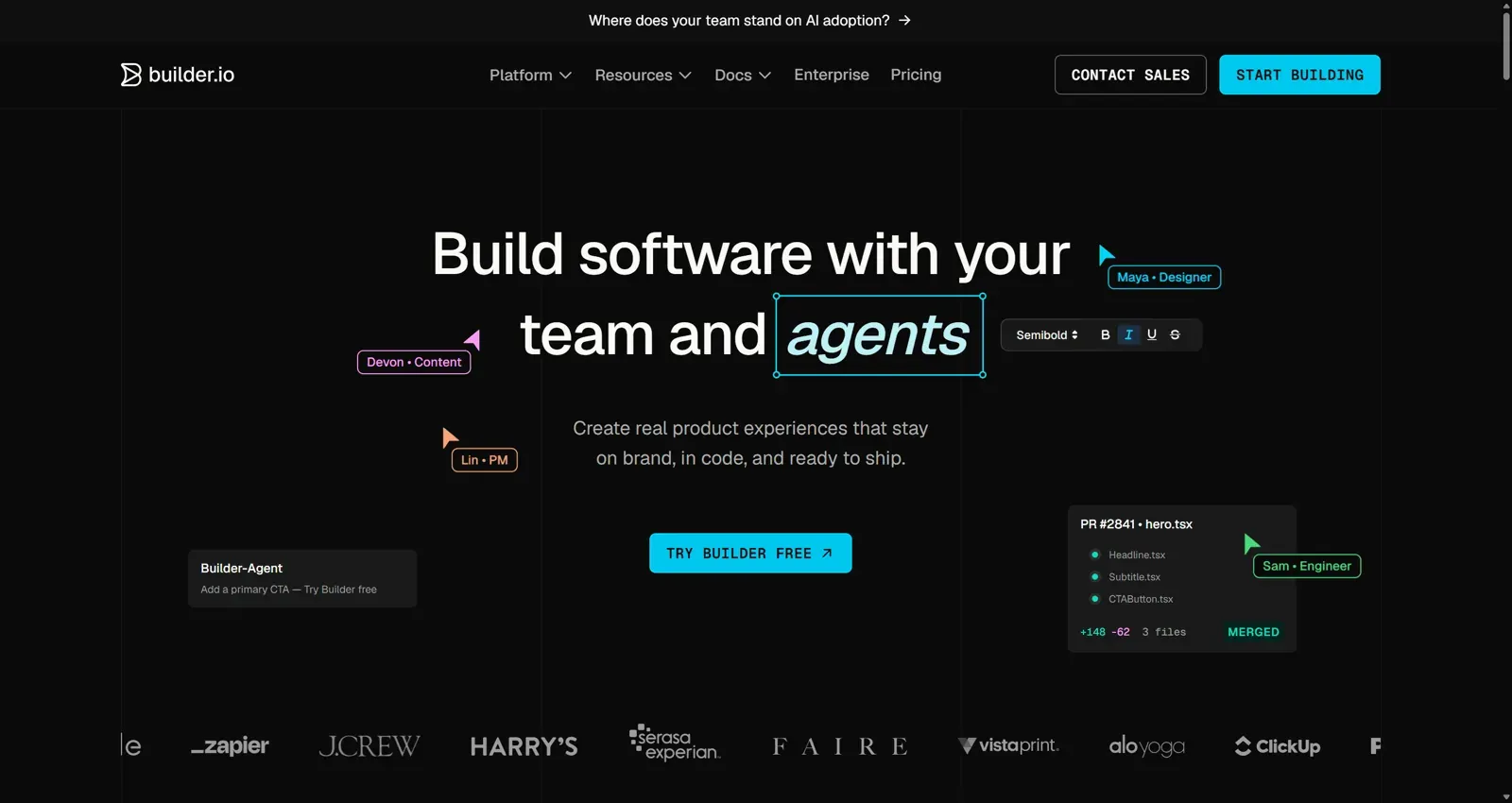
Visual Copilot is Builder.io's Figma plugin. It converts designs into React, Vue, Angular, Svelte, Qwik, HTML/CSS and mobile targets such as Kotlin and Flutter, with Tailwind or CSS Modules. Its standout feature is custom component mapping: you tell it which Figma component corresponds to which component in your codebase, and the output uses yours. Builder's free plan includes 60 agent credits a month (15 a day), Pro is $24 per user a month with 500 credits, and Team is $40 per user a month. Details are on Builder.io's Figma to code page.
- Best for: engineering teams with an existing component library who want Figma output to use it.
- Where it falls short: Builder.io is a broad platform (visual CMS, agent, integrations), so there is more to learn than a single-purpose plugin.
Read our full Builder.io review.
TeleportHQ
TeleportHQ is a visual website builder with a Figma to code plugin that copies selected layers as HTML and CSS, plus project export to React, Next.js, Vue, Angular and HTML. It includes AI site generation and an in-editor assistant. There is a 7-day free trial, then Pro from $14 a month and Premium from $28 a month.
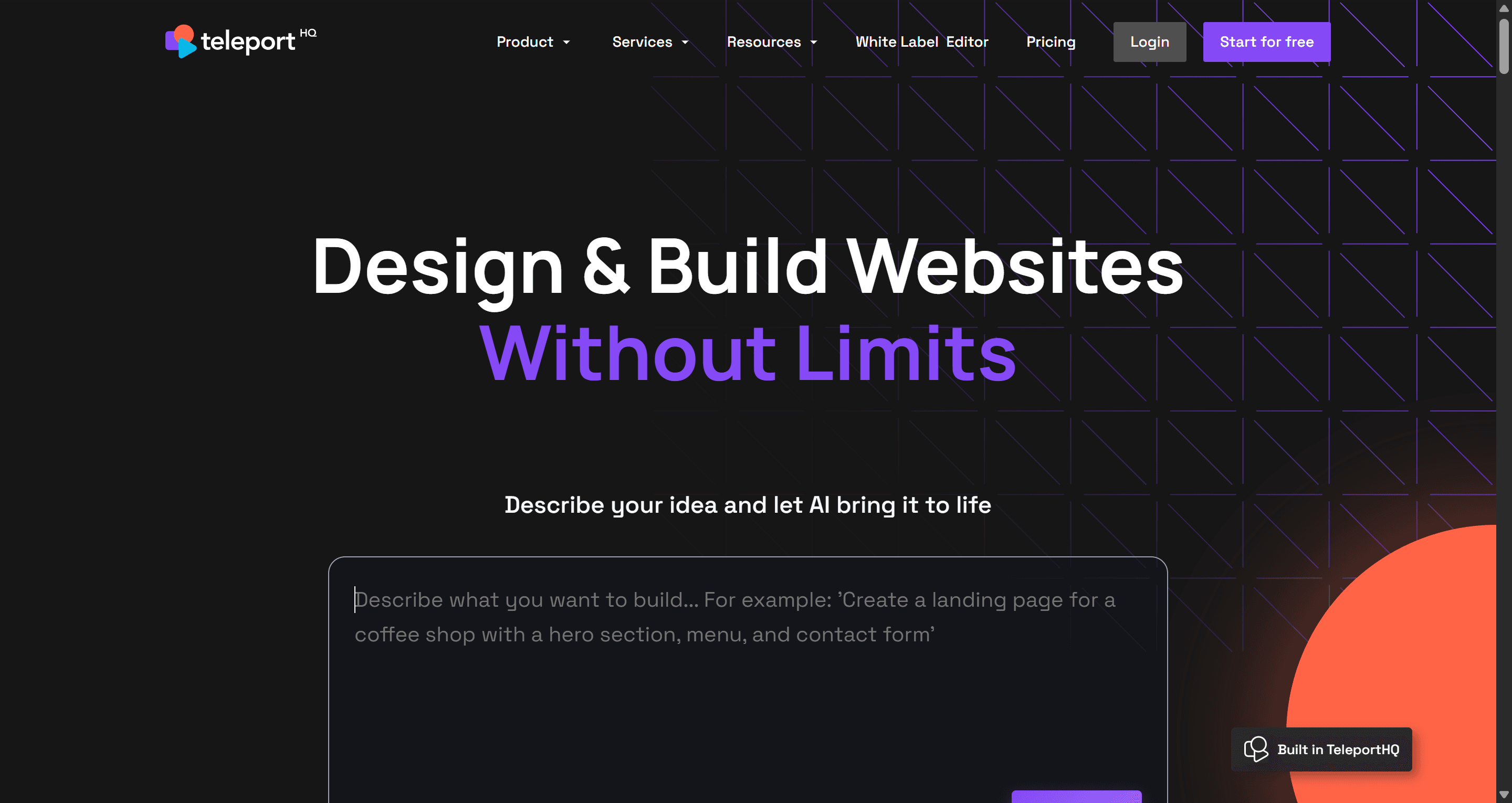
- Best for: marketing sites and presentational pages where you want both hosting and code export.
- Where it falls short: less suited to complex product UI with many states.
Read our full TeleportHQ review.
If you would rather skip plugins entirely, our guide to exporting Figma to clean HTML without plugins walks through the manual route, and our image to Figma converter comparison covers the opposite direction.
Group 3: Give your coding agent design context
The most important shift of the past year is that many teams no longer convert designs at all. They let a coding agent read the design and write code in the repo, against the components that already exist.
Figma MCP server
The Figma MCP server launched as the Dev Mode MCP server and now has two versions. The remote server, hosted by Figma, is available on all seats and plans. The desktop server runs through the Figma desktop app and needs a Dev or Full seat on a paid plan. Agents in VS Code, Cursor, Claude, Codex and other clients can pull variables, components and layout from a frame and generate code from it. With Code Connect, the agent reuses your real design-system components instead of inventing new ones. Figma's guide to the MCP server has the setup.
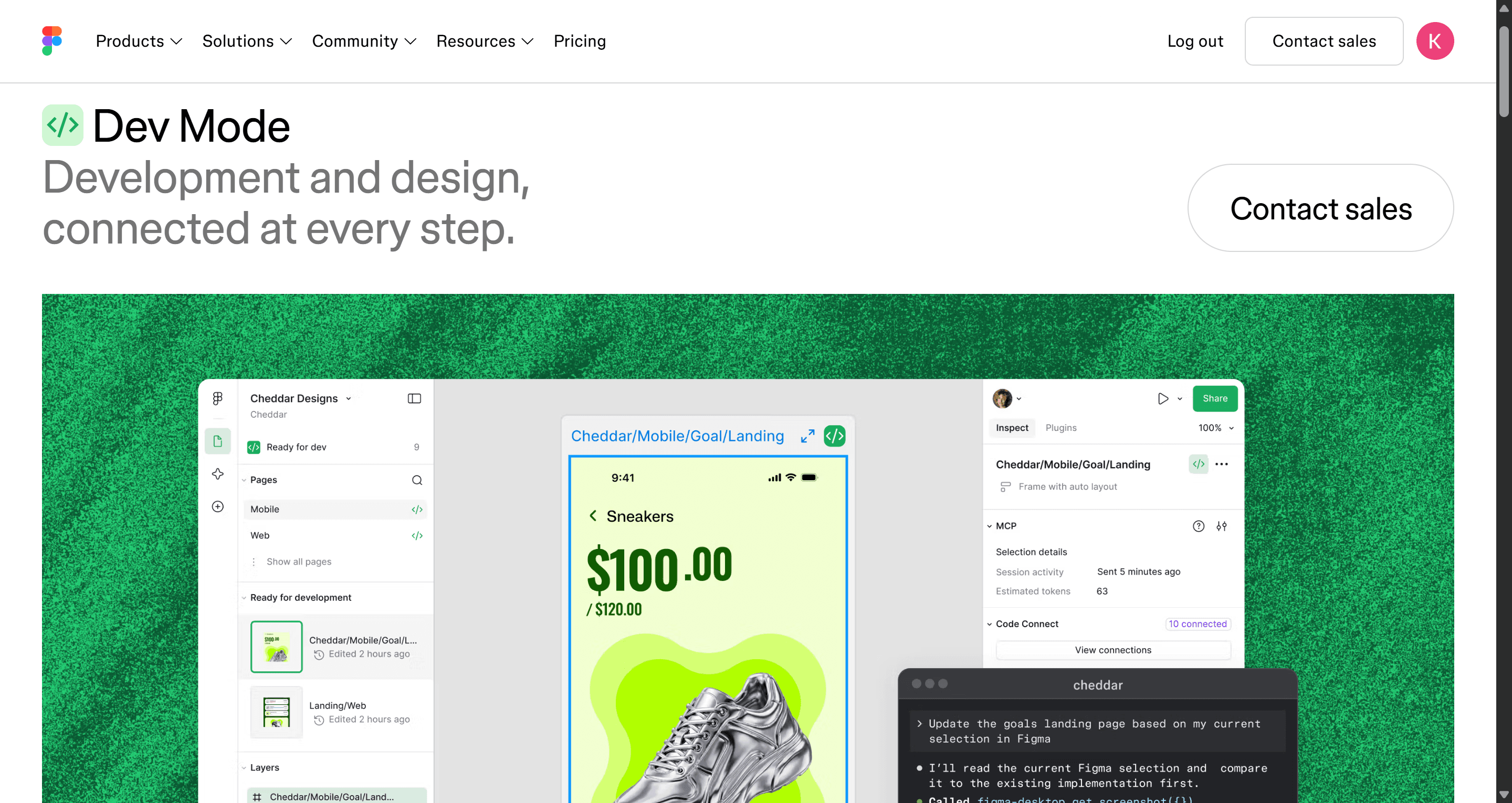
- Best for: teams with a mature Figma library and a codebase that already has matching components.
- Where it falls short: it is metered by tool calls, and the Starter plan's allowance is small, as our Figma pricing guide explains. The quality also depends on your agent and on how well the file is built.
We cover Dev Mode, its MCP server and cheaper options in Figma Dev Mode alternatives.
UXMagic MCP server
The UXMagic MCP server does the same job for designs made in UXMagic. Once connected, Claude, Cursor, VS Code, Windsurf, Codex or Antigravity can list your projects, read a screen's HTML, read the project theme and read your PRDs, then write code against them. A prompt like "read the Pricing screen and implement it as a React component using our tokens" works without screenshots. Reading and publishing are free; only generation uses credits.
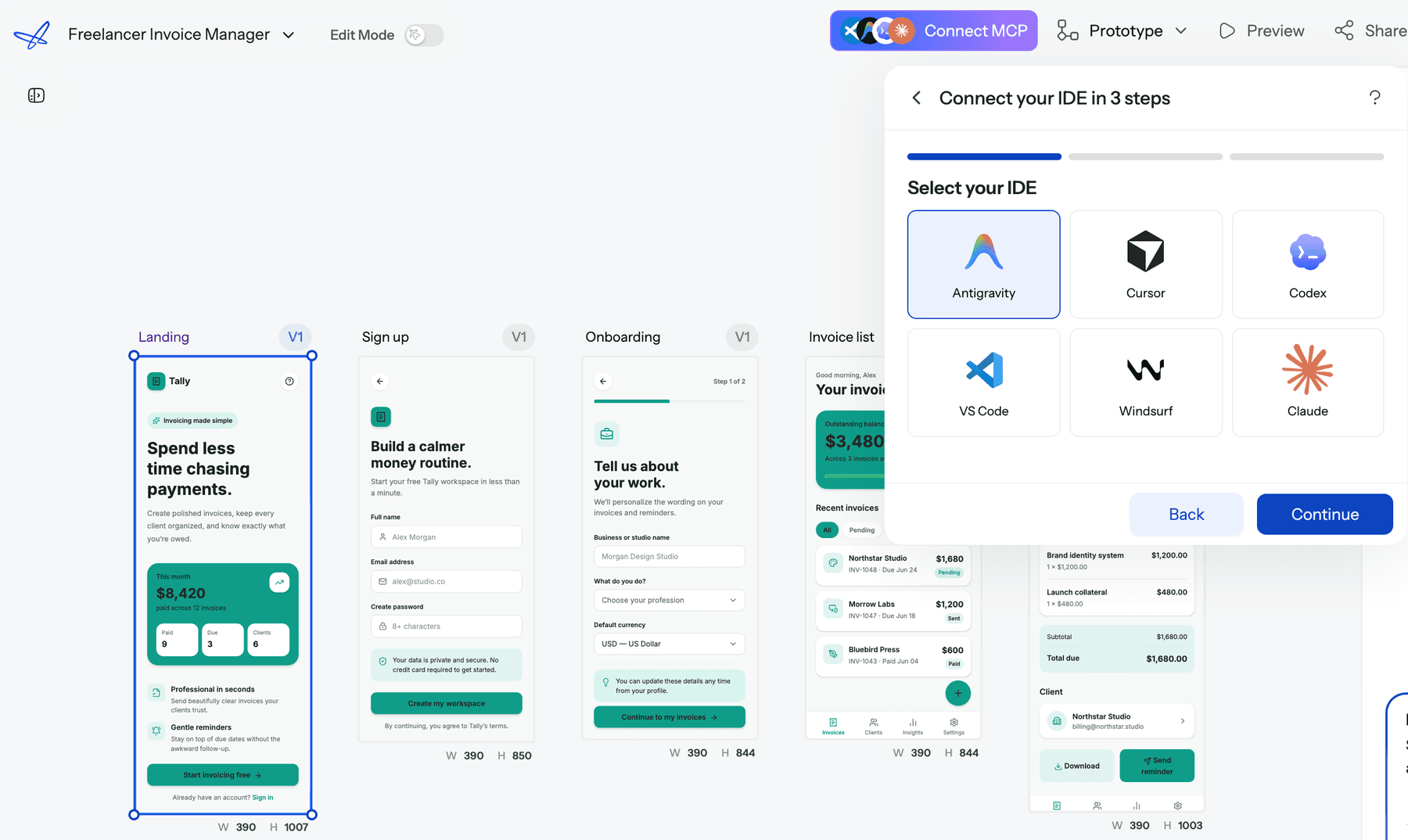
Setup is covered in the MCP server help article. If you want a portable, file-based version of the same context, our DESIGN.md guide explains how to hand an agent your design rules in one file.
Group 4: Import a design into an AI app builder
App builders go further than code export: they wire up a backend, auth and hosting. That is useful for an MVP and overkill if you only needed a front end.
Bolt
Bolt imports a single Figma frame from its homepage or from the chat box, using Anima under the hood. Standard import is available to all logged-in users; using your own design system during import needs a paid Teams account. Details are in Bolt's Figma docs.
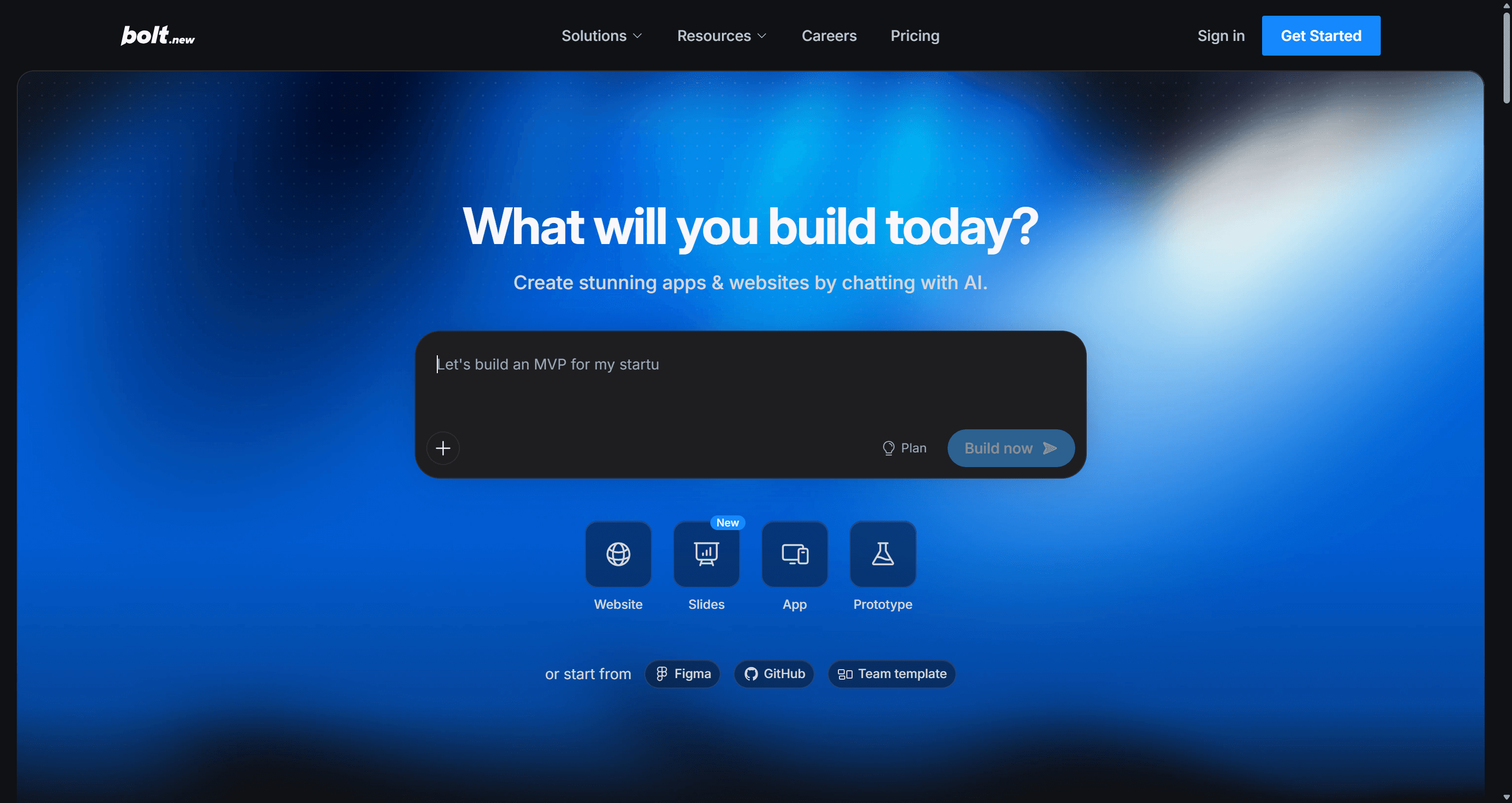
- Best for: turning one mockup into a clickable, running prototype quickly.
- Where it falls short: one frame at a time, so multi-screen flows need repeated imports and prompting to stay consistent.
Read our Bolt.new review and Bolt.new alternatives.
Lovable
Lovable offers three ways in: a Figma plugin (which needs a Dev seat in Figma), a Figma MCP connection through the Lovable desktop app, and uploading a .fig file, which brings in variables, colours, typography and frame structure but not the visual design itself. See Lovable's Figma docs.
- Best for: non-developers who want a working app with a database behind their design.
- Where it falls short: the generated app is shaped by Lovable's stack, and long iteration sessions consume credits quickly.
Read our Lovable review, and our Lovable vs Bolt comparison if you are choosing between them.
Design the screens, then export the code
Generate a connected flow from a prompt, screenshot or URL, then export HTML or React with Tailwind, or push it to GitHub.
The code quality checklist
A design to code tool is only as good as the code you would be willing to merge. Before you commit to one, run a real screen through it and check the output against this list.
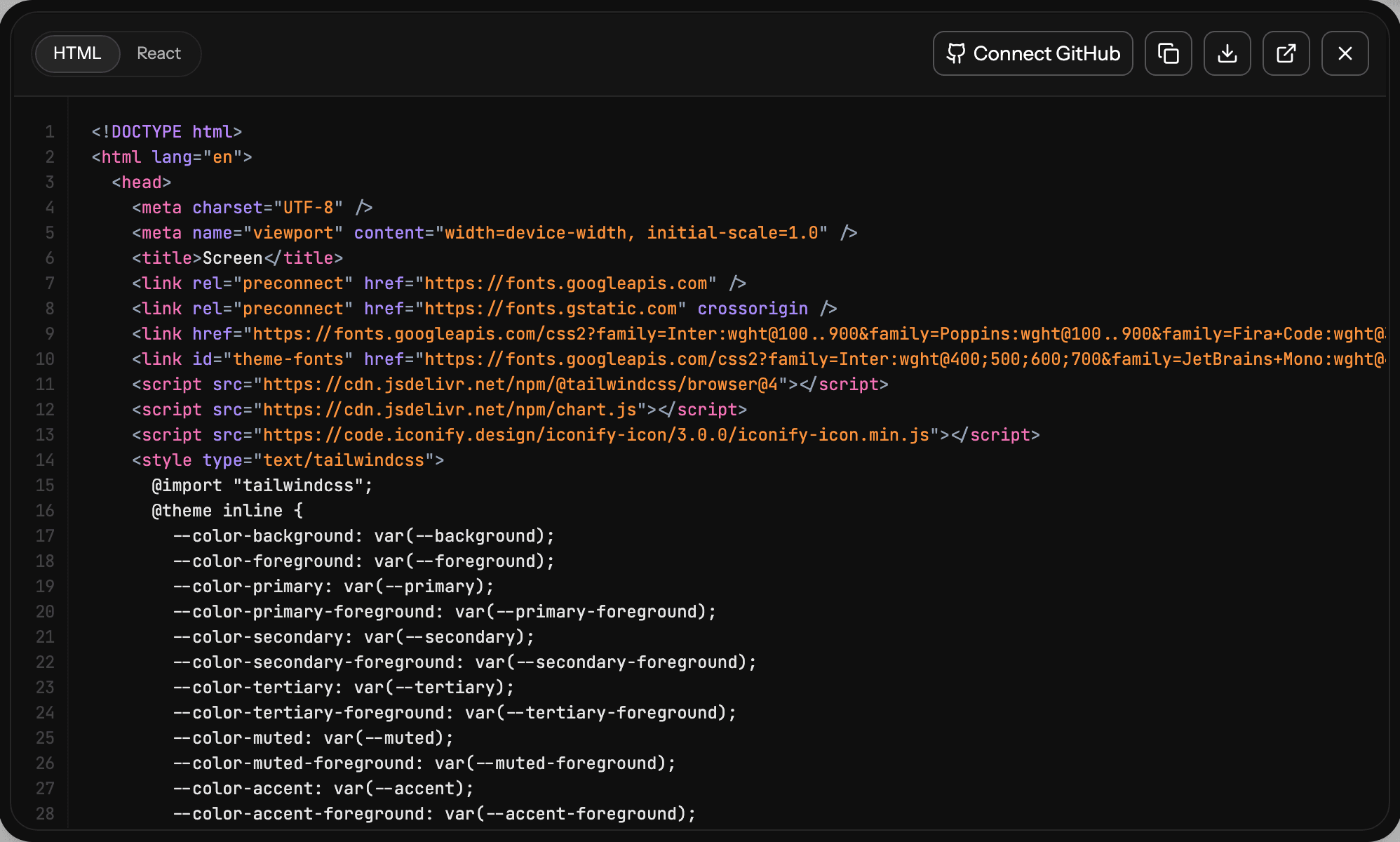
- Semantic HTML. Headings are headings, buttons are
<button>, lists are lists. A wall of<div>elements is a warning sign for accessibility and SEO. - Layout that flows. Flexbox or grid, not absolute positioning. Resize the browser: if elements overlap, the tool converted pixels, not layout.
- Tokens, not magic numbers. Colours, type sizes and spacing should reference variables or theme classes. Hard-coded hex values everywhere mean every brand change is a search-and-replace. Our piece on whether AI can follow design tokens goes deeper.
- Reusable components. A card used six times should be one component with props, not six copies. If the tool can map to your library, use it.
- Accessibility basics. Alt text, label-input pairs, focus states and colour contrast. Run the output against an accessibility heuristics checklist before review.
- Responsive behaviour. Check the breakpoints you care about. Many tools export exactly one width.
- Assets you own. Images and icons should be downloadable into your repo, not permanently hot-linked from the vendor.
- States and edge cases. Hover, disabled, loading, empty and error states rarely exist in the design, so they rarely exist in the code. Add them to the design first.
- Stack fit. React with Tailwind is the common default, and it helps if the output uses a library your team already knows, such as those in our React UI component libraries guide or shadcn/ui.
- No hidden runtime. Watch for proprietary SDKs or wrappers you would have to keep paying for or rip out later.
If a tool fails three or more of these on a real screen, the time you save generating code goes straight into cleaning it up. Our article on quality gaps in AI-generated interfaces lists the ones we see most often.
A design to code workflow that holds up
The tools matter less than the order you use them in. Here is the workflow we recommend to product teams.
1. Decide the flow before the pixels. Write down the screens and what each one does. In UXMagic, flow mode proposes a screen plan you approve before anything is generated, which is cheaper to fix than finished screens. Our guide on how to design UI with AI covers this step in detail.
2. Lock the system. Set colours, type, radius and spacing once, as tokens. In UXMagic that is the project theme, managed through themes and style guides; in Figma it is variables. Every tool in this guide produces better code from a tokenised design.
3. Generate or tidy the design. Generate from a prompt or screenshot, or import an existing Figma file and clean it up. Use auto layout, name layers and reuse components.
4. Pick the handoff route that matches your codebase.
- No codebase yet: export HTML or React and start from it, or import into an app builder.
- A codebase without a component library: export code and refactor it into components as you go.
- A codebase with a component library: use an MCP server (Figma's or UXMagic's) so your agent writes code with your own components.
5. Review against the checklist, then iterate in design. When the code is wrong because the design was ambiguous, fix the design and regenerate, rather than patching the code and letting the two drift apart. That discipline is the difference between vibe coding and a repeatable process, which we unpack in vibe designing.
For a broader look at the handoff tools engineering teams use alongside these, see our best design handoff tools.
How to choose the right AI design to code tool
Start from your input and your codebase, not from the feature list.
- You have an idea but no design: generate first. UXMagic if you want connected screens and a choice of Figma or code, v0 if you are a Next.js developer.
- You have finished Figma frames and need a front end: Anima for speed, Locofy for framework coverage, Builder.io if you want output mapped to your components, TeleportHQ for a simple site.
- You have a codebase and a design system: the Figma MCP server with Code Connect, or the UXMagic MCP server for designs made in UXMagic. Our comparison of AI coding assistants for frontend developers helps pick the agent.
- You need a working app, not just UI: Bolt or Lovable, ideally after the flow is designed. Our vibe coding tools comparison covers the wider field.
- You started from ChatGPT screenshots: move into a real design tool before converting; our guide to ChatGPT for UI/UX design explains where it helps and where it stops.
Where UXMagic fits, honestly
UXMagic is strongest at the start of the process: turning a rough idea, a screenshot or a competitor's page into a consistent, multi-screen design, then exporting code that carries the same theme. The design to code generator and the ready-made React component library are useful if you need a clean front-end starting point quickly.
It is not a replacement for a Figma-to-code converter if your team's source of truth is a large Figma library, and it does not build your backend. The free plan gives you 20 credits a day and includes code export; Pro is $17.50 a month billed annually for 2,400 credits a month. Full details are on the pricing page.
For more options across the whole design stack, see our best AI design tools of 2026.
Related guides
- Best Figma AI Plugins in 2026: 12 Picks for UI, Assets and Code
- 10 Best Magic Patterns Alternatives in 2026, Grouped by Workflow
- 10 Best a0.dev Alternatives for Building Mobile Apps with AI (2026)
- 10 Best Figma Make Alternatives in 2026, Grouped by Use Case
- 9 Best MagicPath Alternatives in 2026, Grouped by How You Work
- Figma Agent Review 2026: What the Beta Does, Costs and Misses
- Paper.design Review 2026: HTML Canvas, MCP, Pricing and Limits
- Best AI App Builder in 2026: 10 Tools Compared by Use Case
- Base44 vs Lovable (2026): Which AI App Builder Fits Your Project?
- Pencil.dev Review 2026: Now pen.dev, Features, Pricing, Alternatives
From idea to exportable code in one session
Plan the flow, design every screen with one theme, and export React and Tailwind or connect your coding agent over MCP.