TL;DR: Figma Dev Mode is a solid inspection and handoff layer, but it needs a paid Dev or Full seat and it gives developers specs and snippets, not a working front end. The alternatives split by job: handoff and inspection tools like Zeplin and Penpot, design-to-code tools like Anima, Locofy, Builder.io and the UXMagic design to code generator, and agent workflows where Cursor or Claude Code read the design through an MCP server such as UXMagic MCP. Pick by what your developers actually need at the end of the handoff.
Most teams searching for a Figma Dev Mode alternative are not unhappy with inspection itself. They object to paying for another seat so developers can read the file, getting CSS fragments when they wanted a component, or an AI agent workflow that still depends on a tidy design file. Each problem has a different fix.
This guide explains what Dev Mode and the Figma MCP server do in 2026, what they cost, and why teams look elsewhere. Then it walks through the alternatives grouped by job: inspection and handoff, design to code, agent-based workflows and open source. We build UXMagic, an AI design tool that exports code and connects to coding agents over MCP, so we say plainly where it fits and where a different tool is the better choice. Competitor details come from each vendor's own pages as listed in September 2026.
What Figma Dev Mode actually does
Dev Mode is a separate view of a Figma Design file built for the people implementing it. Press Shift+D or use the toggle in the toolbar and the canvas becomes read-only while the right panel switches to inspection. According to Figma's Dev Mode guide, it includes:
- Inspection and code snippets. Select any layer to see sizing, spacing, typography, colours and variables, with generated snippets in several languages and units.
- Annotations and measurements. Designers add specs and notes that only show up in Dev Mode.
- Ready for dev status. Frames, sections and components can be flagged as ready, so developers see a clean queue instead of a whole file.
- Compare changes. Developers can compare frame versions and see when something was last edited.
- Code Connect. Design system teams map Figma components to real code, so Dev Mode shows your component's snippet instead of generated CSS. Figma lists this on Organization and Enterprise plans only.
- Figma for VS Code and plugins. Developers can inspect files inside their editor, and Dev Mode plugins connect to Jira, Storybook and GitHub.
For a team with a disciplined design system, this is a strong setup. Our explainer on what a design handoff is covers why that change tracking matters more than pixel values.
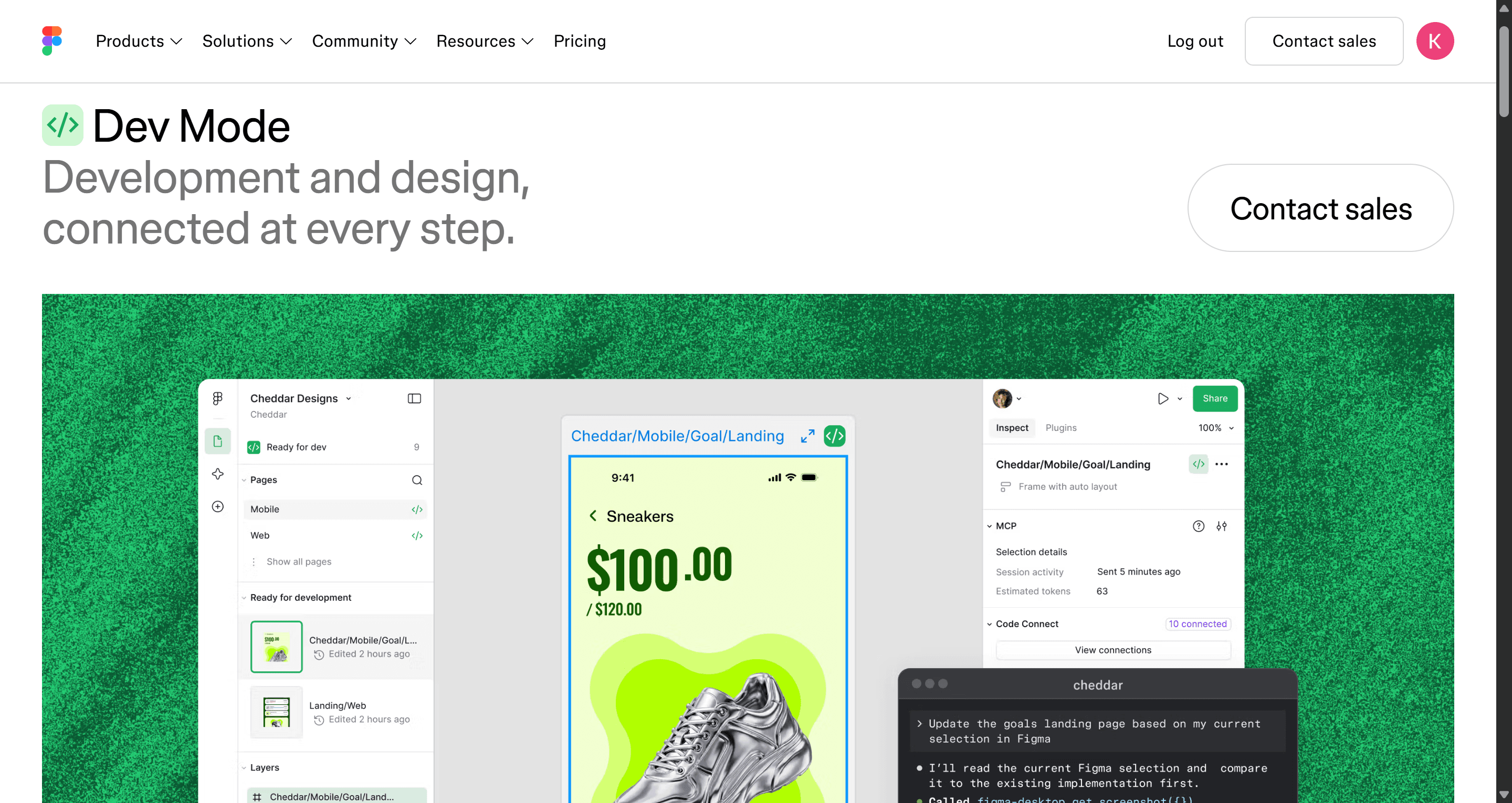
The Figma MCP server (formerly the Dev Mode MCP server)
Figma launched its Model Context Protocol server under the Dev Mode name and now calls it the Figma MCP server. It lets AI coding agents pull structured design context out of a file instead of guessing from a screenshot. Figma's MCP server guide describes two versions:
- Remote server. Figma's preferred option, hosted at mcp.figma.com. It has the broadest feature set, including writing to the canvas, and is available on all plans and seats.
- Desktop server. Runs through the Figma desktop app and is limited to Dev and Full seats on paid plans.
Figma lists more than 15 supported clients, including VS Code, Cursor, Claude Code, Codex and Gemini CLI. The catch is the rate limits. Read calls are metered, and Starter users and View or Collab seats get only a small monthly allowance of tool calls, while Dev and Full seats on paid plans get daily and per-minute limits. In practice, anyone using it seriously needs a paid seat.
What Dev Mode costs
Dev Mode is not on the free Starter plan. On paid plans you get it with either a Full seat or the cheaper Dev seat. As listed on Figma's pricing page, a Dev seat is $12 a month on Professional, $25 on Organization and $35 on Enterprise, with Organization and Enterprise billed annually. A Full seat on Professional is $16 a month. The Dev seat gives full Dev Mode plus FigJam and Slides, with view and comment access to design files.
That is cheap for one developer but scales with headcount. Our Figma pricing breakdown runs the numbers for small teams and agencies, including AI credit allowances.
Why teams look for Figma Dev Mode alternatives
The reasons are usually specific:
- Seat cost for people who only read. Freelancers, contractors, QA and offshore teams often need to inspect a handful of screens a month. Paying for a Dev seat each time adds up.
- Snippets are not a front end. Dev Mode shows CSS for a layer. It does not produce a page or a component tree you can drop into a repo. Our guide to exporting Figma to clean HTML explains how much work sits between a snippet and a shippable page.
- Output quality depends on file hygiene. Auto layout, named layers and real components produce good specs and good MCP context. Messy files produce messy output, and most files are messier than their owners think.
- No designer on the team. Founders and PMs who start from a prompt or a screenshot do not have a Figma file to inspect in the first place.
- Vendor lock-in. Some teams want an open-source or self-hosted design tool, and Dev Mode only exists inside Figma.
If you recognise reason 1, look at handoff tools. Reasons 2 to 4 point to design-to-code and agent workflows. Reason 5 points to Penpot.
Figma Dev Mode alternatives at a glance
| Tool | Job it does | Free option | Paid entry (as listed Sept 2026) | Best for |
|---|---|---|---|---|
| Zeplin | Handoff and inspection | 1 project, 100 screens | Advanced $12/seat/mo (annual) | Stable handoff space for larger teams |
| Avocode | Discontinued Oct 2023 | n/a | n/a | Migrate away |
| Penpot | Open-source design + Inspect | Free cloud plan, up to 8 members | Unlimited $7/editor/mo | Open-source, self-hosted teams |
| UXMagic | AI design + HTML/React export + MCP | 20 credits a day | Pro $17.5/mo (annual) | Teams without a finished Figma file |
| Anima | Figma to HTML/React | 5 plugin code generations | Enterprise from $500/mo | Designers exporting React from Figma |
| Locofy | Figma/Penpot to framework code | Free tier | Token-based plans | Teams that need a specific framework |
| Builder.io | Visual Copilot, visual IDE | 60 agent credits/mo | Pro $24/user/mo | Teams mapping Figma to their own components |
| Figma MCP + agent | Design context into Cursor, Claude Code | Limited calls on free seats | Needs Dev or Full seat for real use | Dev teams with clean Figma files |
Handoff and inspection alternatives
These tools replace the "read the specs" part of Dev Mode. They do not generate a front end.
Zeplin
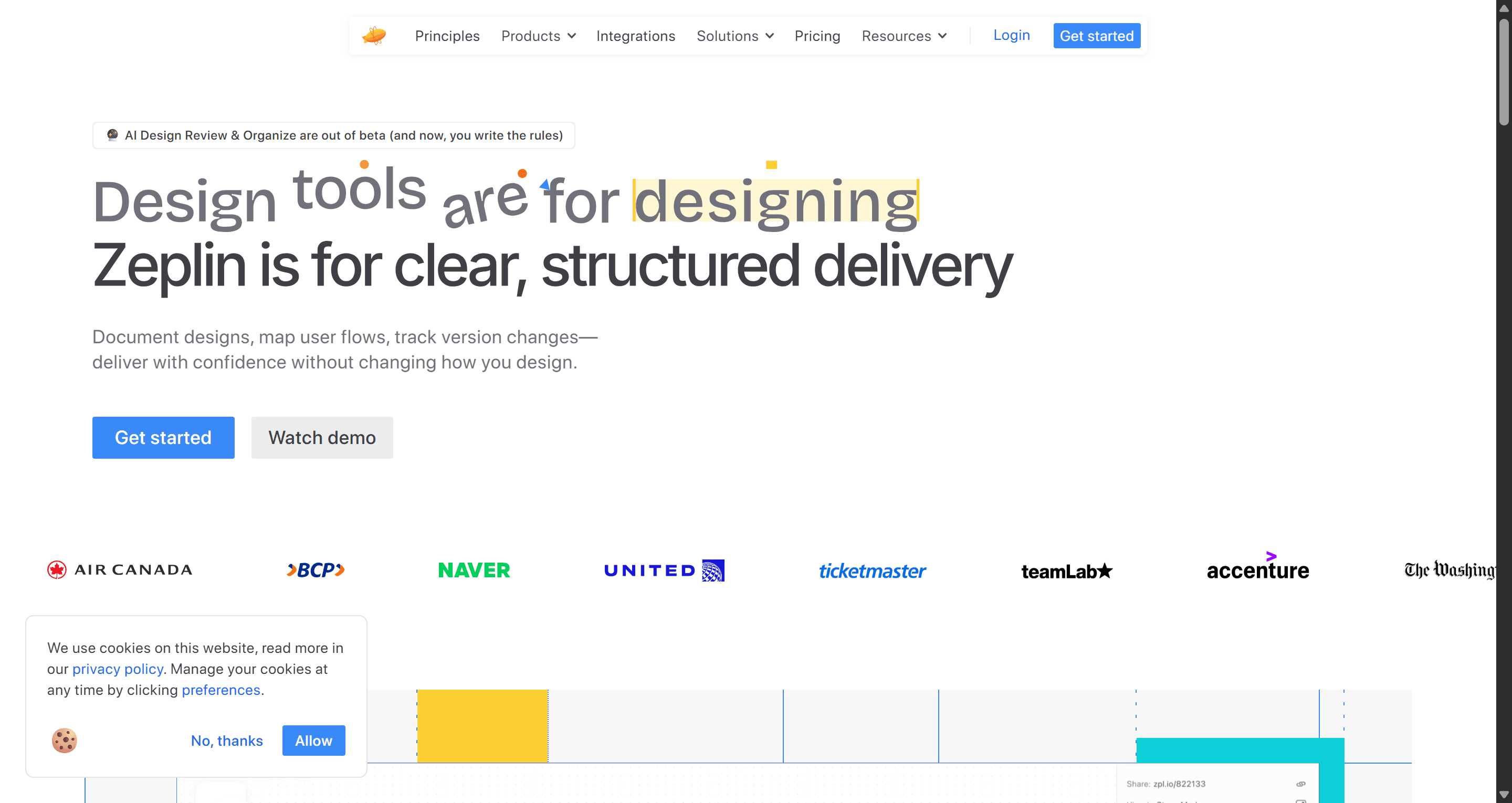
Zeplin is the oldest dedicated handoff tool still going. Designers publish screens from their design tool into Zeplin, and developers inspect them in a separate workspace built around projects, flows, styleguides and components. Published screens stay frozen until the designer pushes a new version, so developers never inspect a frame mid-edit.
Pricing. According to Zeplin's pricing page, the Free plan covers 1 project and 100 screens with unlimited users. Basic is priced per project, and Advanced is $12 per seat per month on annual billing with 50 projects and unlimited screens. Reviewer roles are free, and every plan includes annotations, flows, approvals and integrations with Jira, Azure, VS Code, Slack and Teams.
Best for: larger teams that want a controlled handoff space, with stakeholders reviewing for free.
Where it falls short: it is still an inspection layer. Developers get specs and assets, not code, and you are maintaining a second copy of the design. Our best design handoff tools roundup compares Zeplin with the other handoff options in more depth.
Avocode: discontinued
Avocode still appears in older lists, but it is gone. Ceros acquired Avocode in 2021 and discontinued all Avocode products on October 1, 2023. If a list recommends it, the list is out of date.
Design-to-code alternatives
This group answers reason 2: developers want a page or a component, not a spec sheet. The approaches differ a lot, so read the "best for" lines carefully. Our AI design to code tools guide goes deeper on code quality across this category.
UXMagic
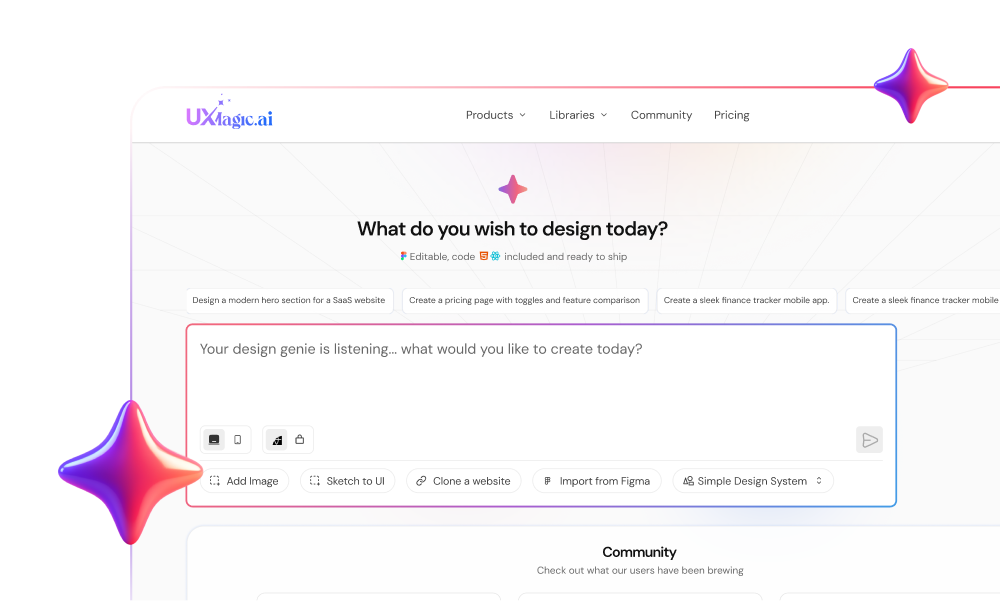
UXMagic starts one step earlier than the Figma plugins. You describe a product, or upload a screenshot, a sketch or a Figma file, and it generates editable, themed screens. Flow mode plans a multi-screen journey first so every screen shares one theme. Then you hand off in whichever direction the team needs:
- Code. Export a single screen as HTML or a React component, or a whole project as a multi-screen React project. Styling is Tailwind with the project theme as design tokens. The export code help article shows the steps.
- Repo. Push exported code straight to a repository with GitHub sync instead of downloading a zip.
- Figma. Send screens to Figma as auto-layout frames with export to Figma, so the designers who do want Dev Mode still get a clean file.
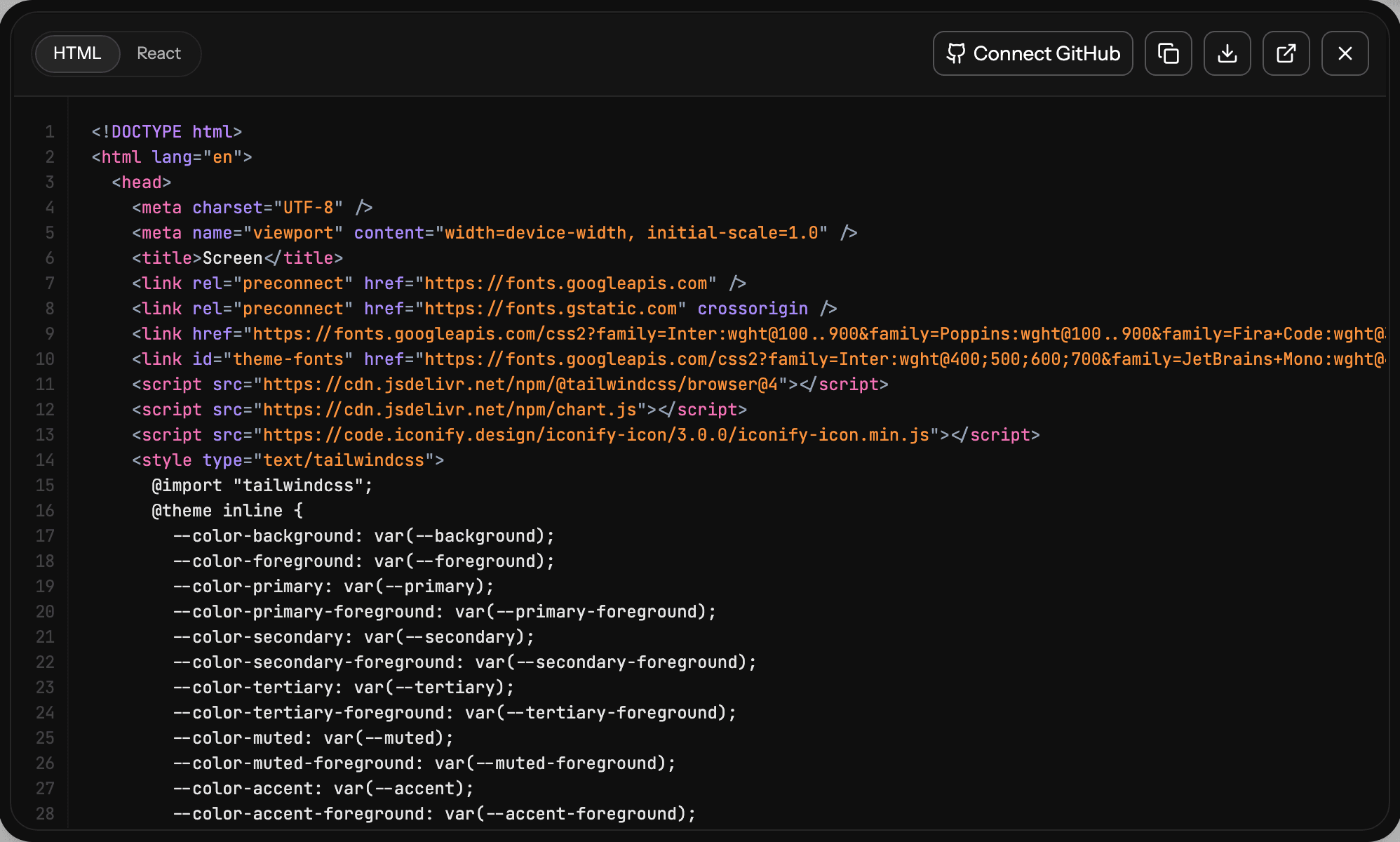
You can also run it the other way. Import from Figma brings an existing Figma design into UXMagic, where you can refine it with prompts and export code, which is a practical workaround when the only thing you wanted from Dev Mode was the front end.
Pricing. The free plan gives 20 credits a day and includes code export; a new screen costs 3 credits. Pro is $35 a month, or $17.5 a month billed annually, with 2,400 credits a month. See UXMagic pricing for the current matrix.
Best for: founders, PMs and small teams without a finished Figma file, and anyone who wants the design and the code to come from the same source.
Where it falls short: the export is a front end. There is no data layer, routing or state management, and image assets are referenced by URL until you download them into your repo. It is not a pixel-level illustration tool, and it does not replace Code Connect for a large design system mapped to an existing component library.
Anima
Anima is one of the longest-running Figma-to-code tools. Its Figma plugin generates responsive HTML (with CSS, Tailwind or inline styles) or React in TypeScript or JavaScript with UI libraries, and the web product adds an AI playground, website cloning and image-to-app conversion. It also ships an Anima MCP server and an API, so coding agents can use its output.
Pricing. Anima's pricing page lists a free plan with 5 chat messages a day and 5 code generations in the Figma plugin. Enterprise starts at $500 a month billed annually; check the page for the current paid self-serve tiers.
Best for: designers who already work in Figma and want to hand developers React or HTML rather than specs.
Where it falls short: results depend heavily on how the Figma file is structured, and generated components often need restructuring before they fit an existing codebase. Our Figma AI plugins review covers where plugin-based generation tends to break.
Locofy
Locofy converts designs from Figma or Penpot into framework code through its Locofy Lightning plugin. It tags layers as buttons, inputs, navigation and lists, then exports to frameworks including React, Next.js, React Native and HTML/CSS, with support for common UI libraries. Pricing is based on LDM tokens (Locofy's Large Design Model), with a free tier to start; check Locofy's pricing page for current token bundles.
Best for: teams that need output in a specific framework, especially mobile.
Where it falls short: you pay per conversion in tokens, custom component mapping is reserved for higher tiers, and like Anima it inherits every structural problem in the source file.
Builder.io (Visual Copilot)
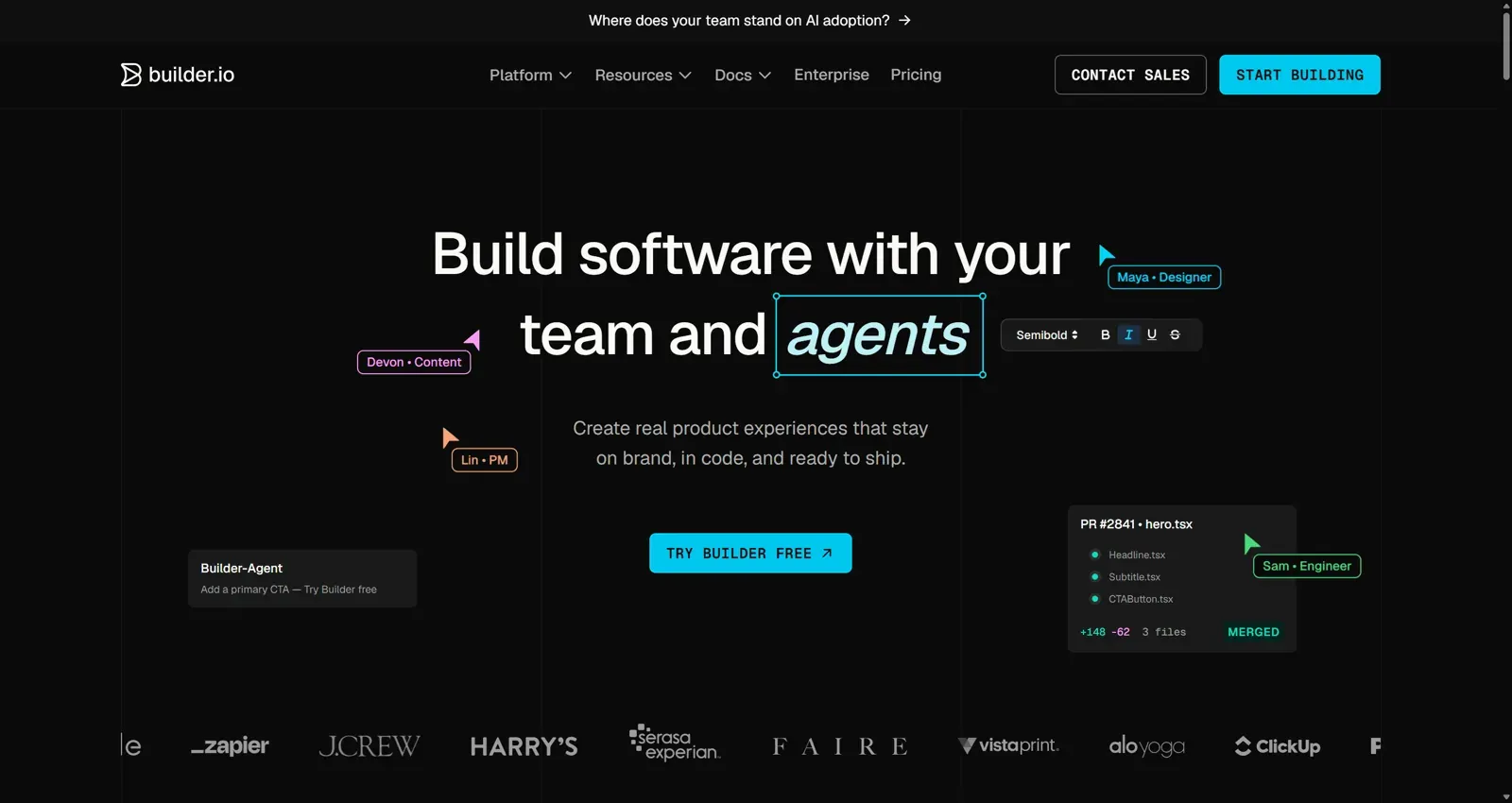
Builder.io's Visual Copilot is a Figma plugin that converts designs into code and can map Figma components to the components already in your codebase. Builder.io has grown into a visual IDE and CMS, with GitHub, GitLab and Bitbucket integrations and a VS Code extension. Its pricing page lists a Free plan with 60 agent credits a month, Pro at $24 per user per month with 500 credits, and Team at $40 per user per month.
Best for: engineering teams that want generated code to use their own design system components.
Where it falls short: it is a platform, not just a plugin, and the full value comes from adopting its visual editing and CMS workflow. Read our full Builder.io review for the architecture trade-offs.
Other names in this space include TeleportHQ, which pairs a visual editor with HTML and framework export; our TeleportHQ review covers it. If your goal is a working app rather than front-end code, the v0 alternatives guide is a better starting point.
Get code, not just specs
Generate a themed multi-screen flow, then export HTML or React with Tailwind tokens or push it to GitHub. The free plan refreshes every day.
Agent-based alternatives: MCP and coding agents
Here a coding agent reads the design directly and writes code against it. Two setups are worth comparing.
Figma MCP server with Cursor or Claude Code
If your team already lives in Figma, the Figma MCP server is the natural route. Connect it to Cursor, Claude Code, Codex or VS Code, point the agent at a frame, and it pulls layout, variables and, with Code Connect, your real component mappings. The output is usually a good scaffold that a developer then adapts.
It works best when three things are true: the file uses auto layout and variables, components are properly built, and the developer has a Dev or Full seat so rate limits do not interrupt the session. Our AI coding assistants comparison covers which agents handle front-end work well, and can AI follow design tokens explains why tokens make or break the result.
UXMagic MCP
The UXMagic MCP server connects Claude, Cursor, VS Code, Windsurf, Codex or Antigravity to your UXMagic projects. Once connected, an assistant can list projects and screens, read a screen's HTML and the project theme, read project documents such as PRDs, make targeted edits, start a generation, export a screen to Figma and publish a project.
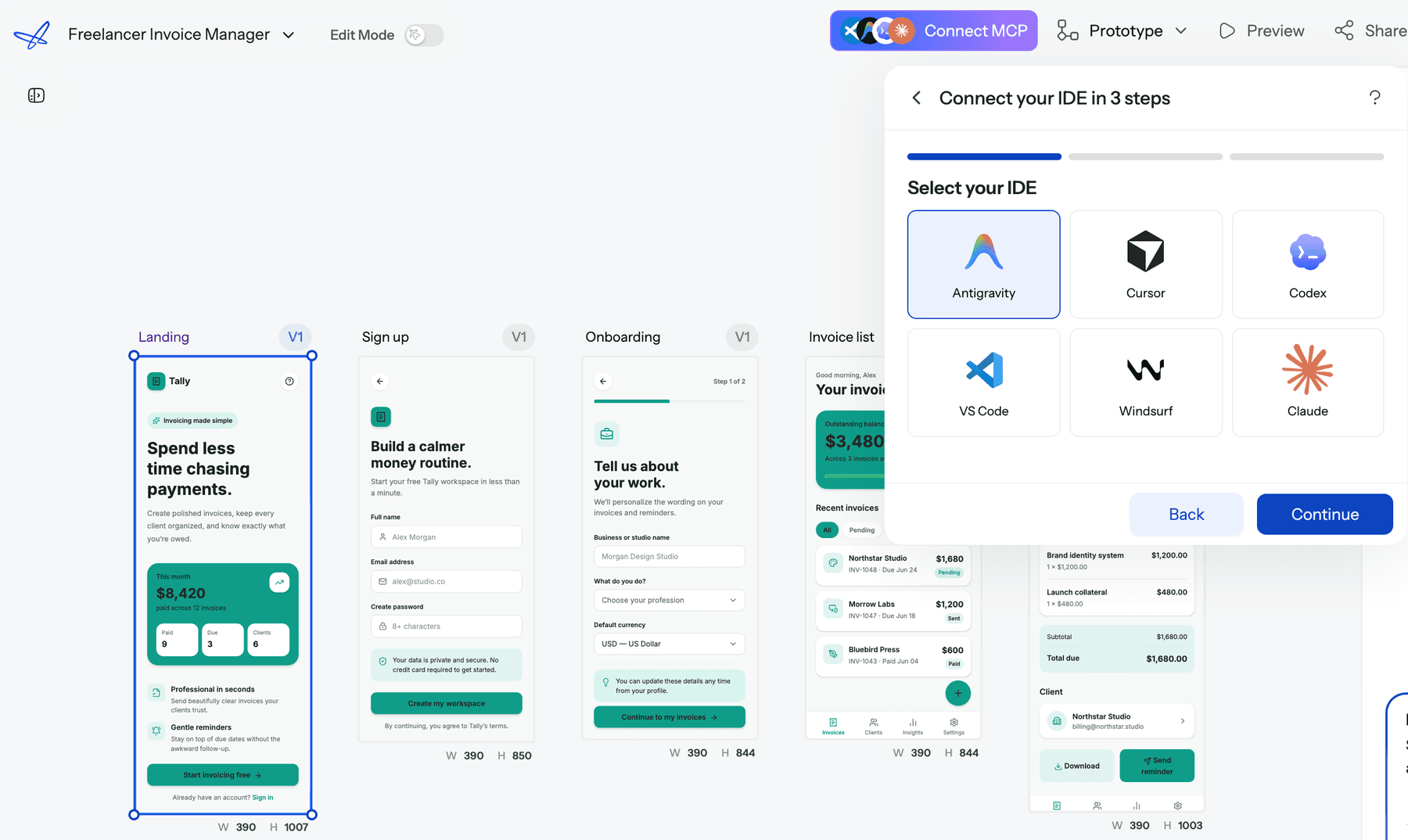
The difference from Figma's setup is what the agent reads. UXMagic screens are already HTML with Tailwind and a theme, so a prompt like "read the Pricing screen and implement it as a React component using our tokens" works from real markup instead of a translation of vector layers. Read operations and publishing are free; generation costs the same credits as in the app, and generation is a three-step start, check and confirm handshake so an agent loop cannot quietly spend your balance. IDEs connect with an API key; Claude connects without one through the Claude connector, and UXMagic for Claude explains that setup.
Best for: teams using an AI coding agent as the main implementer, especially when there is no polished Figma file.
Where it falls short: it reads UXMagic projects, not your existing Figma library. If the source of truth is a mature Figma design system with Code Connect, Figma's own server is the more direct path.
If you are curious how agent-driven design and build fit together, our sibling guides on vibe designing and writing a DESIGN.md file cover the prompting and context side, and vibe coding in 2026 covers the build side.
Open-source alternative: Penpot Inspect
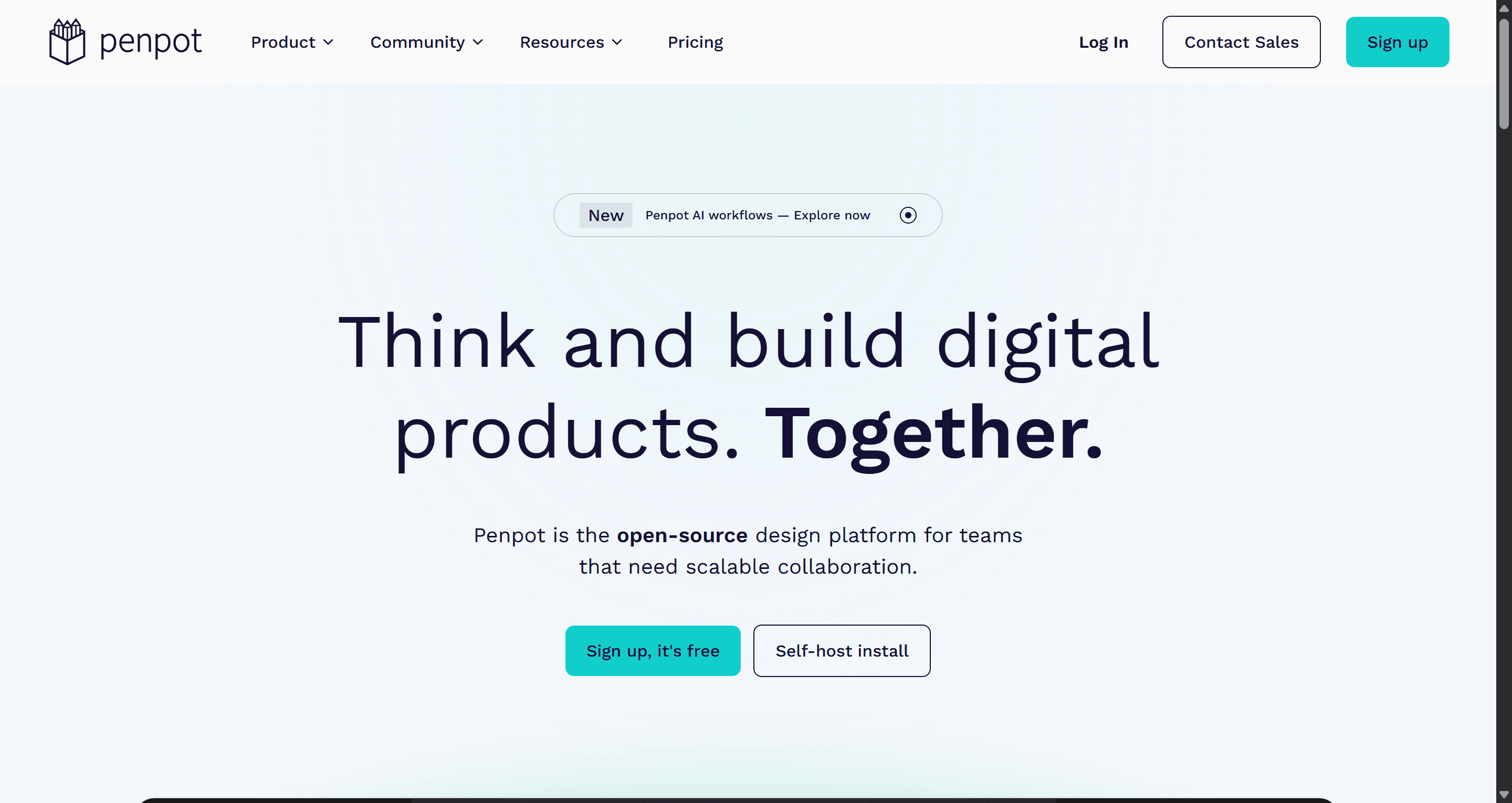
Penpot is the open-source design tool most often suggested as a Figma replacement, and inspection is built in rather than sold as a seat. In view mode, the Inspect tab shows layer specs, measurements between elements and ready-to-use code: SVG and HTML for markup and CSS for styles, as described in Penpot's Inspect documentation. Penpot is built on web standards, supports design tokens, can be self-hosted and now offers an MCP server as well.
Pricing. The cloud Professional plan is free for up to 8 team members with unlimited viewers. Unlimited is $7 per editor per month, capped at $175 a month, and Enterprise is $25 per member per month.
Best for: teams that want to own their design files, self-host, or stop paying per developer for inspection.
Where it falls short: switching means moving your design work out of Figma, not just your handoff. Plugin and community ecosystems are smaller. Our Figma alternatives guide compares Penpot with the other full design tools.
How to choose a Figma Dev Mode alternative
Start from what the developer receives at the end, not from the design tool:
- They need specs and assets from a Figma file, and seat cost is the issue. Try Zeplin, or Penpot if you are willing to move design work too.
- They need framework code from an existing Figma file. Anima for HTML and React, Locofy for specific frameworks, Builder.io if you want to map to your own components.
- They use an AI coding agent. Figma MCP if the source is a clean Figma file on a paid seat; UXMagic MCP if the design is generated or iterated in UXMagic.
- There is no design file yet. Generate the flow first with an AI UI design generator or turn a screenshot into a screen with image to UI, then export code or send it to Figma.
- You want out of Figma entirely. Penpot.
A common hybrid we see: designers generate and iterate in UXMagic, export to Figma for the design system team, and developers either use Dev Mode on the Figma copy or pull the code directly through export or MCP. Our guide on how to design UI with AI walks through that workflow end to end, and how to build a design system from scratch covers the token discipline that makes any handoff route work. If your "developer" is a PM prototyping in ChatGPT, our guide to ChatGPT for UI/UX design explains when to move into a real design tool.
Pricing comparison
| Tool | Free plan | Entry paid price (as listed Sept 2026) | Pricing model |
|---|---|---|---|
| Figma Dev Mode | No (Starter excludes it) | Dev seat $12/mo on Professional | Per seat |
| Zeplin | 1 project, 100 screens | Advanced $12/seat/mo, annual | Per project or per seat |
| Penpot | Free for up to 8 members | Unlimited $7/editor/mo | Per editor, capped |
| UXMagic | 20 credits a day | Pro $17.5/mo annual, $35 monthly | Credits |
| Anima | 5 plugin code generations | Enterprise from $500/mo | Per plan |
| Locofy | Free tier | Token bundles | LDM tokens |
| Builder.io | 60 agent credits a month | Pro $24/user/mo | Per user plus credits |
Prices change often, so confirm on each vendor's page before you commit. For UXMagic, the how credits work article lists the cost of every action; reading screens and changing themes are free.
Our recommendation
Figma Dev Mode is worth keeping if your team designs in Figma, has developers who work from specs, and maintains a real component library. Nothing on this list beats having inspection inside the source file for that team, and Code Connect plus the Figma MCP server make it stronger every quarter.
Look elsewhere when the problem is the output, not the inspector. If developers need a working front end, or there is no designer producing a clean Figma file, a tool that produces code directly will save more time than any spec viewer. That is the gap UXMagic is built for: generate the flow, export HTML or React with Tailwind tokens, push it to GitHub or hand it to Cursor or Claude Code over MCP, and send it to Figma when the design team needs it there. It will not replace a mature Code Connect setup or a backend, but for small teams it removes the seat and the snippet problem together. For a wider view of the field, see our best AI design tools ranking.
Related guides
- 15 Best UX/UI Design Tools for 2026, Plus a Startup Stack
- 8 Claude Design Alternatives in 2026, Free and Open Source Included
- Pencil.dev Review 2026: Now pen.dev, Features, Pricing, Alternatives
- Figma Agent Review 2026: What the Beta Does, Costs and Misses
- Paper.design Review 2026: HTML Canvas, MCP, Pricing and Limits
- Wireframe Tool Cost-Benefit Breakdown (2026): What's Actually Worth Paying For
- 12 Replit Alternatives in 2026, Grouped by the Job You Need Done
- 10 Best a0.dev Alternatives for Building Mobile Apps with AI (2026)
- 10 Best Figma Make Alternatives in 2026, Grouped by Use Case
- 10 Best Magic Patterns Alternatives in 2026, Grouped by Workflow
Hand your agent the real design
Connect UXMagic to Cursor, Claude Code, VS Code or Windsurf over MCP, or export HTML and React straight from the canvas. Start free, no credit card.