TL;DR: The Figma Agent is Figma's own AI collaborator, living in the left rail and on the canvas of Figma Design. It explores directions, generates screens from your design system, handles bulk edits and summarizes feedback, and it is free (no AI credits) during a beta that is still rolling out in waves. It is the best choice for editing inside an established Figma file; for generating whole connected flows from a brief, UXMagic is faster and exports to Figma. Read our Figma AI explainer for the wider picture.
Figma announced its agent on May 20, 2026, and for most of the summer the main question was not "is it good?" but "when do I get it?". Four months on, the beta has reached far more teams, the help center has a proper feature list, and the pricing picture is clear enough to plan around.
This review covers what the Figma Agent actually does, how access and credits work, where it is strong and where it falls short, and which AI design tools fill the gaps. It is a focused look at one feature. If you want the tour of Make, Weave and Dev Mode, start with our Figma AI explainer, and for the credit maths see our Figma pricing breakdown.
A note on sources: we build UXMagic, an AI design tool that exports to Figma, so we compete with part of what the agent does. Everything we say about the agent comes from Figma's launch post and its help center articles, current as of September 2026. We describe what Figma documents, not test results we can't show you.
Figma Agent at a glance
| Figma Agent (beta) | |
|---|---|
| What it is | AI agent inside Figma Design, chat in the left rail or on the canvas |
| Main jobs | Explore directions, generate screens, bulk edits, design system chores, feedback |
| Context it uses | Your file, connected libraries, components, variables, styles, images, other files |
| Access | Rolling out in waves to teams and orgs; Starter to Enterprise, not Education or Government |
| Cost now | Free during beta, no AI credits consumed, monthly usage limits |
| Cost later | Standard AI credits at general availability, varying with task complexity |
| Not yet supported | Asset export, vector editing, icons, slots, prototyping (coming soon) |
| Best for | Designers who already live in a well-built Figma file |
What is the Figma Agent?
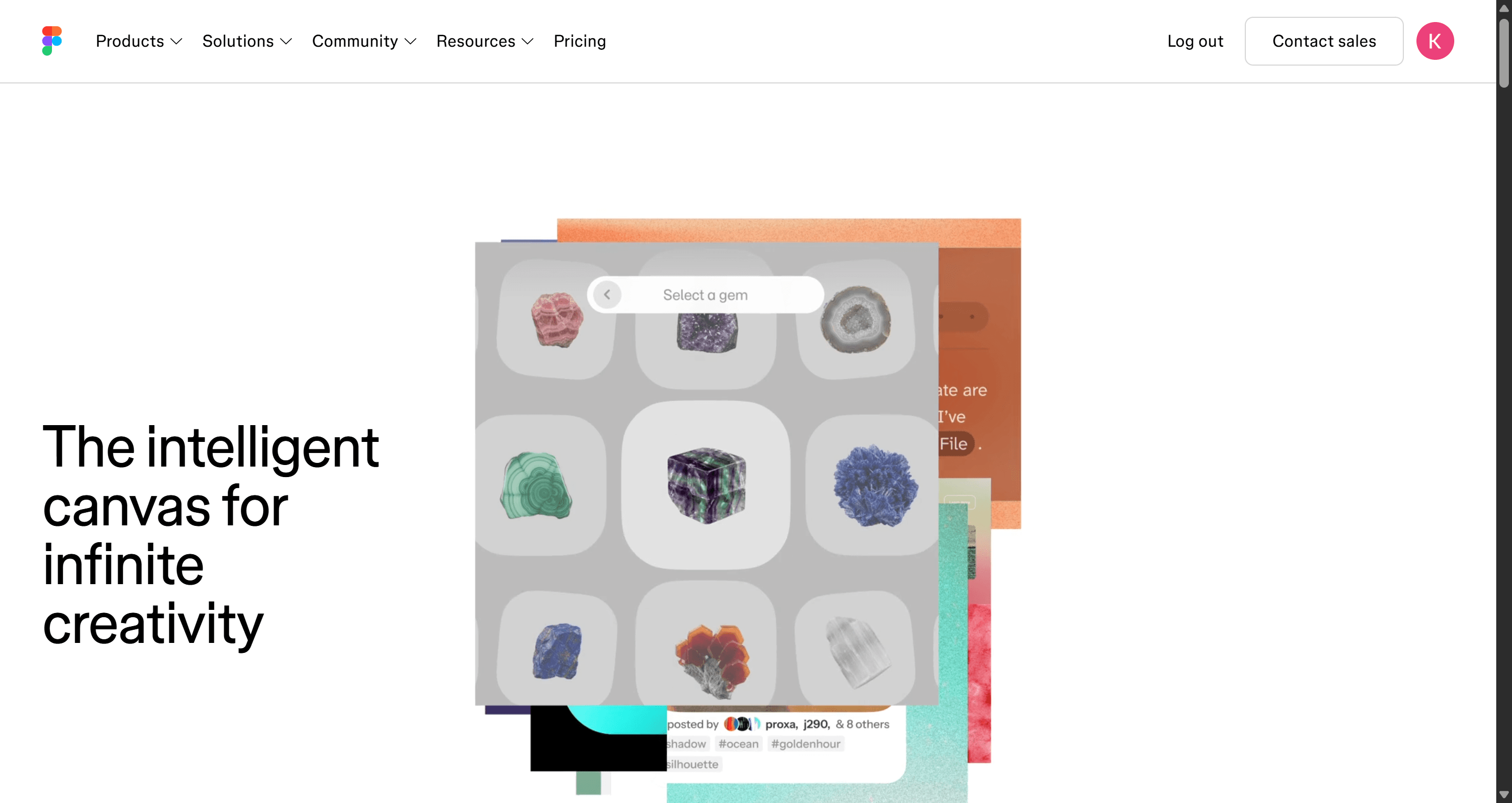
The Figma Agent is an AI collaborator built directly into Figma Design. It is not a plugin and not a separate app. You open it from an Agents icon in the left navigation for a persistent chat, or select a layer and press Cmd/Ctrl + Enter to prompt right on the canvas. It reads and changes real layers, so its output is ordinary Figma frames, components and variables rather than a picture of a design.
That makes it different from the rest of Figma's AI lineup. Figma Make turns a prompt into a working, code-backed app you can publish, which is why guides to it read more like prototyping tutorials. Figma Weave is a node-based canvas for generating images and media, covered in our Figma Weave review. The agent is the one aimed squarely at the design file itself.
Figma frames it around three jobs: pushing exploration further, clearing busywork, and turning feedback into action. It also ties into the Figma MCP server and code-to-canvas features, so it sits in the same pipeline as coding agents that read designs, the pattern we cover in our Figma Dev Mode alternatives guide.
How to access the Figma Agent
Who gets it
Access has changed since launch. The May announcement limited the beta to Full seats on Professional, Organization and Enterprise, with an early-access sign-up. The current help article on accessing the agent beta lists Starter, Professional, Organization and Enterprise, and says Education plans are getting it over the coming weeks. Government plans are excluded.
Access is granted in waves of teams and organizations, not individual accounts, and Figma says it can't give dates for specific users. When your team is included you get an email and the Agents icon appears. If an admin has switched off AI features for the team or organization, the agent won't appear, during the beta or after it.
What your seat lets you do
Seat type decides what the agent can touch:
- Full seat with edit access: chat with the agent and have it edit files.
- View, Collab or Dev seat, or view-only access: chat with the agent and use it in your drafts, but it can't edit the shared file for you.
That split matters for budgeting. If PMs or developers want the agent to make changes in team files, they need Full seats, which cost $16 a month on Professional billed annually and $55 on Organization, as listed on Figma's pricing page. Our breakdown of who needs which seat in a design handoff helps decide who really edits.
Does the Figma Agent cost anything?
Not yet. Figma's pricing page and help center both say the agent is free during the beta and consumes no AI credits for any prompt or action. There are monthly usage limits to manage capacity, and they reset each month.
When the agent becomes generally available, standard AI credit usage applies, and Figma says the credits used will change with the complexity of the task. It hasn't published per-action numbers yet. For scale: a Professional Full seat carries 3,000 AI credits a month, and a single Figma Make request already costs roughly 30 to 100 or more, so heavy agent use after the beta will compete with Make for the same allowance. If you already run short on credits, our guide to cheaper Figma Make alternatives is worth reading before GA.
Generate the flow now, refine it in Figma later
UXMagic designs connected multi-screen flows on one theme and exports them to Figma as auto-layout frames. No waitlist, 20 free credits a day.
Figma Agent features
Explore design directions
The agent can "go wide", generating several distinct directions for the same screen at once (Figma's own example asks for organic, modern and retro options), or "go deep" by iterating within the direction you pick. It can also generate screens from scratch, starting from your most frequently and recently used components rather than a generic kit.
This is where the agent's context is a real advantage over standalone generators. A tool outside Figma has to be told about your system; the agent already has it. Our honest answer to whether AI can follow design tokens is that it depends on the tokens being explicit, and a mature Figma library is about as explicit as it gets.
Automate busywork
Figma's list here is long and practical: rename variables and layers, swap a component across many screens, apply a padding change to a whole flow, set a set of components to a particular state, and fill frames with realistic content. It can also create and edit images, convert images to vectors, and generate plugins, shaders and motion.
You can run several prompts in parallel, each with its own progress indicator, and stop a running task from the chat. Undo is a button in the chat or plain Cmd/Ctrl + Z. For a team converting screens to dark mode or replacing lorem ipsum across fifty frames, this is the part that saves the most hours.
Maintain the design system
The agent can update descriptions, tags and use cases across a library, standardize naming conventions, and write documentation for components with their states and variants. That is dull, high-value work that rarely gets done by hand. If you are still separating the pieces, our explainer on design system vs style guide vs component library is a good primer.
Synthesize and apply feedback
It summarizes comment threads, groups them into themes, and can pressure-test a design from a stakeholder's perspective before a real review. It can also run accessibility reviews; pair those with a human pass through an accessibility heuristics checklist, because an AI review flags issues but doesn't own the decision.
Context you can give it
You can paste a design URL, add several designs, drag in images and files, connect any library available in the file, and type @ to reference specific components, variables and styles. The agent can search other files without leaving the current one, and it supports custom skills and MCP connectors to external tools. If you keep design rules in a markdown file for coding agents, our DESIGN.md guide shows how to write one that both sides can read.
Since June 23, 2026, new agent chats are visible by default to people with a Full seat and edit access to the file, so the reasoning behind a change is shared with the team. Older chats stay private unless you make them public.
What the Figma Agent can't do yet
Figma's help center is refreshingly direct about the gaps. Per its overview of the agent, it can't:
- export assets on your behalf;
- create diagrams or data visualizations (FigJam AI handles those);
- edit vectors, create icons or work with slots;
- build prototypes or interactions (listed as coming soon);
- run outside Figma Design, so not in Make, Slides, FigJam or the mobile app.
Figma also says performance is currently best in English. And the agent is scoped to a file. It is excellent at "change these twelve frames", less natural at "plan the eight screens this product needs and keep them consistent". That second job is flow design, and it is where single-screen AI design becomes a dead end for many teams.
Pros and cons of the Figma Agent
| Pros | Cons |
|---|---|
| Uses your real components, variables and styles | Rolling out in waves; no date for your account |
| Works on real layers, output stays editable | Credits apply at GA, pricing per task not yet published |
| Parallel prompts, stop and one-click undo | No prototyping, icons, vectors or asset export yet |
| Strong at bulk edits and library upkeep | Edits in shared files need a Full seat |
| Summarizes comments and runs design reviews | Only in Figma Design; best in English |
| Free during beta | Scoped to a file, not a flow planner |
The pattern is clear. The more work you have already put into your Figma library, the more the agent gives back. A team with clean variables and published components gets a fast, context-aware assistant. A founder with an empty file gets a capable generator that still has to guess what the product is, the same cold-start problem we describe in how to design UI with AI.
Who the Figma Agent is for
Design teams with a mature Figma library. Bulk component swaps, naming clean-up and documentation are where the agent pays off fastest, and your system gives every prompt real context.
Designers exploring variations of an existing screen. Going wide on three directions in your own components is a genuinely new capability inside Figma.
Teams that already pay for Full seats. During the beta there is nothing extra to buy. After GA, budget for credits alongside Make.
Less of a fit: founders and PMs starting from a brief with no design system, teams that need a connected multi-screen flow or a clickable prototype today, and anyone on a plan where AI features are switched off. For those jobs, the alternatives below are worth a look, and our round-up of the best AI prototyping tools covers the prototype side.
Figma Agent alternatives
UXMagic: connected flows first, then Figma
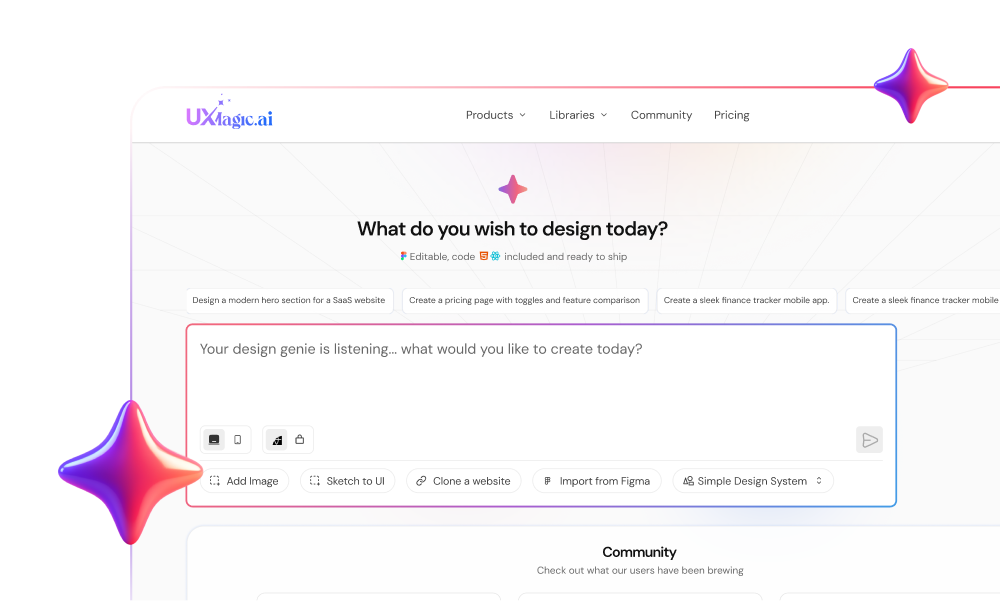
UXMagic is an AI design tool for generating whole product flows, not single frames. In Flow Mode you describe the product, approve a screen plan, and it designs every screen on one shared theme. You refine with chat edits, including explicit project-wide changes, and change colors and type through themes and style guides, which cost no credits.
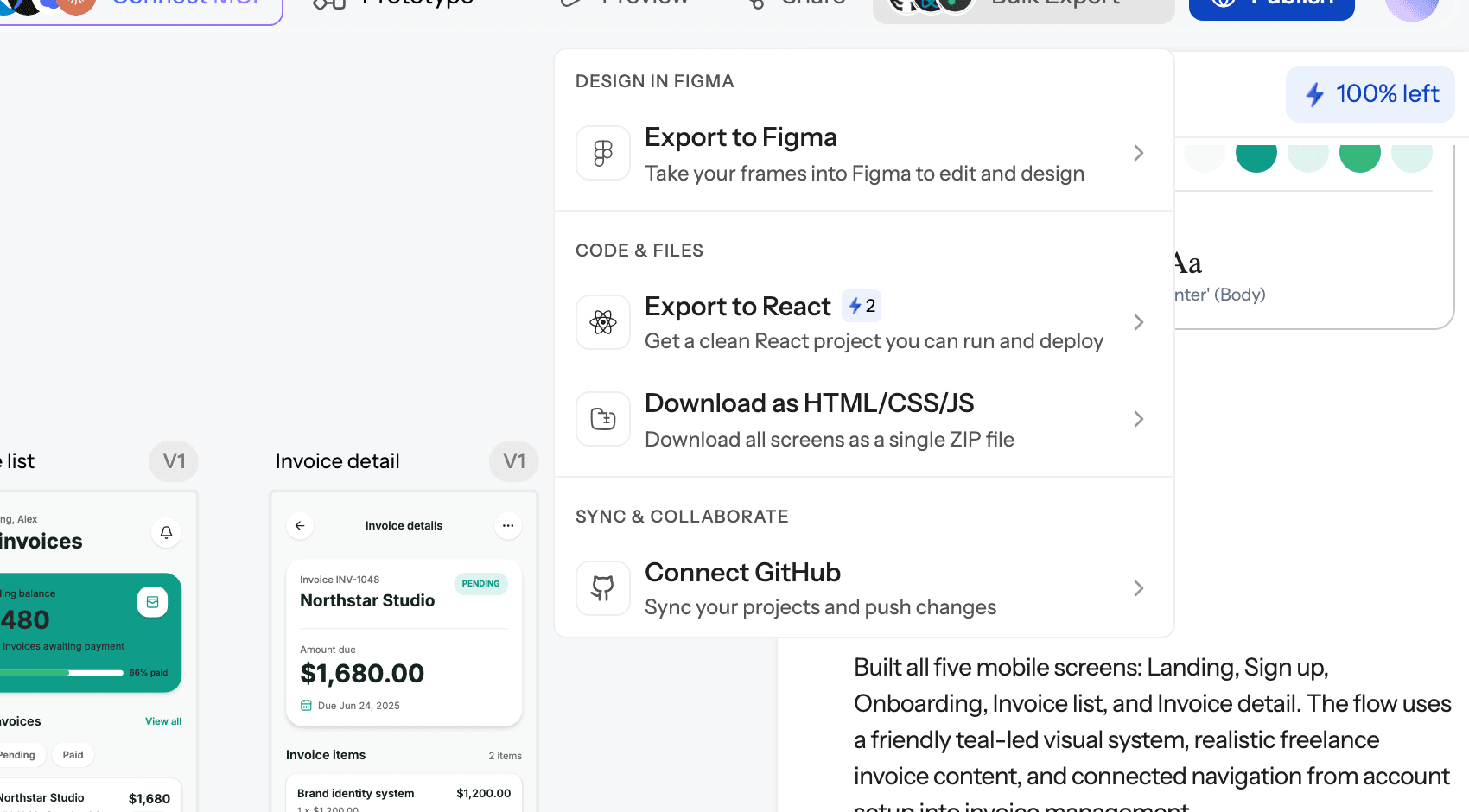
It meets Figma at both ends. Import from Figma brings frames and styles in so new screens follow your system, and export to Figma sends screens back as auto-layout frames. If you'd rather stay on the canvas, the UXMagic Figma plugin generates UI from a prompt, turns a URL into Figma layers and converts screenshots, all from the same credit balance.
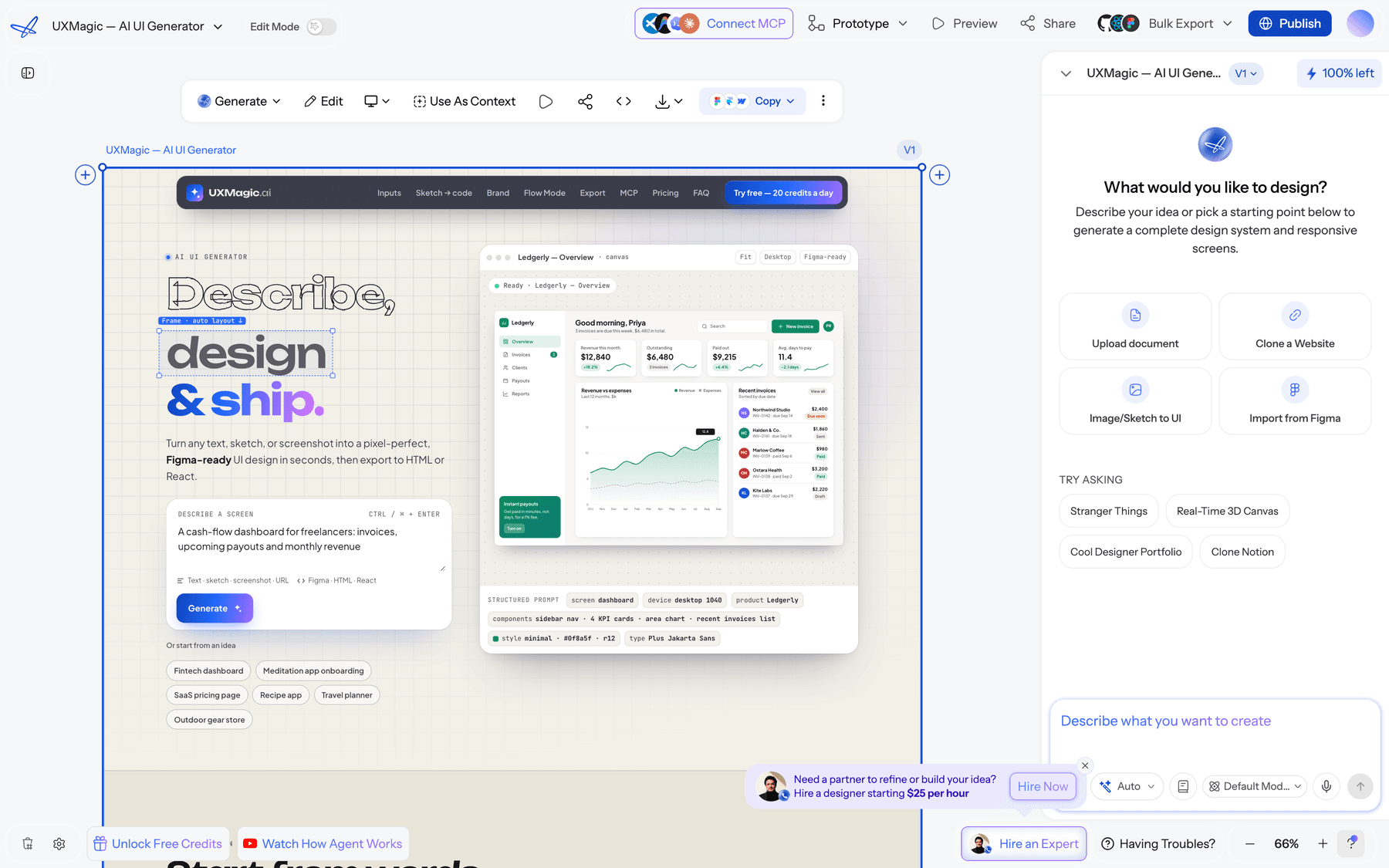
Where it falls short: UXMagic is not a replacement for Figma's editor, and its AI doesn't act on comments; per our comments and feedback docs, comments are for people and the chat is for the AI. Fine vector work and library upkeep still belong in Figma, which is where the agent shines.
Read our UXMagic vs Figma AI comparison for the side-by-side.
Figma Make: when you need something clickable
If the job is an interactive prototype rather than design-file edits, Make is Figma's tool for it. It builds working, code-backed apps from prompts or frames and can publish them. It spends 30 to 100 or more credits per request and needs a Full seat for full access. Read our Figma Make tutorial and our UXMagic vs Figma Make comparison.
Claude Design: prompt-driven prototypes from Anthropic
Claude Design is Anthropic's visual canvas for designs, prototypes and slides, available on paid Claude plans. It hands work to Claude Code, but Figma isn't among its listed export targets, so Figma teams end up rebuilding. Read our Claude Design alternatives guide and Claude Design vs UXMagic.
Google Stitch: the free sandbox
Google Stitch is a free Google Labs tool for prompt-to-UI exploration with a daily allowance. It is a good place to try directions before committing Figma credits. Read our Google Stitch review and Stitch alternatives.
UX Pilot and other Figma plugins
UX Pilot runs as a web app and a Figma plugin, with generation plus heatmaps and design review. It is the closest thing to an agent for teams whose accounts don't have Figma's beta yet. Read our UX Pilot review, and see our list of the best Figma AI plugins for the rest.
Paper and other agent-first canvases
A new group of design canvases is built for coding agents over MCP rather than for designers first. Paper is one; our Paper Design review covers it, and our UXMagic vs Paper comparison sets the two side by side. Banani is another AI design agent in this space; see UXMagic vs Banani.
How to choose: Figma Agent or a generator?
Ask where your work starts.
- It starts in a Figma file with a real library. Use the Figma Agent for exploration, bulk edits and system upkeep. It is free while in beta, and nothing else has that context.
- It starts from a brief or a PRD. Generate the flow first. UXMagic's AI UI design generator turns a prompt, a document or a screenshot into connected screens; export them to Figma and let the agent handle the polish.
- It ends in code. Skip the round trip. UXMagic's design to code generator exports React and HTML, and the UXMagic MCP server lets Cursor, Claude Code or Codex read your screens directly. Our AI design-to-code tools guide compares the options.
- It is a clickable prototype for testing. Figma Make or UXMagic's AI prototype generator, depending on whether you need working logic or a linked flow.
Whichever you pick, prompt for flows rather than frames. Our guide to prompting for user flows, not screens applies to the Figma Agent as much as to any generator.
Figma Agent vs UXMagic: cost
| Figma Agent | UXMagic | |
|---|---|---|
| Free access | Beta, rolling out; monthly usage limits | 20 credits a day, 1 Figma export |
| Paid entry | Full seat, $16/mo on Professional (annual) | Pro, $17.50/mo annually or $35 monthly |
| AI allowance | 3,000 credits/mo per Professional Full seat, shared with Make | 2,400 credits/mo, up to 400 screens |
| After beta | Standard credits, varying by task | New screen 3 credits, targeted edit 0.2, theme 0 |
| Figma output | Native | Export as auto-layout frames, 250 exports/mo on Pro |
UXMagic numbers come from our plans and limits and how credits work pages; the full matrix is on our pricing page. The two aren't either/or. Plenty of teams generate a flow in UXMagic, export it, and keep Figma credits for the agent's bulk edits and library work.
Our verdict on the Figma Agent
The Figma Agent is the most useful AI feature Figma has shipped for working designers. It understands the file it is in, it changes real layers, and it tackles the maintenance work that eats design teams' weeks. While the beta is free, there is no reason not to use it if your team has access.
It is not yet a way to go from idea to product. It can't prototype, it is scoped to a file, and its output is only as consistent as the library behind it. And the free period ends at general availability, when it joins Make in drawing on the same credit allowance.
Our recommendation: let the agent own editing and upkeep inside Figma, and use a flow generator for the zero-to-one part. Generate connected screens in UXMagic on a shared theme, pull in your system with the Figma component library or an import, then export to Figma for the agent and your designers to refine. If your team ships in React, the React component library and website templates shorten the path further.
Related reading
- AI in the UX design workflow: what actually works
- State of AI in UI/UX design 2026
- Figma Weave review: the node-based media canvas
- Best AI image generators for UI assets
- The best AI model for UI design
- Vibe designing: designing with AI as a collaborator
- Penpot vs Figma for product teams
- Why AI design fails without human direction
Don't wait for the beta
Describe your product and get a connected, themed flow in minutes, then export it to Figma for the agent and your team to refine.