
TL;DR: ChatGPT is a strong UX thinking partner and a weak design tool. Use it to synthesise research, draft personas and jobs to be done, map flows, write microcopy and critique screenshots, with the ten copyable prompts below. When you need real, editable screens, paste the flow into a design tool like the UXMagic AI UI generator, approve a screen plan, and generate the whole journey in one theme. Our guide to writing a good prompt covers the design-side half of the handoff.
Most designers and PMs we talk to already have ChatGPT open in a tab. The question is not whether to use it for UI/UX work, it is which parts of the job it actually helps with, and where it quietly costs you time.
The short version: ChatGPT is very good with words, structure and judgement calls you can check. It is much weaker at producing the thing a design team ships, which is a set of consistent, editable screens. This guide splits the job along that line. We cover what ChatGPT does well and badly for UI/UX design today (based on what OpenAI documents, not rumour), ten prompts you can paste straight in, and the point where it makes sense to move the work into a design tool.
If you are new to the discipline itself, our primer on what UX design is in 2026 and the explainer on UI vs UX are good places to start.
What ChatGPT can do for UI/UX design in 2026
ChatGPT is no longer just a text box. Four documented capabilities matter for design work:
- Image inputs. You can upload screenshots, diagrams and photos and ask questions about them. That makes design critique, heuristic reviews and "what is wrong with this screen" questions possible without describing the screen in words.
- ChatGPT Images. ChatGPT can generate and edit images, including text inside the image and transparent backgrounds, in any aspect ratio. Useful for moodboards, illustration drafts and hero imagery. The output is a picture, not a layered design.
- Canvas. A side-by-side editor for writing and code. You can highlight a passage and ask for changes, restore earlier versions, and preview rendered HTML or React code in a sandbox. That is the closest ChatGPT gets to a prototype.
- Apps and connectors. OpenAI's apps (built on the Model Context Protocol) let ChatGPT work with outside tools. Figma and Canva were among the launch partners, with examples like turning a sketch into a FigJam diagram or an outline into a Canva deck. Developer mode on eligible plans lets teams add their own MCP apps. Availability varies by plan and region.
What none of these gives you is a design canvas where ten screens share one theme, one navigation structure and one set of components that you can keep editing. That gap is the whole reason dedicated tools exist, and why we argue single-screen AI design is a dead end for anything beyond a demo.
Quick pick: ChatGPT or a design tool?
| Task | ChatGPT | Better done in a design tool |
|---|---|---|
| Synthesising interview notes | Strong | No |
| Personas and jobs to be done | Strong, if you give it data | No |
| User flows and screen lists | Strong in text | Yes, once you want to see the screens |
| Microcopy, error messages, empty states | Strong | Edit in place afterwards |
| Heuristic review of a screenshot | Good second opinion | Pair with a real audit |
| Accessibility review | Flags likely issues | Verify with a checker |
| Moodboards and illustrations | Good (ChatGPT Images) | No |
| Editable, multi-screen UI | Weak | Yes |
| Consistent theme across screens | Weak | Yes |
| Figma or production code export | Code only, one file at a time | Yes |
Where ChatGPT is genuinely good
Turning messy input into structure. Give it forty interview snippets and it will cluster them into themes faster than you can build an affinity map. Give it a feature idea and it will list the screens, states and edge cases you forgot. This is the part of UX work that is mostly thinking, and it is where a language model earns its keep.
Words. Button labels, error messages, onboarding copy, tooltips and empty states are all short, constrained writing problems. ChatGPT is fast at producing variations, and our framework for UX microcopy that converts gives it good rules to write against.
Critique on demand. Upload a screenshot and ask it to review the screen against Nielsen's heuristics or your own design principles. It will not replace a colleague's eye, but it is available at 11 pm and it does not get tired of the fourth iteration.
Planning artefacts. Discussion guides, test scripts, PRD drafts, acceptance criteria. If you are a PM, our walkthrough of the spec-driven design workflow for product managers shows how these feed straight into design.
Where ChatGPT falls short
It produces pictures and code, not design files. A mockup from ChatGPT Images is a flat image. You cannot select the button and change its radius. Canvas can render an HTML page, but it is one file, with no theme you can change once and apply everywhere.
Consistency across screens. Ask for a sign-up screen, then a dashboard, then settings, and each comes back with slightly different spacing, colours and navigation. Holding a design system across a flow is exactly what general chat is not built for. We cover the root cause in can AI follow design tokens?
Invented evidence. Ask ChatGPT for "research on how users feel about checkout" without giving it data and it will produce confident, specific-sounding findings that came from nowhere. Every prompt below feeds it your own inputs for that reason.
Measurements from screenshots. It can say a grey label "looks low contrast", but a visual estimate is not a contrast ratio. Confirm with a real checker before filing a bug.
Taste defaults. Without direction, AI output drifts toward the most common patterns. That is fine for a settings page and bad for a brand. Our post on prompting for UI that ships covers how to push past the defaults.
How to write ChatGPT prompts for UX work
Every prompt below follows the same shape, and it is worth copying the shape rather than only the prompts:
- Role and context. Who ChatGPT is acting as, and what the product is.
- Your real input. Notes, a screenshot, a flow, a draft. Never ask it to make up the input.
- The task. One job per prompt.
- Constraints. What to avoid, what to flag, what not to assume.
- Output format. A table, a numbered list, a template. Structured output is easier to check and easier to paste into the next tool.
Replace everything in square brackets. If you keep a project brief, paste it at the top of each conversation so you are not re-explaining the product every time.
10 copyable ChatGPT prompts for UI/UX design
- Research synthesis from interview notes
You are a senior UX researcher. Below are raw notes from [number] user interviews about [product / feature].

Task: synthesise them into themes.
- Group observations into 5-8 themes. Name each theme as a user need, not a feature.
- For each theme, list the supporting quotes with the participant ID.
- Mark how many participants mentioned it.
- List contradictions and anything only one person said separately.
- Do not add findings that are not in the notes. If something is unclear, say so.

Output as a table: Theme | Need | Evidence (quotes + IDs) | Count.

Notes:
[paste notes]
The "do not add findings" line matters more than anything else in the prompt. For the wider research toolkit, see our roundup of AI tools for UX research.
- Evidence-based persona
Using only the research themes below, draft one persona for [product].

Include: name and one-line summary, context of use, goals, frustrations, current workaround, what would make them switch, and 3 direct quotes from the research.
For every attribute, cite which theme supports it. If an attribute has no evidence, write "assumption - validate" instead of inventing one.
Keep it under 250 words. No stock-photo descriptions or hobbies.

Themes:
[paste output from prompt 1]
Personas without evidence turn into fiction that the team then designs for. Our user persona template for AI-ready UX workflows shows the fields worth keeping.
- Jobs to be done
Act as a product strategist. From the research below, write the top 5 jobs to be done for [product].

Format each as: When [situation], I want to [motivation], so I can [expected outcome].
For each job add: the current solution, what makes it painful, and which screen or feature in our product should serve it.
Rank them by how often they appear in the research. Flag any job that is inferred rather than stated.

Research:
[paste themes or notes]
- User flow as a screen list
You are a product designer. Map the user flow for: [goal, e.g. "a first-time user creates and sends an invoice"] in [product].

Output:
1. A numbered list of screens. For each: screen name, one-line purpose, primary action, secondary actions.
2. Decision points and where each branch goes.
3. Required states per screen: empty, loading, error, success.
4. Edge cases: what happens if the user leaves mid-flow, has no data yet, or loses connection.

Keep it to the screens needed for this goal only. Platform: [web / iOS / Android].
This is the most useful prompt on the list, because its output doubles as the input to a design tool. Asking for a journey instead of individual screens is the core idea behind flow-first prompting for AI user flows, and our user flow diagrams guide covers the notation if you want to draw it.
- Microcopy for one screen
You are a UX writer. Write the interface copy for the [screen name] screen of [product]. Voice: [e.g. plain, friendly, never cute].

Write:
- Page title and one-line subtitle
- Primary and secondary button labels (verbs, max 3 words)
- Field labels, placeholder text and helper text for: [list fields]
- An error message for each field that says what went wrong and how to fix it
- An empty state: headline, one sentence, and a call to action
- A success message

Give 2 options for the title and primary button. Avoid "Oops", "Submit" and jargon.
Output as a table: Element | Copy | Character count.
Pair it with our form UX design guide for field-level rules and our empty states guide for the screens people see first.
- UX audit of a screenshot
[Attach screenshot]

You are a senior UX reviewer. This is the [screen name] screen of [product], used by [audience] to [goal].

Review it against Nielsen's 10 usability heuristics.
For each issue: what you see, which heuristic it breaks, severity (1 = cosmetic, 4 = blocks the task), and a specific fix.
Then list the 3 changes with the biggest impact.
Only comment on what is visible. If you need to guess how something behaves, say it is a guess.
This is a quick first pass, not a full audit. For the full process, including analytics and session data, follow our five-step guide on how to conduct a UX audit.
- Accessibility review
[Attach screenshot]

Review this screen for likely accessibility problems against WCAG 2.2 AA.
Check: colour contrast (estimate only, flag anything that looks close), text size, touch target size, focus order, labels on inputs and icons, reliance on colour alone, and motion.
For each issue: the element, the likely WCAG success criterion, why it matters, and the fix.
Clearly separate "visible problems" from "needs testing with a screen reader or contrast checker".
The last line keeps ChatGPT honest about what a screenshot can prove. Our accessibility heuristics checklist is the manual follow-up, and prompting for WCAG 2.2 accessible UI covers how to bake these rules into generation from the start.
- Design critique from a screenshot
[Attach screenshot]

Critique this design the way a design lead would in a review. The goal of the screen is [goal]; the brand should feel [adjectives].

Cover, in this order:
1. Visual hierarchy: what the eye lands on first, second, third, and whether that matches the goal.
2. Layout and spacing: alignment, grouping, rhythm.
3. Typography: scale, weights, line length.
4. Colour: purpose, consistency, emphasis.
5. Whether it feels like the brand or like a generic template.

Be direct. End with the 5 changes you would make, most important first, each as an instruction a designer could act on.
The ending turns critique into edit instructions, which is exactly the format a design tool takes. If you want the vocabulary behind point one, see what visual hierarchy is.
- Usability test script
Write a 30-minute moderated usability test script for [product / prototype].

Participants: [who]. What we want to learn: [2-3 research questions].
Include: intro and consent wording, 3 warm-up questions, 4 realistic task scenarios (no hints in the wording, no UI labels), follow-up probes for each task, and a wrap-up.
For each task, define what counts as success and what we should observe.
- Brief and screen plan for a design tool
Turn everything we have discussed into a design brief I can paste into an AI UI design tool.

Format:
- Product: one sentence on what it is and who it is for
- Platform: [web / mobile]
- Screens: numbered list, each with a one-line purpose (from our user flow)
- Key content per screen: headings, main data shown, primary action
- Visual direction: 3-5 adjectives, colour preferences, references to avoid
- Must-haves: states, accessibility requirements, anything non-negotiable

Keep it under 250 words. No design rationale, just instructions.
This is the bridge prompt. It compresses the whole conversation into something a design tool can act on, which is where the next section picks up. If you are writing a fuller spec, our guide to what a PRD is has a template, and the AI PRD generator can draft one for you.
Turn your ChatGPT flow into real screens
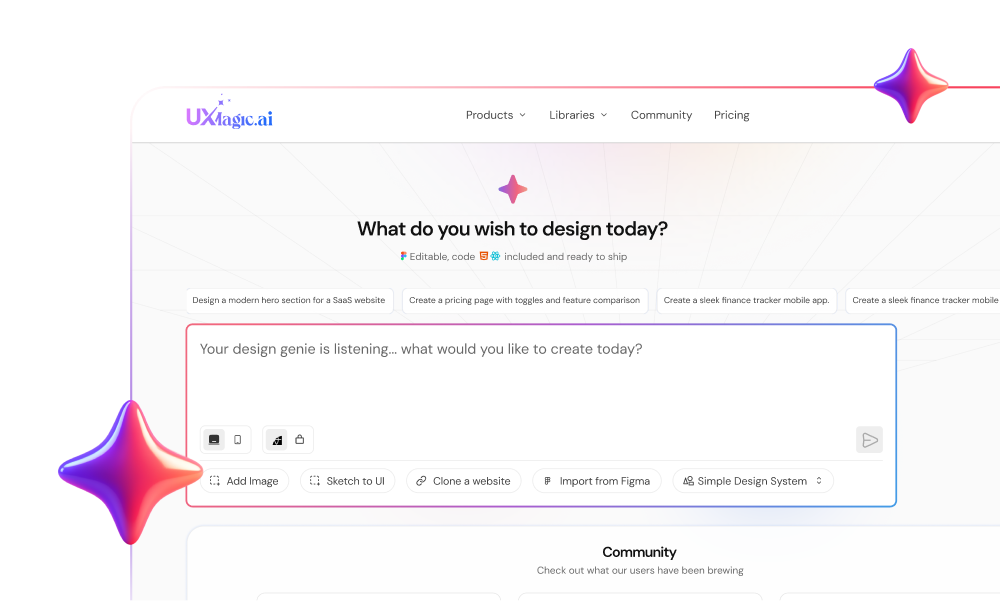
Paste the screen list into UXMagic, approve the plan, and get an editable, consistent flow you can export to Figma or code.
When to move from ChatGPT to a design tool
The switch point is simple: once you know what the screens are, and you need to see them. Before that, you are thinking, and a chat window is a good place to think. After that, you are designing, and every round trip through a flat image or a single HTML file is slower than working on a real canvas.
Signs you have reached it:
- You have a flow and a screen list you are reasonably confident in.
- You keep asking ChatGPT to "make screen 3 match screen 1".
- Stakeholders need something clickable, not a description.
- A developer is waiting for Figma frames or code.
The mistake we see most is people trying to get ChatGPT Images to produce a full app, screen by screen, then rebuilding everything by hand in Figma. The thinking was done in ChatGPT; the screens should come from a tool built for them. Our step-by-step guide on how to design UI with AI walks through that design half in detail.
How to take your ChatGPT work into UXMagic
UXMagic is our product, so here is exactly how the handoff works in it, with the honest limits.
Step 1: Paste the brief, not a one-liner
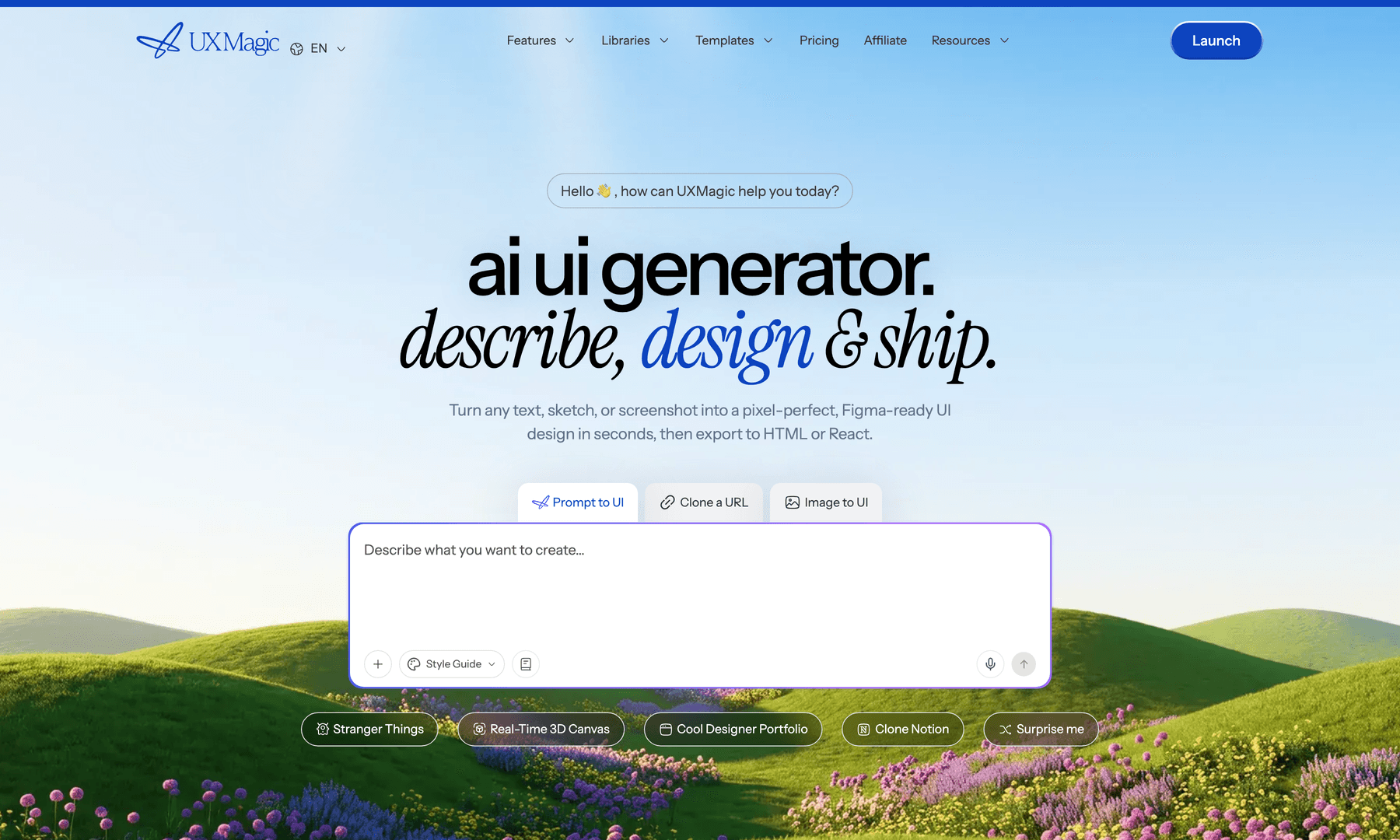
Take the output of prompt 10 (or your flow from prompt 4) and paste it into the prompt box. Product, platform, screens, content and visual direction is exactly the information our guide to writing a good prompt asks for. If your spec lives in a document, you can design from a document instead of pasting.
Step 2: Approve the screen plan
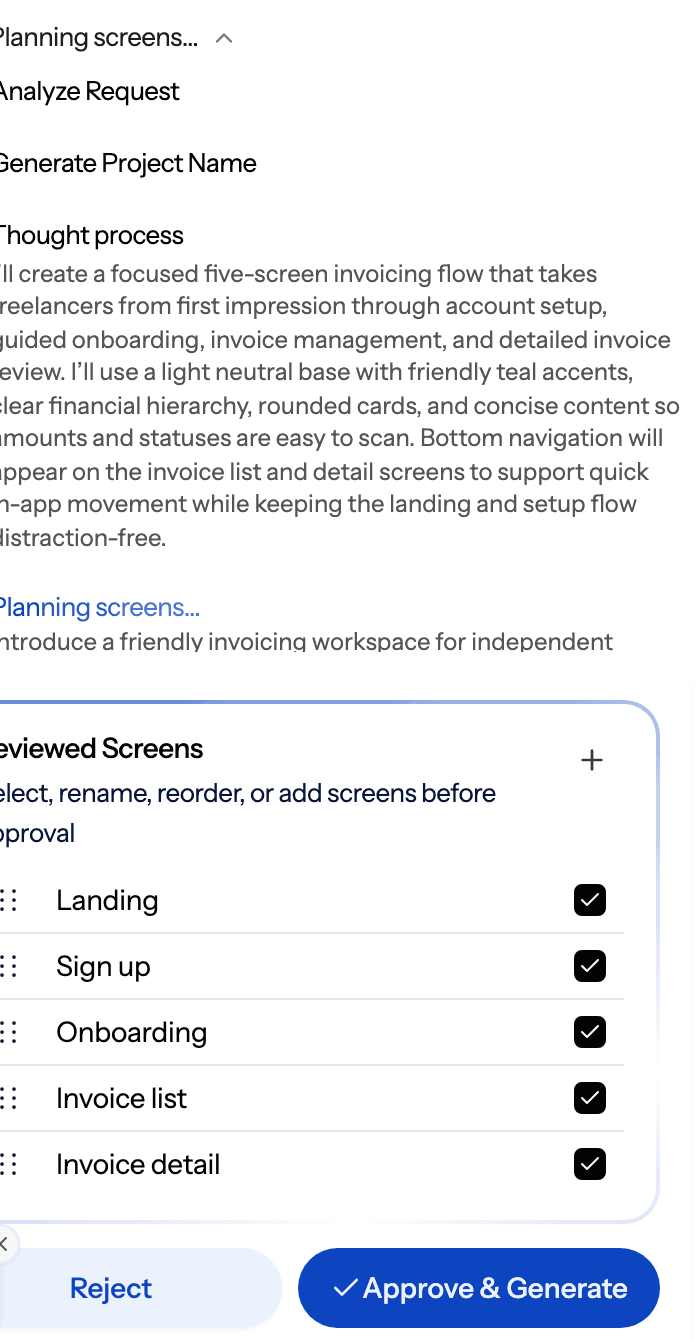
For a new project, UXMagic proposes a screen plan (a named list of screens with a one-line purpose each) before it designs anything. Because your ChatGPT flow already has the screen list, this step is mostly a check: rename, reorder, add or remove, then approve. The plan costs 1 credit; fixing eight wrong screens later costs far more, as the credits guide spells out.
Step 3: Generate the whole flow in one theme
Flow mode designs the journey in one run, with every screen sharing a theme and navigation structure, which is the consistency problem ChatGPT cannot solve in chat. Screens appear on the canvas as they finish. The details are in the help article on flow mode and screen plans. If you want to settle structure first, start in wireframe mode or use the AI wireframe generator.
Step 4: Apply ChatGPT's critique as targeted edits
Remember the "5 changes" at the end of prompt 8? Paste them into the UXMagic chat as edit instructions. Targeted edits are cheap (0.2 credits each) compared with regenerating a screen, and theme changes are free and apply to every screen. The copy from prompt 5 can go in through edit mode, where text swaps cost nothing. See themes and style guides for the project-wide controls.
You can also run the loop the other way: screenshot a competitor or an old screen, critique it in ChatGPT, then rebuild it with image to UI and apply the fixes.
Step 5: Hand off to Figma, code or a coding agent
When the flow is right, export to Figma as editable frames, export HTML or React through the design to code generator, or turn it into a clickable demo with the AI prototype generator.
For developers, the UXMagic MCP server lets an AI assistant read your real screens and theme instead of guessing from a screenshot. The documented clients are Claude, through the Claude connector, and Cursor, VS Code, Windsurf, Codex and Antigravity through an API key, as set out in the MCP server setup guide. ChatGPT's developer mode supports custom MCP apps on eligible plans, but we have not documented a ChatGPT setup, so treat that route as untested. If you only want ChatGPT to answer questions about UXMagic accurately, point it at our /ai-info page, which is what the help article on using UXMagic from ChatGPT and other assistants recommends.
If your team is moving toward agent-driven builds, the batch of guides we published alongside this one goes deeper: vibe designing (design first, then hand off to a coding agent), what a DESIGN.md is, the AI design to code tools roundup, and Figma Dev Mode alternatives for handoff.
A workflow that uses both
Here is the split we recommend for a small product team:
- ChatGPT: synthesise research (prompt 1), draft personas and JTBD (prompts 2 and 3).
- ChatGPT: map the flow and states (prompt 4), then compress it into a brief (prompt 10).
- UXMagic: paste the brief, approve the screen plan, generate the flow in one theme.
- ChatGPT: screenshot the result and run the critique and accessibility prompts (6, 7, 8).
- UXMagic: apply the fixes as targeted edits, drop in the microcopy (prompt 5).
- Test: run the usability script (prompt 9) on a prototype, then export.
Each tool does the part it is built for, and you stay in charge of the decisions in between. That human role is the point, not a limitation, as we argue in why AI design fails without human direction. If you want ready-made prompts for the design half, our set of real prompts we use to generate product flows picks up where prompt 10 leaves off.
What about other AI assistants?
The same prompts work in Claude, Gemini and other general assistants, with small differences in how they handle images and long documents. Claude has its own design surface, which we compare in Claude Design vs UXMagic. If you are choosing a dedicated tool rather than a chat assistant, our ranking of the best AI design tools in 2026 compares the main options, and best AI image generators for UI mockups covers the image side if you mainly want visual assets.
The bottom line
ChatGPT is worth using for UI/UX design, as long as you use it for the right half of the job. Let it do the research synthesis, the structure, the words and the critique, and always feed it real inputs so it has nothing to invent. When the work turns into screens, move it to a tool that holds a theme across a flow and exports something your team can build on.
UXMagic is built for that second half. It will not do your user interviews for you, and it is not a general-purpose chat assistant. What it does is take a clear brief, plan the screens, design them consistently, and hand them to Figma, code or a coding agent. The Free plan refreshes 20 credits every day, and paid plans are on the pricing page.
Related guides
- GPT Image 2 Review: Features, Pricing and Prompts for UI Assets
- 12 Best AI Tools for Product Managers in 2026, by PM Job
- How to Validate a Product Idea: 7 Tests, With Templates
- Generative Engine Optimization for SaaS: Why AI Search Ignores Your Blog
- MVP Design: How to Design a SaaS MVP Users Actually Adopt (2026)
- Pencil.dev Review 2026: Now pen.dev, Features, Pricing, Alternatives
- Figma Agent Review 2026: What the Beta Does, Costs and Misses
- Midjourney Pricing 2026: Plans, GPU Hours, and What Images Really Cost
- Paper.design Review 2026: HTML Canvas, MCP, Pricing and Limits
- Figma Make Tutorial 2026: Prompt, Edit, Publish and Export Code
From ChatGPT brief to editable UI
Paste your flow, approve the screen plan and generate every screen in one theme. Free plan credits refresh daily.