
TL;DR: Canva is excellent for graphics, decks and simple one-page sites, and Canva Code can now build small interactive pages from a prompt. For app and product UI it runs out of road: no real component system, manual consistency across screens and no developer handoff. If you want AI to draft a whole flow, use UXMagic; for hand-crafted UI, use Figma or the open-source Penpot. You can still finish in Canva, since UXMagic can export a design to Canva for marketing work.
Canva is one of the most useful tools a non-designer can have. Social posts, pitch decks, one-pagers, even short videos: most teams have at least one person who lives in it. So when that team needs app screens for an investor demo or a first round of user tests, reaching for Canva is the obvious move.
It works, up to a point. You can pick a mobile template, change the colours and text, link the pages together and share a clickable demo. The trouble starts on the second and third screen, when a button style needs to change everywhere, when a developer asks for spacing values, or when you want a flow that behaves like a product rather than a slideshow.
This guide covers what Canva genuinely does well for UI in 2026, where it falls short, and nine Canva alternatives for UI design grouped by the job you actually need done. We build UXMagic, so it is on the list; we have tried to be straight about where it fits and where another tool is the better call. Competitor details come from each vendor's public pages and help docs in September 2026. Canva's own site blocks automated fetches, so a few Canva details below come from Canva's help and newsroom pages as indexed by search and are phrased with that in mind.
Canva alternatives at a glance
| Tool | Best for | Starts from | Free option |
|---|---|---|---|
| UXMagic | AI-drafted multi-screen flows, Figma and code export | Pro $17.50/mo billed annually | 20 credits/day |
| Google Stitch | Free AI screen exploration | Free | Yes, limits not published |
| Uizard | Non-designers making quick mockups | Pro $12/mo billed annually | 3 AI generations/mo |
| Visily | PMs and cross-functional teams | Pro $14/editor/mo | 300 AI credits/mo |
| Figma | Professional UI and design systems | Professional Full seat $16/mo | Starter plan |
| Penpot | Open-source, self-hosted UI design | Unlimited $7/editor/mo | Free for up to 8 members |
| Affinity | Free pro desktop graphics, vectors and layout | Free app | Yes |
| Framer | Marketing sites that go live | Basic $10/mo | Free plan |
| Lovable | Working app prototypes with a backend | Pro $25/mo | 5 credits/day |
What Canva is genuinely good at for UI
It is worth being fair to Canva before looking elsewhere, because several of its strengths are real.
- Templates for everything. Canva has a large library of mobile and desktop prototype templates. For a non-designer, starting from a finished-looking screen beats starting from nothing.
- Clickable demos. You can link elements to other pages, so a "Sign up" button jumps to the next screen. That is enough for a stakeholder walkthrough or a very early usability check.
- Canva AI and Canva Code. At Canva Create in April 2026, Canva announced Canva AI 2.0, a conversational and agentic layer that builds and edits designs from plain-language requests and applies your brand kit automatically; some of it launched as a research preview. Canva Code 2.0 turns a prompt into a responsive interactive page, widget or small website. You can publish these, embed them, import your own HTML to edit, and view and copy the generated code (how much you can take out of Canva has changed between releases, so check the current help centre).
- Brand kits and speed. Fonts, colours and logos are one click away, and anyone on the team can make an on-brand asset without asking a designer.
- Affinity, now free. In October 2025 Canva relaunched Affinity as one free desktop app for Windows and macOS combining vector, photo and layout tools. Its AI features need a paid Canva plan.
If your "UI" is really a landing page mockup, a marketing microsite or a slide showing what an app might look like, Canva may be all you need. Our guide to what a mockup is is useful for deciding which kind of artifact you actually need.
Where Canva falls short for UI and UX
The limits show up once a design has to become a product.
- No real component system. Canva has basic ways to reuse elements, but nothing like the components, variants, variables and auto layout that product design depends on. Changing a button style across twelve screens is still mostly manual. If those terms are fuzzy, our explainer on design systems vs style guides vs component libraries covers the difference.
- Consistency across many screens is on you. Canva's AI is strongest at producing a single design. Generating the fifth screen of a flow so it matches the first four, with the same navigation, spacing and states, is where template-first tools struggle. We explain why that matters in flow-based design vs static screens.
- No developer handoff. There is no inspect mode with spacing, tokens and CSS values for engineers. Canva Code lets you copy the code behind its own interactive pages, but that is a different thing from handing off a designed product screen by screen.
- Prototyping is shallow. Page links cover "click here, go there." States, overlays, conditional flows and realistic interactions need a proper prototyping tool.
- UX work is not really there. Wireframing, user flows and information architecture are not what Canva is built for. The difference between the two disciplines is covered in UI vs UX in 2026.
None of this makes Canva a bad product. It is a visual communication tool, and product UI is a different job. The alternatives below are grouped by which part of that job you need to replace.
Best AI alternatives: generate product screens, not graphics
If you are drawn to Canva because you are not a designer and want something that looks good fast, an AI UI generator is the closest match in spirit and a big step up in output. You describe the product, and the tool drafts editable screens.
UXMagic
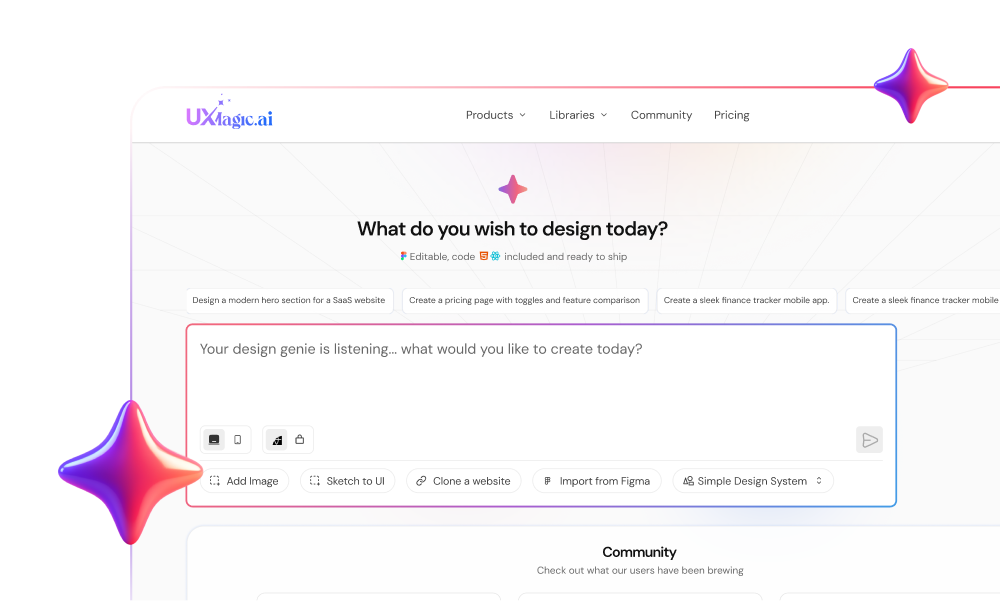
UXMagic is an AI UI design tool that turns a prompt, screenshot, sketch, URL or Figma file into editable, high-fidelity screens on an infinite canvas. The feature that matters most for people coming from Canva is Flow Mode: instead of one screen at a time, it proposes a screen plan for the whole journey (say landing, sign-up, onboarding and dashboard), lets you approve or edit it, then designs every screen on one shared theme. The flow mode help article shows how to describe a journey rather than individual screens.
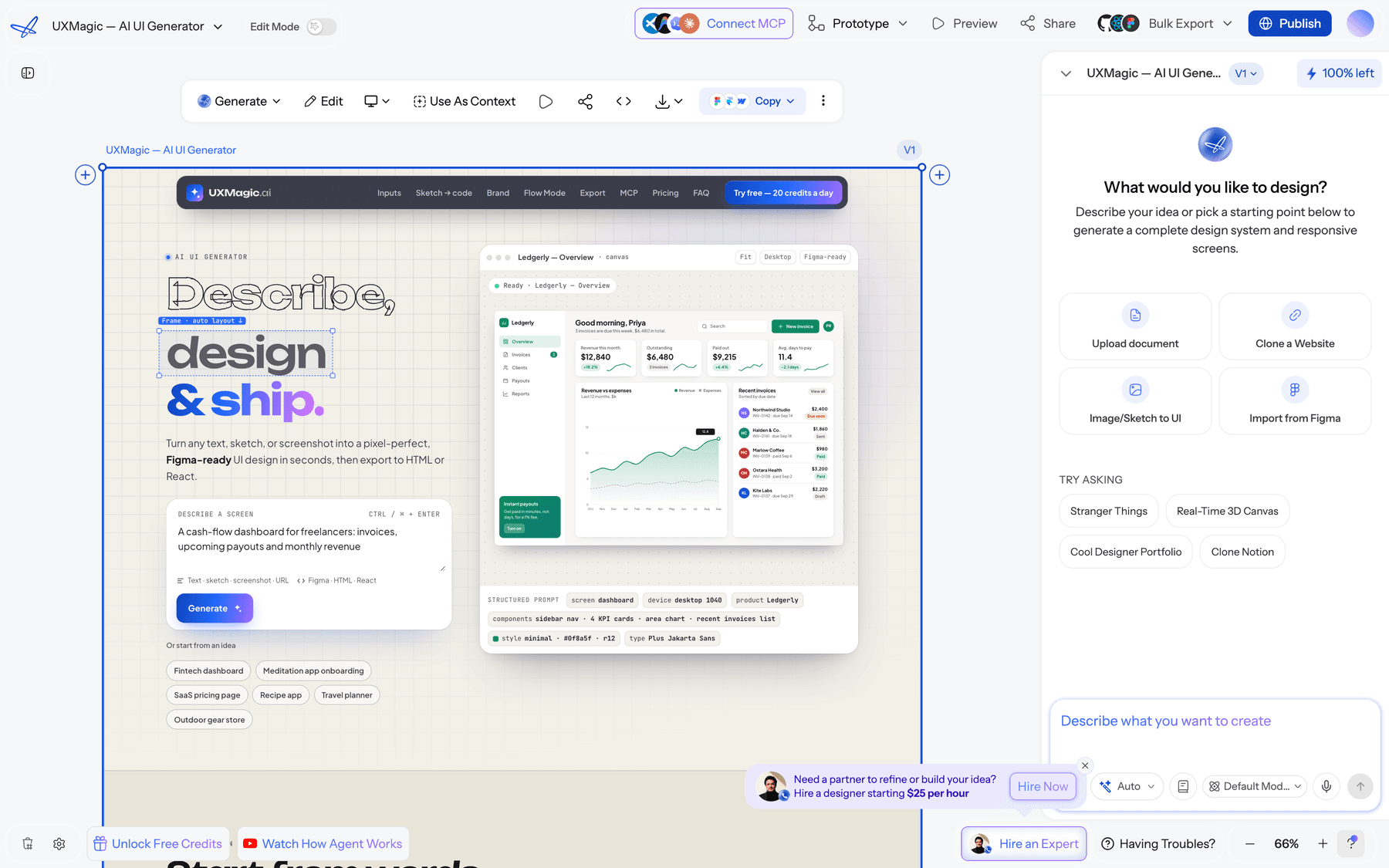
What it covers that Canva does not:
- A theme, not loose styles. Colours, type, radii and spacing are stored as tokens on the project, so "use our brand blue" changes every screen together. See themes and style guides, or generate one with the AI style guide generator.
- Start from what you have. The image to UI generator rebuilds a screenshot, including a screenshot of a Canva mockup, as an editable screen.
- Low fidelity first. The AI wireframe generator settles structure before visual polish.
- Mockups and prototypes. The AI mockup generator produces presentation-ready screens, and the AI prototype generator links them into a clickable flow.
- Real handoff. Export screens to Figma as editable layers with auto layout, or as HTML or React with Tailwind and your theme tokens. The code export guide explains what the code includes.
- Canva when you need it. Connect Canva from Integrations, select a design and choose Export, then Canva. The export keeps how the design looks, which is ideal for ads, social cutdowns and launch graphics built from your real product screens.
Pricing. Free gives 20 credits a day, refreshed daily, for up to 3 screens a day across 5 projects, plus 1 Figma export. Pro is $35 a month, or $17.50 a month billed annually, with 2,400 credits a month (up to 400 screens) and 250 Figma exports. Details are in plans and limits.
Best for: founders, PMs and marketers who need consistent product screens quickly, and designers who want the first draft done for them.
Where it falls short: UXMagic is not a graphics, video or presentation tool, so it does not replace Canva for social content. It also does not try to replace Figma's pixel-level editing and plugin ecosystem. The free plan is enough to evaluate, not to design a full product.
Design the app, then send it to Canva
Describe your product, approve the screen plan and get a consistent multi-screen flow. Export to Figma, code or Canva when it is ready.
Google Stitch
Google Stitch, which grew out of Galileo AI, generates UI screens from a text prompt or image and can export to Figma or front-end code. It is quick for exploring directions and currently costs nothing.
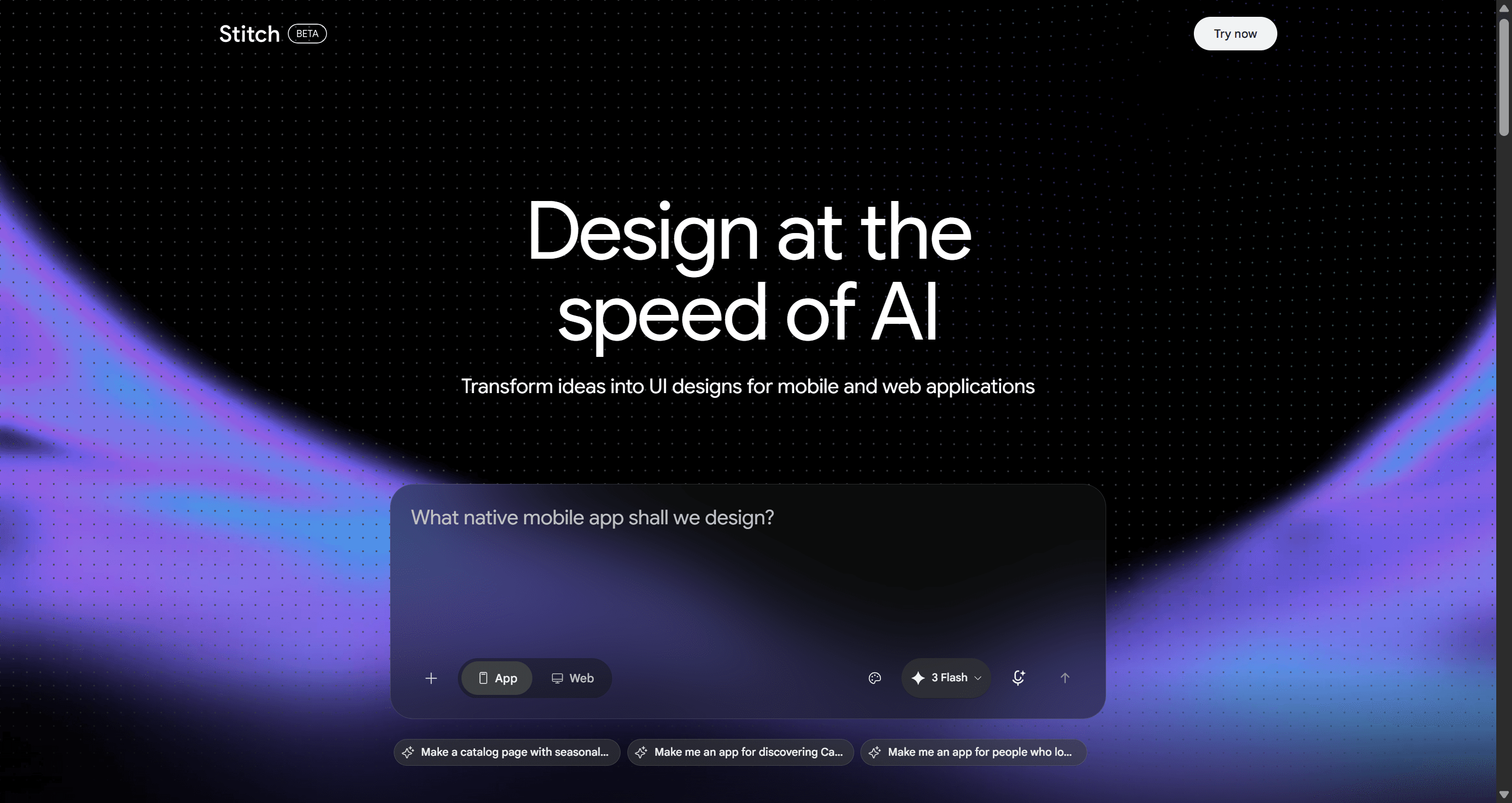
Pricing. Free, with no paid plan. Google has not published its usage limits on an official pricing page, which our Google Stitch pricing guide unpacks.
Where it falls short: limits are unpredictable for production work, and keeping a larger flow consistent takes effort. Read our Google Stitch review or the Google Stitch alternatives roundup.
Uizard
Uizard is the tool most similar to Canva in feel: approachable, template-friendly and aimed at people who have never opened a design tool. It turns prompts, screenshots and hand-drawn sketches into editable mockups.
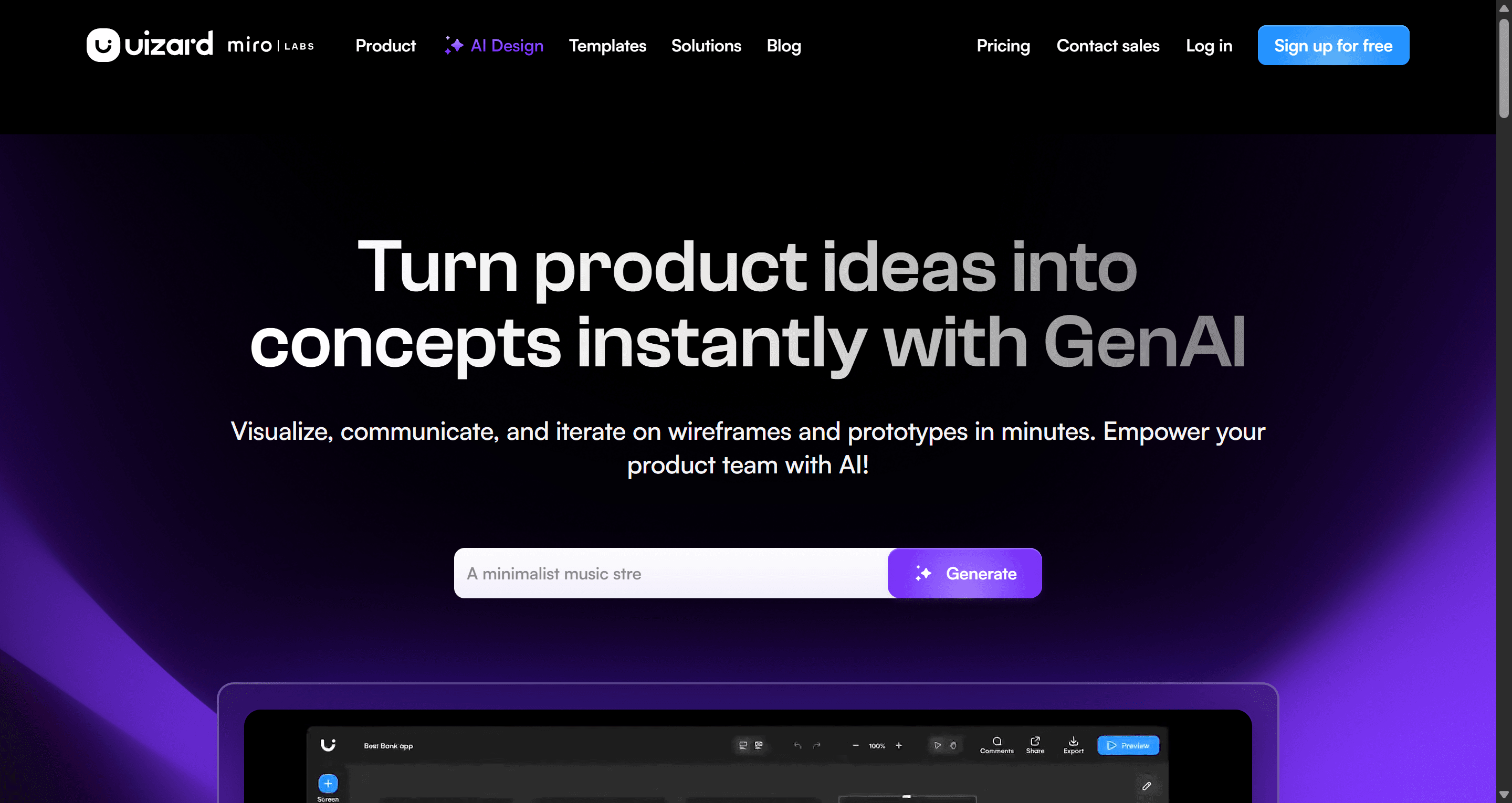
Pricing. Free includes 3 AI generations a month and 2 projects. Pro is $12 a month billed annually, and Business $39 a month billed annually.
Where it falls short: output tends to stop at mid-fidelity, and there is no direct Figma export. Read our Uizard review and our list of Uizard alternatives.
Visily
Visily targets product managers and business teams. It combines AI generation, templates and collaborative boards, with Figma import and export on its Pro plan.
Pricing. The free Starter plan includes 300 AI credits a month. Pro is $14 per editor per month with 3,000 credits.
Where it falls short: Figma and code export are paid, and the output suits reviews and alignment more than production. Read our Visily AI review.
Best for professional UI design and design systems
If you are moving from Canva because you (or a designer you are hiring) need precise control and a real component library, these are the tools product teams use.
Figma
Figma is the default tool for UI design: real-time multiplayer, components and variants, variables, auto layout, prototyping and Dev Mode for developer handoff. Its AI features, including Figma Make for prompt-to-prototype work, are covered in our explainer on what Figma AI includes.
Pricing. Starter is free with limits. On Professional, a Full seat is $16 a month, with cheaper Dev and Collab seats. Our Figma pricing breakdown explains which seat each role needs.
Best for: designers and product teams building anything that ships, especially with a design system.
Where it falls short: a steep learning curve for Canva users, and it is overkill for social graphics. We compare the two directly in Figma vs Canva. UXMagic can feed Figma: generate the flow, then export it to Figma for detailed work.
Penpot
Penpot is the open-source option. It runs in the browser, supports real-time collaboration and is built on open standards, with CSS Grid and Flex layouts and native design tokens. You can use Penpot's cloud or self-host it.
Pricing. The cloud Professional plan is free for up to 8 team members. Unlimited is $7 per editor per month, capped at $175 a month.
Where it falls short: a smaller plugin and community ecosystem than Figma, and no built-in AI generation to match Canva's prompt features. Our Penpot vs Figma comparison goes deeper, and our Figma alternatives guide lists other manual editors.
Best free desktop alternative from Canva itself
Affinity
If you like Canva as a company but need more control, Canva's own Affinity is worth knowing about. It is a professional desktop app combining vector, pixel and layout work, free for Windows and macOS since its October 2025 relaunch. You can draw interface graphics, icons and illustrations in it with far more precision than in Canva.
Best for: designers producing icons, illustrations and marketing visuals who want a free alternative to Adobe apps.
Where it falls short: it is a graphics and layout suite, not a UI tool. There is no interactive prototyping, no component variants built for interface work and no developer handoff. Its AI tools need a paid Canva plan.
Best for marketing sites that need to go live
Framer
Many people start app mockups in Canva when what they really need is a website. Framer is a design canvas and hosted site builder in one, with CMS, SEO settings and analytics built in, and an AI that works on the canvas.
Pricing. A free plan with a Framer domain, then site plans from $10 a month for Basic, billed yearly.
Where it falls short: it is built for websites, not app flows or dashboards. See the Framer AI vs UXMagic page, our Framer vs Webflow comparison and our roundup of Squarespace alternatives. UXMagic can also publish a site itself: the AI website generator builds the pages, and publishing your first site takes a few clicks.
Best for a working app, not just screens
Lovable
Lovable is an AI app builder: it generates a working web app with a backend from a prompt, so the UI comes with real logic. If Canva was a stand-in for "show what the product does," Lovable shows it by building it.
Pricing. Free gives 5 credits a day (up to 30 a month). Pro is $25 a month with 100 monthly credits. Our Lovable pricing guide explains how credits burn.
Where it falls short: every design tweak costs credits, and design control is looser than in a design tool. Many teams settle the UI first and build second; our Lovable review and Lovable alternatives cover the options.
Keep Canva in the workflow, just not for the product UI
Most teams do not need to choose. Canva stays for what it is best at, and the product screens come from a tool built for them. A practical split:
- Design the flow. Describe the product in UXMagic, approve the screen plan and let it design every screen on one theme. The guide to designing UI with AI walks through the whole process.
- Refine. Iterate with chat edits, or export to Figma if a designer is polishing the details.
- Hand off. Send HTML or React to developers, or push to a repo. Our best design handoff tools roundup covers other options.
- Market it in Canva. Export the finished screens to Canva and build the launch post, ad set or deck around the real product, not a placeholder.
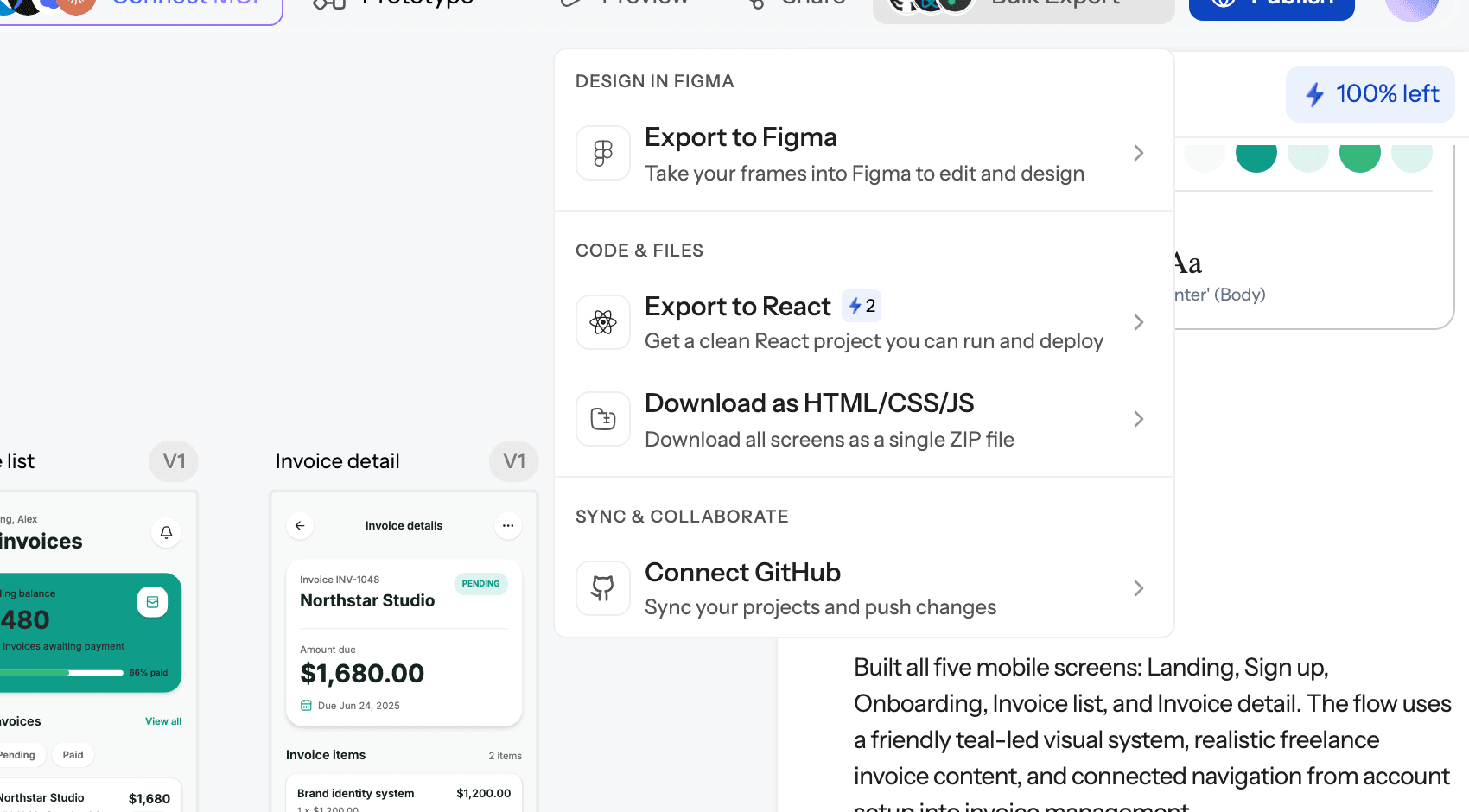
The Canva export preserves appearance rather than structure, which is exactly what marketing collateral needs. For images and PDFs outside Canva, see exporting PDFs and images.
How to choose a Canva alternative for UI design
Start from what you are trying to produce.
- A consistent multi-screen app design, fast, without design skills? An AI UI generator: UXMagic for full flows with export, Uizard or Visily for simpler mockups, Google Stitch for free exploration. Our ranking of the best AI design tools of 2026 compares the category.
- Pixel-level control and a design system? Figma, or Penpot if open source or self-hosting matters.
- A quick static mockup for a pitch? Canva may be enough. For something a notch better, see our best mockup tools.
- A live marketing site? Framer, or UXMagic's publishing.
- A working product to test with users? Lovable, ideally after the UI is settled.
- Icons, illustrations and brand graphics? Affinity, free.
Two checks before you commit. First, ask whether your developers can build from the output; if not, you will pay for it later. Second, ask whether the tool keeps screens consistent as the flow grows, because that is where template editors quietly fail. Founders working without a designer may also find shipping faster without a design team useful.
Pricing comparison
| Tool | Free tier | Entry paid plan | Notes |
|---|---|---|---|
| Canva | Free plan with limited AI uses | Pro and Business, priced per person | Prices vary by region; Affinity app is free |
| UXMagic | 20 credits/day, 3 screens/day | Pro $17.50/mo billed annually ($35 monthly) | 2,400 credits, 250 Figma exports/mo |
| Google Stitch | Free | No paid plan | Limits not officially published |
| Uizard | 3 AI generations/mo | Pro $12/mo billed annually | Business $39 billed annually |
| Visily | 300 AI credits/mo | Pro $14/editor/mo | Figma import/export on Pro |
| Figma | Starter plan | Professional Full seat $16/mo | Dev and Collab seats cheaper |
| Penpot | Free for up to 8 members | Unlimited $7/editor/mo | Capped at $175/mo |
| Affinity | Free app | None needed | AI features need paid Canva |
| Framer | Free plan | Basic $10/mo (billed yearly) | Priced per site |
| Lovable | 5 credits/day | Pro $25/mo | 100 credits/mo |
Prices are the entry tiers listed on each vendor's site or help pages in September 2026. Canva's prices differ by country, so check its pricing page for yours. Live UXMagic prices are on the UXMagic pricing page, and the credits breakdown lists what each action costs.
Our recommendation
Keep Canva for what it does brilliantly: brand graphics, social content, decks and simple interactive pages. Stop asking it to be a product design tool.
If you need hand-crafted UI with a proper design system, move to Figma, or Penpot if you want open source. If you want the Canva experience of "describe it and it looks good," but for real app screens, try UXMagic. It drafts a whole flow on one theme, hands it to Figma or code, and sends the finished screens back to Canva when marketing needs them. It will not replace Canva for graphics, and it does not try to.
Related guides
- 15 Best UX/UI Design Tools for 2026, Plus a Startup Stack
- 9 Best UX Pilot Alternatives in 2026, Grouped by Use Case
- Best Wireframing Tools in 2026: 10 AI, Free and Classic Picks
- 8 Claude Design Alternatives in 2026, Free and Open Source Included
- 10 Best Figma Make Alternatives in 2026, Grouped by Use Case
- 10 Best Magic Patterns Alternatives in 2026, Grouped by Workflow
- 9 Best MagicPath Alternatives in 2026, Grouped by How You Work
- 11 Best v0 Alternatives in 2026, Grouped by the Job You Need Done
- AI Wireframe Generator for Mobile Apps: Best Tools & Workflows (2026)
- Best AI Image Generators in 2026: 11 Picks for Product and UI Assets
Go from idea to app screens in minutes
Generate a consistent multi-screen flow from one prompt, then export to Figma, React or Canva. Free plan, no credit card.