
TL;DR: Pick Framer if you are a designer who wants a fast, animated marketing site built on a canvas that feels like a design tool. Pick Webflow if the site runs on structured content, needs e-commerce, deep SEO controls or code export, and will be maintained by a team. Entry prices are close ($10 vs $15 a month on yearly billing). Whichever you choose, you can design the pages first with UXMagic's AI website generator and paste them straight into Framer or Webflow.
Framer and Webflow are the two no-code website builders that designers and startup teams argue about most. Both give you a visual editor, hosting, a CMS, animations and AI features. Both can take a site from blank page to a live domain without a developer.
They get there from opposite directions. Framer started as a prototyping tool for designers and still thinks like one: a freeform canvas, components, smooth interactions and a short path to publish. Webflow started as a visual way to write HTML and CSS, and still thinks like a front-end developer: classes, the box model, structured CMS collections and a platform built for large marketing teams.
This comparison walks through the parts that decide the choice: design experience, AI, CMS, interactions, SEO, e-commerce, hosting and pricing. Facts come from each company's own pricing page and documentation as of September 2026. We describe capabilities rather than run a benchmark. At the end we cover who should pick which, and how UXMagic fits in front of either tool.
If you are still deciding whether you need a site builder at all, our roundup of Squarespace alternatives covers the wider market, and landing page design examples that convert is a good primer on what the site actually needs to do.
Framer vs Webflow at a glance
| Dimension | Framer | Webflow |
|---|---|---|
| Best for | Designers, startups, portfolios, landing pages | Content-heavy marketing sites, agencies, larger teams |
| Editor model | Freeform design canvas | Visual HTML/CSS (box model, classes) |
| Learning curve | Gentle for designers | Steeper, rewards front-end knowledge |
| AI | Agents that build pages, CMS content, code components | AI site builder, sections, code components, SEO/AEO audits |
| CMS | Yes; 2 to 10 collections on paid plans | Yes, on Premium and above; up to 40 collections |
| Interactions | Built into the canvas, very quick | Classic Interactions plus a GSAP-powered timeline |
| E-commerce | Via Shopify plugins | Native plans from $29/mo (yearly) |
| Code export | No | Yes, on paid Workspace plans |
| Free plan | Framer domain, 1 GB bandwidth, 500 AI credits | webflow.io domain, 2 static pages, 1 GB bandwidth |
| Entry paid plan | Basic, $10/mo yearly | Basic, $15/mo yearly |
| CMS plan | Basic $10/mo (2 collections) or Pro $30/mo | Premium, $25/mo yearly |
What is Framer?
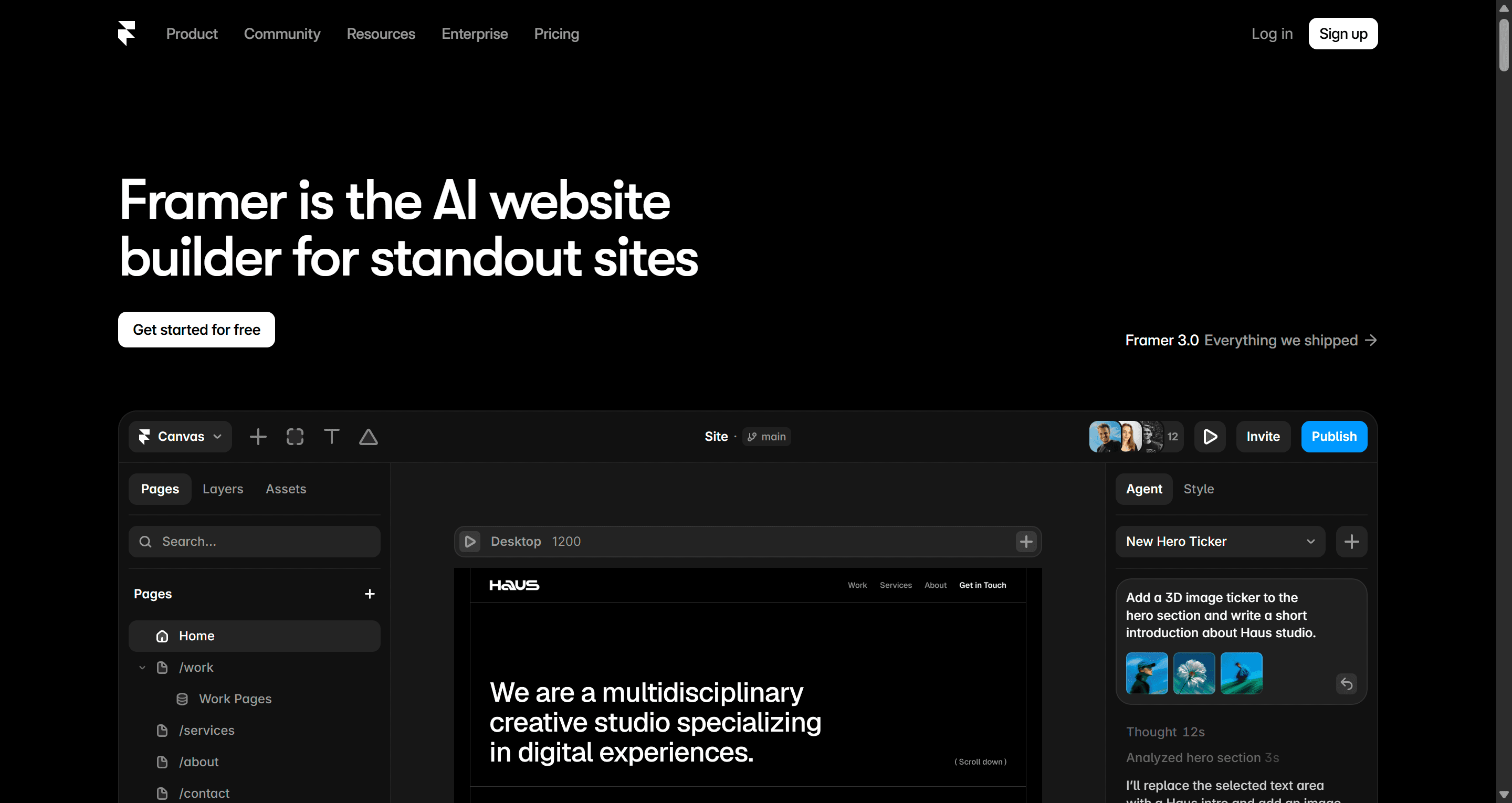
Framer is a website builder with a design tool's canvas. You lay out pages the way you would in Figma, drop in components, add interactions, and publish to Framer's hosting. Its CMS, localization, analytics and SEO settings sit in the same app, and its AI agents work directly on the canvas.
It is popular with designers and early-stage startups because the gap between "this looks right" and "this is live" is very small. Our UXMagic vs Framer AI comparison covers how Framer's AI stacks up for generating pages, and we also rank it in our list of the best AI design tools of 2026.
What is Webflow?
Webflow is a visual development platform for websites. Every element you place is a real HTML element with CSS classes, so what you build is structured the way a front-end developer would structure it. On top of that sit a mature CMS, native e-commerce, localization, hosting and, more recently, Webflow Cloud for hosting web apps alongside the site.
Webflow is the default choice for many agencies and marketing teams because it scales from a small site to an enterprise property with roles, publishing workflows and staging. Tools such as Relume are built specifically to feed it; our Relume review covers that workflow, and our UXMagic vs Relume page compares the two for sitemap-first site design.
Design experience
Framer behaves like a design tool. You can place things freely, use stacks and grids for responsive layout, build components with variants, and set breakpoints for desktop, tablet and mobile. Designers coming from Figma tend to be productive within a day. There is a large marketplace of templates, components and plugins, and Framer can take instructions from external agents such as Claude Code, Cursor and Codex.
Webflow asks you to think in boxes. You add a section, a container, a div block, then style it through classes that cascade across the site. It is slower at first, but the payoff is control: a consistent class system, predictable responsive behaviour and a structure a developer can read. Webflow's shared libraries and code components let larger teams reuse the same building blocks across many sites.
The practical split: Framer is faster from idea to page, and Webflow is more disciplined once the site grows. If you care about layout fundamentals regardless of tool, our guide to UI layout design principles applies to both.
AI features
Both platforms have gone hard on AI in the past year, and both now charge for it with credits.
Framer AI is built around Agents. According to Framer, its agent creates editable pages, sections, copy and visuals in your project, can create CMS collections and populate content, and can build a code component when you describe an interaction. It also reviews a site before publishing for contrast issues, typos, missing alt text and SEO gaps, and can read your analytics to suggest next steps. Skills let you save the way you work as reusable instructions. Credits are shared across the workspace: the Free plan gets 500 to try, Basic includes 1,000 a month and Pro 3,000 a month, with more available.
Webflow AI covers similar ground with a stronger lean toward operations. Webflow's pricing page lists building a site from a prompt, designing new sections from your existing design system and components, generating code components, generating copy, generating CMS items in bulk, and running site-wide SEO and AEO audits. Higher tiers add AEO agents that recommend changes to improve visibility in AI search. Webflow also offers an MCP server so AI assistants can work with your site.
Neither tool is a product design tool. Both generate marketing pages well; neither is built to design a multi-screen app flow or dashboard. For that side of the work, see our guide to how to design UI with AI.
CMS
Framer's CMS is simple and quick: define a collection, add fields, bind them to a page template, and every item gets its own page. It covers blogs, changelogs, case studies and job boards well. Limits are tighter: Basic includes 2 collections and 1,000 items, and Pro includes 10 collections and 2,500 items, extendable with add-ons to 40 collections and 40,000 items. Content editor seats cost $10 a month.
Webflow's CMS is the more complete system. Collections support reference fields between each other, content management and delivery APIs let you feed content to other channels, and paid tiers add scheduled publishing, per-item publishing and RSS feeds. The CMS is part of the Premium site plan and above. Large sites with thousands of structured pages are where Webflow earns its price.
If your content model is more than "a blog", Webflow is the safer choice. If you need a headless CMS feeding many front ends, look at the approach in our Builder.io review.
Interactions and animation
This is Framer's home ground. Hover states, scroll effects, page transitions and appear animations are built into the canvas and are quick to set up. For a portfolio or a product launch page that should feel alive, Framer gets you there with the least effort.
Webflow has two systems: Classic Interactions, and a newer Interactions editor powered by GSAP, the JavaScript animation library, with a horizontal timeline and reusable animations. It can do everything Framer can and more, but it takes longer to learn.
Motion should serve the page, not decorate it. Our UI micro-interactions guide covers when animation helps comprehension and when it gets in the way, and which 2026 web design trends are worth adopting looks at motion-heavy styles specifically.
SEO and AEO
Both platforms output clean, server-rendered pages that search engines can crawl, and both let you set titles, descriptions, Open Graph images, alt text and sitemaps.
Webflow documents more technical controls on its pricing page: page-level canonical tags, schema markup, robots.txt and llms.txt controls, crawler access controls, per-item indexing control for CMS entries and 301 redirects on paid site plans. Its AI can audit technical and on-page SEO and AEO, and its localization add-on generates localized sitemaps with hreflang tags.
Framer includes built-in SEO on paid plans, site redirects on Pro, and an AI review that flags SEO gaps before you publish. Localization is an add-on at $20 per locale, up to 20 locales.
For most small sites, the platform is not the limiting factor; content is. If you want your pages to show up in AI answers as well as Google, read our piece on generative engine optimization for SaaS.
E-commerce
This is the clearest split in the comparison.
Webflow has native e-commerce with its own plans. On yearly billing, Standard is $29 a month for 500 items with a 2% transaction fee, Plus is $74 a month for 5,000 items with no transaction fee, and Advanced is $212 a month for 15,000 items. All include a custom cart and checkout, and payments run through Stripe, PayPal and Apple Pay.
Framer has no native store plan on its pricing page. Stores are built by connecting Shopify through marketplace plugins such as Framer Commerce, ShopKit or Frameship, which sync product data and hand checkout to Shopify. That works well for small catalogs with a strong visual identity, but you are running two platforms.
For the UX side of selling online, see what actually drives ecommerce conversion.
Design the site before you pick the builder
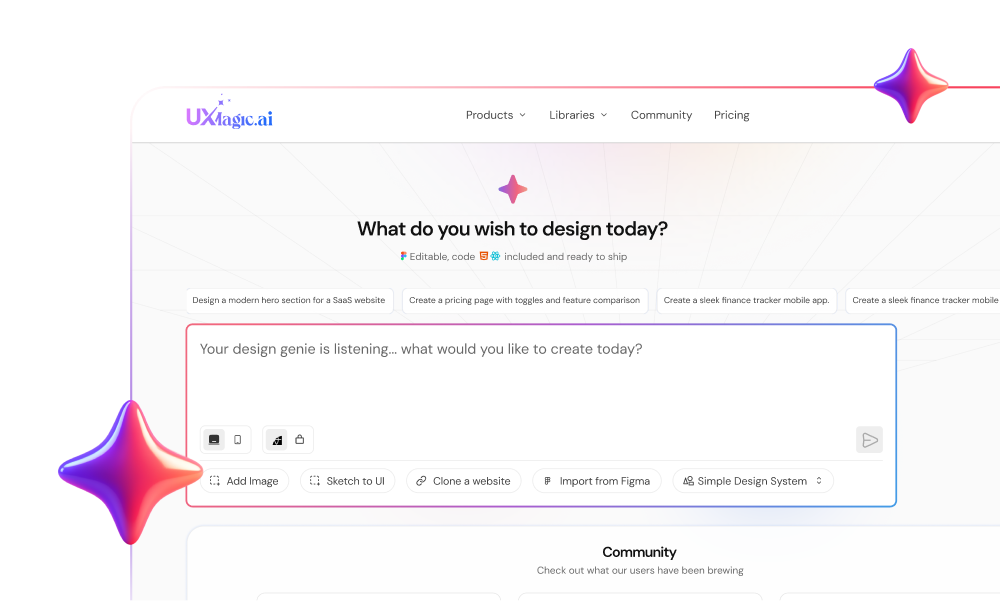
Generate a full landing page or multi-page site in UXMagic, then paste it into Framer or Webflow, or publish it directly.
Hosting and code ownership
Framer hosts every site on its own global CDN. Basic sites are served from 20 locations and Pro from more than 300. Pro adds a staging environment and branching with previews, and an Advanced Hosting add-on ($200 a month) lets you run multiple sites under one domain with custom headers. You cannot export a Framer site as code; it lives on Framer.
Webflow hosts sites on a global CDN with DDoS protection, automatic backups and one-click restore. Bandwidth on Premium scales from 50 GB up to 2.5 TB a month as a paid option. Webflow Cloud lets you host web apps next to your site, with databases and storage included in each site plan. Crucially, Webflow's help center explains that paid Workspace plans can export a site's HTML, CSS, JavaScript and assets, though CMS content, e-commerce, code components and localized content are not included, and forms and site search stop working on exported sites.
If owning the code matters, Webflow is the only one of the two that gives it to you, and even then with gaps. If you want code from day one, a design-to-code tool is a better fit; our round-up of AI design-to-code tools covers the options.
Pricing
Prices below are from framer.com/pricing and webflow.com/pricing in September 2026, on yearly billing unless noted. Both vendors charge more per month on monthly billing, and both price per site.
| Plan | Framer | Webflow |
|---|---|---|
| Free | $0: Framer domain, 1 GB bandwidth, 500 AI credits | $0 Starter: webflow.io domain, 2 static pages, 1 GB bandwidth, 50 CMS items |
| Entry | Basic $10/mo: 30 pages, 2 CMS collections, 50 GB | Basic $15/mo ($25 monthly): 300 static pages, no CMS, 10 GB |
| CMS / growth | Pro $30/mo: 150 pages, 10 collections, 100 GB, staging | Premium $25/mo ($39 monthly): CMS, 50 GB and up |
| Teams | Extra editors $20/mo, content editors $10/mo | Team platform plan $2,500/mo, annual contract |
| E-commerce | Via Shopify plugins | Standard $29, Plus $74, Advanced $212 per month |
| Enterprise | Custom | Custom |
| Custom domain | Paid plans; complimentary domain on yearly | Paid site plans |
How Framer charges. You pay per site, and the plan sets pages, CMS limits, bandwidth and AI credits. Pro can be extended with add-ons for pages, collections, CMS items and bandwidth. The workspace owner and viewers are free; each additional editor costs $20 a month and each content editor $10. Framer's own guidance is that Free suits non-commercial use, Basic suits freelancers and small studios, and Pro suits agencies and startups running their marketing stack on Framer.
How Webflow charges. You pay per site too, but the jump that matters is to Premium, because Basic has no CMS. Bandwidth on Premium is a selectable tier with its own price, and analytics, A/B testing and localization are paid add-ons. Collaboration features such as extra seats, publishing workflows and code export sit on Workspace and platform plans rather than on the site plan.
The honest summary: for a single marketing site with a blog, Framer Basic or Pro and Webflow Premium land in a similar range. Costs diverge on the extras. Framer gets more expensive per editor; Webflow gets more expensive with bandwidth, add-ons and team features.
Who should pick which
Choose Framer if:
- You are a designer, or your team thinks in Figma, and you want to publish without learning CSS.
- The site is a landing page, product launch, portfolio or startup marketing site.
- Motion and polish matter more than a complex content model.
- You want to ship this week and iterate visually.
- Your blog or changelog fits within a few CMS collections.
Choose Webflow if:
- The site is content-heavy, with many linked collections and hundreds or thousands of pages.
- You need native e-commerce without a second platform.
- You want deep technical SEO controls, localization with localized URLs, or publishing workflows.
- An agency or in-house team with front-end knowledge will maintain it long term.
- You may need to export the code later.
Consider something else if you only need a simple brochure site and want the lowest possible effort. Our Squarespace alternatives guide covers lighter builders. If you are actually designing product UI rather than a website, see our Figma alternatives, the Penpot vs Figma comparison, Figma vs Canva and our list of Canva alternatives for UI design.
Where UXMagic fits: design the pages first, then build or publish
Framer and Webflow are both builders. They are at their best when you already know what the page should look like. The slow, expensive part is getting there: layout options, section order, copy, a consistent visual system across every page. That is the step UXMagic handles.
UXMagic is an AI design tool, not a website platform with a CMS or a store. It gets you from a prompt to a finished, consistent set of pages quickly, and then hands them to whichever builder you chose, or publishes them itself.
- Generate the pages
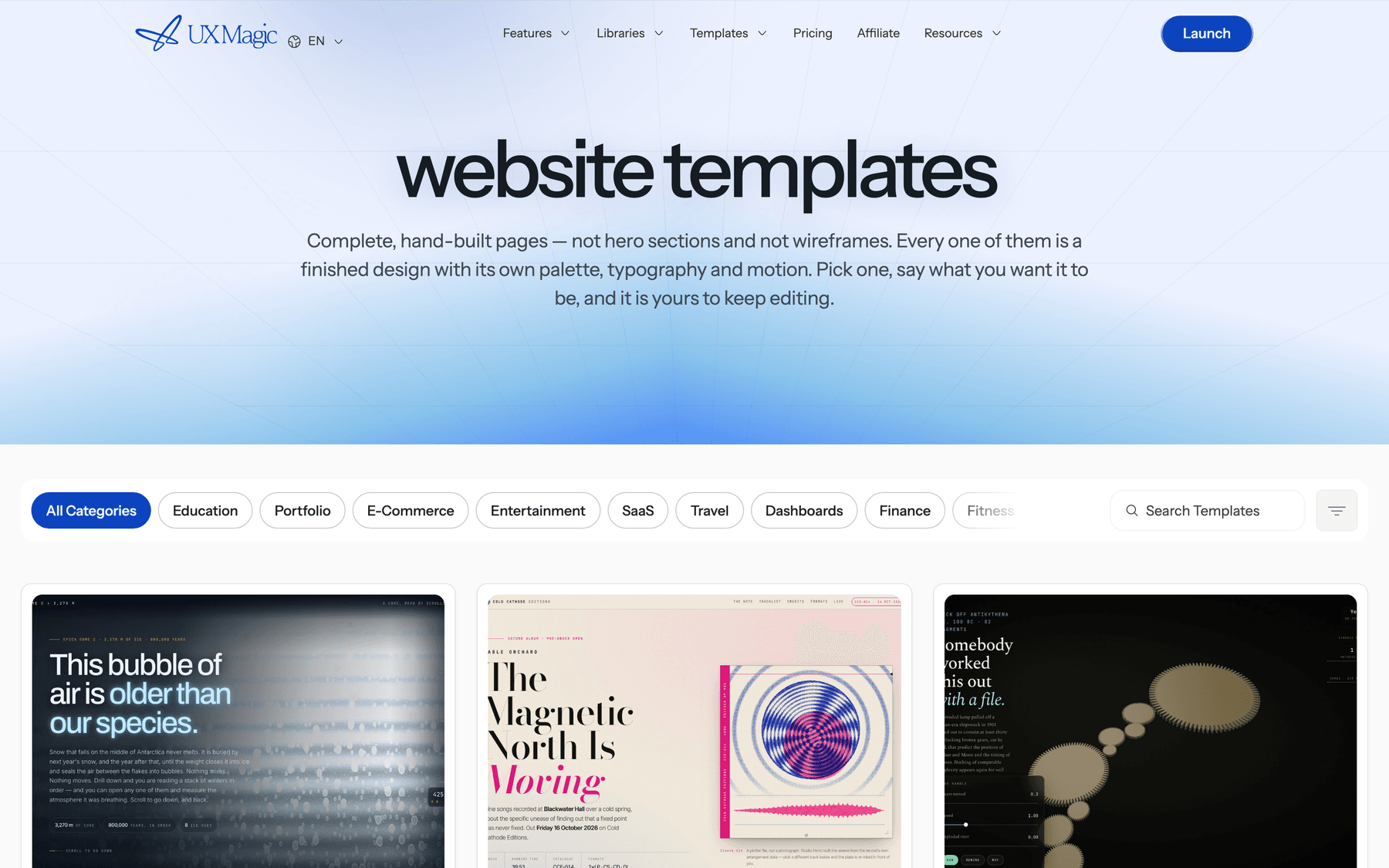
Describe the site and the AI landing page generator lays out a full page with real sections and copy. For a multi-page site, the AI website generator plans and designs each page on one canvas. You can also start from a website template, rebuild an existing site with the website cloner (the clone a website guide shows how), or rough out structure first with the AI wireframe generator. Our guide to cloning a website with AI explains how to do that without losing your brand.
- Keep every page on one theme
Every page shares one theme of colours, fonts, radii and spacing, so the pricing page matches the home page. The themes and style guides guide explains how one change updates every screen, and the AI style guide generator can build the theme from a prompt. According to our credit cost table, a new screen costs 3 credits, a targeted edit costs 0.2 and theme changes are free, so it is cheap to explore layouts before you commit to a builder.
- Paste into Framer or Webflow
When the design is settled, select a screen, choose Export and then Framer or Webflow, copy the payload, and paste it onto the Framer canvas or into the Webflow Designer. Layout structure, text and styling arrive as native elements you can edit. Our Framer and Webflow export guide lists what to check afterwards:
- Fonts must be available in the destination project.
- Images arrive by URL; upload them to the builder's asset manager before you publish.
- Interactions and animations don't transfer. Rebuild them in Framer or Webflow, which is where they belong anyway.
The export is the right route when the site will be maintained by a team that lives in Framer or Webflow. If engineers will own the site instead, use code export to get HTML or React with Tailwind, or the design to code generator.
- Or publish directly from UXMagic
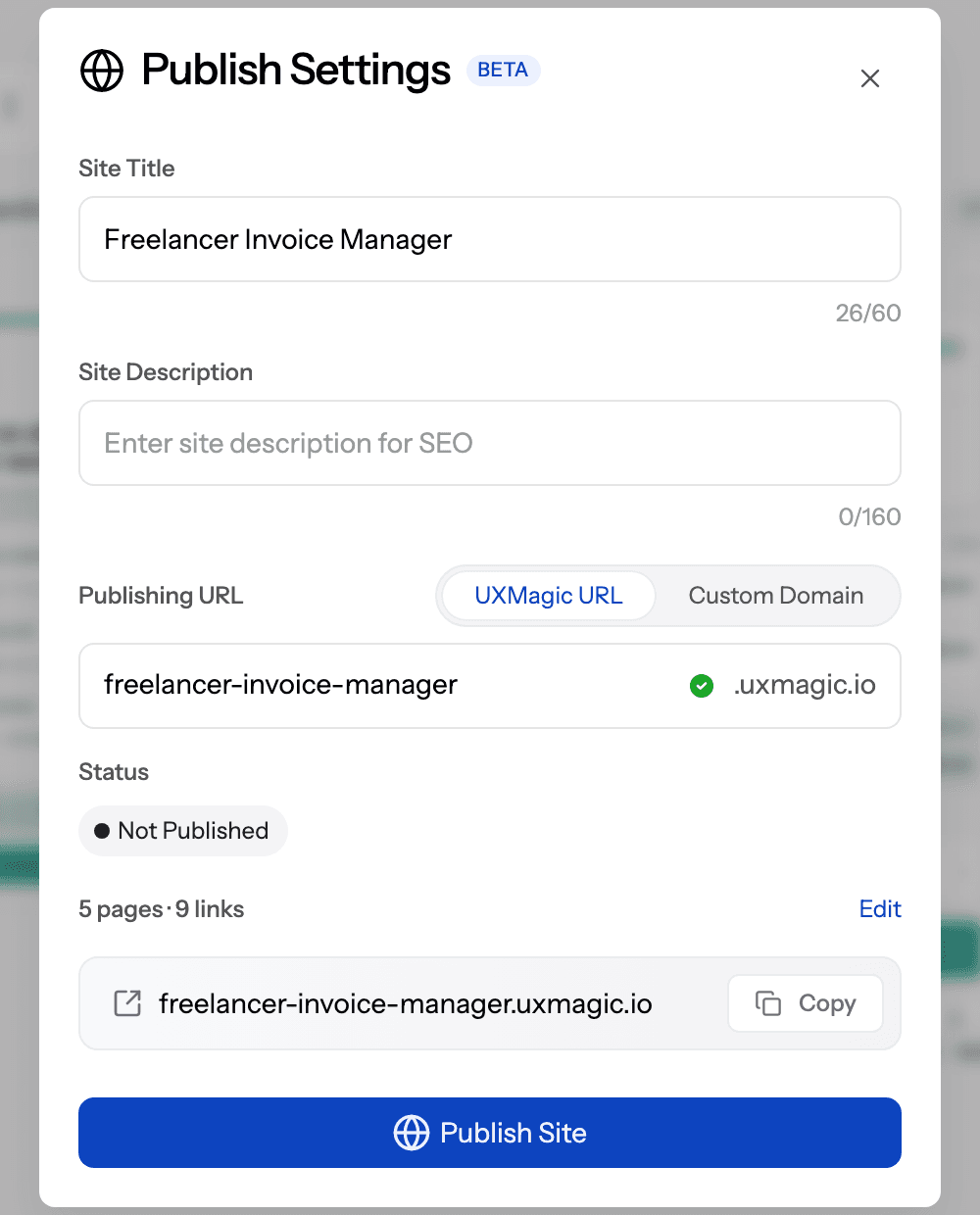
If you don't need a CMS, a store or a team of editors, you may not need either builder. UXMagic can publish your project as a site on a uxmagic.io subdomain with automatic HTTPS, preview URLs and deployment history with one-click rollback. You pick which screens become pages, run a preflight check for missing links and placeholder content, and publish. Paid plans can serve the site from your own custom domain, set up by request so the team can verify DNS, and can remove the UXMagic badge or password-protect the site. Edits don't go live until you publish again; see redeploy and rollback.
That makes UXMagic a good fit for landing pages, launch pages, portfolios and validation sites, and a good starting point for anything that will later move to Framer or Webflow. For page structure that converts, read our breakdown of SaaS landing page design.
On cost, the UXMagic Free plan gives you 20 credits a day with no card, and Pro is $35 a month, or $17.50 a month billed annually, for 2,400 credits. Full details are on our pricing page.
Final verdict
Framer and Webflow are both excellent, and the right answer depends on the site more than the tool.
Pick Framer when speed, visual polish and motion matter most, and when the people building the site are designers. Pick Webflow when the site carries a real content model, sells products, needs serious SEO and localization controls, or will be run by a team for years.
And whichever you pick, don't use the builder as your blank page. Settle the layout, copy and visual system in UXMagic first, then paste finished pages into Framer or Webflow, or publish straight from UXMagic when a builder is more than you need.
Related guides
- 15 Best UX/UI Design Tools for 2026, Plus a Startup Stack
- Readdy AI Review 2026: Features, Pricing, and UX Limitations
- 9 Best Uizard Alternatives in 2026, Grouped by Use Case
- 10 Best Figma Make Alternatives in 2026, Grouped by Use Case
- Magic Patterns Review 2026: Is This AI React UI Generator Worth It?
- How to Validate a Product Idea: 7 Tests, With Templates
- Base44 vs Lovable (2026): Which AI App Builder Fits Your Project?
- Best Figma AI Plugins in 2026: 12 Picks for UI, Assets and Code
- Figma Make Tutorial 2026: Prompt, Edit, Publish and Export Code
- Lovable vs Bolt in 2026: Which AI App Builder Fits Your Project?
Design it in UXMagic, ship it in Framer, Webflow or on your own domain
Generate a consistent multi-page site for free, then paste it into Framer or Webflow, export the code, or publish it directly.