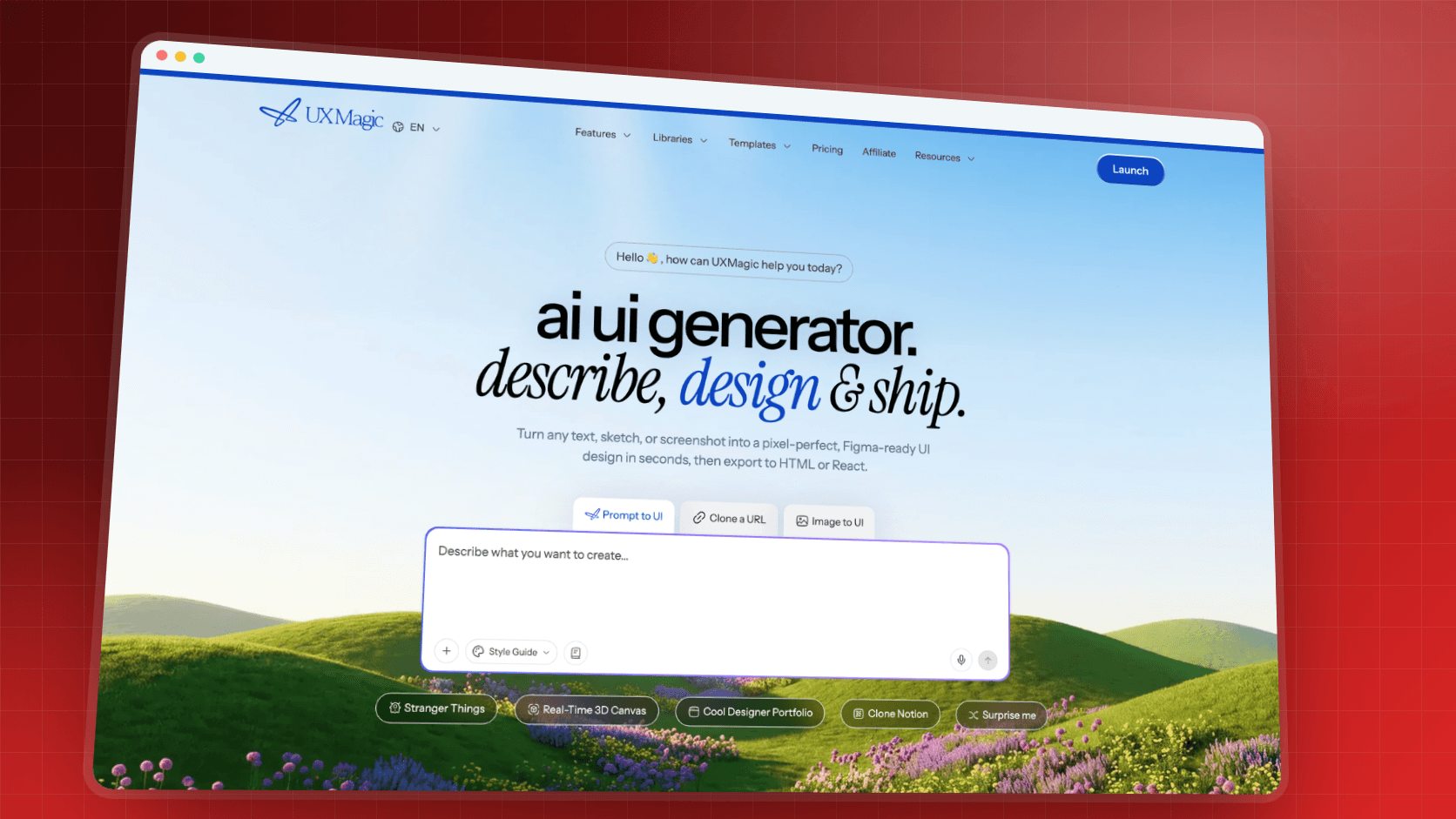
TL;DR: GPT Image 2 is OpenAI's reasoning-era image model: excellent at crowded compositions and readable text, slower than Flash-class rivals, and billed per token in the API (about $0.05 for a medium 1024x1024 image). It is a strong pick for hero images, banners and product scenes, and OpenAI has since added GPT Image 2.5 on the same rates. It still makes pictures, not screens, so pair it with an AI UI generator like UXMagic, which can also generate and edit images inside your designs. For the full field, see our best AI image generators roundup.
Product teams usually meet GPT Image 2 the easy way: someone asks ChatGPT for a hero image, it comes back with the product name spelled correctly on a storefront sign, and the question becomes whether this is good enough to ship. That is the question this review answers.
We build UXMagic, a design tool, not an image model. So this is not a benchmark, and we will not invent scores. Every spec and price below comes from OpenAI's own model page, image generation guide, pricing page and API changelog, checked in September 2026. What we add is the product-team view: which assets GPT Image 2 is right for, how to prompt it for UI work, what it costs at realistic volumes, and where an image model stops being the right tool.
If you want the comparison across every model rather than a single-model deep dive, our image generator roundup (linked above) is the hub. If you are choosing a design tool rather than an image model, start with the best AI design tools in 2026 instead.
GPT Image 2 at a glance
| GPT Image 2 | |
|---|---|
| Model ID | gpt-image-2 (snapshot gpt-image-2-2026-04-21) |
| Released | April 21, 2026 (API); powers ChatGPT Images 2.0 |
| Inputs / outputs | Text and images in, images out |
| Where to use it | ChatGPT, OpenAI API (Image API and Responses API tool), Codex, third-party platforms |
| Sizes | Custom up to 3840px long edge, max 3:1 ratio, 2K and 4K presets |
| Quality settings | low, medium, high, auto |
| Transparency | Preview since August 20, 2026 (PNG or WebP) |
| API price | $5 / $8 / $30 per 1M text in / image in / image out tokens |
| Batch | 50% off |
| Newer siblings | GPT Image 2.5 Sunburst and Flare (September 8, 2026) |
| Best for | Hero images, text-heavy banners, multi-reference product scenes |
| Weak spots | Latency, long-series character drift, precise layout placement |
What GPT Image 2 is
GPT Image 2 is OpenAI's image generation and editing model. It replaced the GPT Image 1 family as OpenAI's default and is the engine behind image creation in ChatGPT, which OpenAI markets as ChatGPT Images 2.0. The big conceptual change from earlier models is that it plans the image before rendering it, which is why it copes with prompts that list many objects, positions and pieces of text.
The API changelog describes it as "a state-of-the-art image generation model" that "supports flexible image sizes, high-fidelity image inputs, token-based image pricing, and Batch API support with a 50% discount." Three of those matter for UI work:
- Flexible sizes. You are no longer stuck with three fixed canvases. Any size that meets the constraints is valid, so you can ask for the exact banner or hero proportion your layout needs.
- High-fidelity image inputs. gpt-image-2 processes every reference image at high fidelity automatically. Product shots, logos and faces you pass in are preserved more closely, at the cost of more input tokens.
- Token pricing. You pay for what the image actually uses rather than a flat per-image rate, which makes small drafts very cheap.
It is also OpenAI's migration target. DALL-E 2 and DALL-E 3 were removed from the API on May 12, 2026; gpt-image-1 shuts down on October 23, 2026; and gpt-image-1.5, gpt-image-1-mini and chatgpt-image-latest follow on December 1, 2026, all with gpt-image-2 as the recommended replacement per OpenAI's deprecations page. If your product still calls an older image model, this review is also your upgrade note.
If you are weighing OpenAI's text models for layout and front-end code as well, our guide to the best AI model for UI design covers that side.
A note on GPT Image 2.5
On September 8, 2026, OpenAI released two newer models: GPT Image 2.5 Sunburst, which OpenAI positions for "workflows where editing precision matters most", and GPT Image 2.5 Flare, its "fastest model for high-quality, everyday image generation." Both use exactly the same token rates as GPT Image 2 and add two higher quality settings, xhigh and max. OpenAI's image guide now tells developers to use a 2.5 model for new integrations.
That does not make this review obsolete. gpt-image-2 is still available, it is still the replacement OpenAI names for every older model it is retiring, and the prompting, pricing logic and product-team trade-offs below apply to the 2.5 models too. If you are starting a new API integration today, test Flare for volume and Sunburst for edit-heavy flows alongside gpt-image-2; the price per token will not change your decision.
Where to use GPT Image 2
In ChatGPT
The simplest route. Ask ChatGPT for an image in any chat, or use its images area, and it generates with OpenAI's current image model. OpenAI does not bill images separately inside ChatGPT: free accounts get limited generations and paid plans raise the limits. The chat interface is also where you do conversational edits ("same scene, but move the phone to the left hand"). For everything else ChatGPT can do for design work, from research synthesis to UX critique, read our ChatGPT for UI/UX design guide.
The trade-off is control. You cannot set exact pixel sizes, quality levels or transparent backgrounds from a chat box the way you can in the API, and long edit threads are harder to manage than a canvas with versions.
In the OpenAI API
Developers get two routes, per OpenAI's image generation guide:
- Image API. Two endpoints: generations (a new image from a prompt) and edits (change an existing image, optionally with a mask, or build a new image from several reference images). Best for one-shot jobs and pipelines.
- Responses API image generation tool. Image generation as a tool inside a conversation, with multi-turn editing. An
actionparameter lets you force a new image or force an edit of one already in context.
Useful options for product work: n for several images per request, output_format (PNG, JPEG or WebP) with compression for JPEG and WebP, partial_images to stream up to three previews while the final renders, and a moderation setting with auto (default) and low. Rate limits scale by usage tier, from 5 images per minute on Tier 1 to 250 on Tier 5, according to the model page.
In other tools
Because it is a model rather than an app, GPT Image 2 also shows up inside OpenAI's Codex and in third-party creative platforms that let you pick from several models. Figma's node-based canvas is one example of that category; our Figma Weave review covers what it hosts and how its credits work. Check each platform's own model list and pricing, because they resell access on their own terms.
What GPT Image 2 is good at for UI assets
Dense, specific compositions
Hero images for a product page are rarely simple. They need a person, a device, the right props, a mood and space for a headline. GPT Image 2's planning step is what makes it good at prompts with a long list of constraints. For the job the hero has to do on the page, see our SaaS landing page design breakdown and these landing page design examples.
Text inside images
This is GPT Image 2's best-known strength: signage, packaging, posters, labels and banner headlines that come back spelled correctly far more often than with older models. OpenAI is still careful, noting in its limitations that the model "can still struggle with precise text placement and clarity." Proofread every word.
A product-team caveat: text that is baked into an image is not live text. It cannot be translated, A/B tested, read by screen readers or indexed. Our accessibility heuristics checklist treats text-as-image as a failure for anything functional, and UX microcopy that converts is the reason copy belongs in the layout.
Editing with references
Because image inputs are always processed at high fidelity, GPT Image 2 is good at "put this exact product on this background" and "dress this character in this outfit" jobs. The Image API's edits endpoint accepts several reference images at once; OpenAI's own example combines four product photos into one gift-basket shot. That makes it useful for e-commerce and marketplace mockups; our guide to ecommerce UX design covers where those images carry weight.
Exact sizes, including 4K
The size rules are generous: any resolution with both edges divisible by 16, a long edge of up to 3840 pixels, a ratio no wider than 3:1, and 655,360 to 8,294,400 total pixels. Presets include 2048x2048, 2048x1152, 3840x2160 and 2160x3840. OpenAI notes that square images are typically fastest. For UI work, this means you can request the exact 3:1 website header or tall mobile hero your layout uses instead of cropping.
Transparent backgrounds (preview)
Since August 20, 2026, gpt-image-2 accepts background: "transparent" with PNG or WebP output, per the API changelog. That matters for product cut-outs, stickers, spot illustrations and empty-state graphics that sit on your own backgrounds. It is labelled preview, so check edges on dark and light themes; our dark mode UI design guide explains why cut-outs that look clean on white often halo on dark.
Where GPT Image 2 falls short
- Speed. OpenAI's own guide warns that "complex prompts may take up to 2 minutes to process." For rapid exploration that is a real cost. Google's Flash-class Nano Banana 2 is built for speed; see the comparison section below.
- Consistency across a series. OpenAI lists consistency for recurring characters and brand elements as a limitation. Across a long chain of edits, faces and small details can drift. Re-attach the original reference on each step rather than editing the last output.
- Precise layout. OpenAI also notes difficulty placing elements precisely in layout-sensitive compositions. Asking for "logo 24px from the top-left corner" is a design-tool job, not an image-model job.
- Chat-based control. In ChatGPT you trade parameters for convenience: no exact pixel size, quality setting or transparency switch.
- It makes pictures. Ask for "a fintech dashboard" and you get a plausible screenshot with no layers, components, tokens or code. Our piece on why single-screen AI design is a dead end explains why that breaks the moment you need screen two.
GPT Image 2 pricing
ChatGPT
Images are included in your ChatGPT plan rather than billed per image. Free accounts get limited generations; paid plans get more. OpenAI adjusts limits over time, so treat any specific number you see quoted online with caution.
API
From OpenAI's pricing page, per million tokens:
| Token type | Standard | Batch |
|---|---|---|
| Text input | $5.00 | $2.50 |
| Cached text input | $1.25 | $0.625 |
| Image input | $8.00 | $4.00 |
| Cached image input | $2.00 | $1.00 |
| Image output | $30.00 | $15.00 |
OpenAI's image guide converts output tokens to an approximate per-image cost:
| Quality | 1024x1024 | 1024x1536 | 1536x1024 |
|---|---|---|---|
| Low | $0.006 | $0.005 | $0.005 |
| Medium | $0.053 | $0.041 | $0.041 |
| High | $0.211 | $0.165 | $0.165 |
Two details surprise people. First, the portrait and landscape sizes are cheaper than the square one at the same quality, because token counts vary by resolution. Second, those figures are output only. Edits that pass reference images add image input tokens, and because gpt-image-2 always reads inputs at high fidelity, a multi-reference edit can cost noticeably more than a plain generation.
What that means in practice
A launch that needs one landing page hero, six feature illustrations and twenty product thumbnails might run like this: explore the hero at low quality (a dozen drafts cost well under a dollar), finish two candidates at high quality (under $0.50), make the illustrations at medium (roughly $0.30 for six), and batch the thumbnails at low quality for pennies. The model is rarely the expensive part. Iteration time and designer review are.
Subscription-priced tools work differently: you pay a monthly fee for a pool of generations whether you use them or not, which suits steady volume better than occasional launches.
Turn your GPT Image 2 assets into real screens
Upload your hero and illustrations, describe the page, and UXMagic designs editable, themed screens around them. Free plan includes 20 credits a day.
How to prompt GPT Image 2 for UI assets
GPT Image 2 rewards specific, structured prompts. The habits that work overlap with good UI prompting generally, which we cover in prompting for UI that ships and in our help guide on writing a good prompt.
- Write a shot list, not a noun. Subject, setting, composition, lighting, mood, aspect ratio.
- Reserve space for the UI. Say where the headline and button will sit and ask for calm, low-detail space there.
- Name the palette. Plain colour names plus hex values from your theme. If you have not fixed the palette yet, the AI style guide generator or our list of UI color palette generators will get you there first.
- Keep interface text out unless the image is a banner. Add "no text, no logos, no UI elements."
- Edit in numbered steps. List each change and end with what must stay the same.
- Re-attach references for every step of a character or product series.
A hero prompt for a SaaS landing page:
Photograph, 16:9 (2048x1152). A product manager at a standing desk in a
bright studio office, looking at a laptop, half-smile, mid-gesture.
Three-quarter angle, soft morning light from the right, shallow depth of field.
Palette: warm off-white walls, deep indigo (#3730A3) accents, pale wood.
Composition: person and laptop in the right third; left 55% of the frame is
calm, softly lit wall with no objects, for a headline and button.
No text, no logos, no readable screen content.
A numbered edit on that image:
Edit this image:
1. Swap the laptop for a tablet held in the left hand.
2. Add a small potted plant on the desk, far right edge.
3. Warm the light slightly, as if 30 minutes later in the morning.
Keep the person's face, clothing, pose, framing and the empty left area unchanged.
A banner where text is the point:
Social banner, 3:1 (2400x800). Flat illustration of a rocket leaving a
laptop screen, trail curving left to right. Palette: indigo #3730A3,
coral #F97360, off-white background.
Headline text, exact spelling, bold geometric sans, left-aligned on the left third:
"Ship your MVP in a week"
No other text.
A transparent spot illustration (API, background: "transparent", PNG):
Spot illustration for an empty state, 1:1. A friendly open cardboard box with
three floating paper sheets above it. Flat vector style, two-tone indigo and
coral, soft shadow under the box only. Transparent background, no text.
For more copyable prompts across the whole design process, our ChatGPT for UI/UX design guide has ten.
GPT Image 2 vs Nano Banana vs Midjourney
These three are the names product teams compare most. Here is how they split, based on each vendor's positioning and published specs rather than a head-to-head test.
| GPT Image 2 | Nano Banana 2 / Pro | Midjourney V8 | |
|---|---|---|---|
| Strength | Dense prompts, text in images, reference edits | Speed and cheap iteration (2); studio control (Pro) | Aesthetic range, art direction |
| Free access | Limited, in ChatGPT | Limited, in Gemini app | None |
| API | Yes, per token | Yes, per image | No public API |
| Transparency | Preview (API) | Not a headline feature | No |
| Best UI asset | Hero scenes, banners, product composites | High-volume drafts, thumbnails, wide banners | Moodboards, brand exploration |
GPT Image 2 vs Nano Banana. Google's Nano Banana 2 (Gemini 3.1 Flash Image) is the speed pick, and Nano Banana Pro (Gemini 3 Pro Image) is Google's high-fidelity model. If you iterate a lot, draft with Nano Banana 2 and finish in whichever model handles your final prompt best. Our Nano Banana Pro vs Nano Banana 2 guide covers prices per image and Google's positioning.
GPT Image 2 vs Midjourney. Midjourney is less literal and more opinionated, which is useful before a brand exists and frustrating when a stakeholder wants exactly what they described. It is subscription-only; our Midjourney pricing guide breaks down the plans and GPU time.
Other options worth knowing: Ideogram for typography-first graphics, Recraft for real SVG icons, Adobe Firefly for teams that prioritise licensing, and FLUX.2 for self-hosting. All are covered in the roundup linked at the top of this review. Canva's built-in AI images are another route for marketing teams; see Canva alternatives for UI design for where Canva fits.
From image to interface: where GPT Image 2 stops
An image model is one ingredient in a product surface. The screen around it needs layout, components, live text, responsive behaviour and a theme that holds across every page. That is why teams who try to generate whole interfaces with an image model end up rebuilding them by hand. Our explainer on whether AI can follow design tokens covers the gap, and wireframe vs mockup vs prototype explains which artefact you need when.
The split that works:
- Image model for photographs, illustrations, textures and banners.
- UI design tool for screens: structure, components, live copy, theme.
- Place and iterate: drop the images into the screens, then refine both.
If you have a picture of an interface already, for example one GPT Image 2 produced as a concept, image to UI rebuilds it as editable design, following the steps in screenshot to UI. Our roundup of image to Figma converter tools compares the alternatives.
Using GPT Image 2 assets in UXMagic
UXMagic is where we would put GPT Image 2's output. We do not say which image model UXMagic uses internally; what matters is what you can do with images, per our images in your designs guide:
- Upload your GPT Image 2 assets. Add them through the prompt box or the project's asset library, then reference them in your request ("use the uploaded office photo as the hero").
- Or generate images in place. Ask for an image while designing and UXMagic creates it inside the screen. The prompt advice above applies unchanged.
- Edit an image without regenerating it. Change text in the image, recolour, restyle, or add or remove one element while the rest stays pixel-identical.
- Replace an asset everywhere. Swap a logo or product shot across every screen as one operation.
Generating or editing an image costs 0.5 credits, and replacing an asset across every screen costs 1, per how credits work. Text and image swaps in edit mode are free.
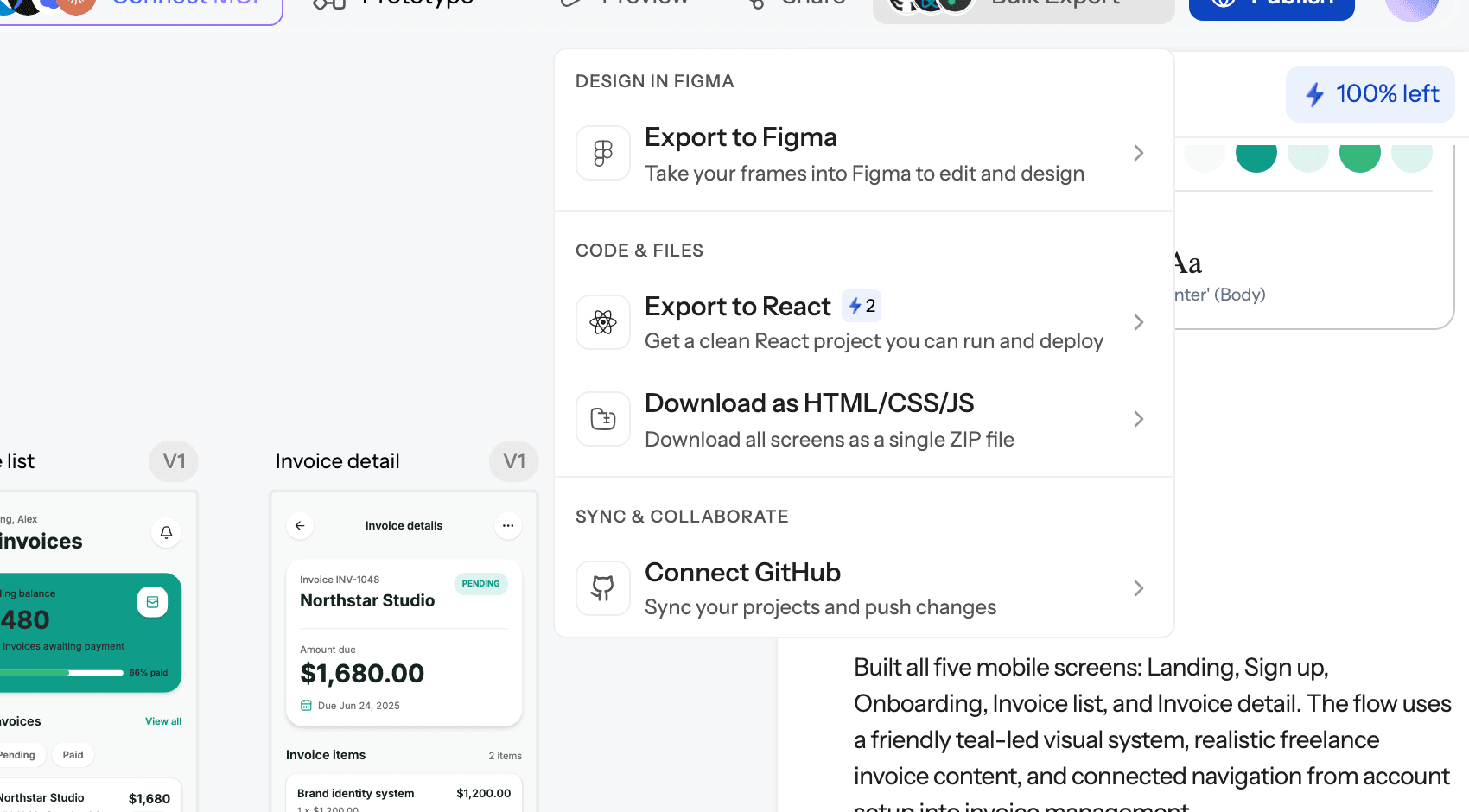
Around those images, the screens are real. The AI landing page generator builds the page your hero belongs on, Flow Mode plans and designs a multi-screen journey in one theme, and themes and style guides keep colour and type consistent with the palette you gave GPT Image 2. Make targeted changes with chat editing, then export to Figma, export code through the design to code generator, or publish the site. Developers can pull finished screens into their repo from Codex, Claude or Cursor through the UXMagic MCP server, set up via the MCP help guide.
The honest scope: UXMagic is not an image studio. For a 4K print campaign, a long character series or fine photographic control, generate in GPT Image 2 (or 2.5) and upload the result. If an image does not appear after generation, images are broken or missing covers the usual causes. Plans start with Free at 20 credits a day; Pro is $35 a month or $17.50 a month billed annually for 2,400 credits, per plans and limits and the pricing page.
A workflow for product teams
- Fix the system first. Choose colours and type before generating anything. A design.md file keeps every AI tool on the same rules.
- Design the screens. Generate the flow from a brief with text to UI, or start from one of our templates. First-pass images are placed automatically.
- Upgrade the key images. Replace the hero and product shots with GPT Image 2 output, sized to the exact slot.
- Edit, don't regenerate. Numbered edits in GPT Image 2; in-place image edits and chat edits in UXMagic.
- Review like a designer. Contrast of text over imagery, crop at each breakpoint, alt text. Our mobile app design guide covers the small-screen checks.
- Ship. Export to Figma or code, or publish directly.
For the full step-by-step version, read how to design UI with AI. Product managers building a wider toolkit can see where image models fit in our list of AI tools for product managers.
Verdict: is GPT Image 2 good for product teams?
Yes, for the assets it is built for. GPT Image 2 is one of the strongest options for hero scenes with many constraints, banners with correctly spelled text, and product composites from reference photos. The API is flexible (exact sizes to 4K, transparency in preview, batch at half price) and cheap at low and medium quality. The costs are time, since complex images can take up to two minutes, and some drift across long edit chains.
Our recommendation: use GPT Image 2 (or the new GPT Image 2.5 models on the same rates) for final hero and banner assets, a faster model such as Nano Banana 2 for high-volume drafts, and a UI tool for everything that has to be clickable. Then keep text live and images in their lane.
Related reading
- Best AI image generators for product and UI assets
- Nano Banana Pro vs Nano Banana 2 for UI assets
- Midjourney pricing explained
- Figma Weave review: node-based generative AI in Figma
- Figma Agent review
- Paper Design review: an MCP-first design canvas
- Best mockup tools for fast UI workflows
- What vibe designing means for product teams
From generated images to a finished product
Bring GPT Image 2 assets in or generate images in place, then design, edit and export real screens. Free plan credits refresh daily.