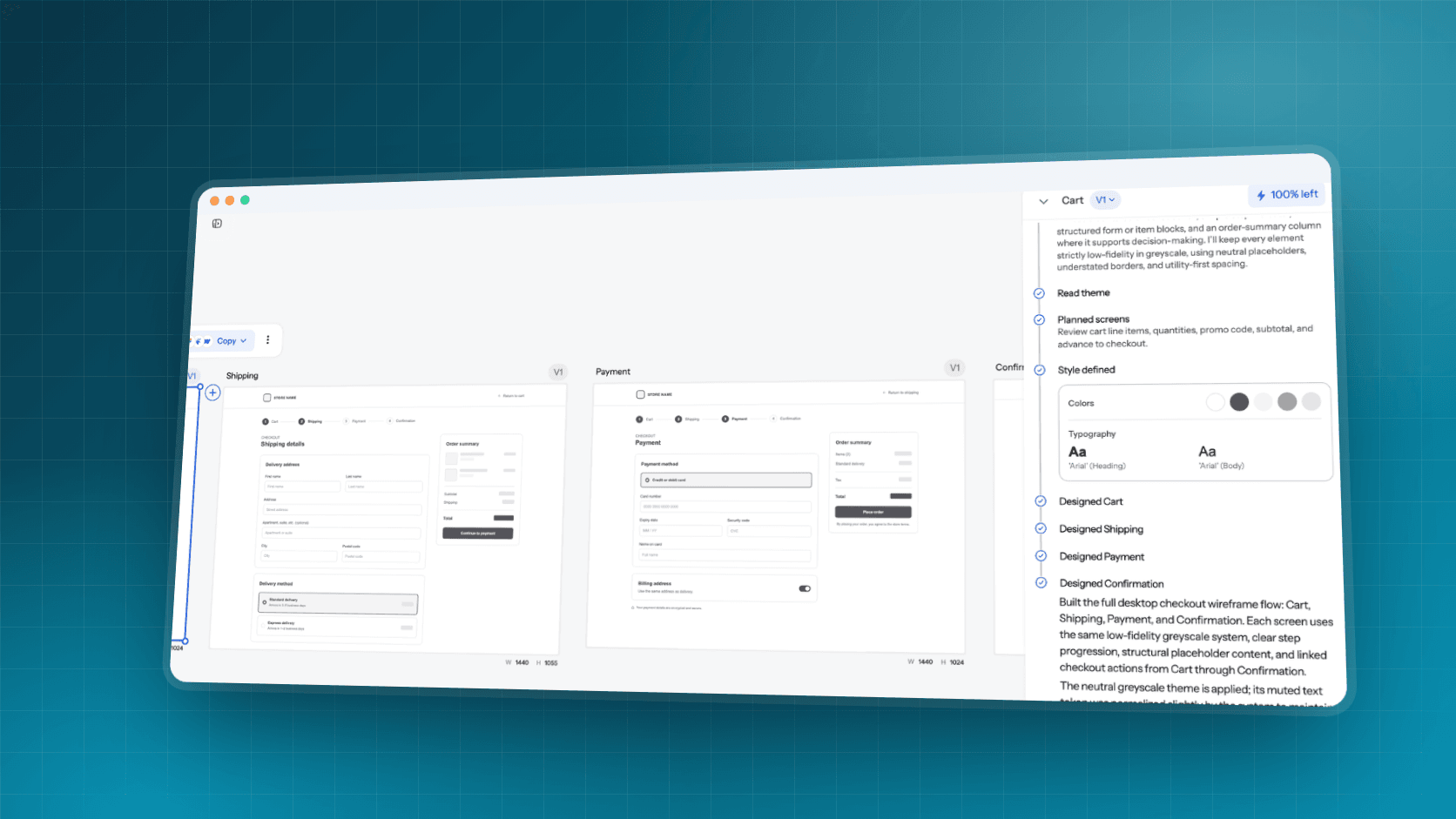
TL;DR: Miro Prototypes turns sticky notes, docs, screenshots or a prompt into clickable screens on the Miro board, and it is genuinely good at getting a cross-functional team to agree on a flow. It is also deliberately low fidelity, costs 5 AI credits per screen, and only ships with the Business plan. Use it for alignment; when you need real screens to hand to engineering, generate them in an AI prototype generator like UXMagic. For plan details see our Miro pricing guide.
Miro has spent the last two years turning its whiteboard into an AI workspace, and prototyping is the most visible result. Instead of drawing boxes to explain an idea, a PM can select the sticky notes from a workshop, ask Miro AI for a five-screen mobile flow, and click through it with the team ten minutes later.
That is a real shift for product teams, and it raises a fair question: do you still need a separate AI design tool? This review covers what Miro AI prototyping does, how to use it, what it costs after the June 2026 plan change, where it falls short, and which tools pick up where it stops. It is a focused look at one feature. For whiteboard alternatives in general, read our best Miro alternatives for UX teams.
A note on sources: we build UXMagic, which overlaps with the screen-generation part of Miro Prototypes. Everything we say about Miro comes from its help center, mainly the Miro Prototypes and Prototypes overview articles, and its pricing page, as listed in September 2026. We describe what Miro documents, not test results we can't show you.
Miro AI prototyping at a glance
| Miro Prototypes | |
|---|---|
| What it is | AI screen generation and clickable preview on the Miro canvas |
| Inputs | Text prompt, sticky notes, Docs, diagrams, screenshots, a URL for styling, an embedded Figma frame |
| Devices | Mobile, tablet, desktop, custom |
| Fidelity | Intentionally low to mid; built for early alignment |
| Interactivity | Connector lines between elements and screens, Preview mode |
| Export | Copy to Figma, SVG, MCP server for coding agents, share link (beta) |
| Plans | Business, and Enterprise with the Accelerate license |
| Cost | 5 AI credits per generated screen, from a pooled team balance |
| Best for | PMs, founders and workshop-led teams aligning on a flow |
What is Miro AI?
Miro AI is the layer of AI features built into the Miro canvas. It clusters and summarizes sticky notes, turns prompts into diagrams and docs, runs Sidekicks (AI agents with roles such as UX researcher or content designer), and generates UI prototypes. Everything draws on the same pool of AI credits, which our Miro pricing guide explains in detail.
The idea behind all of it is that context already lives on the board. The research notes, the user flow diagram and the draft PRD are sitting next to each other, so the AI doesn't need a separate brief. For prototyping, that is Miro's biggest advantage over a standalone generator.
Miro also owns Uizard, which joined the company in 2024 and still runs as its own product. Our Uizard review covers that tool separately; this review is about the prototyping built into Miro itself.
What Miro Prototypes can do
Generate screens from board content or a prompt
You open Sidekicks, pick the Prototype format, choose a device and whether you want one screen or a multi-screen flow, then write a prompt or upload a screenshot. You can also select board content first (a Doc, sticky notes, a diagram) and Miro uses it as context. Miro's own examples are prompts like "Create a mobile prototype with five screens based on the selected PRD and opportunity map."
Generation takes one to three minutes, according to Miro, and it lands as a draft next to your content. That staging step is well designed: you can iterate, flip between versions, copy a single screen out of a version you plan to discard, and only then apply the result to the canvas. The same discipline of reviewing structure before generating is what our screen plan approval step enforces in UXMagic.
Convert screenshots and Figma frames
Select a screenshot on the board, choose Convert to, then Prototype, and Miro AI rebuilds it as editable screens with text, buttons and layout. The same works for an embedded Figma frame once you connect Figma. That makes Miro handy for "redesign the current checkout" conversations, where the starting point is the live product. If that is your main job, compare it with a dedicated screenshot to UI converter, which produces high-fidelity output instead of a board mockup.
Edit with AI and apply styles
Once a prototype is on the canvas, Edit with AI opens a Sidekick for refinements such as "convert to dark theme". You can apply a visual style from a URL, import styles from an image, or give hex codes in the prompt. One limit worth knowing: before you apply a draft, edits happen one screen at a time.
Connect screens and preview
Drag the lightning icon on a button to another screen to create a connector line, and Preview mode turns the set into a clickable flow. Focus mode hides the rest of the board so stakeholders see only the prototype, and a share link (in beta) lets people without a Miro account click through, as long as the board is public.
Hand off to Figma or code
Miro offers Copy to Figma for a whole prototype or a single screen, SVG export, and its MCP server so tools like Cursor or Claude Code can read the board and write code from it. Miro notes that images become placeholders when you import the SVG into other tools. For a sense of how that compares with design tools built for handoff, see our best design handoff tools roundup.
Turn the Miro flow into real screens
Paste your brief or PRD into UXMagic and get a connected, themed multi-screen flow you can export to Figma or React. 20 free credits every day.
How to prototype and wireframe in Miro
Here is the path Miro documents, with the tips that matter most:
- Put the context on the board first. A short design brief in a Doc, the rough journey in sticky notes, and a reference screenshot for style. Miro's advice is to select specific objects rather than the whole board.
- Open Sidekicks and choose Prototype. Pick text or screenshot, the device, and single or multi-screen.
- Ask for fewer screens. Miro says fewer screens per generation gives more accurate results in less time. Name the key elements for each screen: buttons, sections, actions.
- Iterate before applying. Use the version arrows to compare drafts, then apply the best one to the canvas.
- Refine by hand. Swap components, fix spacing and rewrite copy with the Prototyping library rather than spending credits on small changes.
- Connect and preview. Add connector lines, open Preview, and walk the team through it in a call or a Talktrack.
If your team isn't on Business, you still have the Prototyping library: device screens, basic UI components and icons you can arrange by hand into static layouts, as the Prototyping library article describes. The old Wireframe library is still there, marked legacy. That is fine for low-fidelity wireframes on a workshop board, but it is manual work, not AI.
The prompt-writing advice transfers to any tool. Describe the journey, not a list of screens; our guide to prompting for user flows goes deeper.
Miro AI prototyping pricing
Miro changed how Prototypes is sold in mid-2026. Until then it was a paid add-on; per Miro's note on what changed for Business plans in June, Prototypes moved into the Business plan on June 29, 2026. Legacy Business and Starter customers have to move to the current Business plan to keep AI generation, connectors and Preview mode.
| Plan | Price (billed yearly) | Prototyping |
|---|---|---|
| Free | $0 | Prototyping library only, static layouts |
| Starter | $8 per member a month ($10 monthly) | Prototyping library only, static layouts |
| Business | $20 per member a month ($25 monthly) | AI prototypes, connectors, Preview, 50 AI credits per member a month |
| Enterprise | Custom, from 30 members | Included with the Accelerate license only |
Prices are from Miro's pricing page as listed in September 2026. Business has a 14-day free trial.
What a Miro prototype costs in credits
Miro's AI credits table lists Prototypes at 5 credits per generated screen. Credits are pooled across the team, reset monthly, and every regeneration costs again, even if you discard the result. So:
- A six-screen onboarding flow is 30 credits, most of one Business seat's month.
- Two rounds of iteration on that flow can take it past 60.
- A five-person Business team shares 250 credits a month across prototypes, diagrams, docs, slides and Sidekick replies.
Miro Prototypes is priced for a few alignment rounds a month, not for daily UI iteration. For the full credit table, bundle top-ups and Enterprise limits, read our Miro pricing guide and Miro's AI credits article.
Pros and cons of Miro AI prototyping
| Pros | Cons |
|---|---|
| Uses board context: notes, docs, diagrams, screenshots | Lower fidelity by design, not production UI |
| Draft staging with versions before applying | Edits to a draft happen one screen at a time |
| Screenshot and Figma frame conversion | Only on Business or Enterprise Accelerate |
| Clickable preview and focus mode for reviews | 5 credits per screen from a shared pool |
| Everyone on the board can edit by hand | Copy to Figma and SVG are not a component handoff |
| MCP access for coding agents | No design system, tokens or theme across a project |
The pattern is consistent. Miro Prototypes is at its best as a thinking tool, and Miro says as much: its FAQ describes the prototypes as "intentionally lower fidelity" so teams can align "before moving into polished design work in tools like Figma". It is not trying to produce the screens you ship, and teams who treat it that way end up rebuilding. Our explainer on wireframe vs mockup vs prototype is useful for deciding which artifact you actually need.
Who Miro AI prototyping is for
Product managers and founders who already run discovery in Miro. Going from a workshop board to a clickable concept without waiting for design is the core promise, and it delivers. It pairs well with how to validate a product idea before anything gets built.
Cross-functional teams in a design sprint. On day two or three of a design sprint, a Miro prototype everyone can edit is faster than handing a designer a list of changes.
Consultants and agencies running client workshops. Business includes unlimited guests, so clients can click through the concept in the same board where the research lives.
Less of a fit: UI designers who need a consistent visual system, developers who need usable code, and anyone on Starter who only wants AI screens. For those jobs, the alternatives below do more for the money.
Miro AI prototyping alternatives
UXMagic: high-fidelity flows you can ship
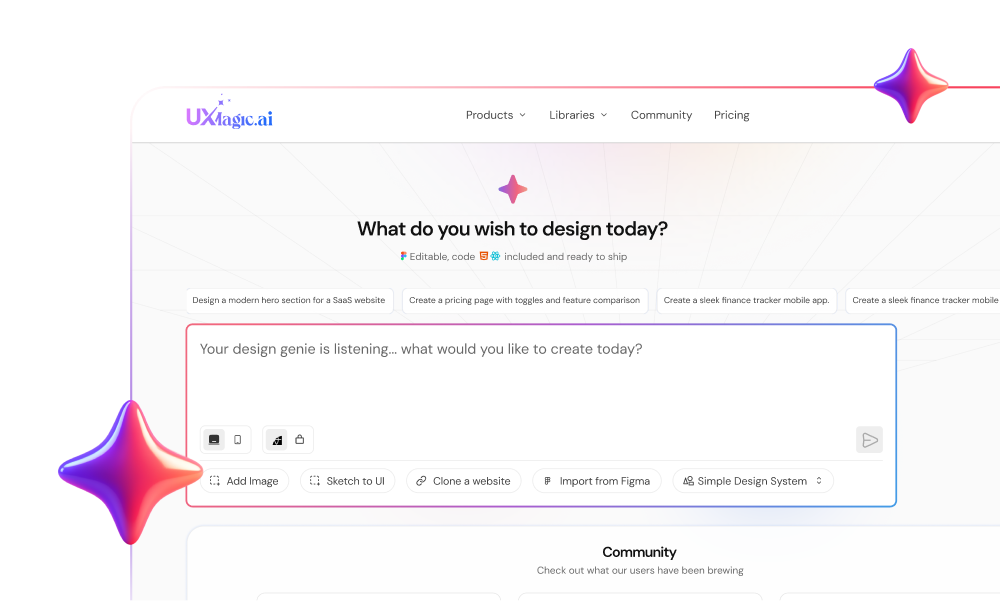
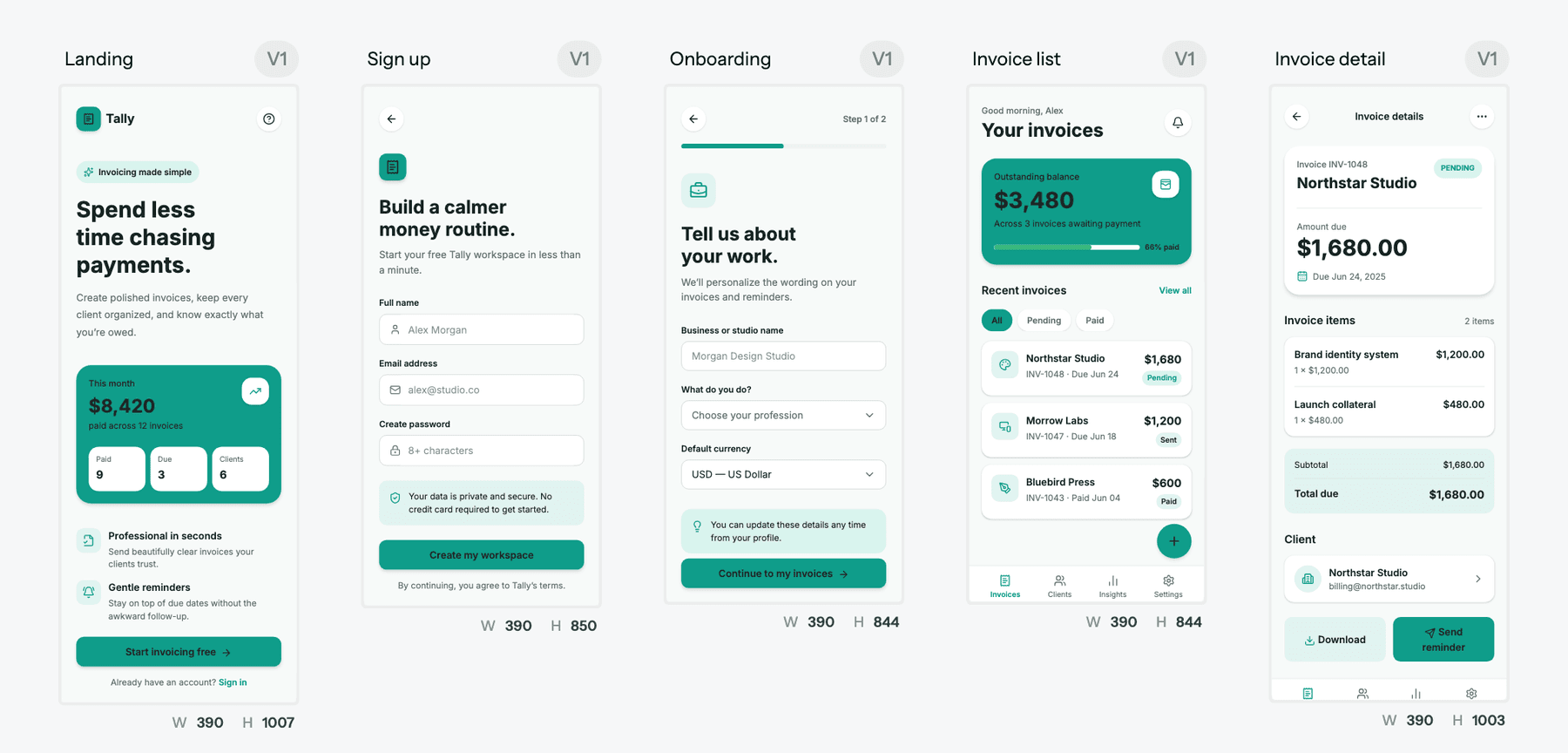
UXMagic is an AI design tool that generates whole product flows, not whiteboard mockups. Describe the product, or paste the brief from your Miro board and design from a document, and Flow Mode proposes a screen plan you approve before any screen is generated. Every screen then shares one theme, and you change colors and type through themes and style guides at no credit cost.
If you want to stay rough first, wireframe mode produces greyscale layouts to settle structure. Photos of whiteboard sketches go through sketch to UI, and prototype mode links the finished screens into a clickable flow you can share as a preview.
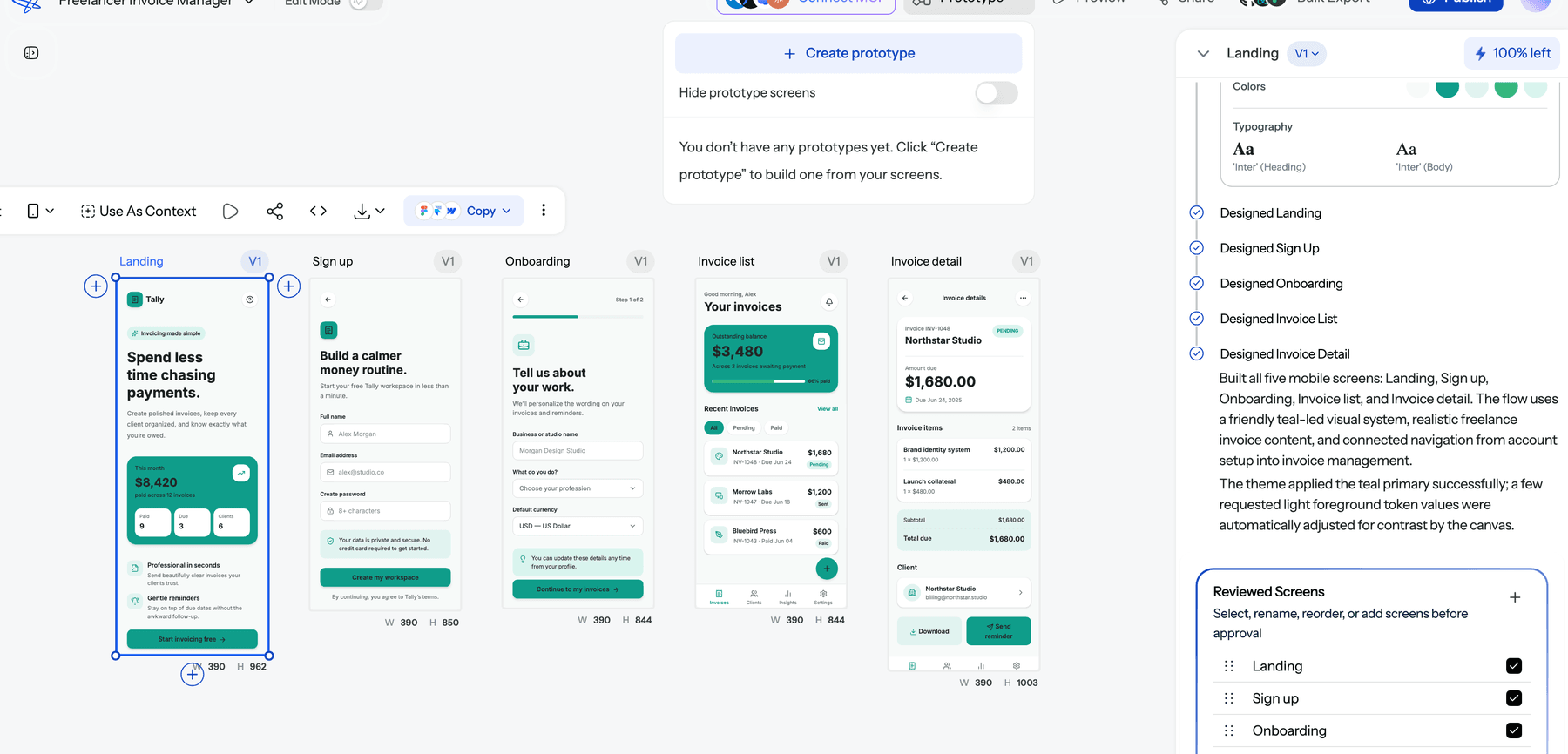
Handoff is where it differs most from Miro. Screens export to Figma as auto-layout frames, to React and HTML through the design to code generator, and coding agents can read them through the UXMagic MCP server. On cost, a new screen is 3 credits, a plan 1, a targeted edit 0.2 and themes 0, per our credits guide. The free plan gives 20 credits a day; Pro is $17.50 a month billed annually for 2,400 credits.
Where it falls short: UXMagic is not a whiteboard. It won't cluster sticky notes, run a retro or host a 40-person workshop. Keep Miro for that and bring the output across.
Figma and Figma Make: precision and code-backed prototypes
Figma remains the standard for precise UI and developer handoff, and Figma Make turns prompts or frames into working, code-backed prototypes. It spends Figma AI credits per request and needs a Full seat for full access. Miro's own Copy to Figma option shows where Miro expects the work to go next. Read our Figma Make tutorial, our Figma Agent review for AI edits inside Figma files, and UXMagic vs Figma Make for the side-by-side.
Balsamiq: deliberately low-fidelity wireframes
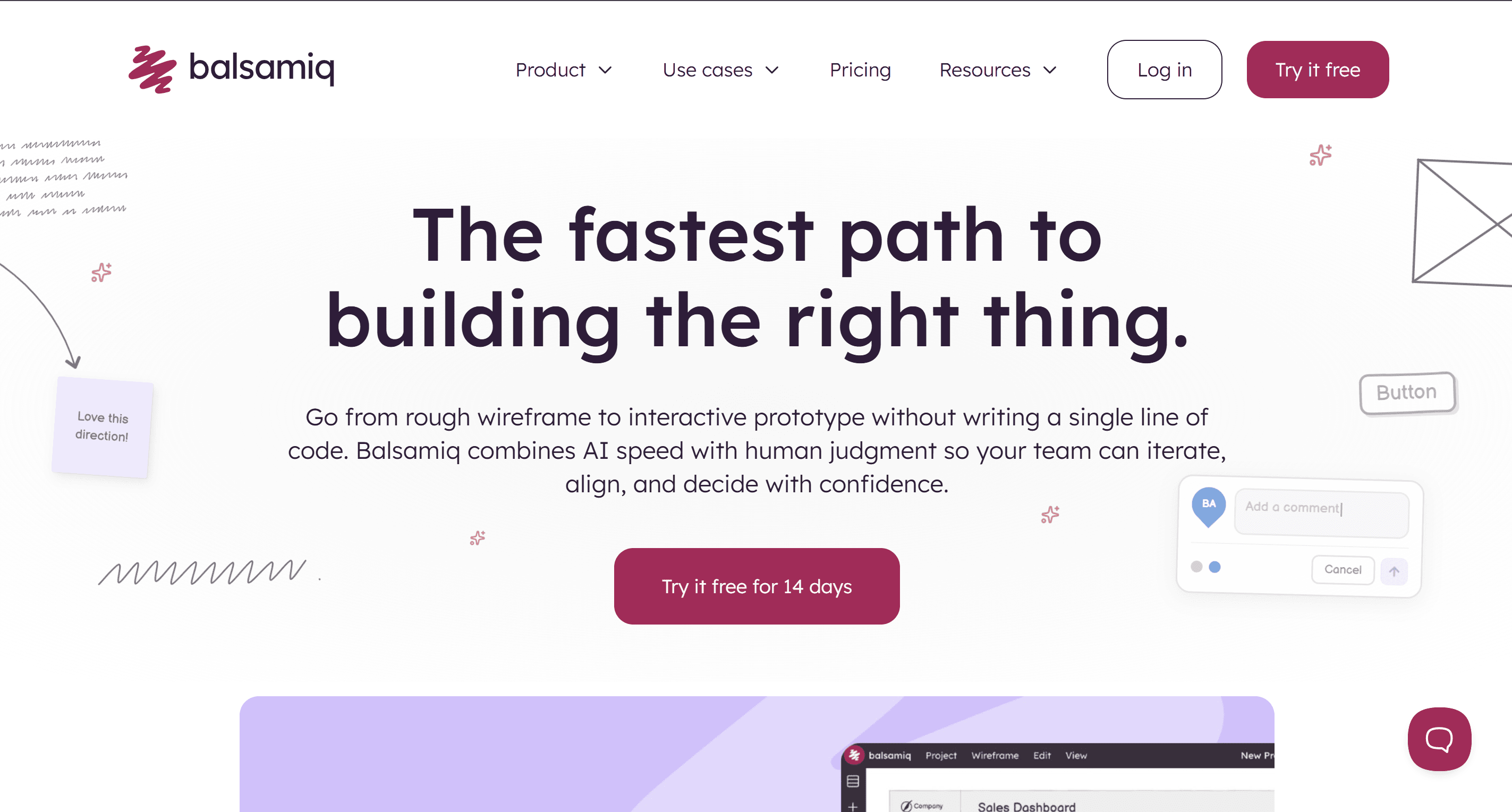
Balsamiq's sketch-style components keep reviews on structure rather than colors, which is the same goal Miro Prototypes has, without the whiteboard around it. It now includes AI for generating and editing wireframes, converting screenshots and building clickable prototypes. It is the better pick when the wireframe itself is the deliverable. Our best wireframing tools list covers it in more depth, and low vs high fidelity wireframes explains when to use each.
Uizard and Visily: quick mockups for non-designers
Uizard, now part of Miro, generates editable mockups from prompts, screenshots and sketches, and suits non-designers who want something more polished than a board layout. Visily sits in the same space with strong screenshot conversion. Read our Uizard alternatives, our Visily AI review, and the UXMagic vs Uizard comparison.
Claude Design: prompt-driven prototypes that can land in Miro
Claude Design is Anthropic's canvas for designs and prototypes. Miro's help center documents a Send to Miro option that places a Claude Design project on a board as a read-only interactive embed, not as an editable Miro prototype. Our Claude Design alternatives guide covers the trade-offs.
Vibe-coding builders: when you need working software
If the goal is a working app rather than a concept, AI app builders such as Lovable, Bolt and Replit generate running code. Miro's FAQ positions Prototypes as the step before these tools. Our vibe coding tools comparison and Replit review cover that end of the market.
How to choose: Miro Prototypes or a design tool?
Ask what the prototype is for.
- To get the team to agree on a flow. Miro Prototypes, if you are already on Business. It keeps the concept next to the research, and anyone can edit.
- To test with users. You need screens realistic enough that participants react to the product, not the placeholder. Generate them with an AI wireframe generator or a high-fidelity tool, then link them into a prototype. Our rapid prototyping guide covers the testing loop.
- To hand to engineering. Skip the rebuild. Generate in a design tool that exports to Figma or code; our AI design-to-code tools guide compares the options.
- To answer "should we build this at all". Miro for the concept, then a fast high-fidelity pass for a landing page or a test. Our guide to what an MVP is helps scope it.
A workflow that uses both well: run discovery in Miro, write the brief as a Doc on the board, ask Miro AI for a rough flow to align on, then take the approved brief into UXMagic to generate the real screens on a shared theme. If you only have sticky notes, the AI PRD generator can turn them into a structured document first; our ChatPRD review compares PRD tools.
Miro Prototypes vs UXMagic: cost and output
| Miro Prototypes | UXMagic | |
|---|---|---|
| Access | Business plan or Enterprise Accelerate | Free plan and up |
| Entry price | $20 per member a month billed yearly | Free; Pro $17.50 a month billed yearly ($35 monthly) |
| AI allowance | 50 credits per Business member a month, pooled | 20 credits a day free; 2,400 a month on Pro |
| Cost of a new screen | 5 credits | 3 credits |
| Fidelity | Low to mid, board components | High fidelity on a shared theme |
| Handoff | Copy to Figma, SVG, MCP | Figma auto-layout, React, HTML, MCP, publish |
| Whiteboarding | Full Miro board | None |
UXMagic figures come from our plans and limits page and the UXMagic pricing page. The two aren't either/or: most teams that like Miro keep it for workshops and move the screens into a design tool.
Our verdict on Miro AI prototyping
Miro Prototypes is the best AI feature Miro has shipped for product teams. It uses context no standalone generator has, its draft-and-apply flow is sensible, and a clickable concept in the same board as the research makes alignment meetings shorter. If you already pay for Business, use it.
It is not a way to produce shippable UI, and Miro doesn't claim it is. Fidelity is deliberately low, there is no project-wide design system, handoff means cleanup in Figma, and at 5 credits a screen from a shared pool, iteration gets expensive quickly. Upgrading a whole team from Starter to Business only for AI prototypes is hard to justify.
Our recommendation: keep Miro for discovery and alignment, and generate the real screens in UXMagic, where a flow comes out on one theme and exports to Figma or code. Start from a website template or pull in your system with the Figma component library to go faster.
Related reading
- Miro pricing 2026: plans, AI credits and free limits
- Best Miro alternatives for UX teams
- The best AI prototyping tools in 2026
- Sketch to prototype: the AI workflow from napkin to UI
- What is a prototype in UX design?
- AI tools for product managers
- The 13 best UX/UI design tools for 2026
- Why single-screen AI design is a dead end
Align in Miro, ship with UXMagic
Generate a connected, high-fidelity flow from your brief, link it into a prototype, and export to Figma or code. Free every day.