
TL;DR: MagicPath 2.0 is a strong AI UI design canvas for people who want React output and like working alongside agents: designer agents build screens in parallel, and Claude Code, Codex or Cursor can drive the same canvas. The trade-offs are complexity-based credits that are hard to budget and a front-end-only scope. If you need whole journeys planned and designed on one theme, compare it with UXMagic's Flow Mode, or see our full list of MagicPath alternatives.
MagicPath has changed more in 2026 than almost any other tool in the AI design tools category. It started as a prompt-to-component canvas. With MagicPath 2.0 it calls itself "the shared workspace for humans and agents", and the pricing moved with it.
This review covers what the product is now, what 2.0 actually changed, how a design gets from prompt to code, what it costs, and where it fits. We read MagicPath's documentation, changelog and pricing page as of September 2026, and we don't report test results we didn't observe. Where the vendor's own pages disagree, we say so.
If you already know you want to leave MagicPath, our alternatives guide (linked above) ranks nine tools by use case. This post is the single-product deep dive.
MagicPath at a glance
| MagicPath 2.0 | |
|---|---|
| What it is | Infinite canvas where you, teammates and AI agents design together |
| Latest release | MagicPath 2.0, announced May 1, 2026; Skills and design-system import added in June |
| Inputs | Prompts, sketches, images, URLs, Chrome web capture, Figma frames, GitHub repos |
| Output | React 19 + TypeScript + Tailwind code; editable Figma layers; share links |
| Agents | Native designer agents plus external agents (Claude Code, Codex, Cursor, Claude app) |
| Free plan | 20 credits a day, up to 120 a month |
| Paid plans | Builder $10/mo; Pro packs $30 to $150/mo; Teams custom |
| Best for | Designers and design engineers who want React output and agent workflows |
| Main drawback | Complexity-based credits, no backend, no plain HTML export |
What is MagicPath?
MagicPath is an AI design tool built around an infinite canvas. You describe a screen or component in chat, and the result is rendered as real React code on the canvas, which you can then edit visually, vary, share, export to Figma or hand to a coding agent. Its docs describe it as "a canvas where humans and agents design together."
It sits in the same family as Magic Patterns, Google Stitch and newer agent canvases like Paper and Pencil. What sets MagicPath apart is how far it leans into agents, both its own and yours.
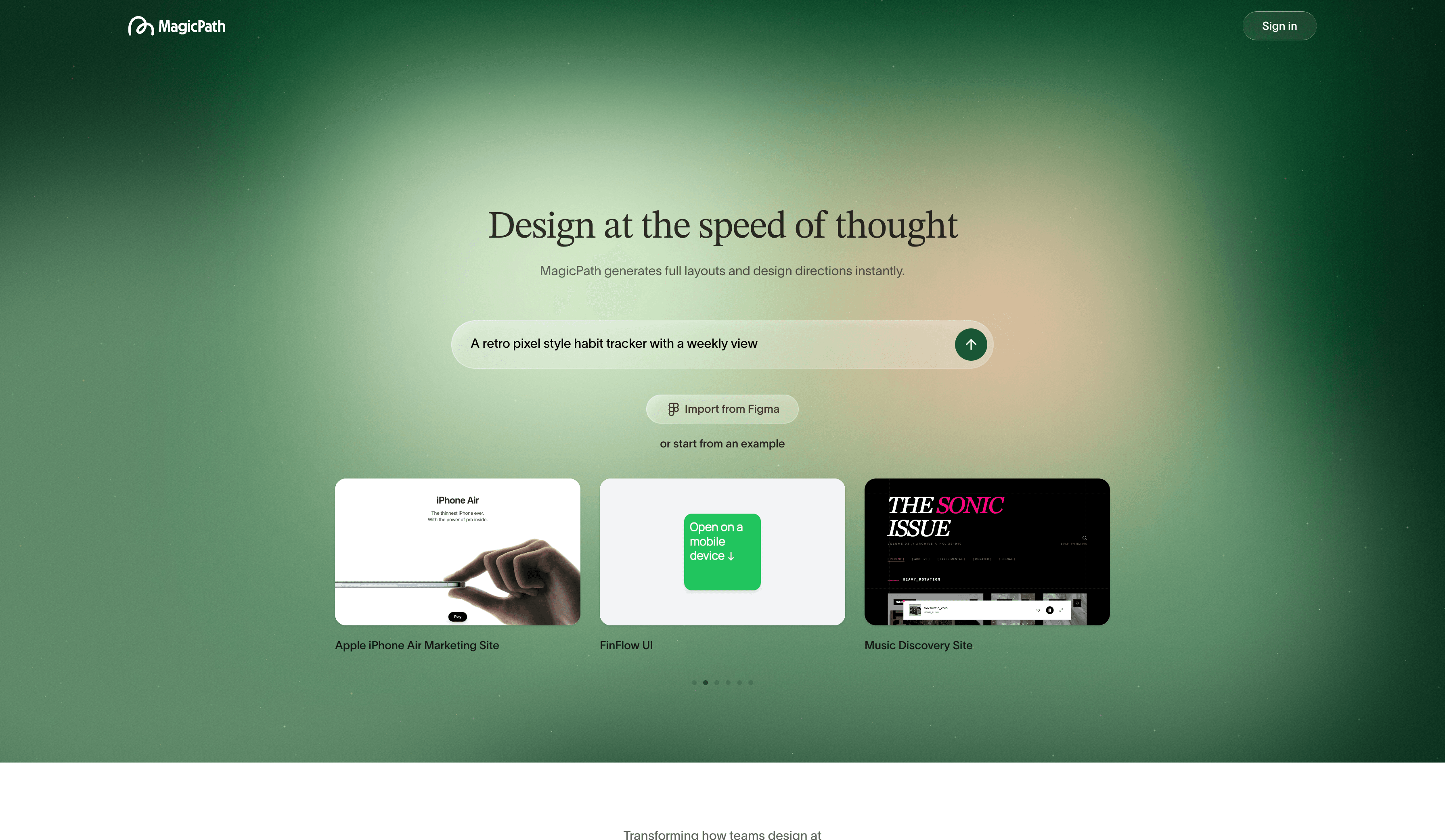
What changed in MagicPath 2.0
MagicPath announced 2.0 on May 1, 2026. Every account moved to 2.0 at once; there is no older edition you can keep using. The docs list five headline changes.
Project-level chat that acts like a design team. Chat is no longer scoped to one design. One message can build a new screen, edit an existing one, or fan out into several designs at once. Ask for a full app and the agent builds screens in parallel, drawing them on the canvas as the code is written. You can run multiple threads, queue follow-ups, or send a message into a new thread so it runs alongside.
Everything on the canvas is context. Select designs, sketches, screenshots or moodboards and they ride along with your message. The built-in sketchpad lets you draw rough wireframes and arrows; selecting them sends a snapshot to chat. This is close to the sketch to prototype workflow we recommend for early structure.
A rebuilt visual editor. Shift-click several elements, even across different designs, and change their shared properties together. Restyling every primary button across five screens becomes one move. A small prompt box appears next to any selection for targeted AI edits.
Live multiplayer with humans and agents. Teammates appear on the canvas in real time, and so does every agent working in the project, including external ones running on someone's laptop.
External agents. Claude Code in a terminal, Codex, Cursor in your repo or Claude on your phone can build, edit and read MagicPath designs without the app being open. It works in both directions: your agent turns code, tickets and notes into designs, or pulls a finished design into your codebase.
Since 2.0, the changelog adds easier GitHub repository import (May 30), design-system import from DESIGN.md, Tailwind, CSS, websites or existing designs (June 15), and Skills, reusable instructions for typography, polish, frontend design and animation (June 18). If DESIGN.md is new to you, our DESIGN.md guide explains the format.
Do existing MagicPath users need to do anything?
No. Accounts and projects carried over. The practical change is how you work: chat now lives at the project level, and the old per-design flow is gone.
How MagicPath works, from prompt to code
Here is the path a design takes through MagicPath, based on its quick-start and feature docs.
- Start a project and bring context
You can start from a text prompt, but MagicPath is at its best when you give it material. Options include pasting a URL to get an editable version of a page (web to design), capturing a single element from any site with the Chrome extension, copying a Figma frame and pasting it in as React (Figma connect, no credits), uploading images, or having your coding agent import a GitHub repository. These map closely to UXMagic's own entry points: image to UI, clone any website and import from Figma. Our guide on cloning a website with AI covers what to watch for with URL-based starts.
- Brief the designer agents
You write one brief in project chat. MagicPath reads your mentions, selections, images and design system, assigns designer agents behind the scenes, and streams results back to the canvas. You can pick the model from a switcher; the changelog shows Claude, GPT and Gemini models being added through 2026. Asking for variants runs several directions side by side, and a /variant command still exists for explicit exploration.
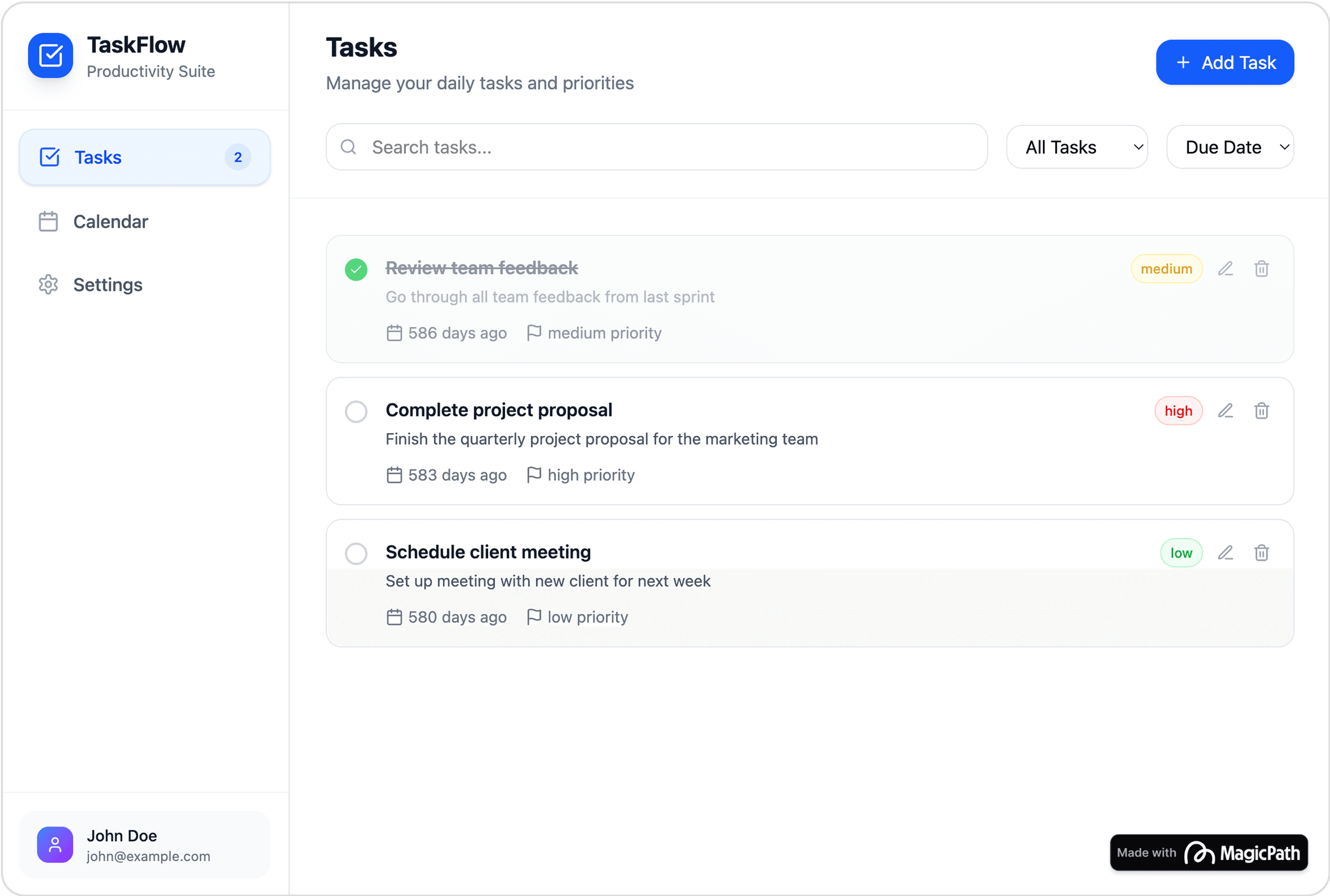
- Refine visually or with AI
Manual edits in the visual editor are free. AI edits cost credits, scaled to how much work they take. The docs note that large requests with more than 10 deliverables may ask for confirmation first, which is a sensible guard against runaway spend.
- Apply a design system
Design systems can be created from Tailwind configs, DESIGN.md, CSS, a website or an existing design, and component libraries can be shared across projects and referenced with @ mentions. Custom fonts are supported on every plan. This is the right idea; the question for any tool is whether the output actually holds to the tokens, which we discuss in can AI follow design tokens.
- Share, export or hand off
MagicPath shares single designs or whole projects by link, with Viewer or Editor roles and public or members-only access. For handoff there are three routes to React code: hand it to an external agent, open it in Cursor or Antigravity, or download a zip. Designs also export to Figma as editable layers. The code is React 19 with TypeScript and Tailwind, optimised for Next.js, and MagicPath's FAQ says you own it, including for commercial use.
MagicPath features that stand out
External agents done properly. The plugin installs in one click in Cursor and Codex, with two terminal commands in Claude Code, and from Settings in the Claude app. You sign in through the browser, with no API key to paste. If you already live in an AI coding assistant, this is the most integrated agent story in the category.
Figma connect without a plugin. Paste a Figma link and get React with images, typography, colours, gradients, layout and shadows preserved, at no credit cost. Our roundup of image to Figma converters shows how rare clean round-tripping still is.
Cross-design editing. Selecting elements across several screens and editing them together is a real time-saver for keeping flows consistent after generation.
Web search in designs. A toggle lets the agent pull real names, photos, pricing and headlines into a design, so mockups don't fill with placeholder copy.
Skills. Built-in skills for typesetting, polish, frontend design and animation, plus custom ones you write, give the agent repeatable instructions. It is the MagicPath equivalent of a house style prompt.
MagicPath pricing in 2026
MagicPath's pricing page and plans documentation list four plans. Prices below are from the pricing page in September 2026.
| Plan | Monthly | Billed annually | Credits | Figma | External agent calls |
|---|---|---|---|---|---|
| Free | $0 | $0 | 20/day, up to 120/mo | 5 imports, 3 exports/mo | Weekly cap |
| Builder | $10/mo | $7/mo | Free allowance | Limited imports, unlimited exports | Unlimited |
| Pro 600 | $30/mo | $21/mo | 600/mo | Unlimited | Unlimited |
| Pro 1,000 | $50/mo | $35/mo | 1,000/mo | Unlimited | Unlimited |
| Pro 1,500 | $75/mo | $53/mo | 1,500/mo | Unlimited | Unlimited |
| Pro 2,000 | $100/mo | $70/mo | 2,000/mo | Unlimited | Unlimited |
| Pro 3,000 | $150/mo | $105/mo | 3,000/mo | Unlimited | Unlimited |
| Teams | Custom | Custom | 1,000 per seat, shared | Unlimited | Unlimited |
A few details worth knowing:
- The Builder plan is for agent-heavy work. It unlocks unlimited external agent calls and Figma exports but not a bigger credit pack, which fits people who design mostly through Claude Code or Cursor.
- The vendor's pages don't fully agree. The docs say Free gets 125 external agent calls a week and Builder 5 Figma imports a month; the pricing page currently shows 50 calls a week and 25 imports. Check the live page before you rely on either number.
- Annual billing saves about 30% on Pro, and you can upgrade a pack mid-cycle with proration.
- Credits don't roll over. Packs reset at the start of each billing cycle.
- Every plan gets the core features. Component libraries, your own design system, custom fonts, the Chrome extension and code download are on Free.
How MagicPath credits are consumed
MagicPath charges credits when the AI generates or significantly modifies a design. The cost depends on complexity: its FAQ says the system is based on token usage, estimated from context size, model choice and whether the work creates, edits or varies several frames, with a minimum per generation. A button costs less than a dashboard. Manual edits, Figma imports and exports, and external agent work don't touch your balance.
That model is fair in principle, since you pay for the work done. The catch is that MagicPath doesn't publish a per-action price list, so you only learn what a screen costs by running it. Compare that with UXMagic, where how credits work lists a fixed price for each action: 3 credits for a new screen, 1 for a screen plan, 0.2 for a targeted edit, and 0 for theme changes. If you are budgeting a team's month, a fixed table is easier to plan around. Our breakdown of wireframe tool cost versus benefit walks through how to price a real month of work.
MagicPath pros and cons
| What works | What doesn't |
|---|---|
| Parallel designer agents build several screens at once | Complexity-based credits are hard to predict |
| External agents drive the canvas without spending credits | No published per-action credit prices |
| Free visual editing, including across multiple designs | React is the only code output; no plain HTML export |
| Figma import as React at no credit cost; Figma export as layers | Free plan caps Figma exports at 3 a month |
| Design systems from DESIGN.md, Tailwind, CSS or a URL | Front end only: no database, auth or hosting |
| Live multiplayer with humans and agents on one canvas | Starts from components and context, not a screen plan |
| All core features on the free plan | Docs and pricing page disagree on some allowances |
The pattern is clear. MagicPath is excellent at the design-to-code loop for React teams and at exploration on a shared canvas. It is less suited to a PM who needs ten connected screens with consistent navigation, reviewed as a flow, at a cost they can forecast. We explain why that difference matters in why single-screen AI design is a dead end and flow-based design vs static screens.
Who should use MagicPath?
A good fit:
- Design engineers and front-end developers who want React they can drop into a Next.js app. Pair it with our guide to shadcn/ui if that is your stack.
- Teams already using Claude Code, Codex or Cursor who want those agents to design as well as build. Our AI design-to-code tools guide covers this workflow in more depth.
- Designers who explore visually with sketches, references and variants on a canvas, in the spirit of vibe designing.
A weaker fit:
- PMs and founders who need a complete, consistent journey and a clickable prototype to test, without setting up agents.
- Teams that need a running app. MagicPath stops at the front end; for a backend look at our Lovable review or Replit review.
- Anyone who needs strict monthly cost control across many seats.
MagicPath vs UXMagic
Both tools turn prompts and references into editable UI and hand it to code. They start from different ends.
MagicPath starts from the canvas and the agents. You bring context, brief a team of designer agents, and refine what comes back. UXMagic starts from the product. You describe what you are building, and it proposes a screen plan: a named list of screens with a one-line purpose each. You approve or edit the plan, then flow mode designs every screen on one shared theme and navigation.
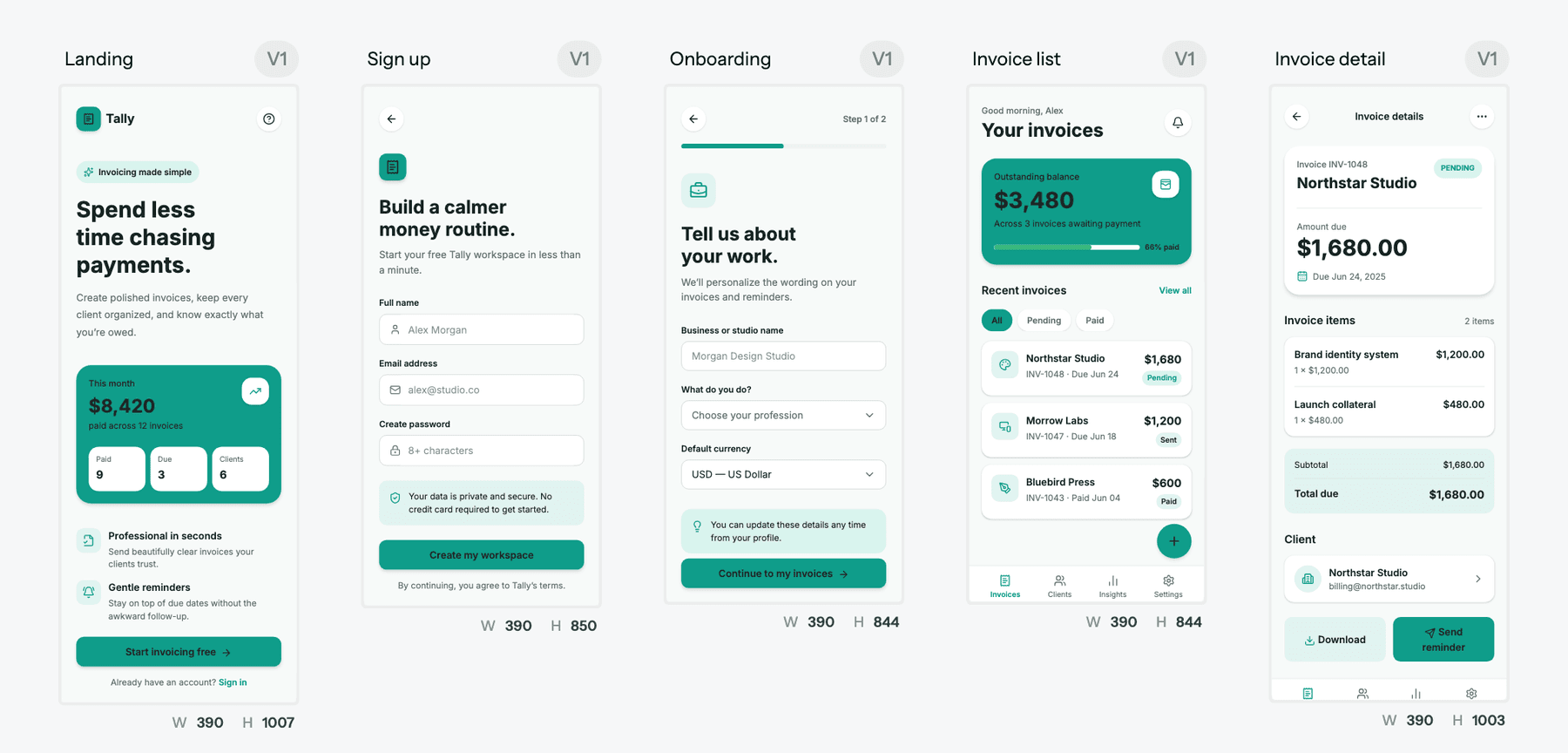
Where UXMagic differs in practice:
- A theme, not a prompt, holds the brand. Colours, fonts, radii and spacing live on the project as tokens. Change the brand colour once and every screen updates, for 0 credits. The themes and style guides article shows how, and the AI style guide generator drafts one.
- Structure before polish. Rough out a journey with the AI wireframe generator or in wireframe mode, then move to hi-fi. Our comparison of low vs high fidelity explains when to switch.
- HTML and React. Export code as HTML or React with Tailwind and theme tokens, push to a repo with GitHub sync, or send screens to Figma as auto-layout frames with export to Figma.
- Your agent comes to the design. Instead of agents joining a canvas, the UXMagic MCP server lets Claude, Cursor, VS Code, Windsurf, Codex or Antigravity read your screens and theme, and create or edit screens. Claude users can also use the Claude connector.
- Publish without a separate tool. Put a landing page or site live on a UXMagic URL or your own domain; see publish your first site.
- Fixed credit prices. Free refreshes 20 credits a day. Pro is $35 a month, or $17.50 billed annually, for 2,400 credits and 250 Figma exports a month. Details are on the pricing page and in plans and limits.
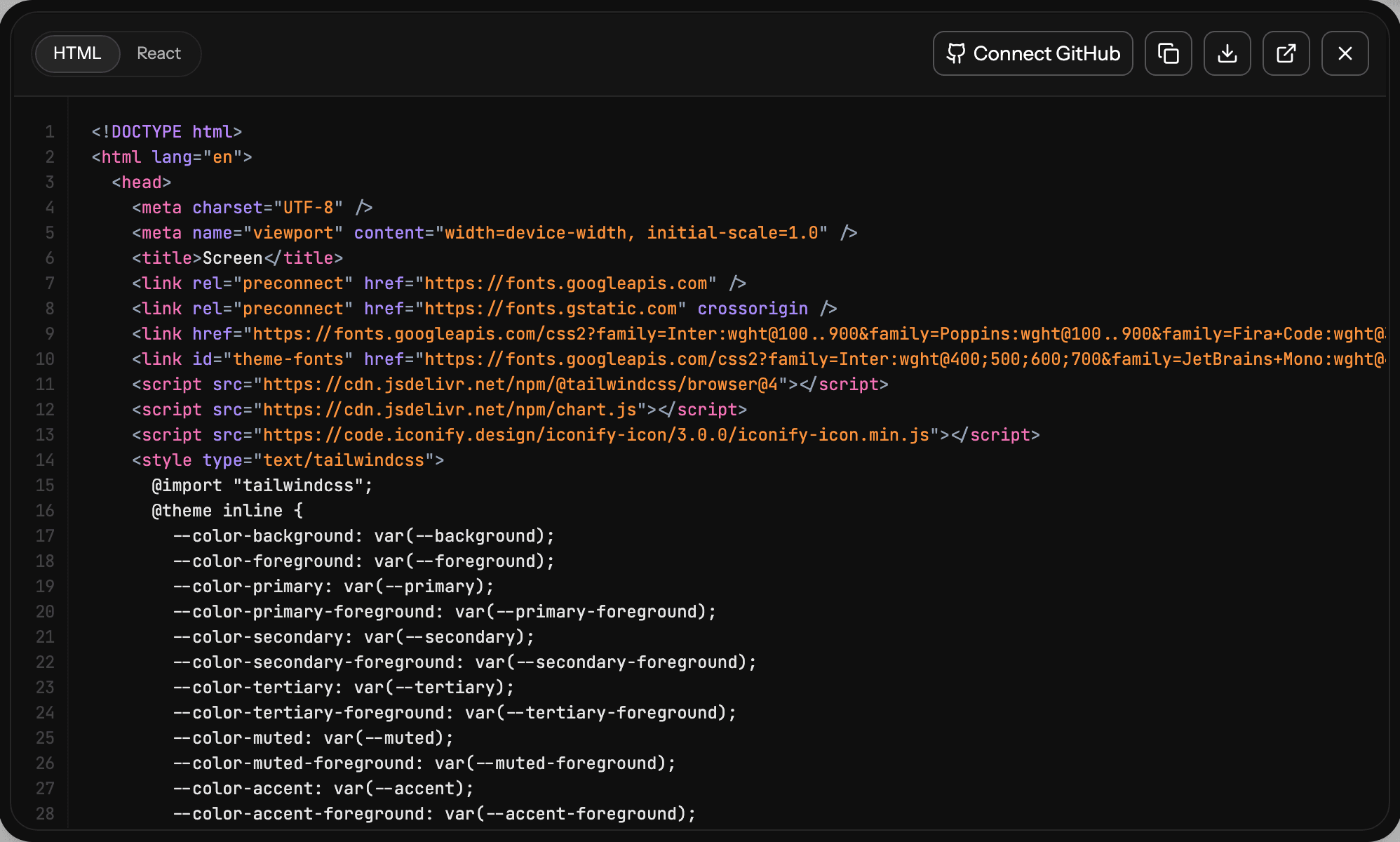
Where MagicPath is ahead: live multiplayer with agents visible on the canvas, cross-design multi-select editing, web search inside designs, and a plugin that lets your agent drive the canvas from anywhere. UXMagic collaboration runs through shared projects, previews and comments rather than live co-editing. Neither tool builds your database or auth. For the full side-by-side, see UXMagic vs MagicPath.
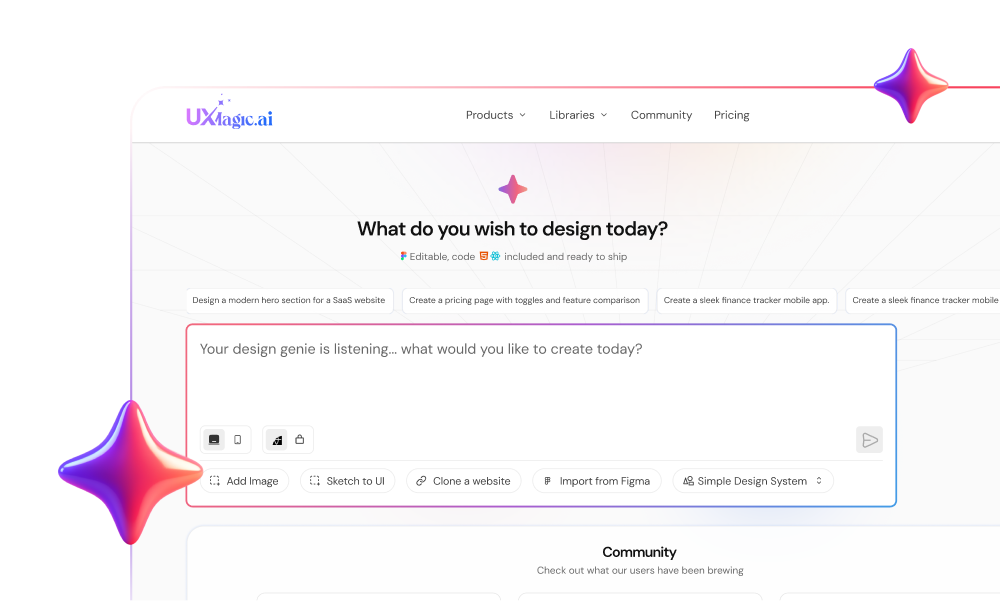
Plan the screens, then design them all at once
Approve a screen plan and get a whole flow on one theme, ready for Figma, React or your coding agent.
MagicPath alternatives worth a look
If MagicPath's shape doesn't fit, these are the tools we would compare. Each has a longer write-up.
- UXMagic for multi-screen flows on one theme with Figma, HTML, React and MCP handoff. Start with how to design UI with AI.
- Magic Patterns for prototyping features on an existing design system. Read our Magic Patterns alternatives or UXMagic vs Magic Patterns.
- Google Stitch for free visual exploration. See Google Stitch alternatives.
- Claude Design if you already pay for Claude and want prototypes and slides in one place. Read Claude Design vs UXMagic and our Claude Design alternatives.
- Figma Make and the Figma agent if your library lives in Figma. Read our Figma agent review and Figma Make tutorial.
- Variant for exploring many visual directions quickly. Read our Variant AI review.
- v0 for React on Vercel. Read our v0 review.
Our MagicPath alternatives guide, linked at the top of this review, ranks nine of these by use case with a pricing comparison.
How to evaluate MagicPath on the free plan
Twenty credits a day is enough to run a fair trial if you pick the right task. We suggest:
- Generate a real flow, not a hero section. Ask for four or five connected screens from your actual product. Consistency problems only show up across a flow.
- Watch the credit meter. Note what one generation and one AI edit cost in Settings, then multiply by a normal week to see which Pro pack you would need.
- Change the brand colour afterwards. See whether it updates everywhere through the design system or needs screen-by-screen fixes.
- Export both ways. Send one design to Figma and download the React. Check the layers and whether the code is readable. Our design handoff guide has a checklist.
- Connect your coding agent. If external agents are the reason you're here, test the plugin with Claude Code or Cursor on a real repo.
Run the same task in UXMagic to compare. The writing a good prompt guide and our prompts for product flows will get you a fair first result.
Our verdict on MagicPath 2.0
MagicPath 2.0 is one of the more thoughtful AI design tools of 2026. Project-level chat with parallel agents, canvas-as-context, cross-design editing and a genuine two-way bridge to coding agents make it a strong choice for React teams who design and build in the same loop. Putting every core feature on the free plan is generous.
Its weaknesses are about fit and budgeting rather than quality. Credits scale with complexity and aren't priced per action, so the monthly cost is hard to forecast. Output is React only. And it starts from components and context rather than a planned journey, which suits exploration more than a PM who needs a reviewed, consistent flow.
Our recommendation: try MagicPath on the free plan if agent workflows and React output are what you need. If your job is to design a whole product journey that looks like one product and hand it to Figma, a repo or an agent at a predictable cost, start with UXMagic. For a wider view of the market, see the state of AI in UI/UX design and our guide to the best AI model for UI design.
Related reading
- Best AI prototyping tools in 2026
- Magic Patterns review
- UXMagic vs Banani compared
- Miro AI prototyping review
- Figma Dev Mode alternatives
- Best React UI component libraries
- Vibe coding tools compared
- Figma pricing explained
Design the whole journey, not one component
Start free with 20 credits a day. Generate a consistent multi-screen flow and export it to Figma, React or your AI coding agent.